
USD balance and top-up
Everything in WPManager is paid from one USD balance. Top it up with USDT on the TRON network (TRC20), credited automatically in about a minute, or — when the top-up window offers it — with 300+ other coins through NOWPayments.
On this page
Where to find it: the “+” next to the balance in the top bar · Profile → the “Balance” card, or “Payments” → “Top up” · any “Top up balance” button in the panel.
Before you start
- A wallet or an exchange account that can send USDT on the TRON network (TRC20) — or another coin, when NOWPayments is offered.
Top up with USDT (TRC20)
-
Open the top-up
Click “+” next to the balance in the top bar. The “Top Up USD Balance” dialog opens with the line “USDT (TRC20) · 1 USDT = $1 · min $10 · credited automatically”. The minimum top-up is $10.
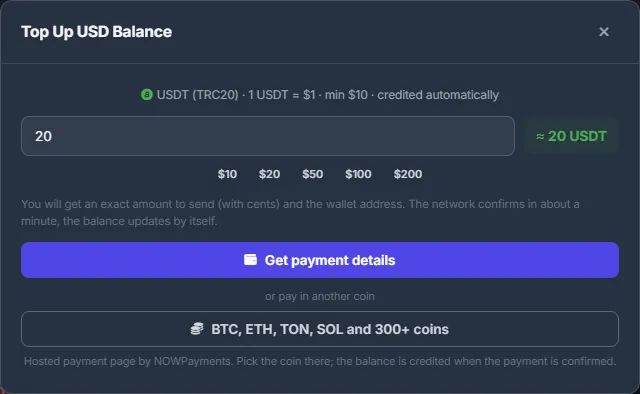
Fig. 1 The top-up dialog: the amount, quick amounts and the two ways to pay. -
Choose the amount
Type an amount in whole dollars, or click $10, $20, $50, $100 or $200. Next to the field you see the same amount in USDT. Click “Get payment details”.
-
Send exactly the amount shown
The status reads “WAITING FOR YOUR TRANSFER”. Send exactly the amount in large green figures to the TRC20 address. The cents matter: they identify your payment. Click the amount or the address to copy it, or scan the QR code. From an exchange, make an on-chain TRC20 withdrawal, not an internal transfer between exchange accounts.
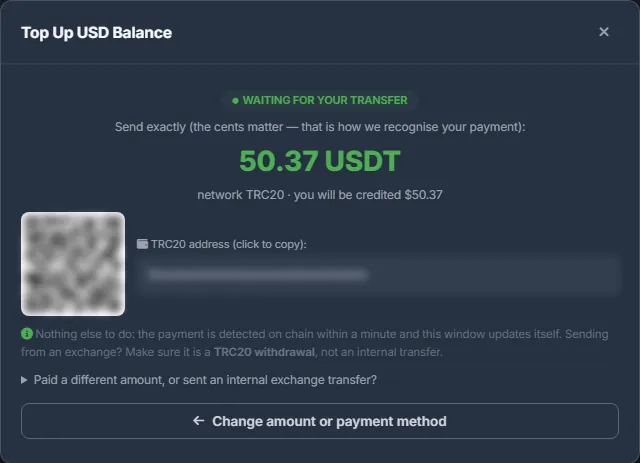
Fig. 2 Send exactly this amount to this TRC20 address. (The address and the QR code are blurred here.) -
Wait about a minute
The panel finds the transfer on the chain, usually within a minute. The dialog refreshes itself every 10 seconds, shows “CHECKING THE CHAIN” while the transfer is confirmed, and ends with “+$X credited · Payment found on chain. Thank you!”. The balance in the top bar updates, and Telegram sends “Balance topped up”. You can close the dialog at any time — crediting does not depend on it.
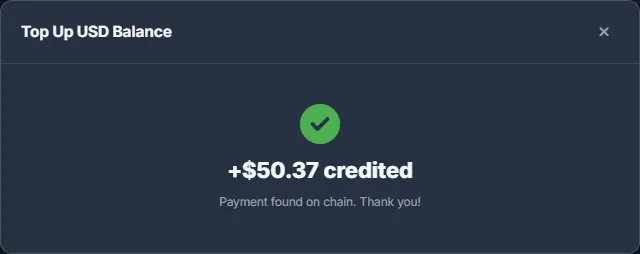
Fig. 3 The payment is found and credited.
Sent a different amount?
Open “Paid a different amount, or sent an internal exchange transfer?”, paste the transaction hash or the exchange transfer ID and click “Submit”. A transfer of exactly the requested amount is credited immediately; any other amount, or an internal exchange transfer, is checked by support.
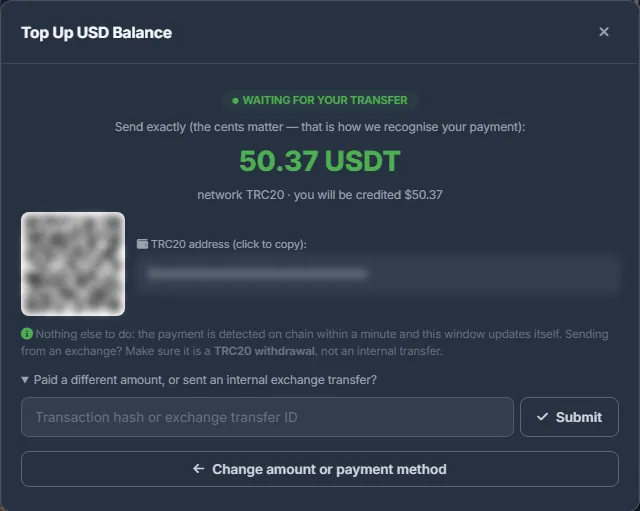
Change your mind
“Change amount or payment method” cancels the open request and takes you back to the form.
Pay with another coin (NOWPayments)
When the dialog shows “or pay in another coin”, you can pay with BTC, ETH, TON, SOL and 300+ other coins.
-
Choose the amount and the button
Enter the amount in dollars and click “BTC, ETH, TON, SOL and 300+ coins”. The NOWPayments payment page opens in a new tab.
-
Pay on the NOWPayments page
Choose the coin and send exactly what that page shows. If the tab did not open, use “Open payment page” in the dialog.
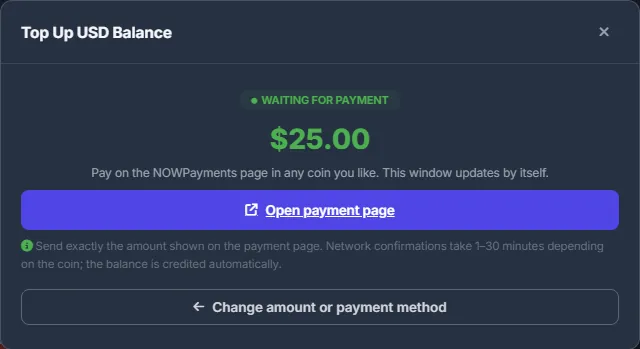
Fig. 5 Paying with another coin through NOWPayments. -
Wait for the confirmation
The dialog reads “WAITING FOR PAYMENT”, then “PAYMENT DETECTED — CONFIRMING”. Depending on the coin this takes 1–30 minutes; then the invoice amount in USD is credited to your balance.
Rules and limits
| Rule | Value |
|---|---|
| Minimum | $10, shown in the dialog |
| Maximum | $10,000 per request |
| Amount | You enter whole dollars; the panel adds unique cents so that your transfer can be recognised |
| Open requests | One at a time; up to 5 new requests per hour |
| Request lifetime | 24 hours |
| Rate | 1 USDT = $1. With NOWPayments the USD amount of the invoice is credited; a partial payment is reviewed by support |
Where to see your payments
Profile → “Payments” lists every request with its date, method, amount, status and reference. A TRON transaction opens on tronscan. A pending request has “Open” (back to the dialog) and × (cancel). See Profile.
| Status | Meaning |
|---|---|
| Waiting for payment | The request is open; the panel is waiting for your transfer. |
| Confirming | The transfer is found and the network is confirming it. |
| Credited | The money is on your balance. |
| Cancelled | You cancelled the request. |
| Expired | No payment arrived within 24 hours. |
| Rejected | Support declined a payment under review. |
Can the balance go below zero?
Slightly, yes. Usage charged after the fact — an AI answer already generated, the daily traffic and torrent charges — is charged in full even if the balance is short, but the balance never goes below −$5. At that limit the paid tools stop and torrents are paused until you top up. The next top-up covers the negative amount first. The balance in the top bar is highlighted when it drops under $1.
Costs
WPManager charges nothing for a top-up: the whole amount that arrives is credited. Network fees and exchange withdrawal fees are set by your wallet or exchange.
Troubleshooting
| What you see | What to do |
|---|---|
| “Crypto wallet not configured. Contact admin.” | Top-ups are temporarily unavailable. Write to the support chat. |
| “You already have a pending deposit. Complete or cancel it first.” | Open it from Profile → “Payments” → “Open”, or cancel it with × if you have not sent any money. |
| “Too many deposit requests in the last hour. Please try again later.” | Wait an hour, or use the request that is already open. |
| “This transaction is already attached to another deposit…” | One transfer pays one request. If the transfer is yours, write to support. |
| “Payment provider is not answering…” | NOWPayments is unavailable right now. Try later, or pay with USDT TRC20. |
| The money left the wallet, but nothing is credited after an hour | Check that the network was TRC20 and the amount exact. Submit the transaction hash in the dialog (Profile → “Payments” → “Open”), then write to support with the hash. |
FAQ
Can I withdraw the balance?
The panel has no withdrawal. The balance is spent on plans and services inside WPManager.
Do I need to keep the dialog open?
No. The transfer is credited in the background; you will see it in the balance, on the Profile and in Telegram.
Can I pay by card?
Not directly. The balance is topped up with USDT or, when offered, with other coins through NOWPayments.