
Security tab: score, malware scan and findings
Every site gets a security score that names the exact reasons it is not 100, a malware scan that looks for evidence — changed core files, code in uploads, known web shells — and a clear list of findings you can quarantine, delete or mark as safe. Bad bots, exceptions and the scan history live on the same tab.
On this page
Where to find it: Dashboard → click the site → Security tab.
Before you start
- The site is connected with the WPManager plugin (“Connected” on the site’s Settings → Connection tab — see Installing and connecting the WPManager plugin). The scan runs inside this plugin.
The overview
On the site page click “Security”. A direct link also works: /Home/Site/<site id>?tab=Security; add &sub=findings, firewall, bots, exceptions or history to open a sub-tab straight away. The header holds “Reputation”, a refresh button and “Run scan”.
Four tiles sum up the site; a click on a tile opens the matching sub-tab:
- Active findings — “Need review”, or “Nothing pending” when the list is empty;
- Protection — Cloudflare (blocking at the edge), WordPress (blocking inside WordPress) or None;
- Blocked addresses;
- Last scan — how long ago, and the number of scans.
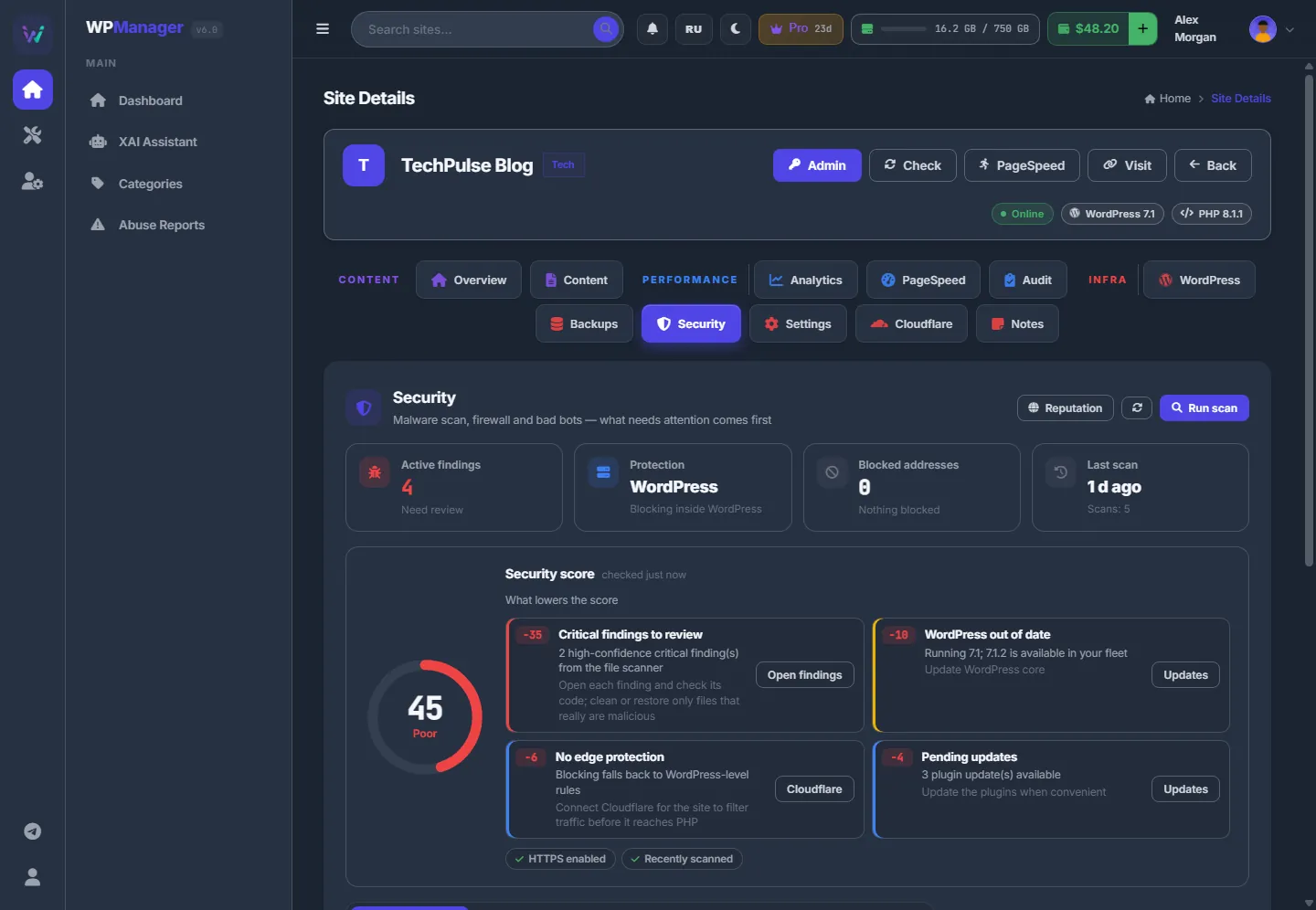
The security score
The ring shows 0–100 and a grade: Excellent (90+), Good (75+), Fair (55+), Poor (35+) or Critical (below 35). Next to it, “What lowers the score” lists up to five problems, each with the points it costs, what to do, and a button that takes you there: “Open findings”, “Run scan”, “Cloudflare” or “Updates”. The green chips below are what is already fine, for example “HTTPS enabled” or “Recently scanned”.
What the score counts
The score starts at 100 and loses points for:
| Problem | Points |
|---|---|
| Critical findings with high confidence (“Critical findings to review”) | 25 + 5 per finding, at most 50 |
| Otherwise, high-severity findings (“Suspicious files”) | 4 each, at most 20 |
| Known vulnerabilities of installed plugins and themes (Wordfence feed) | CVSS 9+: 15 + 5 each, at most 30; CVSS 7–9: 6 each, at most 18; lower: 2 each, at most 8 |
| Pending plugin updates | 4 for 1–5 plugins, 10 for more than 5 |
| No HTTPS | 15 |
| No Cloudflare | 6 when the plugin firewall is there (“No edge protection”), 10 with no protection layer at all |
| Scan age | Never scanned: 12; older than 30 days: 8; older than 7 days: 3 |
| WordPress older than the newest version the panel has seen | 10 |
Run a scan
Press “Run scan”. A progress strip shows “Scanning the site…”, the file being checked, the files counted and the findings so far; a big site takes a few minutes. At the end you see “Scan complete: N findings, M files checked”, and — if earlier findings have gone — “N earlier finding(s) not found any more”.
What the scanner looks for
The scan runs inside the WPManager plugin and looks for evidence, not just for “dangerous functions”:
- WordPress core files compared with the official checksums from WordPress.org: a changed core file, or an unknown PHP file in
wp-adminorwp-includes; - plugins from WordPress.org compared with their official checksums (premium plugins have none and skip this check);
- executable files and a suspicious
.htaccessin uploads, and PHP code hidden there in files of other types; - signatures of known web shells, and code that executes data from the request;
- heavily obfuscated code — reported only on strong signals;
- configuration hygiene: the file editor switched on, a public debug log,
wp-config.phppermissions, open admin registration, a user called “admin”. These come as warnings, not threats.
Automatic nightly scan
Every night after 03:00 UTC the panel scans every active site that has the plugin key saved. The results appear in “Scan history” and “Findings” just like those of a manual scan.
Review the findings
-
Open the list
“Findings” shows the active ones by default; the status list switches to any other status or to “All statuses”. Search with “Search by file or finding”, and filter with the type chips (Backdoor, Malware, Modified core file, Suspicious code…) and the severity chips (Critical, High, Medium, Low). Each row shows the severity, the type, the finding’s title, the file path with the line number, and when it was found.
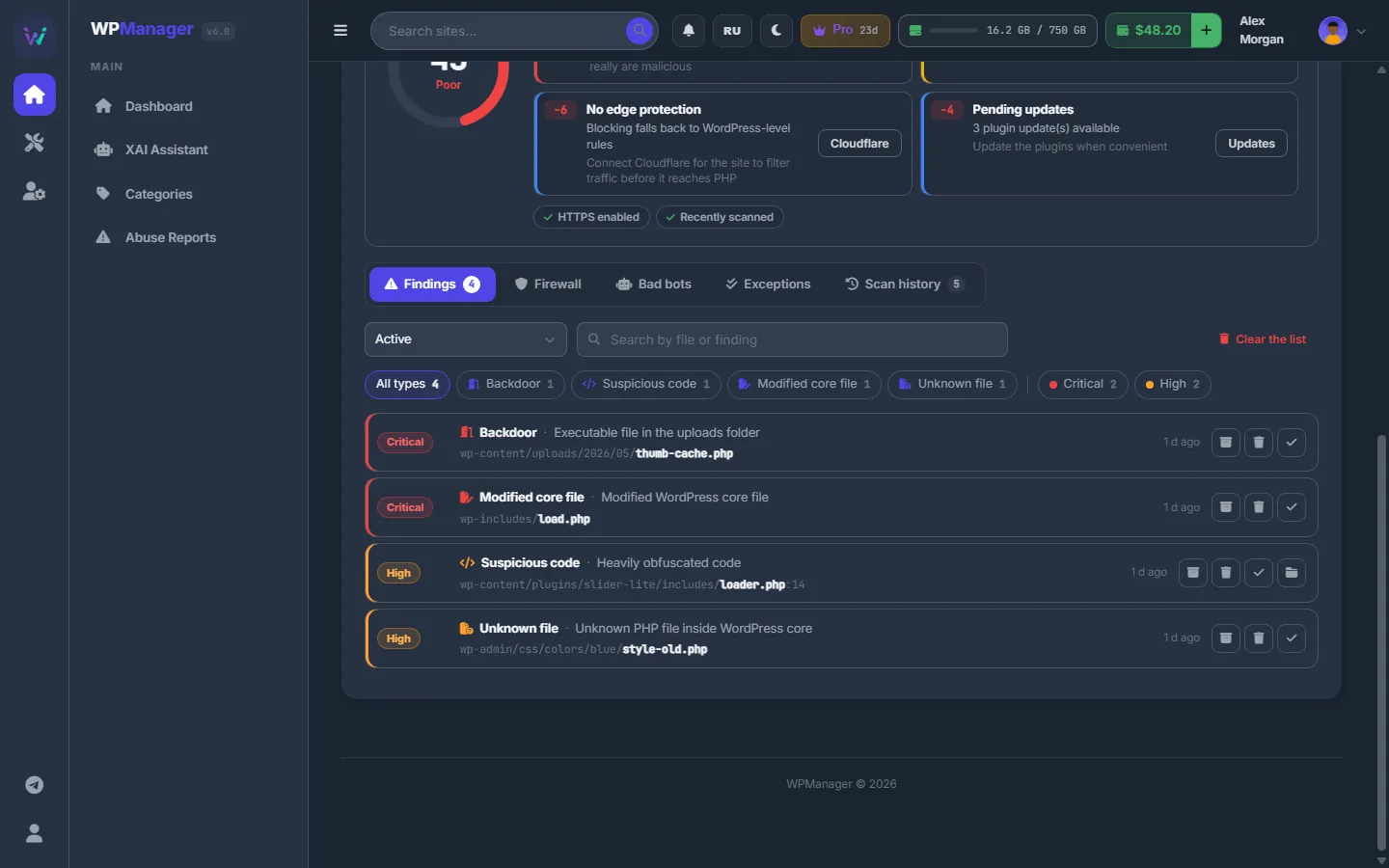
Fig. 2 Findings with type and severity filters and quick actions. -
Open a finding
Click a row. The window shows the file, the finding, the details, when and by what it was detected, and the suspicious code itself.
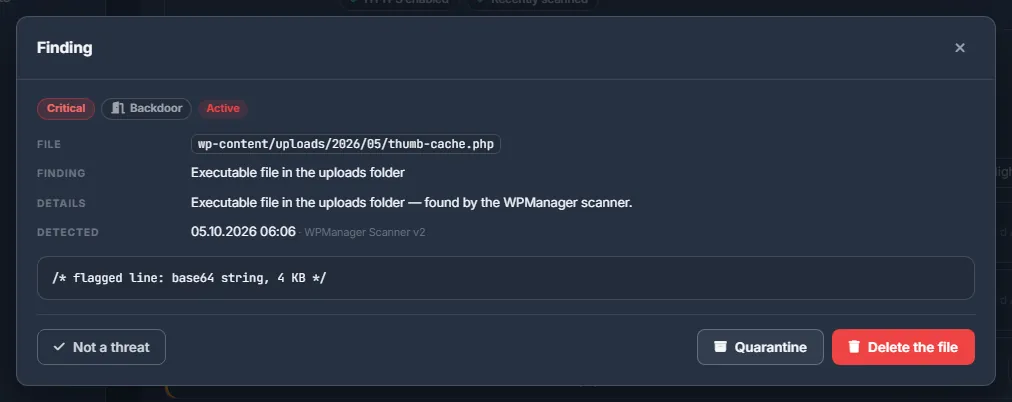
Fig. 3 One finding with its evidence and the actions. -
Decide what to do
- Quarantine — the file is moved to
wp-content/wpmanager-quarantineon the site and stops working; - Delete the file — the file is gone for good;
- Not a threat — marks a false positive and adds an exception for this file and finding;
- Trust the whole folder — for files of a plugin or theme: all findings in that folder close, and later scans skip it.
- Quarantine — the file is moved to
What the statuses mean
| Status | Meaning |
|---|---|
| Active | Waits for your decision. |
| Not found any more | A later scan re-checked the file and found it gone, clean or without code. |
| Quarantined, Deleted | Your action. |
| False positive | You marked it “Not a threat” or trusted its folder. |
| Ignored, Restored | Older outcomes kept in the history. |
“Clear the list” forgets every finding of the site in the panel. Files on the site are not touched, and the next scan lists again whatever it still finds.
Exceptions
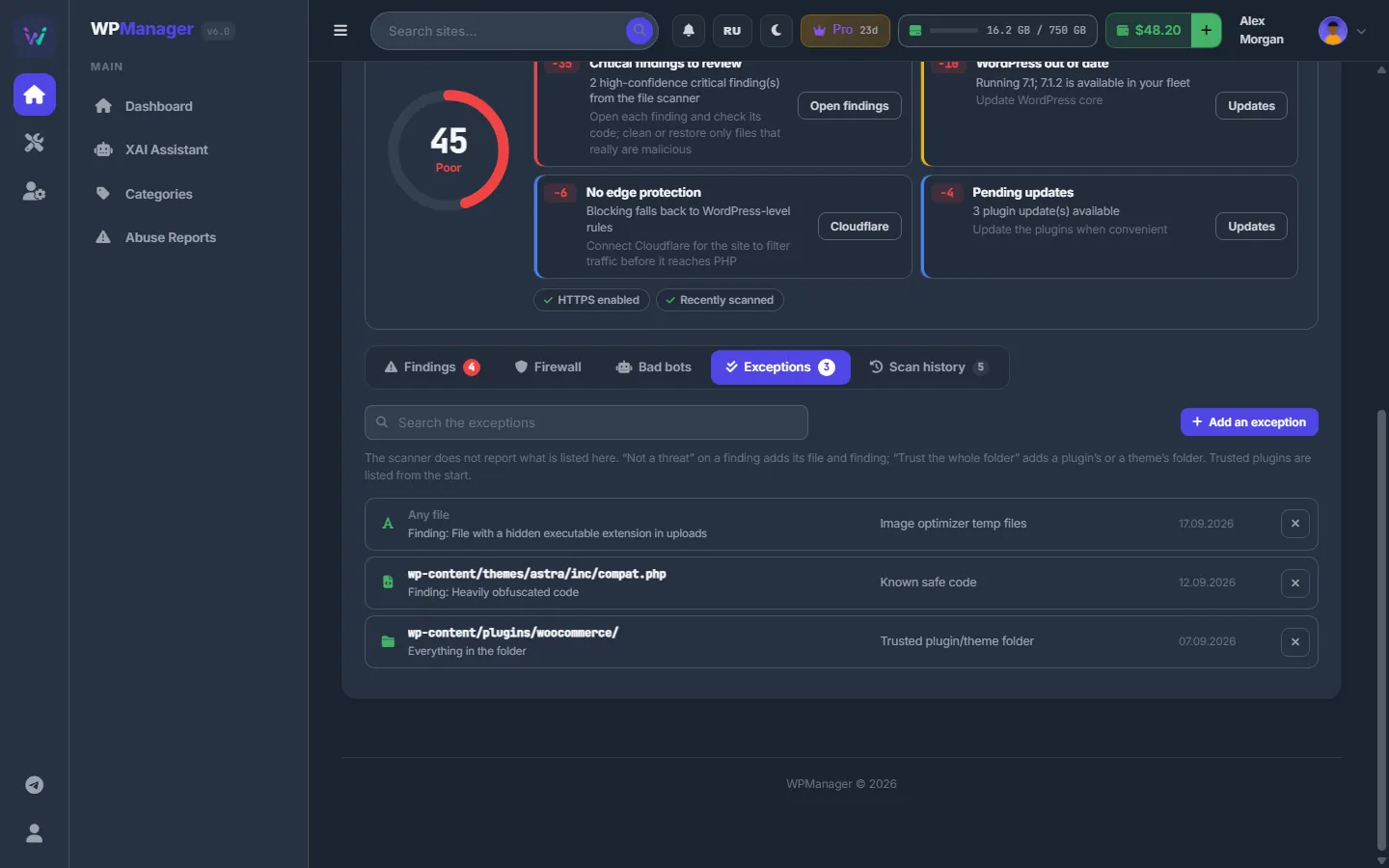
“Exceptions” lists what the scanner no longer reports. Press “Add an exception” and fill in:
- File or folder — a folder path ends with
/; - Finding (optional) — text of the finding’s title; when a path is given too, both must match;
- Reason — for your own notes.
Remove an exception to have it reported again from the next scan on.
Scan history
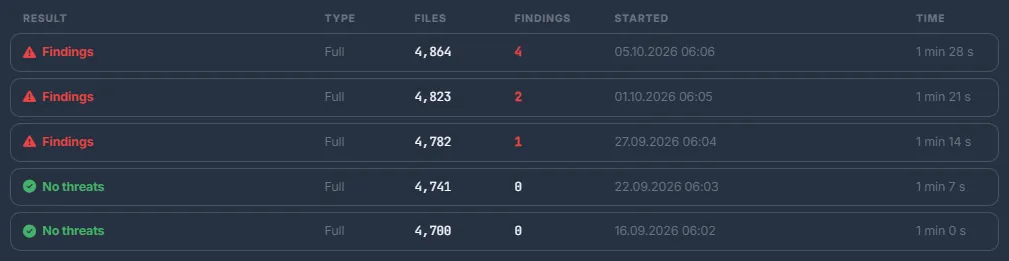
“Scan history” lists every scan, manual and nightly: Result, Type, Files, Findings, Started and Time.
Bad bots
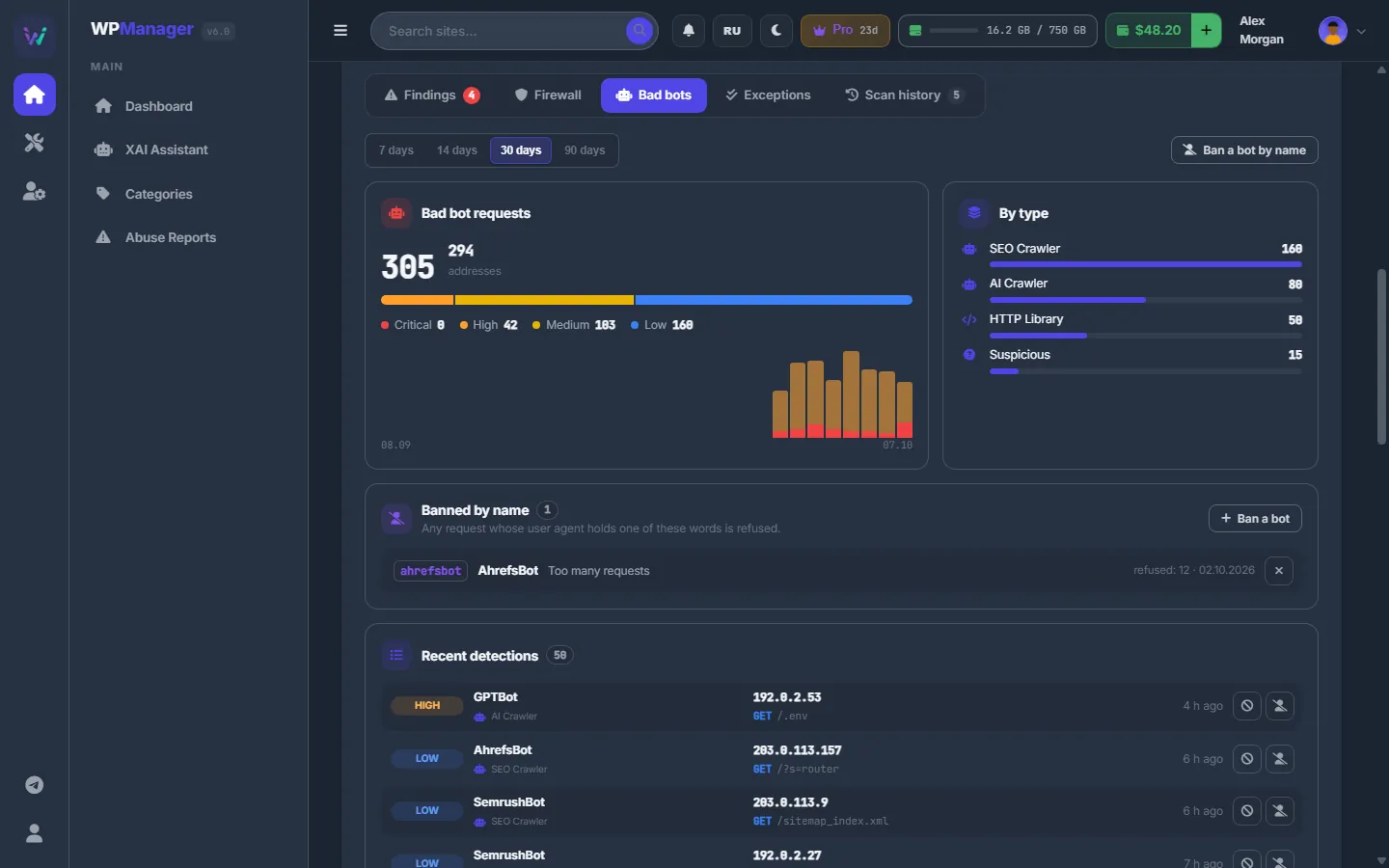
“Bad bots” shows what the plugin caught over 7, 14, 30 or 90 days:
- Bad bot requests — requests and addresses, split by threat level, with a bar per day;
- By type — SEO and AI crawlers, HTTP libraries, scanners, probes, spam bots, empty user agents and so on;
- Recent detections and Most active addresses — each row can block the address or ban the bot by name.
“Ban a bot by name” asks for the “Word in the user agent”, a “Name” and a “Reason”: any request whose user agent contains the word is refused. The bans are listed under “Banned by name”.
Reputation
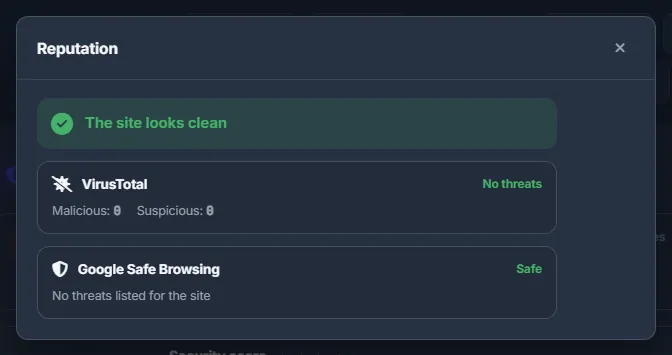
“Reputation” checks the site with VirusTotal and Google Safe Browsing and shows “The site looks clean” or “Something was reported”, with the numbers from each service.
Alerts
Findings are not sent to Telegram or by email: check the Security tab and the score. Telegram alerts cover downtime, SSL and domain expiry, and update results.
Settings
| Setting | What it does |
|---|---|
| Status filter (Findings) | Active by default; any other status or “All statuses”. |
| Period (Bad bots) | 7, 14, 30 or 90 days. |
Costs
Free: manual and nightly scans and the reputation check do not use your balance.
Troubleshooting
| What you see | What to do |
|---|---|
| “A security scan of this site is already running - wait for it to finish” | A manual or nightly scan is in progress; the strip shows it. Wait until it ends. |
| “The plugin's answer has no threats list - nothing was stored (a plugin error, or an answer served by a cache or proxy)” | A cache plugin or proxy answered instead of WordPress. Exclude /wp-json/ from page caching and scan again. |
| “Interrupted: the panel restarted while the scan was running” | Run the scan again. |
| “Could not read the bad bots — the site needs the WPManager plugin 5.0 or newer” | Update the WPManager plugin on the site. |
FAQ
Does “Clear the list” clean the site?
No. It only forgets the findings in the panel. The files stay as they are, and the next scan reports again whatever it still finds.
Can I undo a quarantine from the panel?
There is no button for it. The file is kept on the site in wp-content/wpmanager-quarantine; move it back with your hosting file manager or FTP.
Why is a premium plugin never checked against checksums?
WordPress.org publishes checksums only for the plugins it hosts. Premium plugins still go through the other checks: signatures, obfuscation and uploads.