
Store: themes, engines and plugins
Buy a WordPress theme, a site engine or a plugin from your USD balance. There is nothing to download: the WPManager team installs and sets up the product on your site and reports back in the support chat.
On this page
Where to find it: Account → Store.
Before you start
- Enough money on your USD balance for the product. You can top up right on the Store page (“Top up” next to “Your balance”) or with the “+” next to the balance in the top bar — see USD balance and top-up.
- The domain of the site the product should go on, and anything the team needs to know: access, wishes, deadlines. Access details can also follow later in the support chat.
- Optional: Telegram alerts connected, if you want order updates in Telegram as well.
What the Store sells
The Store has three tabs, one for each kind of product:
- Themes — WordPress themes;
- Engines — complete site engines;
- Plugins — WordPress plugins.
Every product is installed by hand by the WPManager team on the site you name, so you never get a file to download. The catalogue, the descriptions and the prices are managed by the WPManager team.
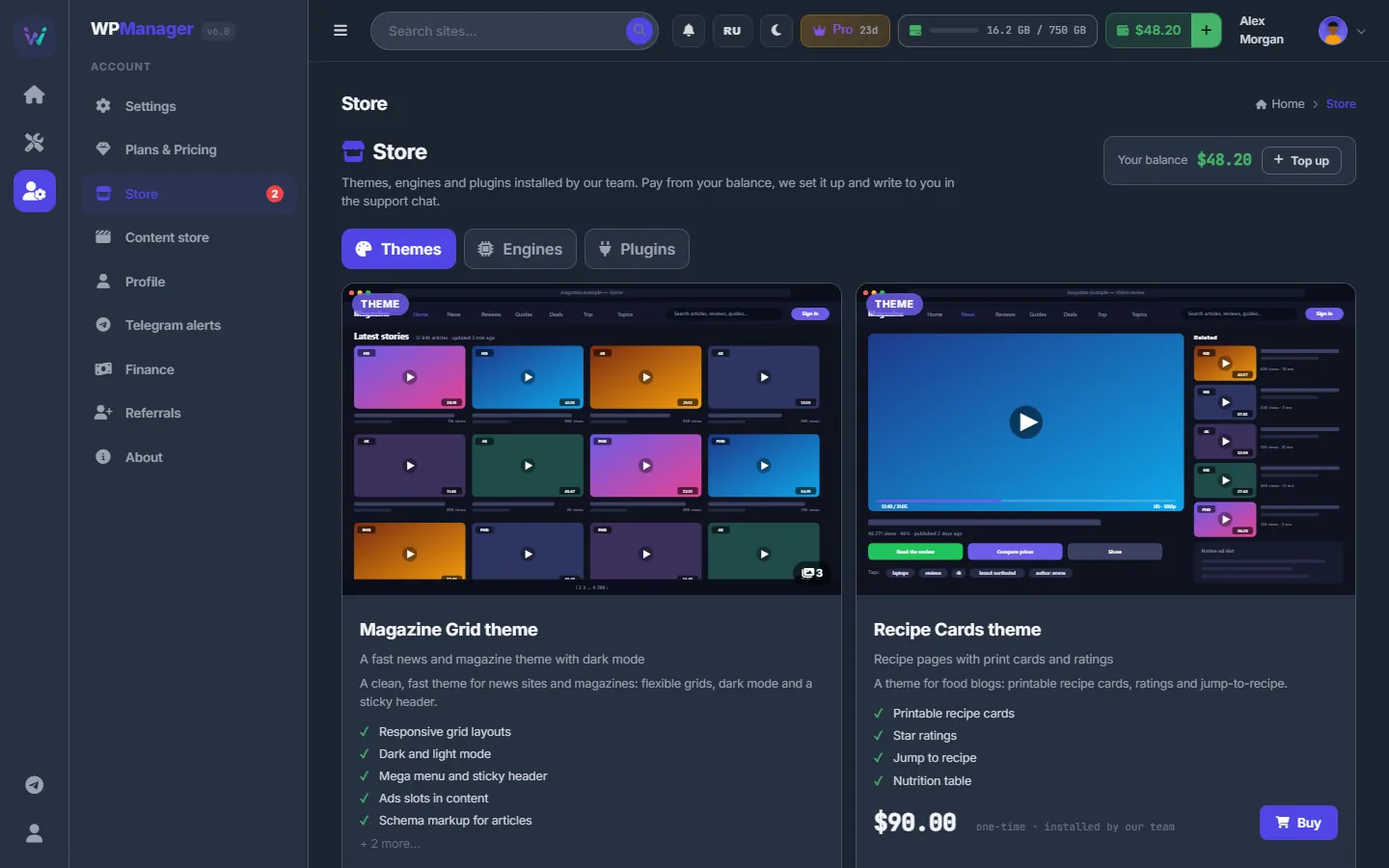
Buy a product
-
Open the Store
In the sidebar open Account → Store. At the top you see “Your balance” with a “Top up” button, below it the tabs “Themes”, “Engines” and “Plugins” and the product cards of the selected tab.
-
Pick a tab and read the cards
Each card has a cover screenshot with the category label and the number of screenshots, the product name, a one-line tagline, a description and a feature list. The first five features are shown; “+ N more…” opens the rest. Under them is the price, marked “one-time · installed by our team”. If a tab says “Nothing in this section yet — ask the team in the support chat.”, nothing is on sale in that category right now.
-
Look at the screenshots and the demo
Click the cover to open the screenshot viewer. The ‹ and › arrows switch pictures, the thumbnails below jump to any of them, and the “Buy · $price” button sits under the gallery. The “Details” button, when a product has one, opens its demo or description page in a new tab.
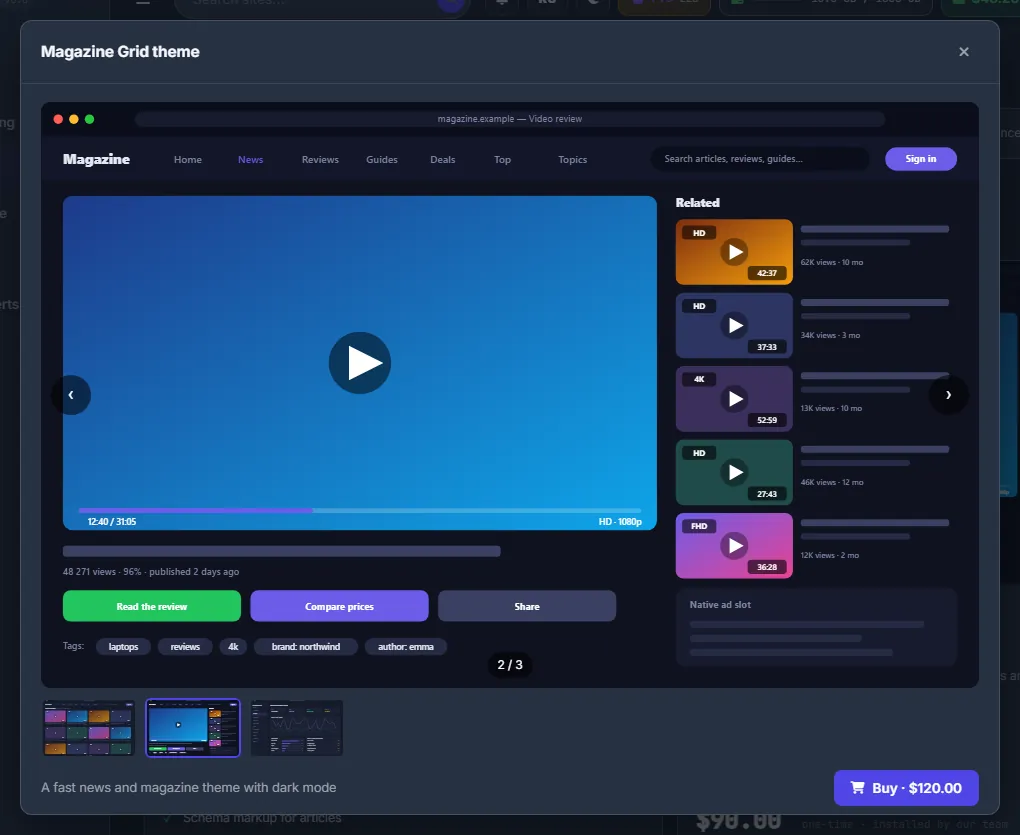
Fig. 2 The screenshot viewer. You can buy straight from here. -
Click “Buy” and fill in the order
Click “Buy” on the card. The “Buy: <product>” window shows the product and its price. Fill in “Site or domain to install on” (for example
techpulse.blog) and “Notes for the team”. Products that offer a migration also have the checkbox “Migrate my existing site with its content” — see Migrating an existing site.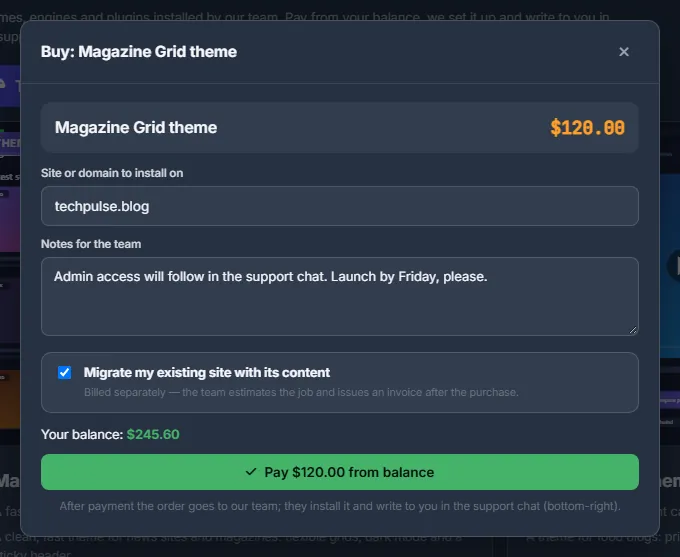
Fig. 3 The site, notes for the team and the optional migration. “Your balance” is green when it covers the price. -
Pay from the balance
Click “Pay $X from balance”. If the balance is short, the window shows how much is missing — “Top up $N more, then come back.” — and a “Top up balance” button instead of the pay button. Top up, then open the product again.
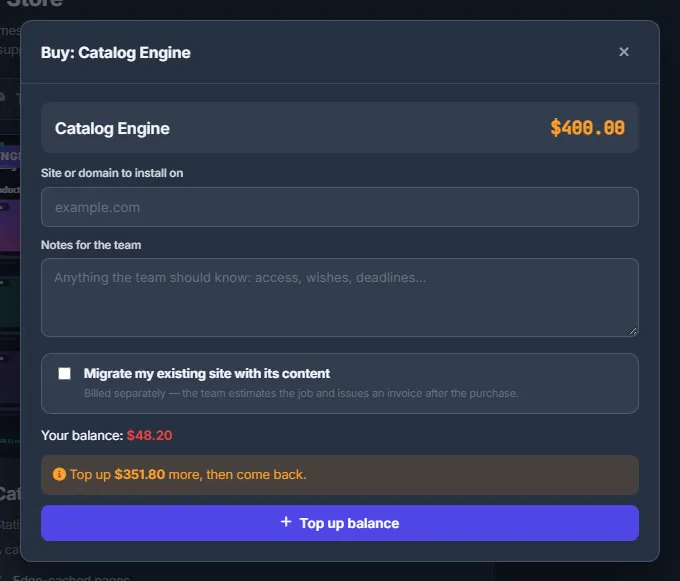
Fig. 4 With a short balance the window offers a top-up instead of the payment. -
Wait for the team
A notice confirms that the team will install the product and contact you in the support chat. The order appears under “My orders” with the status “Paid — waiting for install”, and a message with every detail of the order — product, price, site, migration, your notes — is added to your support chat by itself. With Telegram alerts on you also get an “Order received” message. The status changes to “Installing” when the team starts and to “Installed” when the work is done. Follow it in Store orders and invoices.
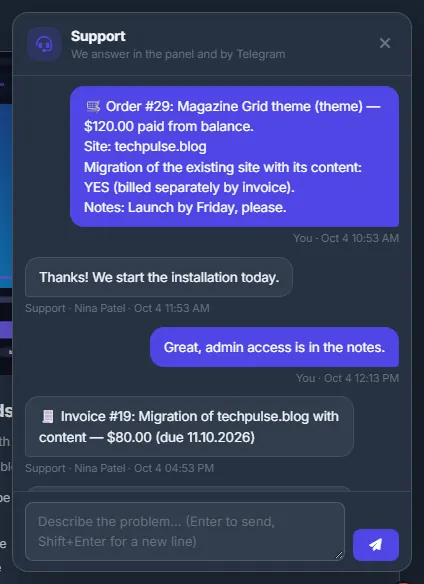
Fig. 5 The order lands in your support chat, and the team answers in the same conversation.
The order form
| Field | What to enter |
|---|---|
| Site or domain to install on | Where the team should install the product. Up to 300 characters. The field is optional, but filling it in saves a round of questions. |
| Notes for the team | Anything the team should know: access, wishes, deadlines. Up to 2,000 characters. The text goes to your support chat together with the order. |
| Migrate my existing site with its content | Shown only on products that offer a migration. Asks the team to move your current site with its content. Billed separately by invoice. |
Migrating an existing site
If the product offers it, the Buy window has the checkbox “Migrate my existing site with its content”. Tick it when the team should move your current site with its posts to the new theme or engine.
The migration is not part of the product price. After the purchase the team looks at the job and issues a separate invoice, which you pay on the same Store page — see Pay an invoice. Such an order carries a “+ migration” tag in “My orders”.
How the payment works
The order and the payment are saved in one step. If your balance no longer covers the price at the moment you click Pay — for example, you spent money in another tab — nothing is charged and no order is created; the window shows how much is needed and how much is available.
In your balance history (Profile → “Transactions”) the charge reads “Store · <product> · order #N”.
Costs
Each product has a fixed one-time price, shown on its card; prices are set by the WPManager team. The price is charged from your USD balance when you click Pay. Migrating an existing site and other custom work are not included — they are billed separately with an invoice. If the team cancels an order, the full price goes back to your balance. See also What you pay for.
Troubleshooting
| What you see | What to do |
|---|---|
| “Insufficient balance: $X needed, $Y available” | Your balance changed after the page was opened. Top up (“Top up” next to “Your balance”) and click “Buy” again. |
| “Product not found” | The product was taken off sale while the page was open. Reload the page. If you still need the product, ask in the support chat. |
| A tab shows only an empty box | Nothing is on sale in that category yet. Ask the team in the support chat — they may offer it as custom work billed by invoice. |
FAQ
Do I get a file to download after buying?
No. Store products are installed on your site by the WPManager team. You follow the progress under “My orders” and in the support chat.
Can I cancel an order?
Only the team can cancel a Store order — write in the support chat. A cancelled order gets the status “Cancelled”, and its full price goes back to your balance (with a Telegram message if alerts are on).
How long does the installation take?
There is no fixed time in the panel: the team works through orders by hand and writes to you in the support chat. The status shows where your order is: “Paid — waiting for install” → “Installing” → “Installed”.