
Profile: billing dashboard and account settings
One page for your money and your account: the balance, spending and top-ups, the full transactions log, and your personal data, password, notifications and keyword-data login.
On this page
Where to find it: Account → Profile · the user icon at the bottom of the sidebar rail · the account menu → “My Profile”.
The top of the page
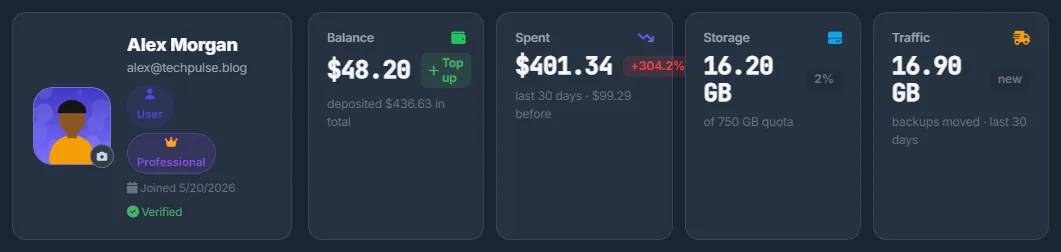
At the top you see your avatar, name, email, role, plan, the date you joined and “Verified” or “Unverified” for your email. Next to them are four cards:
- Balance — your USD balance and how much you have deposited in total. Click it, or its “Top up” button, to top up.
- Spent — spending in the chosen period, compared with the period before.
- Storage — how much of your storage quota is used.
- Traffic — backup traffic: the size of site backups moved in the period.
Change the avatar
Click the camera on the avatar and pick a JPG, PNG or WebP picture up to 5 MB. It appears immediately, here and in the top bar, with the notice “Avatar updated!”.
Billing dashboard
-
Pick the period
The selector in the “Cash flow” card — “Last 30 days”, “Last 90 days” or “Last 12 months” — changes the cards, the charts and the transactions list. The choice is kept while the browser tab is open.
-
Read the cash flow
“Cash flow” links where the money came from — “Deposits”, “Credits” added by support, plan bonuses (“Plan”), “Referral program” — to where it went: “AI tokens”, “Storage”, “Traffic”, “Torrents”, “Plan”, “Abuse”, “Other”. “From balance” means you spent more than came in during the period; “Balance kept” means the opposite. Hover a band to see its amount.
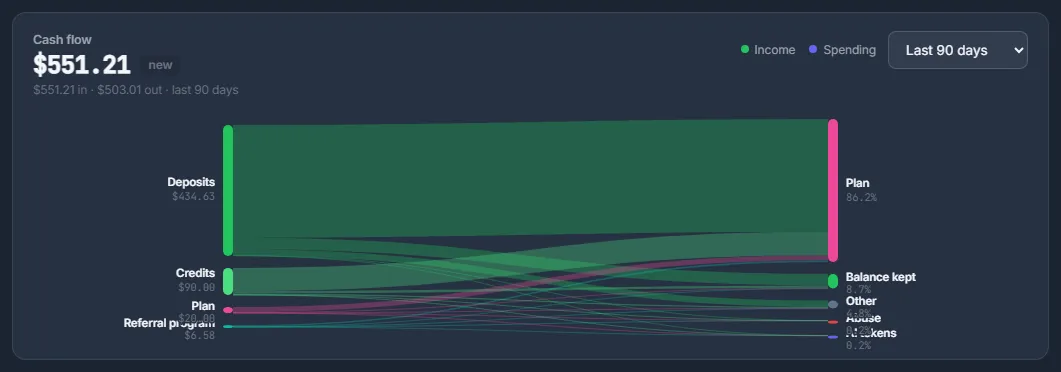
Fig. 2 Cash flow: where the money came from and where it went. -
Read the three cards below
“Spending by category” shows rings per category; hover a ring for its share. “Storage & traffic” lists your biggest folders, connected FTP storages as “Storage: <name>”, backup traffic and “Your rates” (see What you pay for). “Daily spending” is a 12-week heatmap: the darker the cell, the more you spent that day.
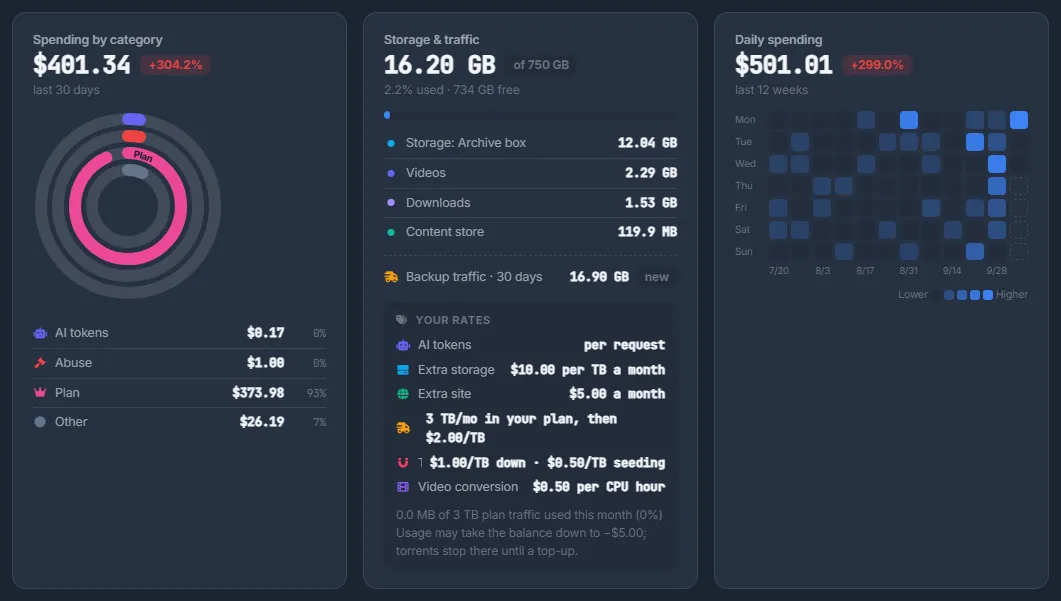
Fig. 3 Spending by category, storage and traffic, and spending by day. -
Check your payments
The “Payments” card shows how much you have deposited in total and in the last 30 days, the number of successful payments and the last one. Filter with “All”, “Credited” or “Pending”. Each row has “Date”, “Method”, “Amount”, “Status” and “Reference”; a TRON transaction opens on tronscan. A pending row has “Open” and × to cancel. “Top up” opens the top-up dialog — see USD balance and top-up.
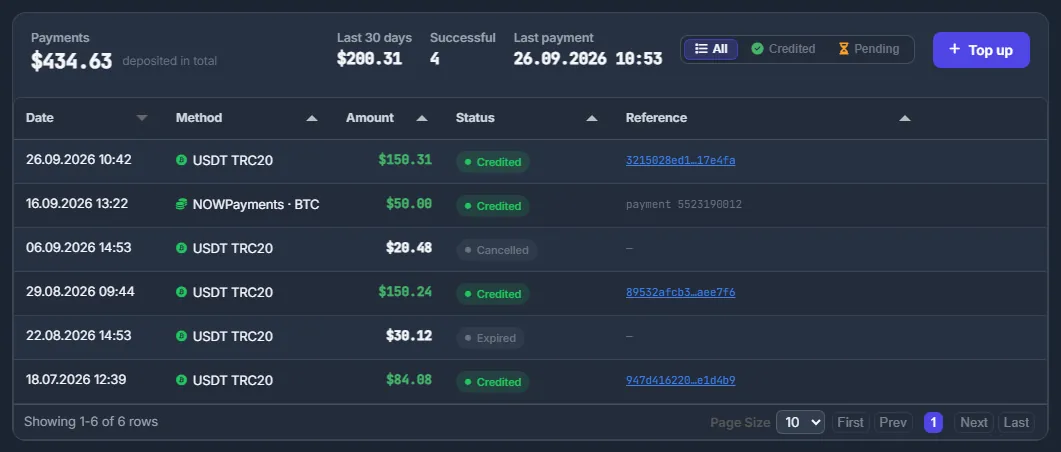
Fig. 4 Your top-ups and their status. -
Search the transactions
“Transactions” is the full ledger of the balance: “Date”, “Category”, “Description” (with the internal type in small print), “Amount” and the balance after the operation. Filter with “All”, “Spending”, “Top-ups”, “AI”, “Storage”, “Traffic” or “Torrents”, or type into “Search…”.
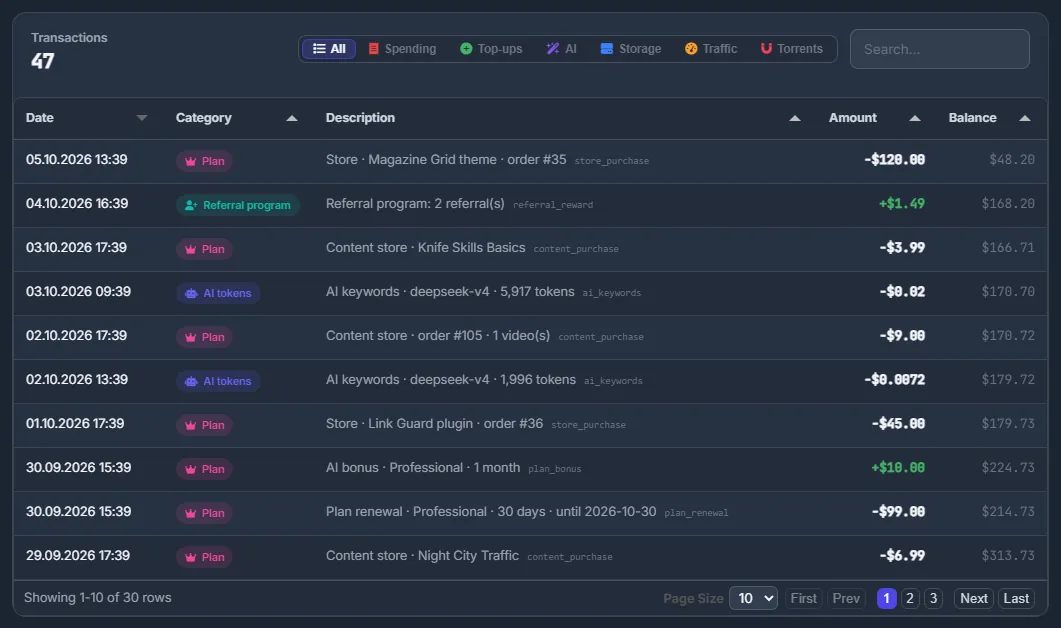
Fig. 5 The transactions log.
Account settings
My data
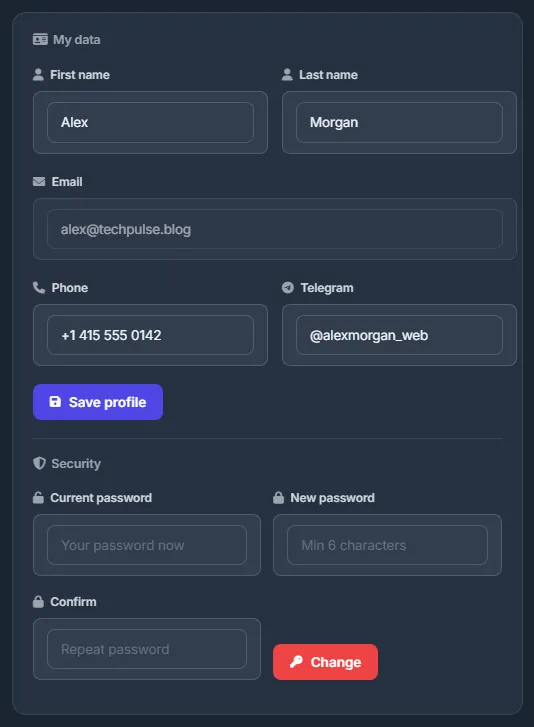
Change “First name”, “Last name”, “Phone” and “Telegram” (your @username, for contact) and click “Save profile”. The “Email” field is read-only.
Change the password
In “Security” enter “Current password”, “New password” (at least 6 characters) and “Confirm”, then click “Change”. Every other session of the account ends. The current password is always required; after 5 wrong attempts the change is blocked for 15 minutes. If you signed up with Google, first set a password with “Forgot password?” on the sign-in page — see Sign in, sign out and password recovery.
Notifications
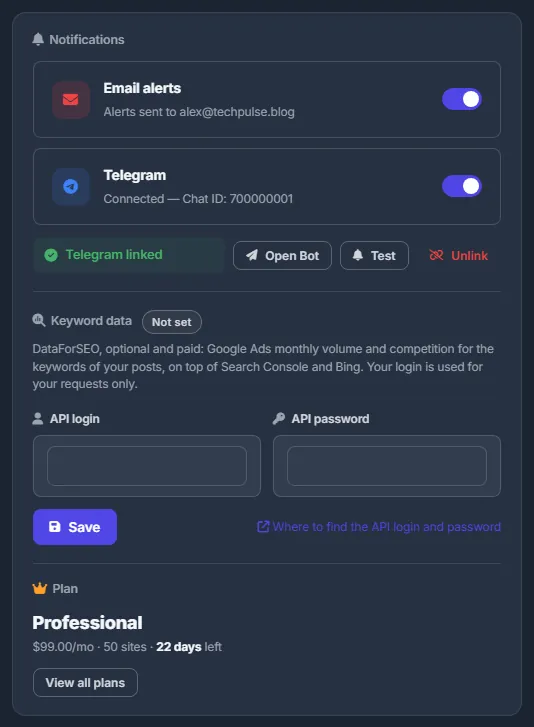
The “Notifications” card has the “Email alerts” and “Telegram” switches and the Telegram connection itself: “Connect Telegram”, or “Open Bot”, “Test” and “Unlink” once it is linked. It works the same as the Telegram alerts page.
Keyword data (optional)
If you have a DataForSEO account, enter its “API login” and “API password” and click “Save”. DataForSEO checks them first (“DataForSEO accepted the login — saved”); the password is stored encrypted and never shown again. Keyword suggestions then also show Google Ads volume and competition. “Remove” deletes the login. See Keyword data and scores.
Requests made with your DataForSEO login are billed by DataForSEO to your own account, not by WPManager, and your login is used only for your requests. Without it, keyword data comes from Search Console and Bing.
Plan box
Shows your plan, its monthly price, the number of sites and the days left. “View all plans” opens Plans & Pricing.
Settings on this page
| Setting | What it does |
|---|---|
| First name, Last name, Phone, Telegram | Your contact details. |
| Email alerts / Telegram | Saved notification preferences (see the note above). |
| API login, API password | Your DataForSEO credentials for keyword volume and competition. |
| Period | Last 30 days, 90 days or 12 months for the cards, charts and transactions. |
Costs
The Profile itself is free. The charges it lists are explained in What you pay for.
Troubleshooting
| What you see | What to do |
|---|---|
| “File too large. Max 5MB” / “Only JPG, PNG, WebP files allowed” | Pick a smaller picture in one of these formats. |
| “Enter your current password. Signed up with Google…” | Set a password with “Forgot password?” on the sign-in page first. |
| “Current password is incorrect” | Type the password you sign in with now. After 5 wrong attempts wait 15 minutes. |
| The storage card says “Nothing stored yet” | There are no files in your storage yet; the breakdown fills in as you use Files. |
FAQ
Can I export the transactions?
There is no export button. Filter and search the table by period and category instead.
Can I change my email?
Not on this page — the field is read-only. Write to the team in the support chat.