
First steps: a checklist for a new account
What to do in your first half hour, in order: set up the interface, connect Telegram, check your plan and balance, add the first site and connect the services you use.
On this page
Where to start: Overview → Dashboard.
Before you start
- A confirmed account and access to the panel — see Create an account.
- Administrator access to at least one WordPress site, to install the WPManager API plugin.
An empty Dashboard
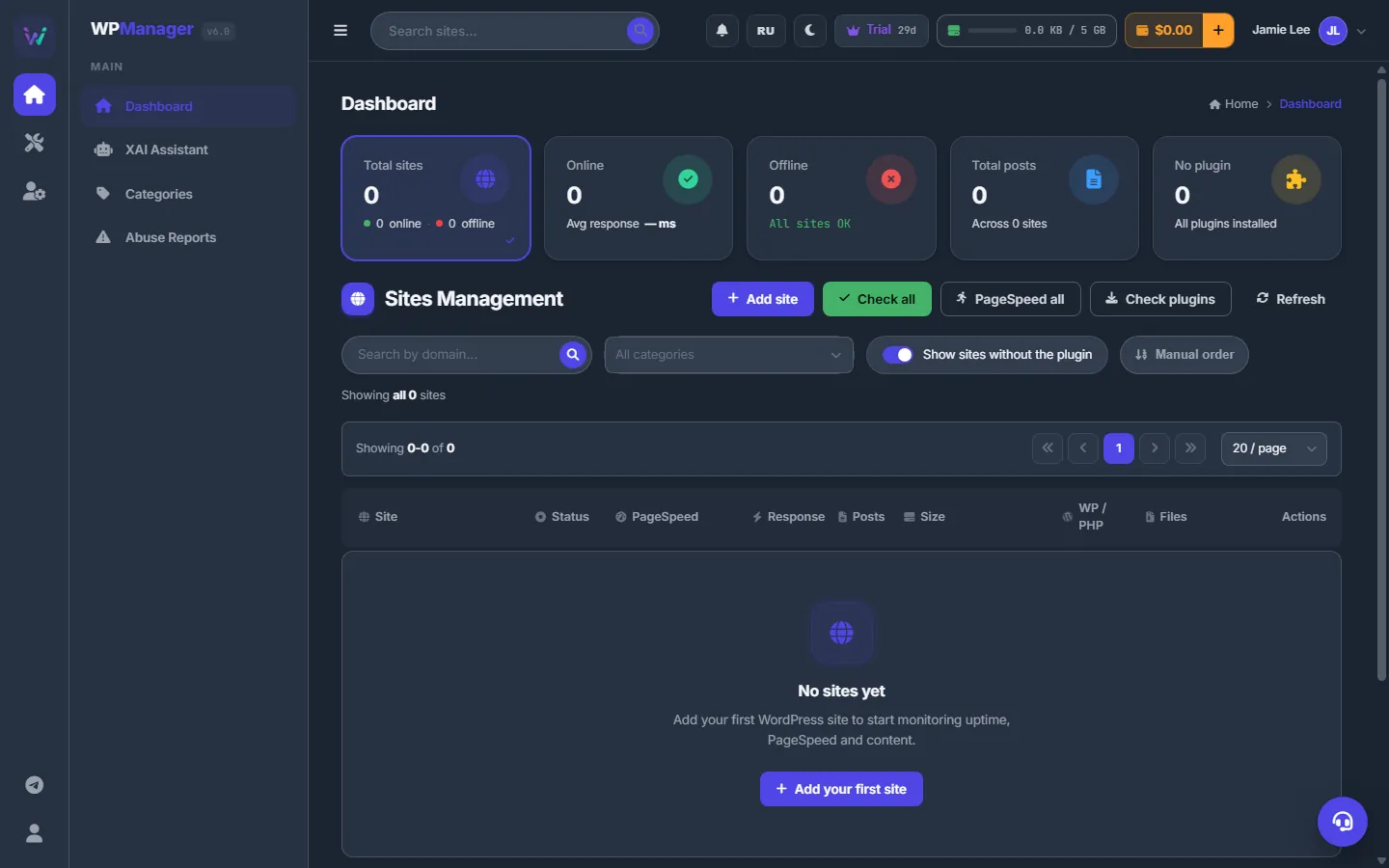
Right after sign-up the Dashboard is empty: the counters show zero and the list says “No sites yet” with an “Add your first site” button. Do the steps below in this order — it takes about half an hour.
The checklist
-
Pick the language and theme
In the top bar click the language button (RU / EN) to switch the language, and the moon or sun button to switch between the dark and light themes. Both reload the page. See Getting around: menu, language and theme.
-
Fill in your profile
Open Account → Profile. In “My data” fill in “First name”, “Last name”, “Phone” and “Telegram”, then click “Save profile”. Click the camera on the avatar to upload a picture: JPG, PNG or WebP, up to 5 MB. See Profile.
-
Connect Telegram alerts
Open Account → Telegram alerts, click “Connect Telegram” and press Start in the bot. From then on Telegram tells you when a site goes down, when an SSL certificate or a domain is about to expire, when a payment arrives and when support replies. See Telegram alerts.
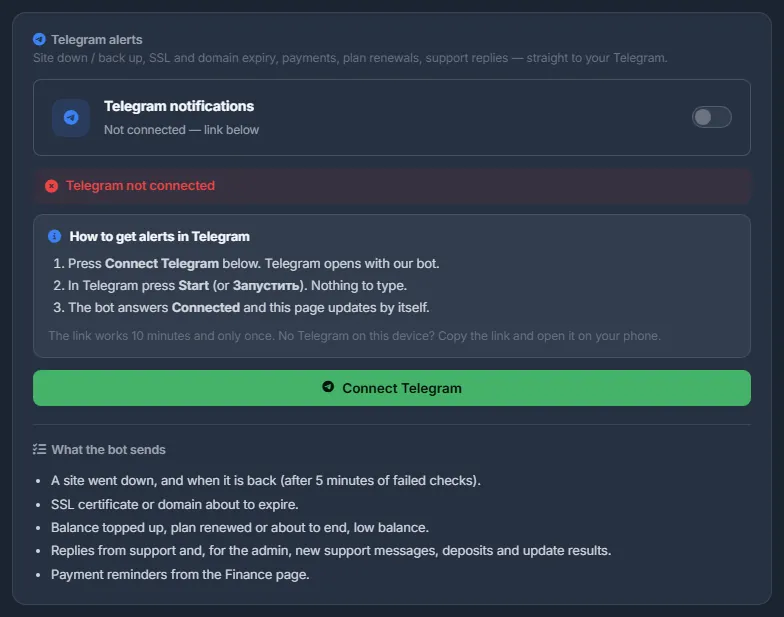
Fig. 2 Connect Telegram before you add sites. -
Check your plan
Click the crown badge in the top bar, or open Account → Plans & Pricing. See how many sites and how much storage your plan allows. If you will run more sites than that, pick a bigger plan. See Plans & Pricing.
-
Top up the balance if you need paid features
AI features, paid plans and some services are paid from the USD balance. Click “+” next to the balance in the top bar and follow USD balance and top-up. During the 30-day free trial, monitoring needs no balance; to go on afterwards, top up at least $10 and buy Basic or a bigger plan on the Plans page — a top-up alone does not buy a plan.
-
Add your first site
On the Dashboard click “Add site” (on an empty Dashboard — “Add your first site”). Fill in “Site Name”, “Site URL”, “Category” and “Description”.
For the full feature set click “Download plugin”, install the zip in WordPress (Plugins → Add New → Upload Plugin) and activate it. Copy the key from Settings → WPManager API in the WordPress admin and paste it into “API Key”. Click “Add site”.
The panel checks the site, updates the plugin if needed, measures PageSpeed and reads the posts by itself. See Adding, editing and removing sites and Installing and connecting the WPManager plugin.
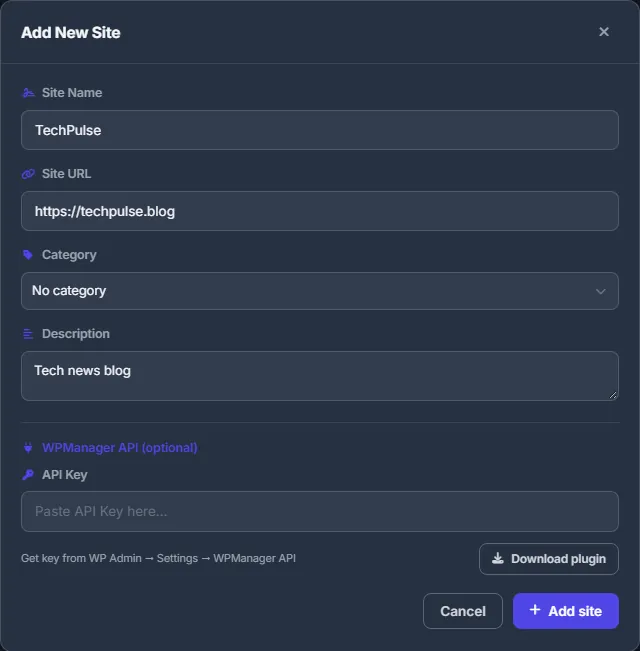
Fig. 3 Adding a site: the name, the address and the optional API key of the plugin. -
Connect the services you use
Only what you need:
- file-host accounts in Links & files → File Hosters — see File host accounts;
- Cloudflare on the site page — see Connecting Cloudflare;
- Google Search Console, Google Analytics and Bing on the site page — see Google Search Console, Google Analytics 4 and Bing Webmaster Tools;
- an FTP server or local storage for copies of your file-host files in Links & files → Backups — see File backups. Site backups need no setup: they are on each site’s Backups tab.
-
Optional extras
Add hosting and domain bills to Finance to get reminders before each due date; copy your link on Referrals; ask anything in the support chat — the headset button at the bottom right.
If adding a site is refused
| What you see | What to do |
|---|---|
| “Site limit reached (N). Upgrade your plan or contact admin.” | Your plan's site limit is used up. Buy a bigger plan on Plans & Pricing, or ask in the support chat about a personal limit. |
| “Name and URL required” | Fill in both “Site Name” and “Site URL”. |
Costs
None of these steps costs anything by itself. A paid plan or AI use needs money on the balance — see What you pay for.
FAQ
Is the plugin required?
No, the API key field is optional. Without the plugin the panel only watches whether the site answers. Scans, backups, publishing and plugin management need it.
Can I add the plugin key later?
Yes. Add the site with just its name and address. When the plugin is installed, click the key icon in the site's row on the Dashboard and paste the key there — see Installing and connecting the WPManager plugin.