
Scanner: check the file-host links on your sites
The Scanner copies the posts of your WordPress sites into the panel, finds every file-host link in them and checks whether each file is still there — for one site or for all of them at once. Dead links then take you straight to Find Dead Links.
On this page
Where to find it: Links & files → Scanner.
Before you start
- Your sites are added on the Dashboard and their WordPress REST API is reachable — posts are read through it. See Adding, editing and removing sites.
- Your file-host accounts are added on the File Hosters page: links are recognised by their patterns. Links of hosts in the catalogue are recognised too. See File host accounts.
- To choose custom fields (“Link fields”), the WPManager plugin must be connected on the site — see Installing and connecting the WPManager plugin.
The overview
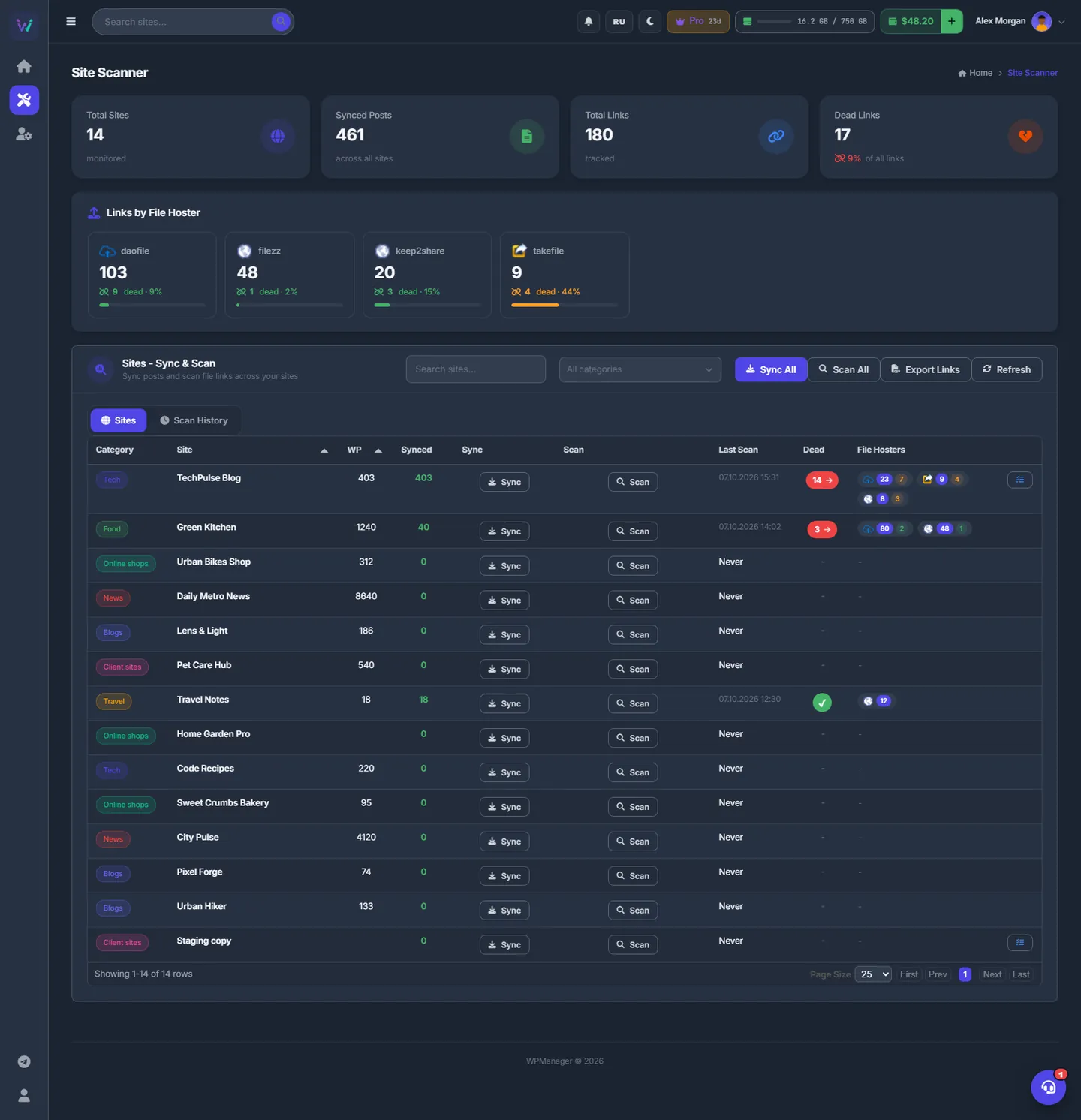
The top of the page sums up all your sites: Total Sites, Synced Posts, Total Links and Dead Links with their share of all links. Below, “Links by File Hoster” lists every host with its number of links and dead links, and a bar coloured by the dead share: green, yellow above 20 %, red above 50 %.
Scan a site
-
Sync the posts
In the “Sites” table click “Sync” in the site’s row. The panel downloads the site’s published posts: the cell shows a running counter, then “Saving N%”. When it is done you see “Synced N posts (M new)”, and the “Synced” column shows how many posts the panel holds. (The “WP” column is the post count stored in the site record.)
-
Choose the fields to read (optional)
Download links often sit in custom fields rather than in the post text. Click the list button at the end of the row (tooltip “Choose which fields (content / meta) the link scanner reads”; shown for sites with the WPManager plugin). The dialog lists “Post content” and every custom field that holds addresses, with the domains found in it and the number of rows. Fields with file-host domains are ticked for you (green check).
Tick “Select all fields” or the fields you need and click “Save & recollect”. The links are collected in the background, and a message reports “<site>: links collected from N post(s)”.
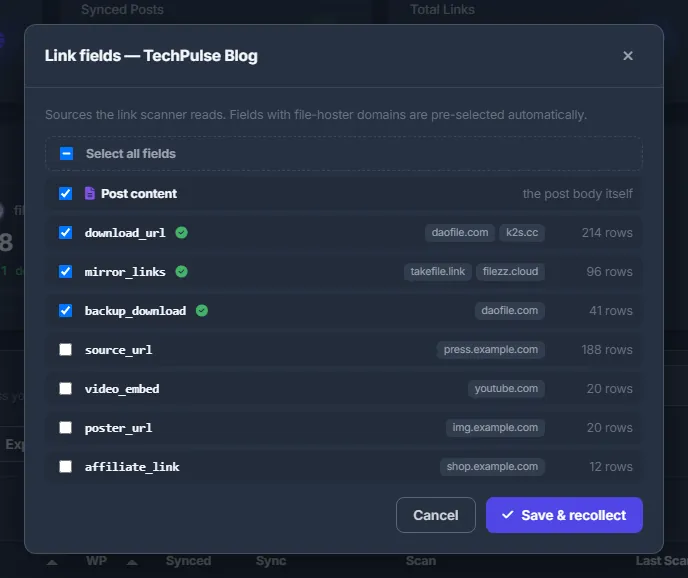
Fig. 2 Fields with file-host domains are suggested automatically; other fields can be ticked by hand. -
Start the scan
Click “Scan” in the row. A progress bar shows the percentage and checked / total links; the × button cancels. When it ends you see “Scan completed! Found N dead links (M have backup on FTP)”. Without synced posts the panel asks you to “Sync posts first before scanning”.
-
Read the result in the row
“Last Scan” shows the date (“Never” before the first scan). “Dead” shows the number of dead links as a red badge — click it to open Find Dead Links for this site; “✓” means all links are fine. “File Hosters” shows a chip for each host with its links and, in colour, its dead links.
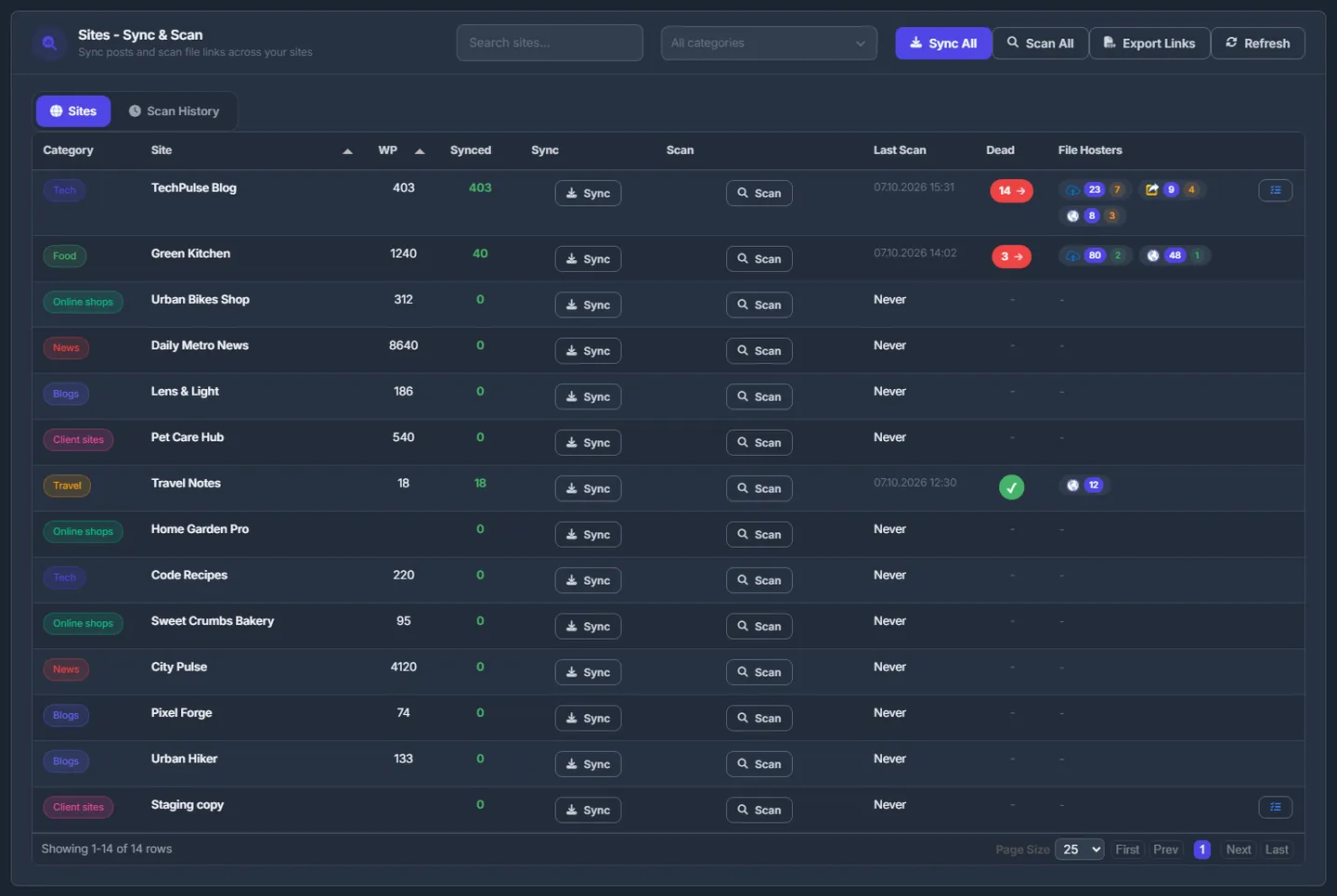
Fig. 3 One row per site: sync and scan buttons, the last scan, the red dead-links badge and a chip per host.
Sync or scan all sites
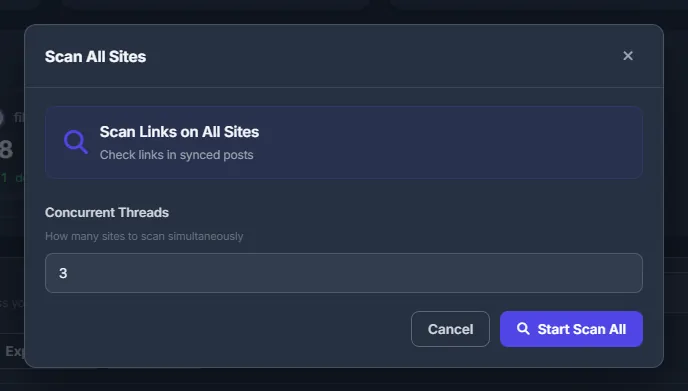
Use “Sync All” or “Scan All” in the toolbar. The dialog asks for “Concurrent Threads” — how many sites are processed at the same time, 1–10, 3 by default. Click “Start Sync All” or “Start Scan All”. “Scan All” takes the active sites that already have synced posts.
Filter, export and refresh
- Narrow the table with “All categories” and “Search sites...”.
- “Export Links” downloads
all_links_<date>.csvwith Site, Post URL, File Host, File Link and Status for all your sites. - “Refresh” reloads the table and the counters.
Scan history
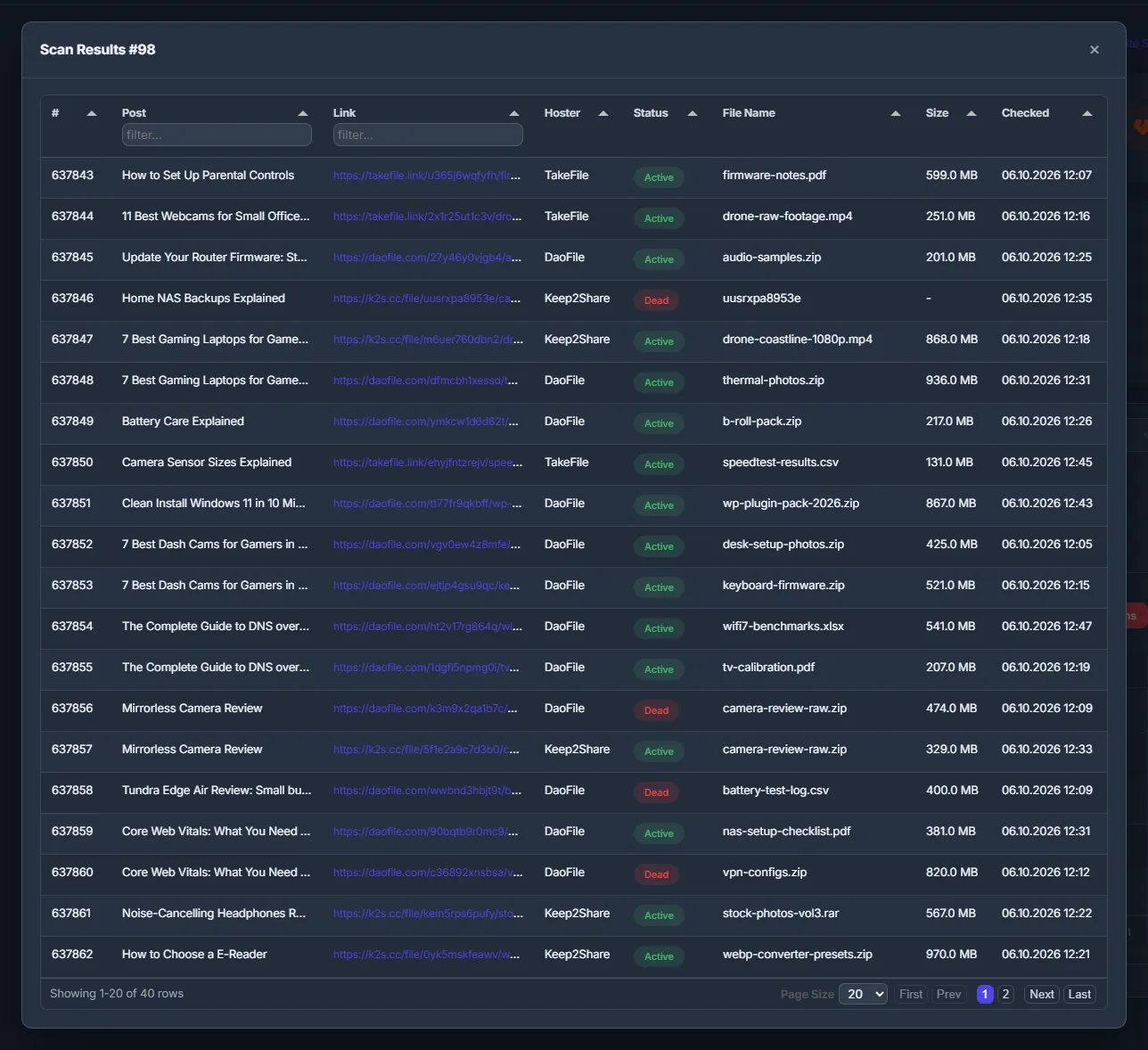
Open the “Scan History” tab. It lists #, Site, Status, Posts, Links, Dead, Backed Up, Started and Completed. The magnifier “View Results” opens “Scan Results #N” with every link of that scan: Post, Link, Hoster, Status, File Name, Size and Checked; filter by post or link in the column headers. The trash icon deletes one scan, “Delete All Scans” deletes them all.
How links are checked
Each unique link is checked once, even when it appears in many posts.
- With your XFileSharing API key the host’s API is asked: the file exists (Active, with its name and size) or not (Dead).
- Without it a plain web request is sent: an answer in the 2xx range means Active; 404 or 410 means Dead; any other answer — for example 403 from a protection page — means Error.
| Link status | Meaning |
|---|---|
| Active | The file is there. |
| Dead | The host says the file is gone. |
| Error | No verdict: the host could not be asked, timed out or gave an unexpected answer. An Error never overwrites a link that was already Active or Dead. |
| Unknown | Not checked yet. |
| Checking | Being checked right now. |
| Replaced | The link was swapped for a new one. |
A scan itself can be Pending, In Progress, Completed, Failed, Cancelled or Paused.
Rescans
Scans do not run on a schedule. Click “Scan” (or “Scan All”) again whenever you want fresh results — the AI assistant can also start a scan when you ask it to. Sync first if posts changed on the site.
A new scan of a site replaces its previous entry in “Scan History”, but the links themselves are updated in place, so their restore history is kept. Links that are no longer in your posts drop out of the lists.
Dimmed rows
A site whose WPManager plugin is not installed or did not answer is shown dimmed. Sync and scan still work — posts come over the public REST API — but the field picker and every action that changes posts need the plugin.
Settings
| Setting | What it does |
|---|---|
| Concurrent Threads | Sites synced or scanned at the same time in “Sync All” / “Scan All”: 1–10, default 3. |
| Link fields | Per site: whether the post text is read and which custom fields are read. Without a saved choice, the fields with file-host domains are used. |
Costs
Free.
Troubleshooting
| What you see | What to do |
|---|---|
| “A scan is already in progress for this site” | Wait for the running scan or cancel it with × in the row. |
| “Sync failed: …” | The site’s REST API did not answer: the site is down, or a security plugin or firewall blocks the REST API. Open https://<site>/wp-json/ in a browser — it must answer. |
| Many links are “Error”, few are “Dead” | The host answers plain requests with a protection page. Add your account on that host with its API key so the Scanner can ask the API. |
| Links in download fields are not found | Open the field picker in the row, tick the custom fields that hold the links, click “Save & recollect” and scan again. |
| “Not checked: the hoster link patterns took too long to match” | This happens only with hand-made link patterns. Use the hosts from the catalogue. |
FAQ
Does the Scanner change anything on my site?
No. It only reads posts and checks links. Your site changes only through the tools you start yourself: Find Dead Links, Transfer & replace and Abuse Reports.
Can I scan only one host’s links?
“Scan” checks all recognised links of the site. Filter by host afterwards in “Scan Results” or on the Transfer page.
Does the Scanner run by itself every day?
No. Scans start when you click “Scan” or “Scan All”, or when you ask the AI assistant to run one.