
Firewall, allowlist and one-click Cloudflare rules
Block addresses, ranges and countries, keep your own addresses on an allowlist, and switch on one-click protections: close the admin, xmlrpc.php and user enumeration, stop PHP in uploads, turn away SEO crawlers, scripts or whole countries. The panel works through Cloudflare when it is connected, and through the WPManager plugin’s own firewall otherwise.
On this page
Where to find it: Dashboard → click the site → Security tab → Firewall. With Cloudflare connected, the same rules are also on the Cloudflare tab → Security.
Before you start
- The site is connected with the WPManager plugin (“Connected” on the site’s Settings → Connection tab — see Installing and connecting the WPManager plugin).
- For blocking at the edge, countries, the security level and the one-click rules: Cloudflare connected with a token that has Firewall Services: Edit, Zone WAF: Edit and Bot Management: Edit. See Connecting Cloudflare.
Cloudflare or the WordPress firewall?
Open “Security” → “Firewall” (direct link: /Home/Site/<site id>?tab=Security&sub=firewall). The top card names the layer that protects the site:
- Cloudflare — requests are filtered at the edge, before they reach your server. Attacks cost you no PHP time, and countries and the one-click rules are available.
- WordPress firewall — the WPManager plugin blocks requests inside WordPress. It works without Cloudflare, but PHP still starts for every blocked request, and it cannot block countries.
- No protection layer — neither is active.
The plugin refuses to block the address the panel’s own requests come from, so the panel can never lock itself out of the site.
Block and allow addresses
-
Set the main switches
With Cloudflare: “Security level” — Essentially off, Low, Medium, High or Under attack — and the “Bot Fight Mode” switch. Under attack asks to confirm, because every visitor, search engines included, then gets a check page first. With the WordPress firewall: the “Firewall on” / “Firewall off” switch and the counters “blocked today”, “blocked in total” and “the last one blocked”.
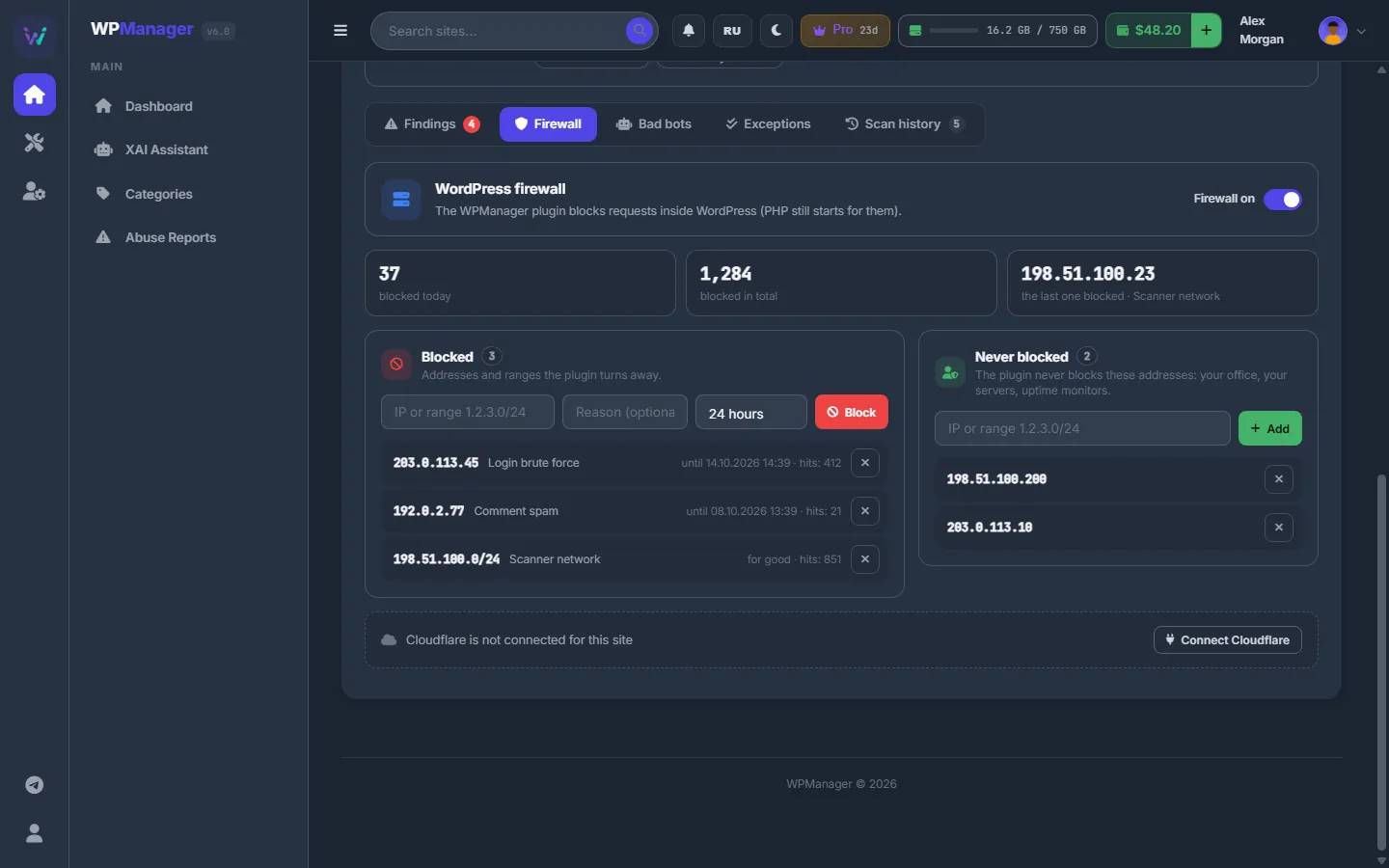
Fig. 1 The plugin’s firewall: blocked and allowlisted addresses. -
Block an address, a range or a country
In the “Blocked” card type an IP (
203.0.113.7), a range (203.0.113.0/24) or, with Cloudflare only, a two-letter country code (DE). Add a reason if you like. With the WordPress firewall, pick how long: 24 hours, 7 days, 30 days or “For good”. Press “Block”. The × on a row unblocks. -
Keep your own addresses safe
In “Never blocked” add an IP or a range (with Cloudflare, also a note) and press “Add”. Your office, your servers, parsers and uptime monitors then pass whatever the other rules say. The × (“Take off the list”) removes an address.
-
Block straight from the edge events
With Cloudflare, “Recent edge events” lists the last 25 requests Cloudflare stopped or challenged: action, address, country, path and time. The ban button on a row blocks that address for good.
The allowlist in two places
With Cloudflare, the “Never blocked” card on the Security tab and the “White list” card on the Cloudflare tab are the same list — Cloudflare IP access rules in allow mode. The “White list” card also offers “Add my address”, and always lets the panel’s own address through, because the panel reaches the site through Cloudflare.
One-click Cloudflare rules
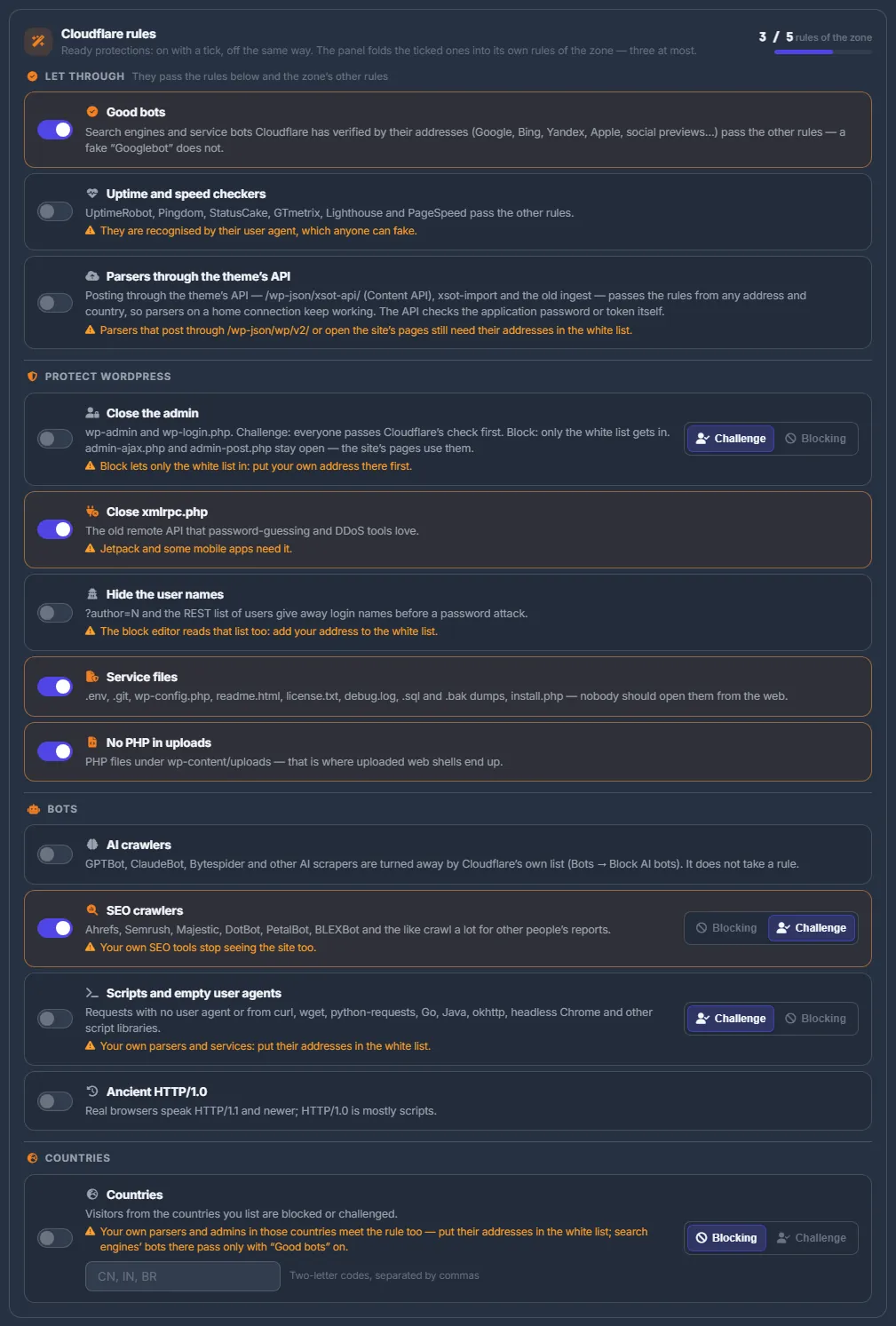
Below, the “Cloudflare rules” card shows how many custom rules of the zone are used (for example “3 / 5 rules of the zone”) and four groups of switches:
| Group | Protections |
|---|---|
| Let through | Good bots · Uptime and speed checkers · Parsers through the theme’s API |
| Protect WordPress | Close the admin · Close xmlrpc.php · Hide the user names · Service files · No PHP in uploads |
| Bots | AI crawlers · SEO crawlers · Scripts and empty user agents · Ancient HTTP/1.0 |
| Countries | Visitors from the countries you list are blocked or challenged |
Switch a protection on with its toggle. Where a rule offers a choice, pick “Challenge” (Cloudflare’s check page) or “Blocking” — before or after switching it on. Each change answers “Cloudflare rules updated”.
Close the admin safely
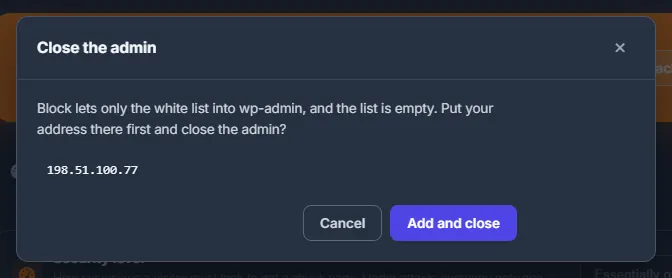
“Close the admin” in Challenge mode sends everyone through Cloudflare’s check before wp-admin and wp-login.php; in Blocking mode only the allowlist gets in. If the allowlist is empty, the panel stops you with the window “Close the admin” and the button “Add and close”: your current address goes on the list first. admin-ajax.php and admin-post.php stay open, because the site’s pages use them.
Block countries
In “Countries” type two-letter codes separated by commas (CN, IN, BR), choose “Blocking” or “Challenge” and switch the rule on. After editing the list, press “Save the countries”.
What to watch out for
- Close xmlrpc.php — Jetpack and some mobile apps need it.
- Hide the user names — the block editor reads the user list too: put your address on the allowlist.
- SEO crawlers — your own SEO tools stop seeing the site as well.
- Scripts and empty user agents, Countries — put the addresses of your own parsers, services and admins on the allowlist first.
- Uptime and speed checkers are recognised by their user agent, which anyone can fake.
- Parsers through the theme’s API lets posting through the theme’s Content API pass from any address. Parsers that post through
/wp-json/wp/v2/still need the allowlist.
How the one-click rules are written to Cloudflare
The panel folds everything you ticked into at most three custom rules of the zone — one that lets through (your allowlist, the panel’s own address and verified bots), one that blocks and one that challenges. They are named in your language, for example “WPManager · Block: xmlrpc.php, …”. The free Cloudflare plan allows 5 custom rules in all, so your own rules keep room. “AI crawlers” is Cloudflare’s own “Block AI bots” setting and takes no rule.
If you pause a panel rule in Cloudflare, it stays paused: the card warns that the panel’s rule is paused in Cloudflare and offers “Turn on”.
Other rules of the zone
“Other rules of the zone” lists rules made in Cloudflare by hand or by other tools. The panel never changes them on its own; here you can pause one with its switch or remove it.
Settings
| Setting | What it does |
|---|---|
| Security level (Cloudflare) | How suspicious a visitor must look to get a check page. Under attack gives one to everyone. |
| Bot Fight Mode (Cloudflare) | Cloudflare’s own challenge for known bot traffic; needs Bot Management: Edit in the token. |
| Firewall on / off (WordPress) | Turns the plugin’s firewall off: nothing is blocked until it is back on. |
| Block duration (WordPress) | 24 hours, 7 days, 30 days or For good. |
| Rule mode | Challenge (Cloudflare’s check page) or Blocking, where a rule offers both. |
Costs
Free in the panel. The one-click rules fit Cloudflare’s free plan: they use at most 3 of its 5 custom rules.
Troubleshooting
| What you see | What to do |
|---|---|
| “Country blocking needs Cloudflare (WordPress cannot resolve visitor country reliably)” | Connect Cloudflare, or block IP ranges instead. |
| “Enter an IP address or a range such as 1.2.3.0/24” | The allowlist takes only addresses and ranges, not countries. |
| “Could not read the zone's custom rules — the token needs Zone WAF: Edit” | Add Zone WAF: Edit to the token in Cloudflare (API Tokens → … → Edit). There is no need to reconnect. |
| “The rule … is N characters long — Cloudflare takes 4000” | Too many addresses or countries in one rule: shorten the allowlist or the country list. |
| A blocked range shows “not enforced” | A wildcard or dash range added with an old plugin version is kept but not applied. Block the same range again in CIDR form, such as 203.0.113.0/24. |
| After switching on rules the panel cannot reach the site’s plugin | Open “Settings” → “Connection”: if it says “Blocked by Cloudflare”, press the button that allows the panel’s IP in Cloudflare. |
FAQ
Will these rules shut out search engines?
Turn on Let through → “Good bots”: verified search engines and service bots then pass the other rules. A fake “Googlebot” does not.
Do my own Cloudflare rules stay?
Yes. The panel writes only its own rules and keeps yours in place. It lists them under “Other rules of the zone”, where you can pause or remove them.
Can I use the WordPress firewall and Cloudflare together?
When Cloudflare is connected, the panel manages blocking through Cloudflare, which stops requests before they reach your server. Without Cloudflare it uses the plugin’s firewall.