
Publishing settings: where things go on the site
Every WordPress theme keeps things in its own places. These per-site settings say where the cover, download links, screenlist, frames, performers, studios, tags, categories and your own fields land in a post. Set them once, and every publish to the site — from Publish with AI and from the Conveyor — follows them.
On this page
Where to find it: site page → Settings → Publishing. The same editor opens from Publish with AI (“Where things go on this site”) and from the Conveyor’s “Publish on a site” step (“Where things go on the site”).
Before you start
The site must be connected with the WPManager plugin: the settings read the theme, the taxonomies and the latest posts through it. Some options need a recent plugin version, and the page tells you when an update is needed:
| Plugin version | What it adds |
|---|---|
| 8.1 | Line breaks and HTML are kept in fields. |
| 8.5 | Taxonomies that are not in the site’s REST API. |
| 8.7 | Filling a theme’s picture slots (“Media library (ID)”). |
Open the settings
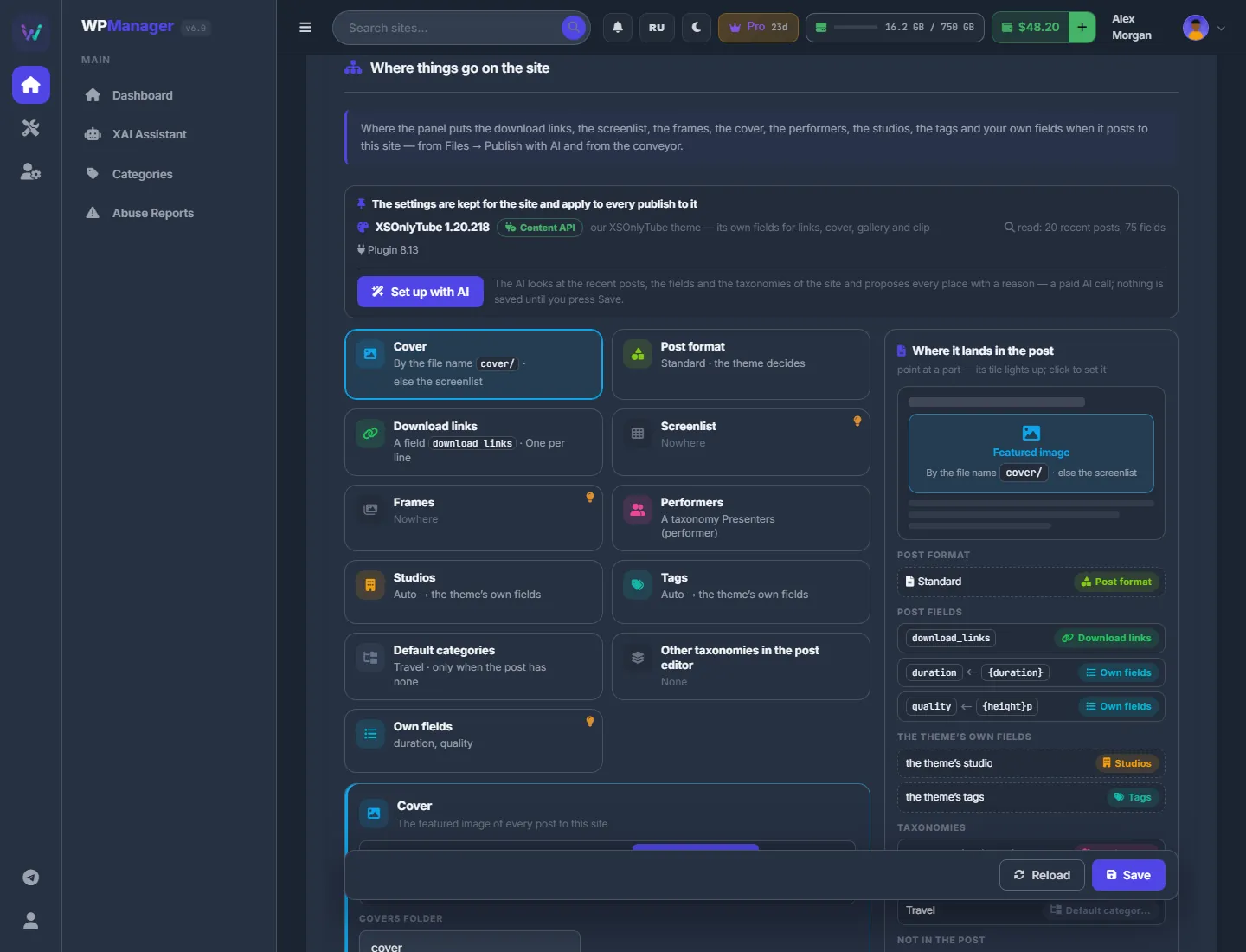
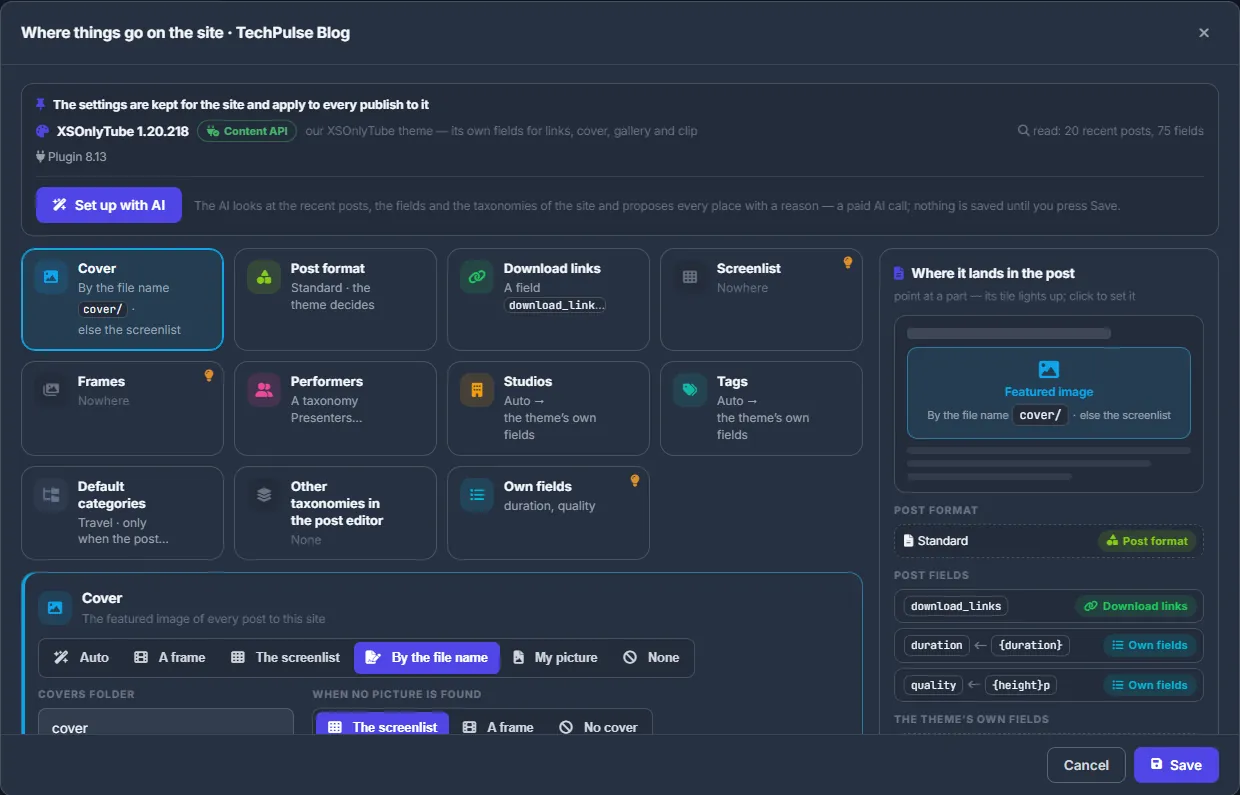
On the site’s page open Settings → Publishing. The top line shows the theme (XSOnlyTube (our video theme from the Store) gets a “Content API” badge), how many recent posts and fields were read, and the plugin version. Under it is the “Set up with AI” button.
The grid has a tile for each piece: Cover, Download links, Screenlist, Frames, Performers, Studios, Tags, Default categories, Other taxonomies in the post editor and Own fields. Each tile shows its current place; a tile that needs your choice is marked. Click a tile to open its editor under the grid.
On the right, “Where it lands in the post” draws the post the way the site will get it: featured image, text, post fields, the theme’s own fields, taxonomies, tags and categories, plus “Decided when publishing” (parts set to Auto) and “Not in the post” (parts that go nowhere); a block appears only when it has parts. Point at a part to light up its tile; click it to open the tile.
Set each piece
Cover
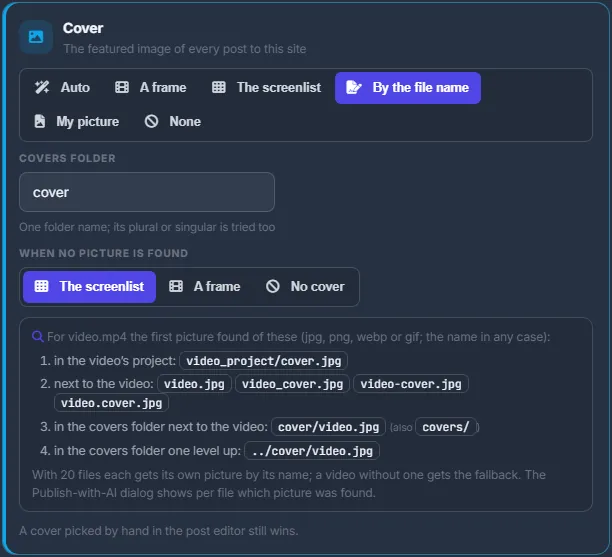
“The featured image of every post to this site”: Auto, A frame, The screenlist, By the file name, My picture, None.
- By the file name looks for a picture named like the video (jpg, png, webp or gif, in any letter case) in the video’s project, next to the video, and in a Covers folder next to it or one level up. The folder is “cover” by default; its singular and plural forms are both tried. In the “When no picture is found” field, choose “The screenlist”, “A frame” or “No cover”.
- My picture uses one picture from your storage, chosen with “Browse…”.
A cover you pick by hand in the post editor still wins over this setting.
Download links, screenlist, frames
Each of them can go: Auto, In the text, A field, or Nowhere. For “A field”, choose:
- Field (meta key) — a list of the fields the site’s ~20 latest posts really have, with how many posts use each and an example, best matches first. You can also type a name.
- Format:
- links — One per line, List (array), The first link, Comma-separated, HTML links, BBCode;
- screenlist — Picture URL, Thumbnail URL, HTML <img>, Media library (ID). The last one puts the screenlist into the site’s media library and its ID into the field, the way a theme’s picture slot expects it; no image host is needed (plugin 8.7);
- frames — List (array), One per line, HTML gallery.
Performers, studios, tags
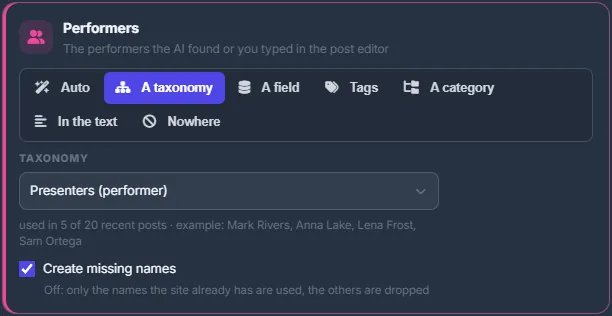
- Performers and Studios: Auto, A taxonomy, A field, Tags, A category, In the text, Nowhere.
- Tags: Auto, A taxonomy, A field, Nowhere.
A taxonomy is chosen from the site’s own taxonomies, with how many recent posts use each. A field gets a format: Comma-separated, One per line or List (array). A category gets “Under the category”: each name becomes a category under it.
Create missing names — when it is off, only names the site already has are used. “In the text” adds one line after the description, such as “Starring: …” or “Studio: …”. Its Line label (up to 40 characters) follows the post language by default; in a template of your own you can place the line with {ai_actresses_line} and {ai_studio_line}.
Categories, other taxonomies, own fields
- Default categories (up to 10): “Only when the post has none”, “Always add” or “Always exactly these”, plus “Allow new categories in the editor”.
- Other taxonomies in the post editor: tick up to 6. Each one gets its own row of chips in the post editor of Publish with AI.
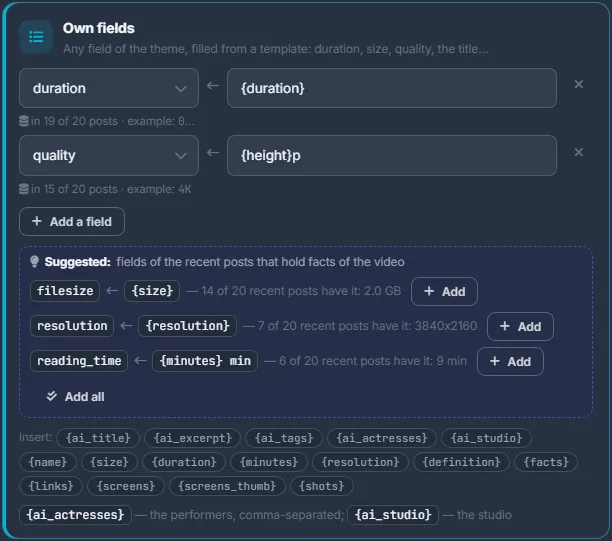
- Own fields (up to 20): a field name ← a value template built from placeholders:
{ai_title},{ai_excerpt},{ai_tags},{ai_actresses},{ai_studio},{name},{size},{duration},{minutes},{resolution},{definition},{facts},{links},{screens},{screens_thumb},{shots}. “Suggested:” offers fields of the recent posts that hold facts of the video; add them one by one (“Add”) or all in one go (“Add all”).
Let the AI propose
“Set up with AI” reads the site’s recent posts, fields and taxonomies and proposes a place for every piece, each with a reason. Apply a proposal on its tile (“Apply”), or press “Apply all”. Anything the AI names that the site does not have is left out. This is one paid AI call; nothing is saved until you press “Save”.
Save
Press “Save”. The panel confirms: “Saved — the next posts to this site follow it”. On the site page, “Reload” reads the site again (theme, taxonomies, recent posts). On the site page the editor sits in the tab, so there is no “Cancel”; in the window opened from Publish with AI or the Conveyor, “Cancel” closes it without saving.
What “Auto” does
“Auto” keeps what the panel finds on the site:
- XSOnlyTube gets links, cover, gallery and clip into its own fields;
- on another theme, links go where the site’s recent posts keep them (a field it finds, otherwise the text), the screenlist follows the site’s format or template, and frames are left out;
- performers, studios and tags go into a matching taxonomy when the site has one, otherwise into the text.
The editor shows each such decision as “Auto → …” and warns you when Auto found no place.
Settings are per site and per account
The settings are kept for this site in your account and apply to every publish to it: Publish with AI, the Conveyor, updating a published post. Change them at any time. Posts that are already published do not change until you update them.
Settings
| Setting | Choices |
|---|---|
| Cover | Auto / A frame / The screenlist / By the file name (Covers folder, When no picture is found) / My picture / None. |
| Download links, Screenlist, Frames | Auto / In the text / A field (meta key and format) / Nowhere. |
| Performers, Studios | Auto / A taxonomy / A field / Tags / A category / In the text / Nowhere; Create missing names; Line label. |
| Tags | Auto / A taxonomy / A field / Nowhere; Create missing names. |
| Default categories | Up to 10; Only when the post has none / Always add / Always exactly these; Allow new categories in the editor. |
| Other taxonomies in the post editor | Up to 6 taxonomies, each with its own row of chips in the post editor. |
| Own fields | Up to 20 fields, filled from templates with placeholders. |
Costs
The settings are free. Only “Set up with AI” is a paid AI call; its cost is shown next to the proposals.
Troubleshooting
| What you see | What to do |
|---|---|
| “This taxonomy is not in the site’s REST API…” | Update the WPManager plugin on the site to 8.5 or newer: on the Dashboard, click the site’s plugin tag and update (see Installing and connecting the WPManager plugin). |
| “Media library (ID)” warns that plugin 8.7 is needed | Update the plugin to 8.7 the same way; the screenlist then fills the theme’s picture slot. |
| “The recent posts were read only in part” | The site answered slowly. Press “Reload” later; field names can always be typed by hand. |
| “Choose at least one category — otherwise the posts are left without categories” | With “Always exactly these”, pick at least one default category. |
FAQ
Do I have to set every tile?
No. Leave “Auto” where it works and change only what lands in the wrong place.
Will saving change posts that are already published?
No. The settings apply to new posts and to posts you update.