
Adding, editing and removing sites
To add a site you need only its name and address. You can put it in a category and paste the WPManager plugin key right away; the panel then sets the site up by itself. This page also shows how to change a site later and how to remove it.
On this page
Where to find it: Overview → Dashboard → “Add site”.
Before you start
- A free site slot in your plan. The limit is shown on Plans & Pricing.
- The site’s public address (its domain). Any website can be monitored; the WordPress features need the WPManager plugin.
- Optional, but recommended: the WPManager plugin installed on the site and its API key copied — see Installing and connecting the WPManager plugin.
Add a site
-
Open the “Add New Site” dialog
On the Dashboard click “Add site” in the toolbar. On an empty Dashboard you can also click “Add your first site”. The dialog opens with the cursor in the first field.
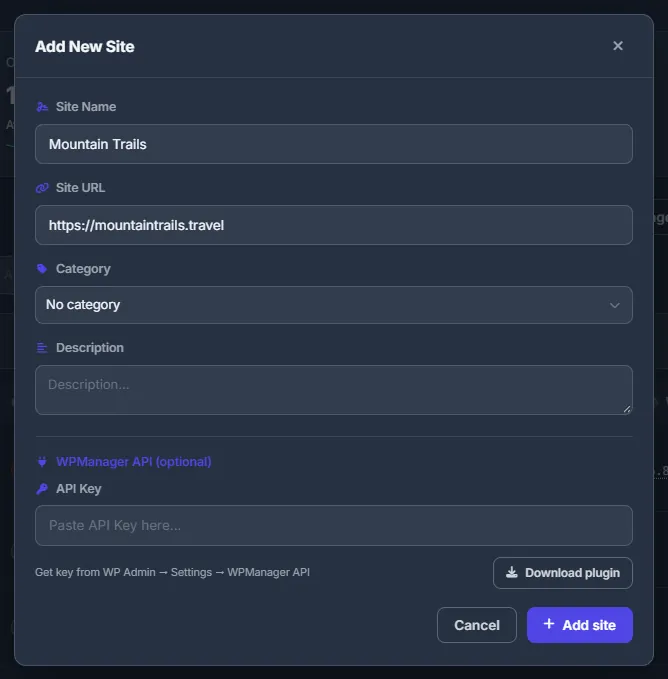
Fig. 1 The “Add New Site” dialog: only the name and the address are required. -
Enter the name
“Site Name” is required. It is your own label, shown everywhere in the panel — for example Green Kitchen. It does not have to match the site title in WordPress.
-
Enter the address
“Site URL” is required, for example
https://greenkitchen.net. If you leave outhttp://orhttps://, the panel addshttps://. Anything after?or#and a trailing slash are dropped. See Address rules for what is refused. -
Choose or create a category (optional)
Open “Category” and pick one, or leave “No category”. The last item, “+ New category”, opens a small editor right under the field: type a “Category name” (up to 60 characters), click one of the eight colours and press “Create”. Enter creates too, Esc cancels. If a category with that name already exists, it is simply selected.
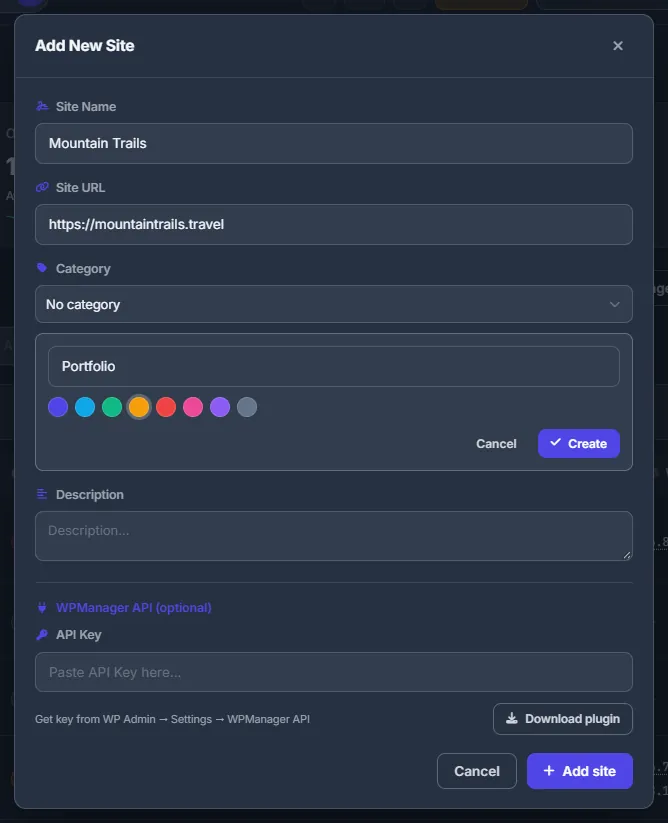
Fig. 2 Create a category without leaving the dialog. -
Add a description (optional)
“Description” is free text for yourself — whose site it is, the hosting, the renewal date.
-
Paste the plugin key (optional)
Under “WPManager API (optional)” paste the key into “API Key”. The hint says where to find it (WP Admin → Settings → WPManager API), and the “Download plugin” button next to it downloads the plugin ZIP. You can skip this step and connect the plugin later.
-
Click “Add site”
You see “Site added!” and the new row appears in the list. The panel then sets the site up step by step while the row fills in: it checks the status, verifies the key if you gave one, updates the WPManager plugin if the site runs an older build, measures the disk usage, runs a PageSpeed test and counts the posts.
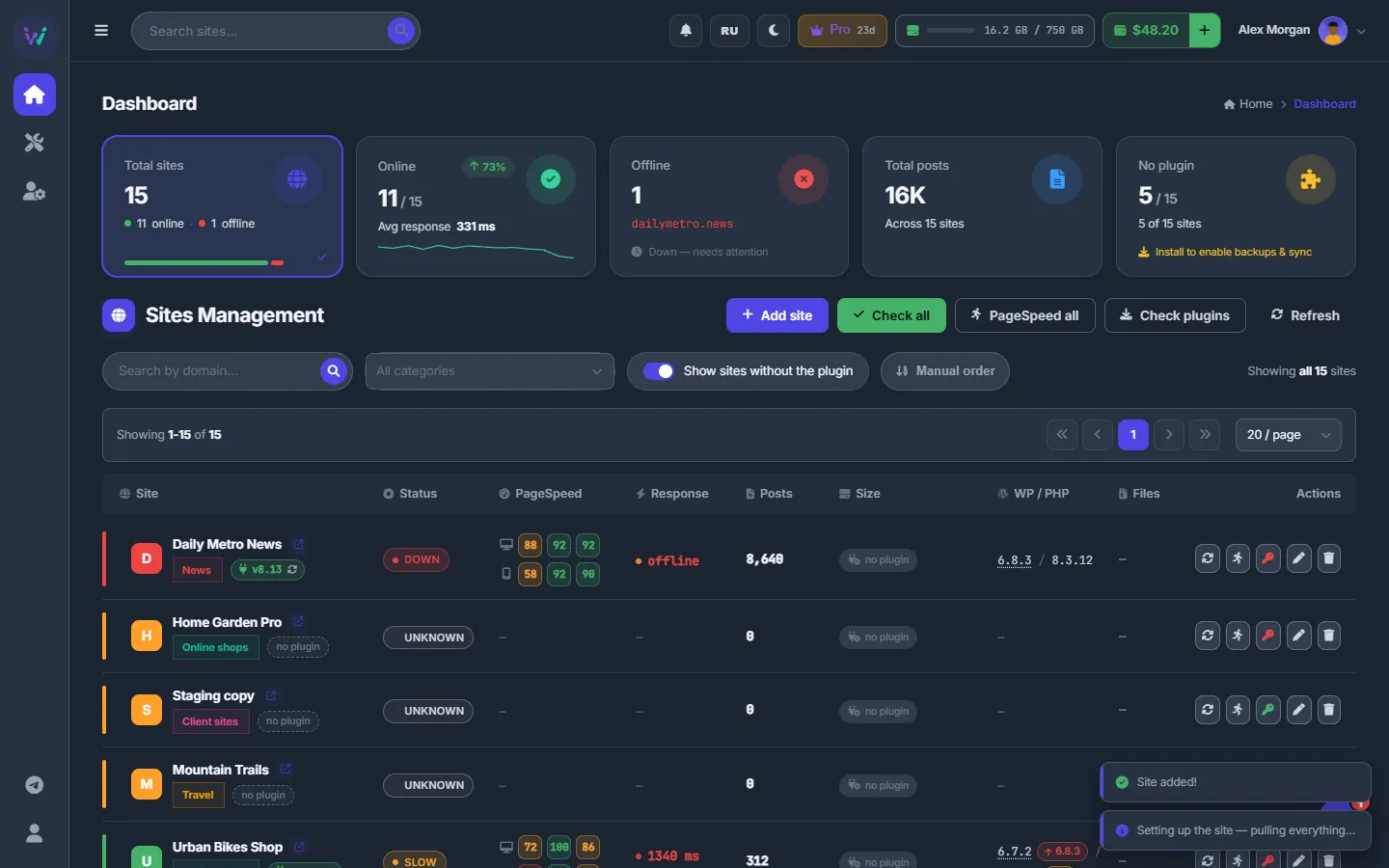
Fig. 3 The site is added, and the panel starts setting it up by itself.
The fields
| Field | What to enter |
|---|---|
| Site Name | Required. Your label for the site. |
| Site URL | Required. The public http(s) address; https:// is added when missing. |
| Category | Optional. One category per site; can be created right in the dialog. |
| Description | Optional free text, shown in the edit dialog and on the site’s Settings tab. |
| API Key | Optional. The key from WordPress → Settings → WPManager API; it connects the plugin. |
Address rules
- An address with a user name or password in it is refused.
- An address that points to a local or private network is refused: the panel works only with sites reachable from the internet.
- You cannot add the same address twice. The comparison ignores http/https,
wwwand a trailing slash, sohttps://www.greenkitchen.net/andhttp://greenkitchen.netare the same site, and the panel answers “Site 'greenkitchen.net' already exists.”
Your plan’s site limit
Each plan has a maximum number of sites, shown on Plans & Pricing as “N sites”; support can also set a personal limit for your account. Deleted sites do not count.
- When the limit is reached, the dialog answers “Site limit reached (N). Upgrade your plan or contact admin.”
- An account without an active plan gets “Your account has no active plan. Choose a plan to add sites.”
Adding many sites
Sites are added one at a time through the dialog; there is no bulk import. Each addition takes a few seconds. The automatic setup of the previous site keeps running while you stay on the Dashboard and add the next one.
Sites that are not WordPress
You can add any website. Without WordPress and the plugin the panel still:
- checks availability and response time;
- watches the SSL certificate and the domain expiry;
- runs PageSpeed;
- can show the site on your public status page.
Posts, updates, disk sizes, visitor analytics, backups, security scans and publishing need WordPress with the WPManager plugin.
Edit a site
Click the pencil (“Edit”) in the site row. The “Edit Site” dialog has “Site Name”, “Site URL”, “Category” (with “+ New category”) and “Description”. Click “Save changes”.
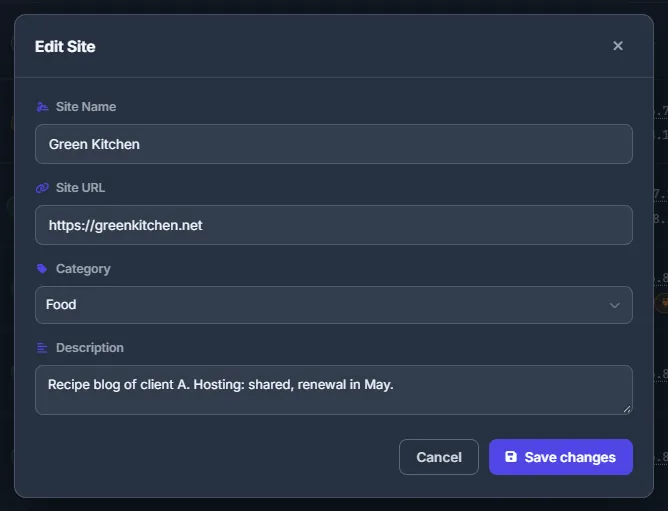
The plugin key is not in this dialog: change it with the key button in the row or on the site’s Settings → Connection tab — see Site settings: general, connection and AI prompts.
Changing the address
A new URL is checked by the same rules as a new site. When the domain changes, the SEO and Ahrefs figures on the Overview tab are marked as outdated, so the next refresh fetches them for the new domain. Monitoring history, notes and the plugin key stay with the site.
Remove a site
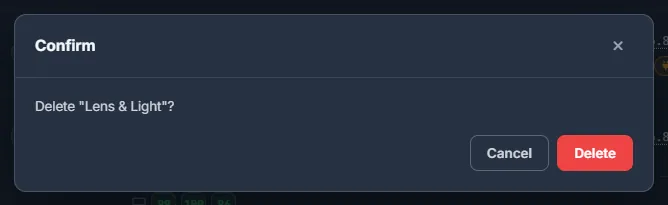
Click the trash icon (“Delete”) in the row and confirm with “Delete”. The site disappears from the Dashboard, its monitoring stops and it no longer counts against your site limit.
Costs
Adding a site costs nothing from your balance. It only takes one slot of your plan’s site limit.
Tips
- Create categories on the fly with “+ New category” instead of leaving the dialog.
- Use the description for the client’s name or the contract terms — it is shown in the edit dialog and on the site’s Settings tab.
Troubleshooting
| What you see | What to do |
|---|---|
| “Name and URL required” | Fill in both “Site Name” and “Site URL”. |
| “Invalid site URL” or “The site URL must not contain a user name or password” | Enter just the address, e.g. greenkitchen.net or https://greenkitchen.net, without login data. |
| “Local or private network addresses are not allowed” | The panel works only with sites reachable from the internet. Use the site’s public domain. |
| “Site limit reached (N)” | Delete a site you no longer need, or move to a bigger plan on Plans & Pricing. For a personal limit, write to support. |
| “Category not found” when saving | The category was deleted in the meantime. Open the dialog again and pick another one. |
FAQ
Can I restore a deleted site?
Not from the panel. Add the same address again as a new site; its old uptime history is not attached to the new entry.
Does deleting a site touch the WordPress site itself?
No. Only the entry in the panel is removed; the website, its files and the plugin stay as they are. Deactivate the plugin in WordPress if you no longer need it.
Can a site be in two categories?
No, a site has one category or none.