
Publish with AI
Publish with AI turns the videos you select in Files into posts. It asks a few questions — site, links, clip, frames, screenlist, cover, text, status — makes the media, has the AI write a text in your site’s style, lets you check and edit every post, and creates the posts on your WordPress site. It can also prepare forum posts for you to copy or export.
On this page
Where to find it: Links & files → Files → (select videos) → “Publish with AI”.
Before you start
- Videos in your storage (Files).
- To publish: a site with the WPManager plugin connected. Only such sites are offered.
- For download links: file-host accounts. The assistant can upload files that have no links yet.
- For pictures in the text or in the site’s fields: an image host.
- Money on the balance: each text is written by a paid AI call.
Publish step by step
-
Select the videos and open the assistant
In Links & files → Files tick one or more videos and press “Publish with AI” in the selection bar. The assistant first looks around (“Looking at the files and your sites”). It lists the files with their size, the download links each one already has, uploads still running, and whether a screenlist, frames or a clip already exist.

Fig. 1 The selection bar with two videos selected. -
Where do we publish?
Pick a site, a forum, or “No site — text for a forum” (BBCode with pictures and links that you copy yourself).
- A site: the assistant reads its theme and publishing settings and sums them up in one line under the question. XSOnlyTube (our video theme from the Store) takes links, gallery, hover clip and video facts into its own fields; any other theme gets them where the site’s settings say. “Where things go on this site” opens those settings — see Where things go on the site.
- A forum: “Edit the forum template” edits its template; “Add a forum” creates a new one.
A question with a single choice moves on by itself. Number keys 1–9 pick an option, Enter goes to the next question.
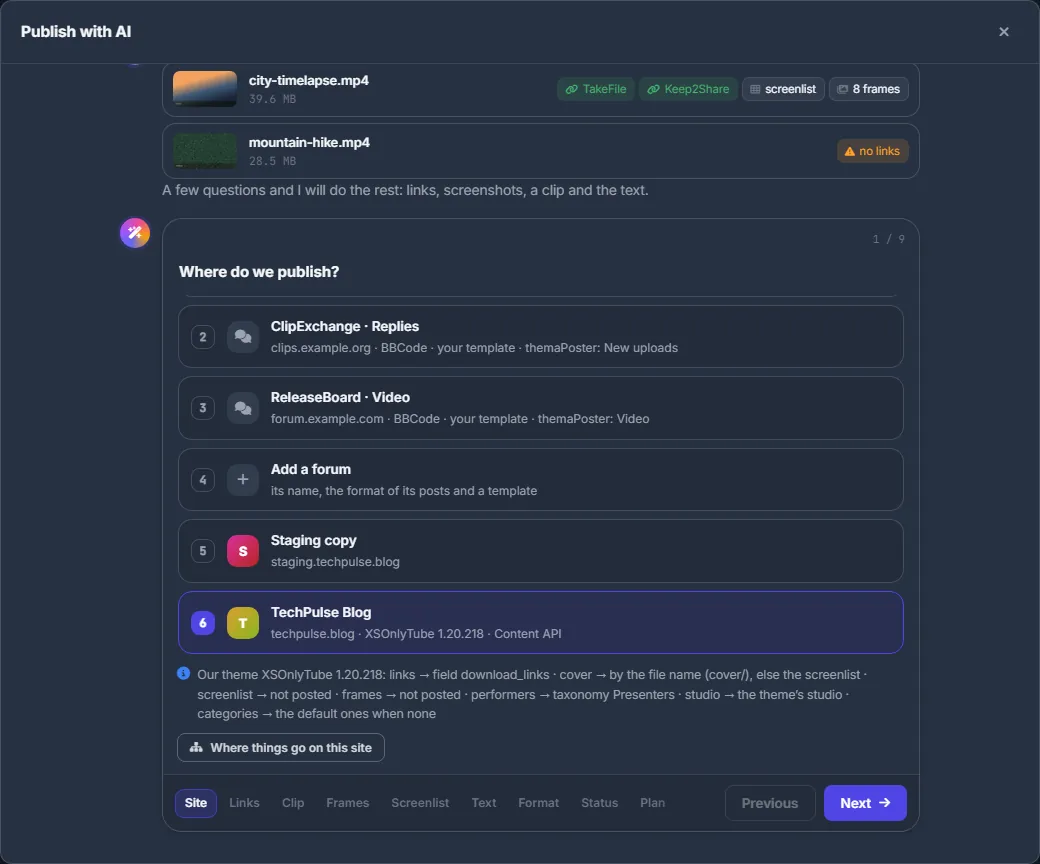
Fig. 2 TechPulse Blog picked: the line under the list shows where links, cover, performers and categories will go. -
Download links
“Download links: which file hosts go into the post?” Tick the hosts whose links go into the post. For files that have no links yet, tick a host and “upload the missing ones”, then choose its folder: the links go in when the upload ends. Uploads that are already running — started in Files or by the Conveyor — are waited for, never started twice.
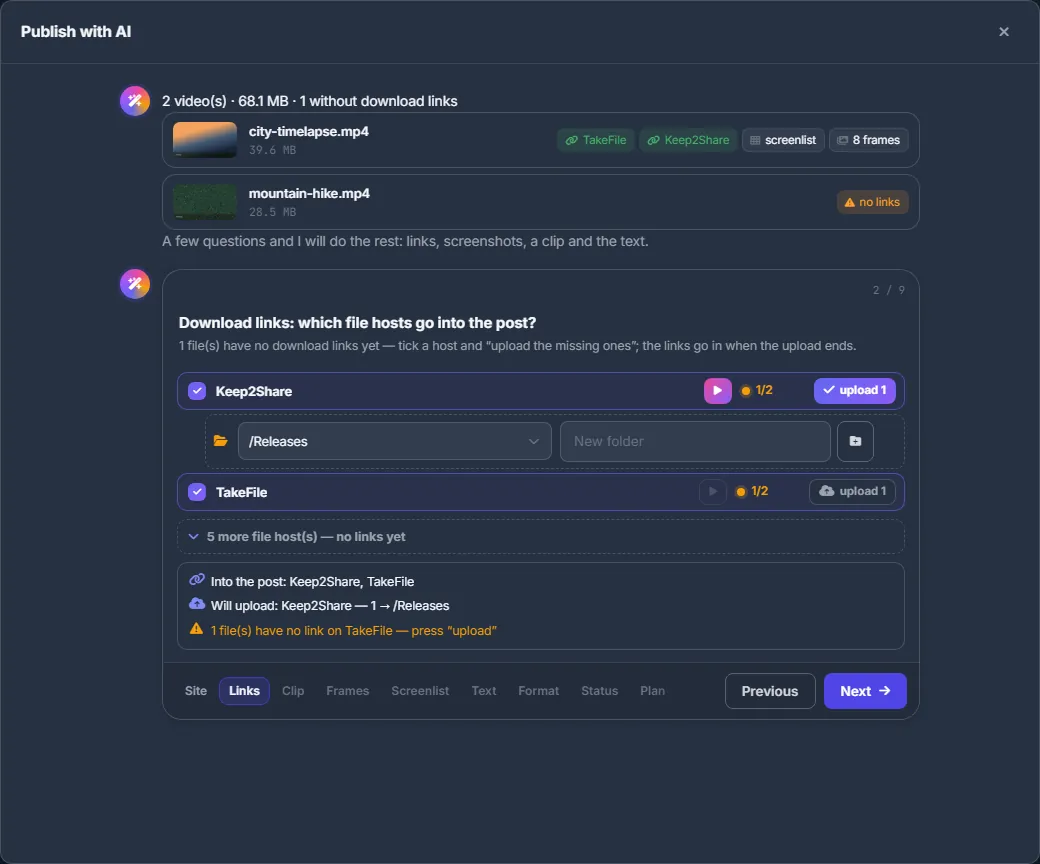
Fig. 3 One video already has links; the other will be uploaded to Keep2Share, into /Releases. -
Clip, frames, screenlist, cover
Depending on the site, the assistant asks:
- “Make a short hover clip for the card?” — XSOnlyTube only: 5 pieces × 2 s, 4 pieces × 2 s, 8 pieces × 1.5 s or No clip; “Clip height” 360p or 480p.
- “Take frames from the video?” — “Ready frames from the project”, “I will choose myself”, 8, 4, 12 or 16 frames, or “No frames”.
- “Where do the frames go?” — XSOnlyTube: “The theme’s gallery” or “Into the post text”.
- “A screenlist (contact sheet)?” — make it and put it into the text, make it but keep it out of the text, or no screenlist.
- “What goes on the cover?” — a frame from the video, the screenlist, or no cover. Not asked when the site’s settings choose the cover.
- An image host, when pictures go into the text or into the site’s fields.
Whatever the site’s settings already decide is stated under the question instead of being asked.
-
What kind of text?
Choose “Like the site’s posts” (the format the site’s own posts use), “A description for the theme” (XSOnlyTube), “Forum post” / “By the forum template”, “Short and to the point” (1–2 paragraphs), “Detailed” (4–5 paragraphs), or a saved template if you have one. Then add, if you like:
- Other wishes for the AI;
- Language — empty means the site’s language;
- Look at video frames — the AI looks at the pictures as well;
- Adult content — set automatically for a site marked 18+.
-
How do we publish? Check the plan
For a site, choose the status: “As drafts” (recommended — you check them on the site first), “Publish right away”, “Pending review” or “Private”.
The last card, “Here is the plan”, lists every answer with a pen to change it, what the site’s settings decide (“On the site”) and any warnings — for example “Pictures in the text need an image host — pick one or leave them out”. Press “Start”. Next time, “Same as last time” jumps straight to the plan with your previous answers.
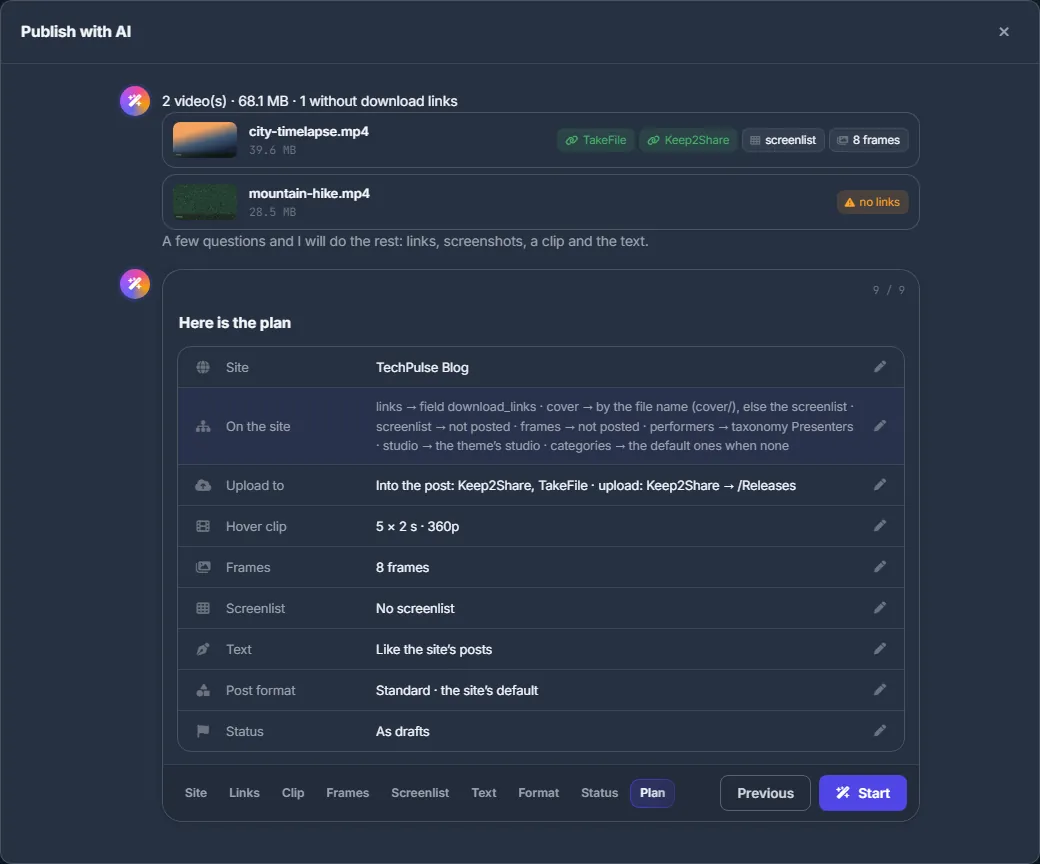
Fig. 4 The plan before the start. Click a pen to change any answer. -
Watch the work
Each file gets a card with four tasks: “Download links”, “Media”, “Text” and “Publication” (or “Copy for the forum”). Media and texts are made two files at a time.
With “I will choose myself”, a “Pictures for the post” window opens for each video: pick one screenlist (or none) and the frames in the order they should go — the first one becomes the cover. “Pick frames on the canvas…” takes new frames from the video. Later, “Choose your own” in the Media task does the same.
The buttons on a card write the text again, make the media again, or remove the file from the batch.
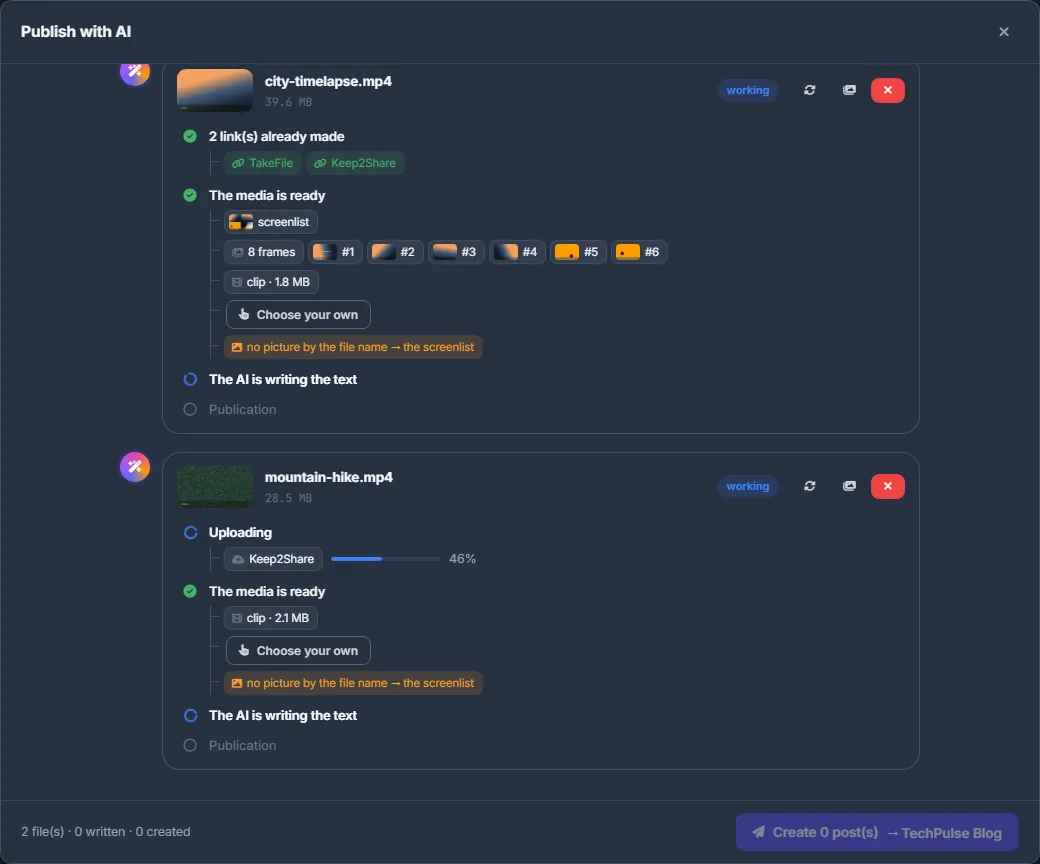
Fig. 5 One video is ready for its text; the other is still uploading to Keep2Share. -
Check and edit each post
When the text is ready, the card shows the post in two modes:
- “Preview” — cover (with the hover clip on XSOnlyTube), gallery, title, excerpt, text, categories, tags, performers, studio and links;
- “Edit” — Title, Excerpt, Content, Cover with “Change…” and “Reset”, and chips for Categories, Tags, Performers, Studio and the site’s other taxonomies.
Every edit is saved into the video’s project immediately, so Build post and the Conveyor see it too. If the video is already on this site, tick “Update that post instead of a new one”.
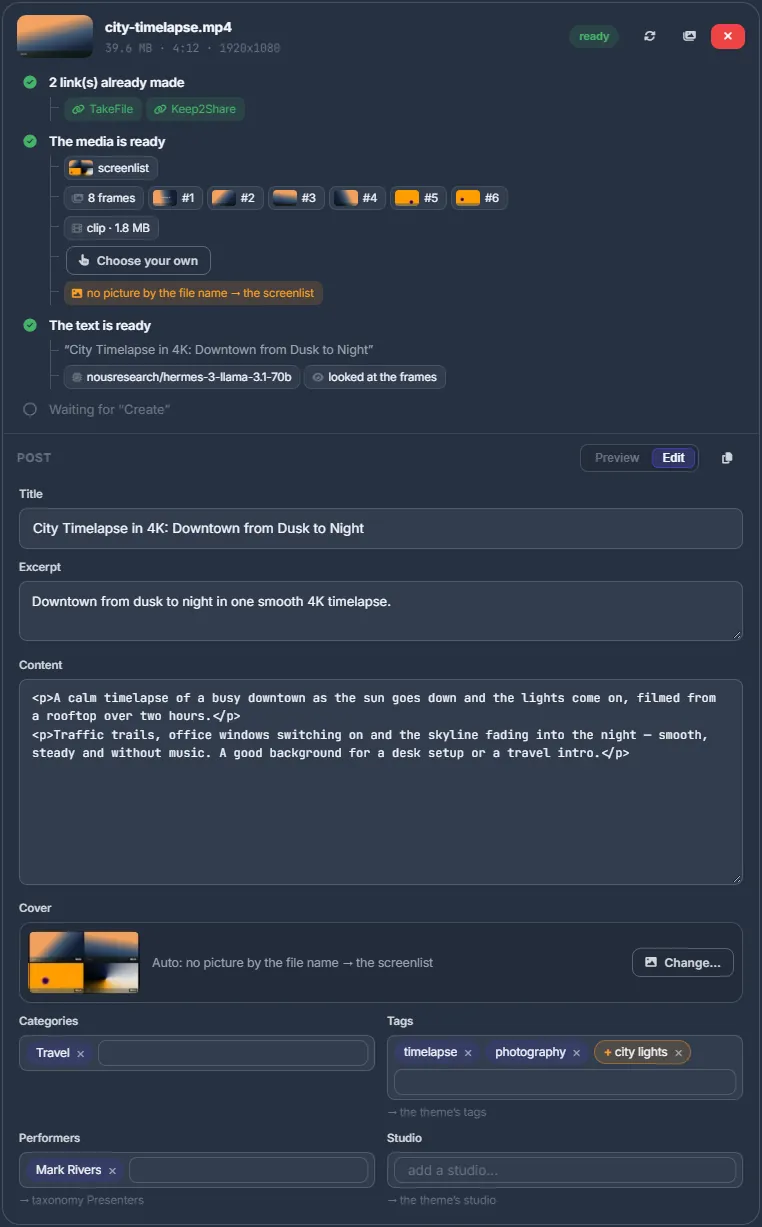
Fig. 6 A post in “Edit” mode: fix the title, excerpt, text, cover and terms before it goes to the site. -
Create the posts
The bar at the bottom counts the files, the written texts, posts waiting for links and created posts. Press “Create N post(s) → site”, or “Publish N post(s)”, which asks for confirmation first.
A post whose links are still uploading waits for them (“Waiting for the download links”); “Publish without links” lets it go without them. Each card then says “Created on the site”, “Published”, “Updated on the site” or “Already on the site”, with a link to the post and any warnings.
For a forum the bar has “Copy all” and “Export” instead; see Posts for a forum.

Fig. 7 Both texts written: one button creates both posts as drafts.
Each site gets its own text
When you publish the same video to a second or third site, the AI is shown the title and text the video already carries on your other sites — the newest post on each, up to four sites. It must write a clearly different title (other words and structure, not a synonym swap) and a description that reuses none of their sentences. The facts stay the same.
The same rule applies in the Conveyor, whose “Publish on a site” step writes a text of its own for each site by default, and to the WPManager agent.
What the AI writes for a site
- It follows the site’s house style and language.
- It picks 1–2 of the site’s categories and 5–15 of its existing tags, adding up to 5 new tags only when nothing fits.
- It sees up to 15 search queries the site is found by, when Search Console is connected.
- It names performers and the studio only from what is written in file or folder names, the uploader’s text or visible captions — never by guessing from faces.
The site’s language is set on the site’s page: Settings → AI Prompts → “Output Language” (see Site settings).
Posts for a forum
Choose a forum (or “No site — text for a forum”) in the first question. The posts follow the forum’s template and format — BBCode, HTML, Markdown or plain text — and are not created anywhere. Each card has “Copy”; the bar has “Copy all” and “Export”:
- “All posts in one .txt” — a download;
- “For themaPoster (.zip)” — a download for the themaPoster program;
- “Save the .txt to Files” and “Save the themaPoster .zip to Files” — saved next to the videos.
Forum templates are described in Forum posts and themaPoster export. That is also where you keep templates of your own.
Settings
| Setting | Choices |
|---|---|
| Status | As drafts / Publish right away / Pending review / Private. |
| Hover clip | XSOnlyTube only: 5 × 2 s, 4 × 2 s, 8 × 1.5 s or no clip; height 360p or 480p. |
| Frames | Ready frames from the project, I will choose myself, 4 / 8 / 12 / 16 frames, or none. |
| Language, Look at video frames, Adult content | Text options under “What kind of text?”. |
| Same as last time | Your last answers, remembered in this browser and offered again. |
Costs
Each text is a paid AI call from your balance; each charge shows its price. The charge appears in your Profile under “Transactions”. “Write the text again” is paid again. Media (screenlist, frames, clip), uploads and creating posts have no separate charge. See What you pay for.
Troubleshooting
| What you see | What to do |
|---|---|
| The site is not listed under “Where do we publish?” | Only sites with the WPManager plugin connected are offered. Connect the plugin on the site’s page. |
| A card says “Waiting for the download links” for a long time | The upload to a ticked host is still running (see Tasks). Wait, press “Publish without links”, or pick another host in the card if the upload failed. |
| The text failed with a balance message | Top up the balance and press “Write the text again” on the card. |
| A card says “Already on the site” | The video already has a post there. Tick “Update that post instead of a new one” and create again. |
FAQ
Can I close the window while it works?
Uploads keep running on the server and your edits are kept in the projects, but the window’s own work — media, texts, creating posts — stops. For long batches, use the Conveyor.
Does it work with any WordPress theme?
Yes. XSOnlyTube (our video theme from the Store) takes links, gallery and clip into its own fields; on other themes they go into the text or into the fields you choose in “Where things go on the site”.
Will my corrections survive if I run the same videos again?
Yes. A text you corrected by hand is kept in the video’s project and is never overwritten by the AI.