
WordPress tab: managing plugins
Manage the plugins of any connected site from the panel: see versions and pending updates, switch plugins on and off, update or delete them one by one or several at once, and install new ones from WordPress.org or from a ZIP file — without logging in to wp-admin.
On this page
Where to find it: Dashboard → click the site → WordPress tab → Plugins.
Before you start
- The site is connected with the WPManager plugin (“Connected” on the site’s Settings → Connection tab — see Installing and connecting the WPManager plugin). Otherwise the WordPress tab shows “WordPress not connected”.
- Installing from WordPress.org and uploading ZIP files need a recent version of the WPManager plugin. With an old one the install window shows “WPManager Plugin Update Required”.
The WordPress tab
On the Dashboard click the site’s row: the site page opens on “Overview”. Click “WordPress”. A direct link works too: /Home/Site/<site id>?tab=WordPress. The site header keeps its quick buttons: “Admin” opens the site’s wp-admin in a new tab, and “Check”, “PageSpeed”, “Visit” and “Back” stay at hand.
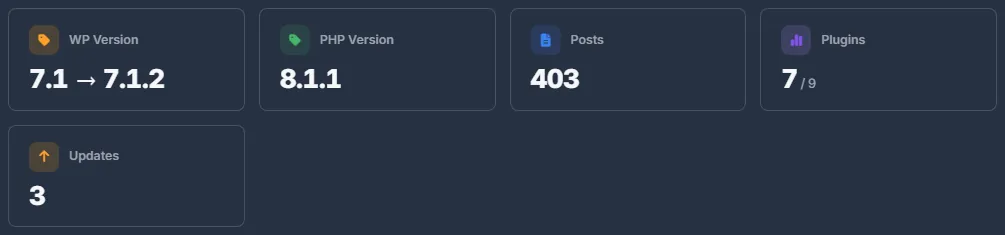
Above the sub-tabs, a summary row shows:
- WP Version — amber, with “→ new version”, when the site is behind the newest WordPress release the panel knows of;
- PHP Version — amber below 8.1, red below 8.0;
- Posts, Plugins (active / total) and Updates — how many plugins have a newer version.
Manage plugins
-
Open the Plugins sub-tab
Click “Plugins”. The first time you open it, the panel reads the list from WordPress (“Syncing plugins from WordPress...”). Later, press “Sync Plugins” whenever you have changed something in wp-admin. The counters on top show Total, Active, Inactive and Updates.
-
Find the plugin
Narrow the list with the status list — “All Plugins”, “Active”, “Inactive” or “Updates Available” — and the “Search plugins...” box, which matches plugin names.
-
Act on one plugin
Each card shows the name, version, author, a short description and badges. The buttons on the right:
- Update plugin (download icon) — only when an update exists;
- Activate plugin / Deactivate plugin (play / stop);
- Enable Auto-update (sync icon) — a check mark on it means “Auto-update ON”;
- Delete plugin (trash) — asks you to confirm.
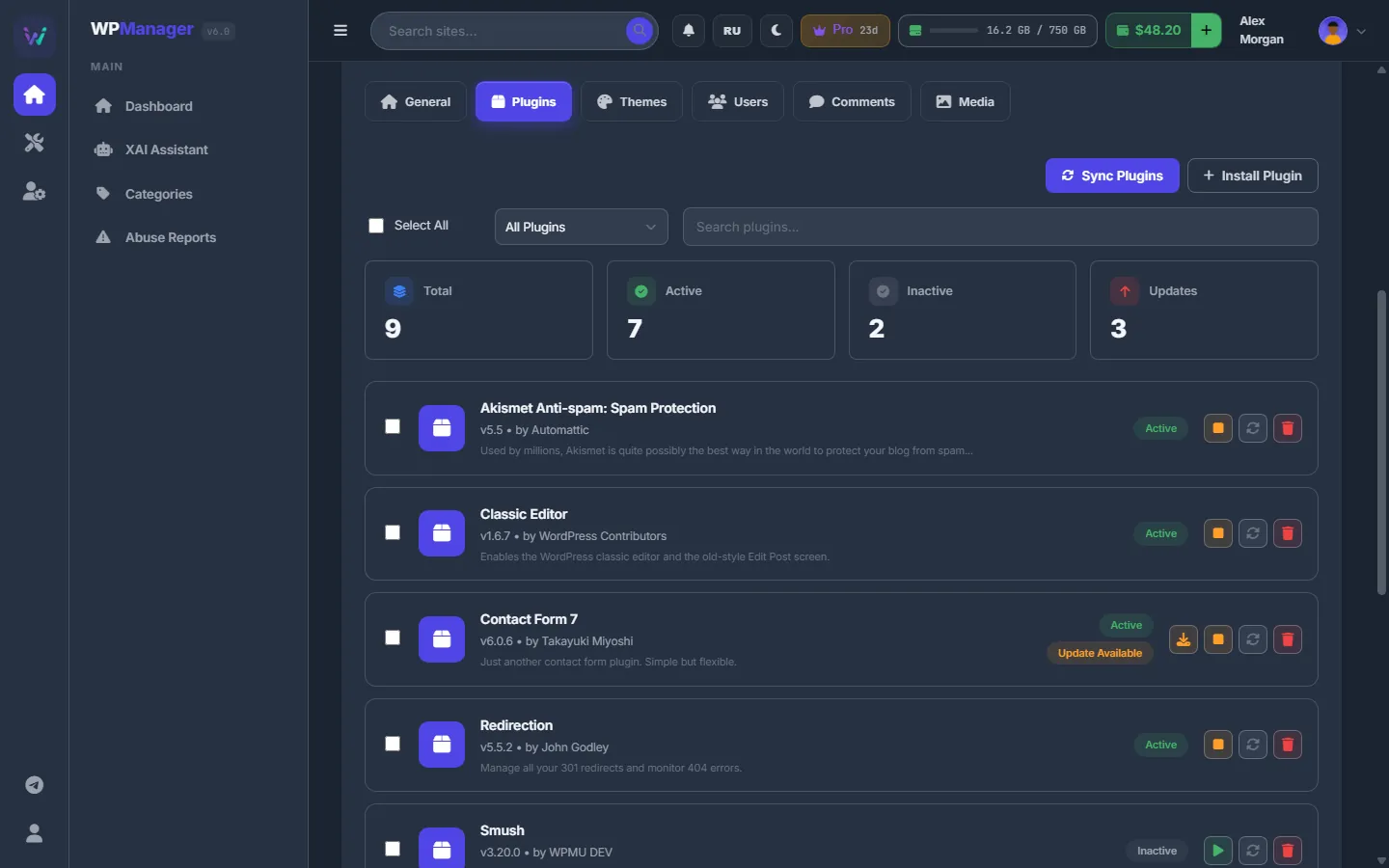
Fig. 2 Plugins of a site with their status, pending updates and actions. -
Or act on several at once
Tick the checkboxes on the cards, or “Select All” — it ticks the plugins visible under the current filter and search. A bar appears: “N selected” with “Activate”, “Deactivate”, “Update”, “Delete” and “Clear”. Each action asks you to confirm and ends with a summary such as “5 updated, 1 failed”. “Update” touches only the selected plugins that really have an update; if none do, you see “No selected plugins have updates”.
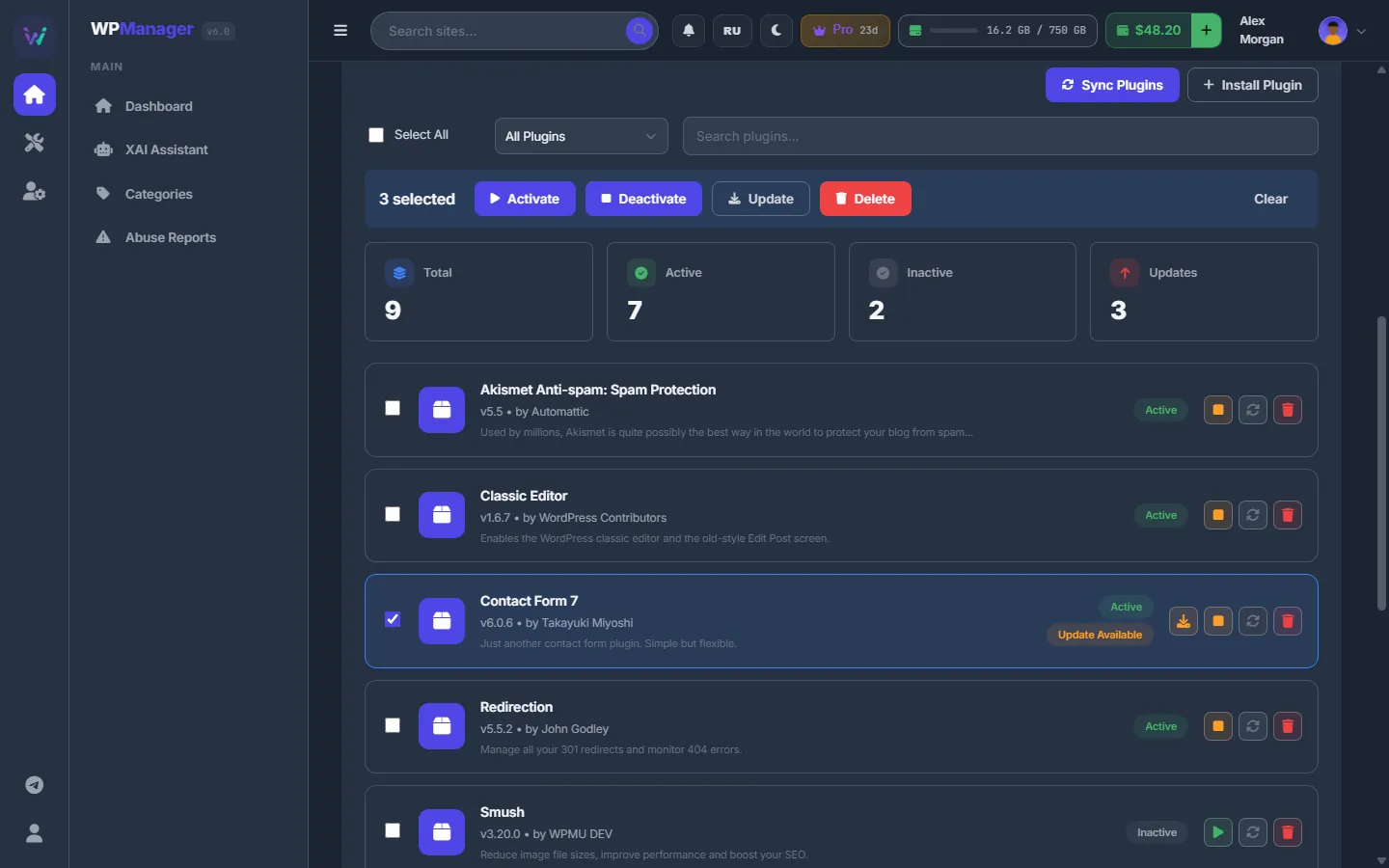
Fig. 3 Three plugins selected: the bar with the bulk actions.
What the badges mean
- Active / Inactive — whether WordPress runs the plugin.
- Update Available — WordPress.org, or the plugin’s own updater, offers a newer version; the “Update plugin” button appears.
- Auto-update — WordPress’s own automatic updates are on for this plugin: WordPress installs new versions by itself on its usual schedule.
Install a plugin
-
Search WordPress.org
Press “Install Plugin”. In the “Search WordPress.org” tab type at least two letters of a name, or pick a category under “Browse by tag”: SEO, Security, E-Commerce, Social, Widgets, Gallery, Contact Form, Backup, Caching or Analytics. Results come 12 per page (“Previous” / “Next”) with the icon, author, description, active installs, rating and version.
-
Press Install
“Install” on a card installs the plugin and activates it right away. Plugins that are already on the site are marked “Active”, or offer “Activate”.
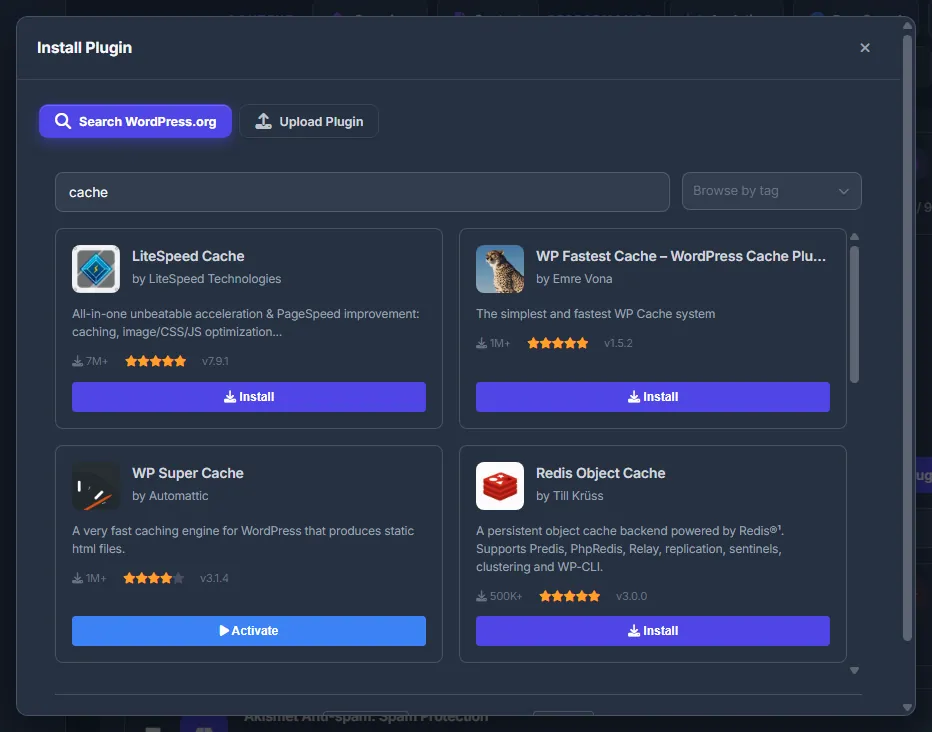
Fig. 4 Searching the WordPress.org catalogue from the panel. -
Or upload your own ZIP
In the same window open “Upload Plugin”. Click the drop zone or drag a
.zipfile onto it (up to 50 MB), tick “Activate plugin after installation” if you want it switched on, and press “Upload & Install”.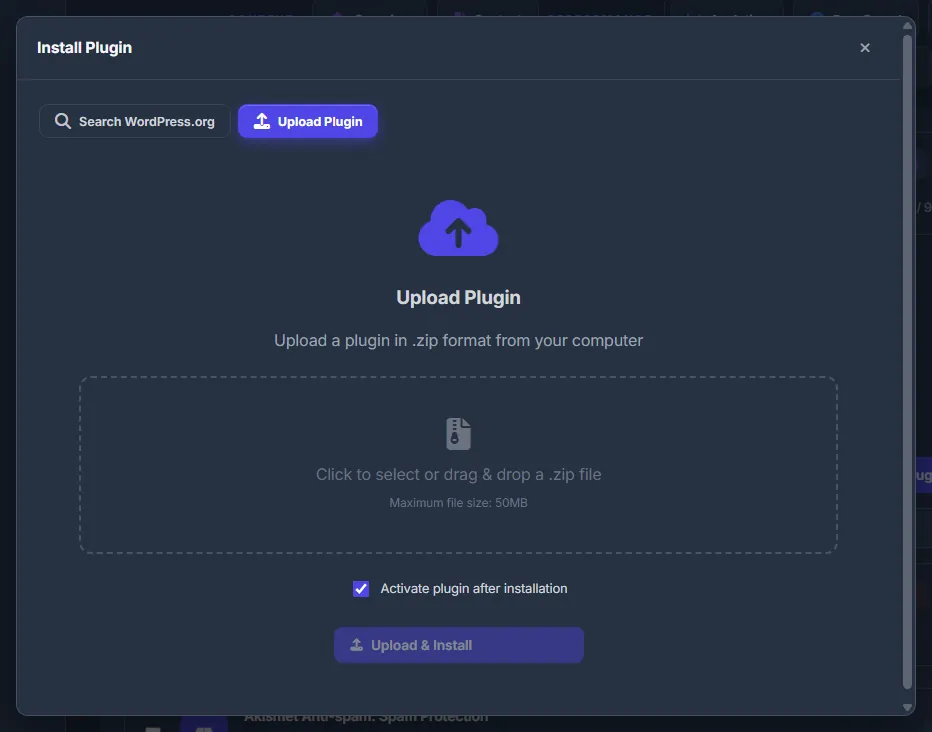
Fig. 5 Uploading a plugin ZIP of up to 50 MB. -
Check the list
After an install, an upload or “Activate” in the search window the panel syncs the list by itself (“Syncing plugins...”), and the new plugin appears with its status. To switch on a plugin that was installed but left inactive, use “Activate” in the search window or “Activate plugin” on its card.
Other places with plugin updates
The Dashboard has an updates window for every site, with WordPress core, plugins and themes in one list — see Updating WordPress, plugins and themes. The score on the Security tab also counts pending plugin updates, and its “Updates” button brings you back here.
Settings
| Setting | What it does |
|---|---|
| Status filter | “All Plugins”, “Active”, “Inactive” or “Updates Available”. |
| Auto-update (per plugin) | Turns WordPress’s own automatic updates on or off for that plugin. |
| Activate plugin after installation | For ZIP uploads only: switch the plugin on right after it is installed. Plugins installed from the WordPress.org search are always activated. |
Costs
Free: managing plugins does not use your balance.
Troubleshooting
| What you see | What to do |
|---|---|
| “WordPress not connected” | Save the WPManager plugin’s API key in “Settings” → “Connection”. In WordPress the key is under Settings → WPManager API. |
| “Invalid WPManager API key. Check the key in WordPress Settings → WPManager API.” | The key on the site has changed, for example after a database restore. Copy it again from WordPress and save it in “Settings” → “Connection”. |
| “WPManager Plugin Update Required” | The plugin on the site is too old for search and upload. Follow the steps in the window: download the latest wpmanager-api.zip, upload it in WordPress (Plugins → Add New → Upload) and replace the existing plugin. |
| “Plugin activation failed with PHP error. The plugin may have compatibility issues.” | WordPress could not start the plugin — usually it needs a newer PHP or conflicts with another plugin. Compare the PHP Version in the summary row with the plugin’s requirements. |
| A plugin installed from the panel is not in the list | Press “Sync Plugins”. |
| “File size exceeds 50MB limit” | The upload window takes ZIP files up to 50 MB. Install bigger plugins in wp-admin — the “Admin” button in the site header opens it. |
FAQ
Is the list live?
It is the panel’s copy from the last sync with the site. Press “Sync Plugins” to read the site again; actions you take in the panel update the copy by themselves.
Can I update one plugin on all my sites at once?
Not with one button. “Update all” above the sites list on the Dashboard updates all sites at once by the kinds you pick (plugins, themes, core, the WPManager plugin), not one plugin. Within a site you can update everything at once: the bulk “Update” here, or “Update all” in the site’s updates window on the Dashboard.
How do I reach a plugin’s own settings page?
Press “Admin” in the site header: wp-admin opens in a new tab, where the plugin’s settings live.