
Support chat
Ask anything right in the panel: the headset button opens a chat with the WPManager team, and their replies also reach your Telegram.
On this page
Where to find it: the round headset button at the bottom right of every page of the panel. The Telegram icon in the top bar is a separate link: it opens Telegram (t.me/xsoft_pro) in a new tab, with the tooltip “Any questions — write to us in Telegram”; it does not open the panel chat.
Before you start
- Be signed in to the panel.
- Optional: Telegram alerts connected, so that you do not miss a reply.
Ask a question
-
Open the chat
Click the round headset button at the bottom right (“Support chat”). A red number on it means unread replies.

Fig. 1 The support button with an unread reply. -
Write your message
The “Support” panel opens with the line “We answer in the panel and by Telegram”. Type into “Describe the problem…” — up to 4000 characters. Enter sends, Shift+Enter starts a new line; the paper-plane button sends too.
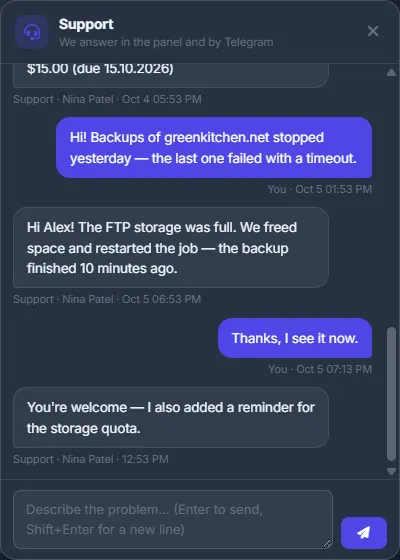
Fig. 2 The support chat inside the panel. -
Get the reply
Replies appear in the same chat with the name of the person who answered. If Telegram is connected, you also get a “Support replied” message with the start of the answer and a link that opens the chat.
How the chat works
- Your account has one conversation with its whole history.
- Text and files. Links become clickable. Attach files with the paperclip (“Attach files”), by dropping them onto the chat, or by pasting a picture from the clipboard (Ctrl+V). One message takes up to 10 files, each up to 20 MB and 50 MB in total. Allowed types: png, jpg, jpeg, gif, webp, pdf, txt, log, csv, json, xml, zip, 7z, rar, mp4, webm and mov.
- The open chat refreshes itself every few seconds.
A good request
Name the site, the page or menu item, what you did and what you saw — with the exact error text. Add the panel version from the top of the sidebar (see About page and the panel version). That saves a round of questions.
Can't sign in?
The chat works only inside the panel. If you cannot sign in, try “Forgot password?” first (see Sign in, sign out and password recovery); if that does not help, email support@wpmanager.online.
Costs
Free.
Troubleshooting
| What you see | What to do |
|---|---|
| “Message is too long (4000 characters max)” | Split the text into two messages. |
| “Could not send” | Check your connection and that you are still signed in, then send again. |
FAQ
Is there a Support item in the menu?
Yes, in the Help group. It opens the same chat as the headset button (which is on every page). The Support page itself is for the support team; clients do not see it.
How do I send a screenshot?
Attach the picture with the “Attach files” paperclip, or paste it from the clipboard (Ctrl+V) into the message box. If a file is over 20 MB, upload it to your storage in Files or to an image host and paste the link into the chat.