
FTP / SFTP: connect your own servers
Connect your own FTP, FTPS or SFTP servers and work with them side by side with the storage: browse, upload, rename, delete, and copy whole folders in both directions as background tasks.
On this page
Where to find it: Links & files → FTP / SFTP, or the “FTP” button on the Files page.
Before you start
- The address, port, login and password (or an SSH key) of your server. The server must be reachable from the internet.
Connect a server
-
Open the two-pane view
Open Links & files → FTP / SFTP. Your storage is on the left, the server on the right. Until you add a server, the right pane says “No servers yet — add an FTP / SFTP connection”.
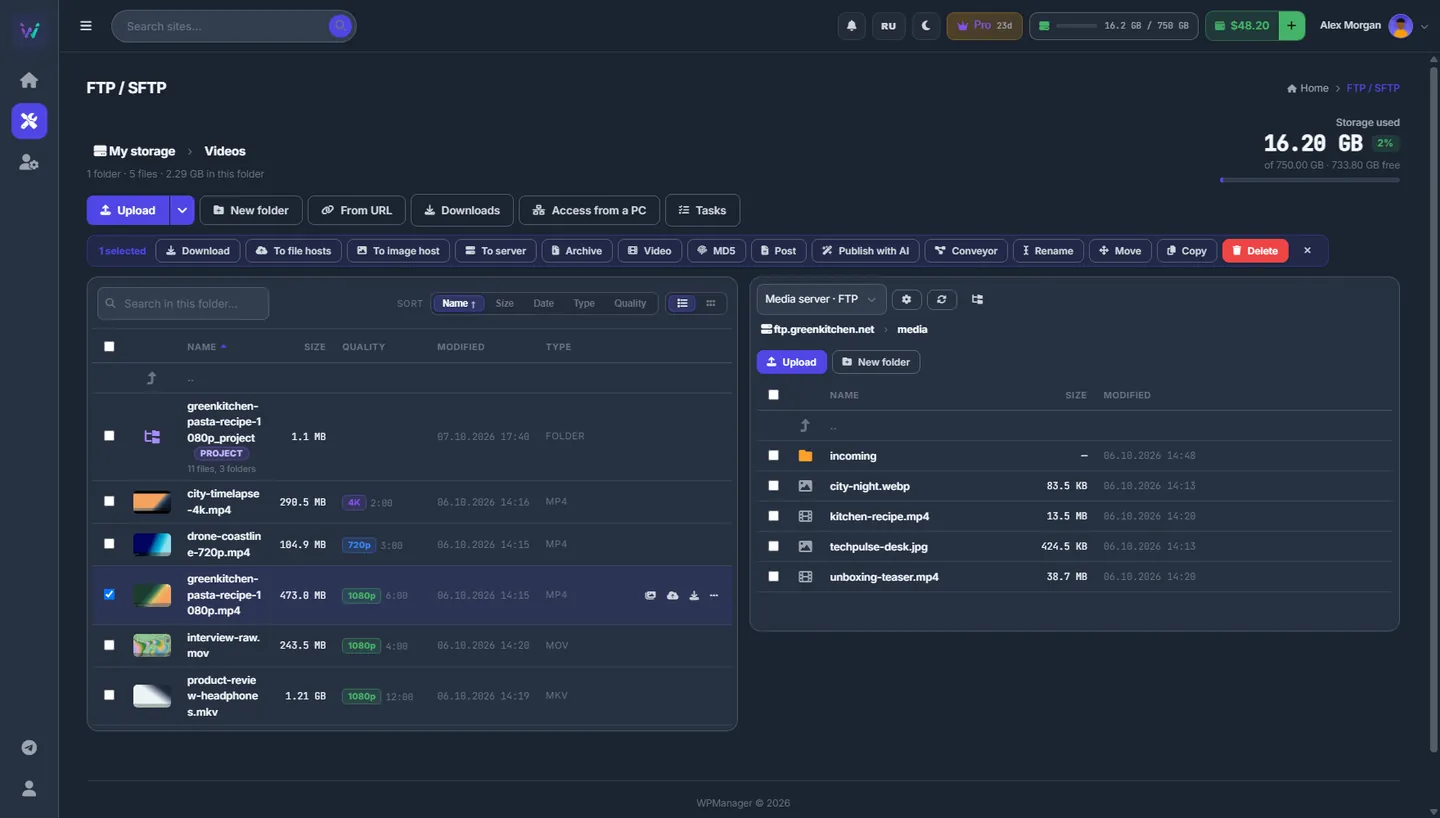
Fig. 1 The storage on the left, the media folder of an FTP server on the right; one video selected, ready to go “To server”. -
Add the server
Press the gear button (“Servers”) → “Add server” and fill in the form (see the table below). Press “Save”.
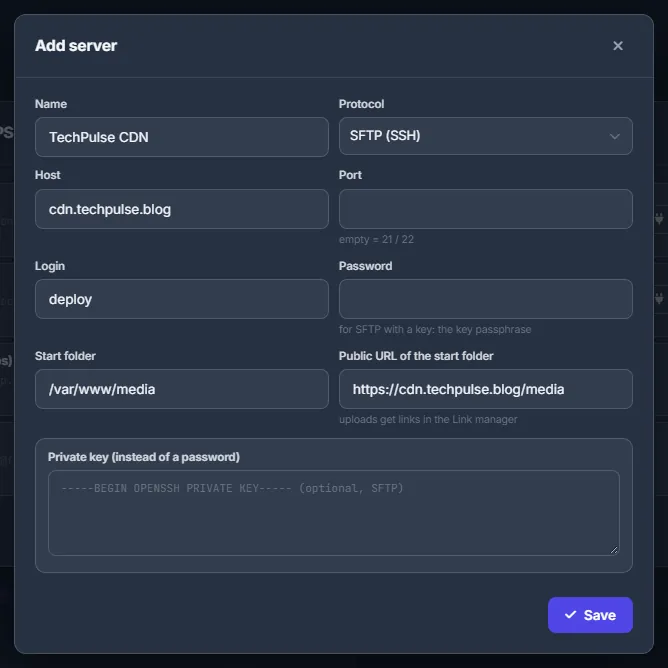
Fig. 2 An SFTP server with a start folder and the public URL that serves it. -
Test it and pick it
In the “Servers” list press “Test”: you see “Connected · N entries in root”, or the error under the server. Close the dialog and pick the server in the selector at the top of the right pane (name · protocol).
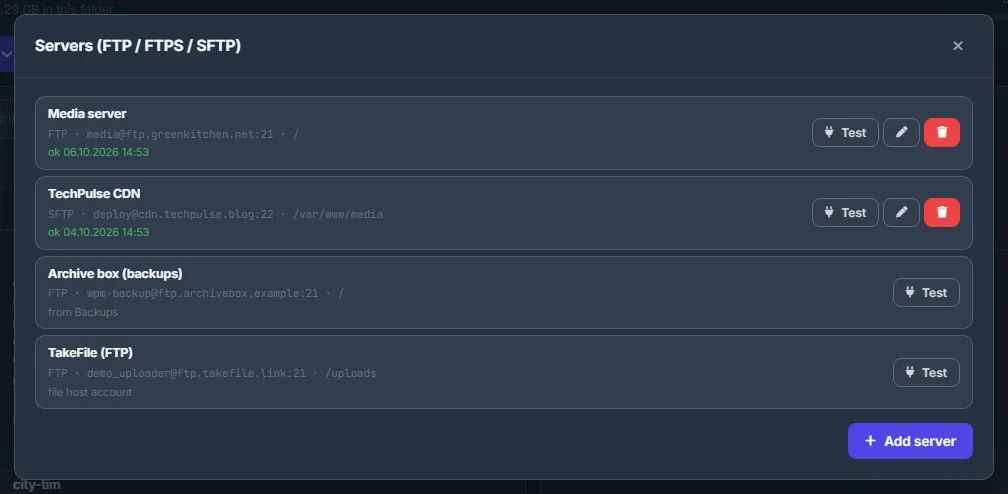
Fig. 3 Two servers of your own with their last successful check, plus a backup storage and a file host’s FTP account that appear by themselves.
| Field | What to enter |
|---|---|
| Name | Any label, for example Media server. |
| Protocol | FTP, FTPS (explicit TLS) or SFTP (SSH). |
| Host | The server name or IP address. |
| Port | Leave empty for the standard 21 (FTP) or 22 (SFTP). |
| Login / Password | Your account on the server. For SFTP with a key, “Password” is the key passphrase. |
| Start folder | Where browsing starts; / by default. |
| Public URL of the start folder | Optional. The web address that serves the start folder, for example https://cdn.techpulse.blog/media. Files you send there then get links in the link manager. |
| Private key (instead of a password) | SFTP only: paste an OpenSSH private key. |
| Passive mode (FTP) | FTP only; on by default. |
Work with the server
Click folders to open them, use the path at the top to go back, and press the round-arrow button to refresh. “Upload” sends files from your computer straight to the server — they pass through the panel and are not kept in your storage. “New folder” creates a folder on the server.
Each row on the server side has:
- “Download” — one file to your computer;
- “Copy public link” — when the server has a public URL;
- “To storage” — copies the item into the open storage folder;
- “Rename” and “Delete” — deleting asks first and cannot be undone.
Copy between the server and the storage
- Storage → server: select items on the left and press “To server”, or drag them onto the right pane or onto a server folder.
- Server → storage: select items on the right and press “To storage”, or drag them onto the left list or onto a storage folder.
Folders are copied with everything inside, one task per top-level item. After you start a copy, the panel opens the Tasks page so you can follow it.
Connections that appear by themselves
Besides your own servers, the list shows the FTP storages from the Backups page (named “… (backups)”, marked “from Backups”) and file hosts with FTP access (named “… (FTP)”, marked “file host account”). You can test and browse them here; they are edited on their own pages — see File backups and File host accounts.
Links for files sent to a server
When the server has a “Public URL of the start folder”, every single file you send to it gets a public link — in the task and in the link manager.
Safety
- The panel connects only to public addresses; hosts in local or private networks are refused.
- Files copied into the storage count against your quota.
- Files whose names are not safe for the storage are skipped, and the task says how many.
Settings
| Setting | What it does |
|---|---|
| Protocol | FTP, FTPS (explicit TLS) or SFTP (SSH). |
| Start folder | Where browsing starts (default /). |
| Passive mode (FTP) | On by default; switch it off only if your FTP server needs active mode. |
Costs
Free. Files copied into the storage count against your quota.
Troubleshooting
| What you see | What to do |
|---|---|
| “… the host cannot be resolved or points to a local or private network address” | Use the public name or IP address of the server. |
| “Connection failed” or a timeout on FTP | Check the port and “Passive mode (FTP)”. If your host requires encryption, try FTPS or SFTP. |
| “Too many downloads are waiting — let some of them finish first” | Many copies into the storage are already queued. Wait until some of them finish. |
FAQ
Is my server password safe?
It is kept in your account and never shown again. When you edit the server, leave the field empty to keep the saved password.
Is this the same as access from a PC?
No. Here the panel connects to your server. Access from a PC works the other way round: your computer connects to the storage.