
The site page and its Overview tab
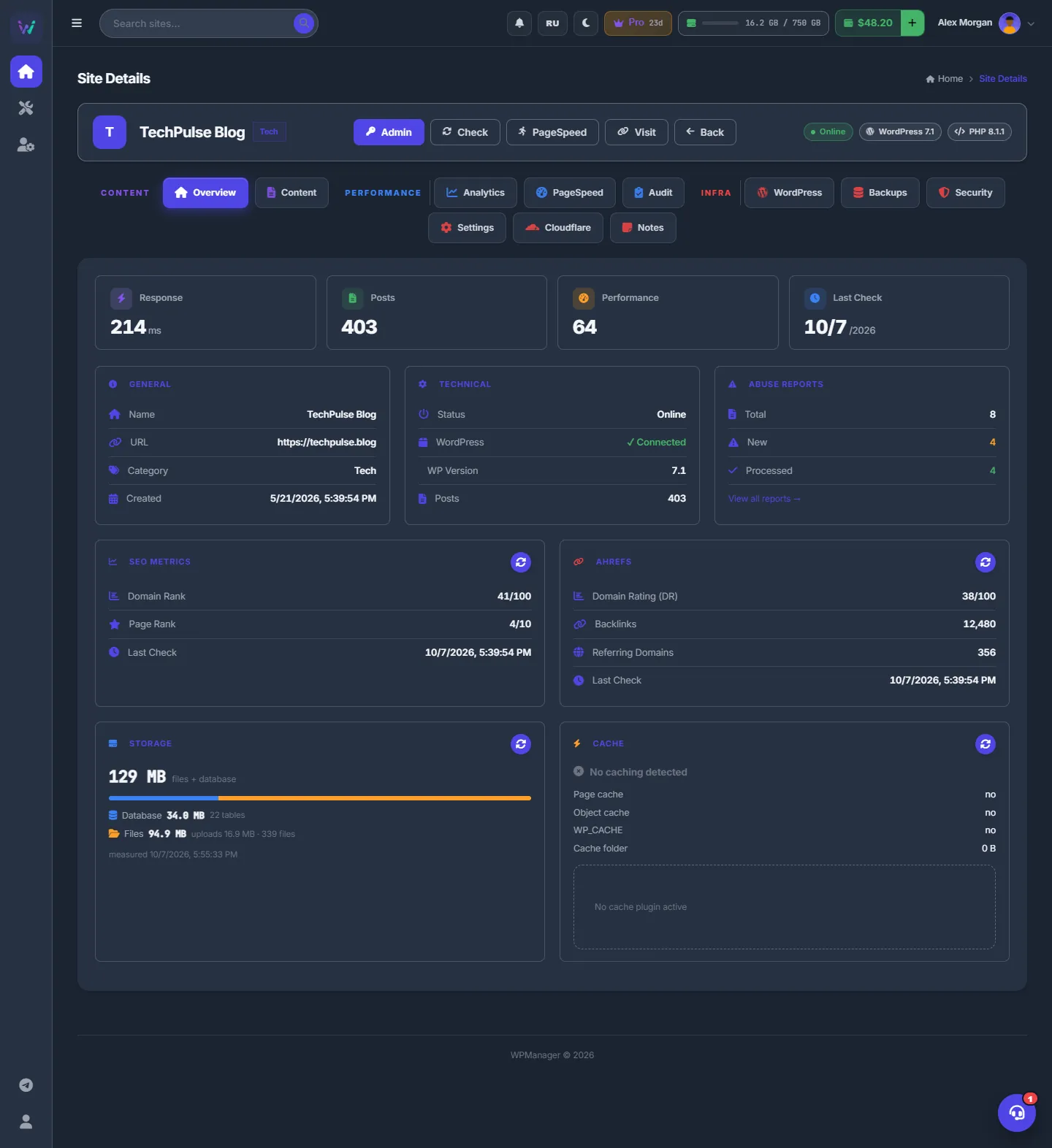
Every site has its own page: quick actions in the header and tabs for content, analytics, speed, WordPress, backups, security, settings, Cloudflare and notes. The first tab, Overview, sums the site up on one screen: key numbers, general and technical facts, abuse reports, SEO metrics, Ahrefs figures, storage and cache.
On this page
Where to find it: Overview → Dashboard → click a site row → Overview.
Before you start
- The site is added — see Adding, editing and removing sites.
- Storage, cache and the WordPress details need the WPManager plugin.
Open the site page
On the Dashboard click the site’s row — anywhere except a button or a link in it. The page address is /Home/Site/<id>. To open a tab directly, add ?tab= and the tab name, for example ?tab=Notes or ?tab=Settings; ?tab=Settings&sub=seo and ?tab=Settings&sub=publishing open those sub-tabs.
The header
On the left are the icon tile in the category colour, the site name (it opens the site) and the category chip. Then the buttons:
- “Admin” opens wp-admin in a new tab;
- “Check” checks the site now — the same check as “Re-check” on the Dashboard;
- “PageSpeed” runs a speed test, which takes 60–120 seconds;
- “Visit” opens the site;
- “Back” returns to the Dashboard.
On the right, pills show the status and the WordPress and PHP versions.

The tabs
The tabs are grouped by purpose: CONTENT, PERFORMANCE and INFRA. Uptime and the Globe live inside Analytics.

| Tab | What it is for |
|---|---|
| Overview | The summary described below. |
| Content | The site’s posts: search, edit, AI tools — see the post list. |
| Analytics | Traffic, Globe, Sessions, Journeys, Goals, Funnels, Retention, Search Console, Google Analytics, Bing and Uptime — start with Traffic; for uptime see uptime monitoring. |
| PageSpeed | Speed tests and what to fix — see PageSpeed. |
| Audit | An SEO and security check of the home page — see Site audit. |
| WordPress | Plugins, themes, users, comments and more — start with plugins. |
| Backups | Create, download and restore backups — see Site backups. |
| Security | The security score, the malware scan and the firewall — see Security tab. |
| Settings | Name, address, plugin connection, SEO data, AI prompts, publishing — see Site settings. |
| Cloudflare | Cache, Under Attack, analytics, DNS and zone settings — see Cloudflare tab. |
| Notes | Your free-form notes — Site notes. |
The Overview tab
Key numbers
Four tiles at the top:
- “Response” — the last response time;
- “Posts” — published posts;
- “Performance” — the mobile PageSpeed score, or the desktop one when there is no mobile score;
- “Last Check” — the date of the last check.
Info cards
- GENERAL — name, URL, category and the date the site was added.
- TECHNICAL — status, WordPress (“Connected” or “Not Connected”), WordPress version and posts.
- ABUSE REPORTS — total, new and processed reports and, when there are any, “View all reports →”. See Abuse reports.
SEO metrics and Ahrefs
SEO METRICS shows Domain Rank and Page Rank from OpenPageRank with the date of the last check. AHREFS shows Domain Rating (DR), Backlinks and Referring Domains. Click the round refresh button in a card header to fetch fresh figures.

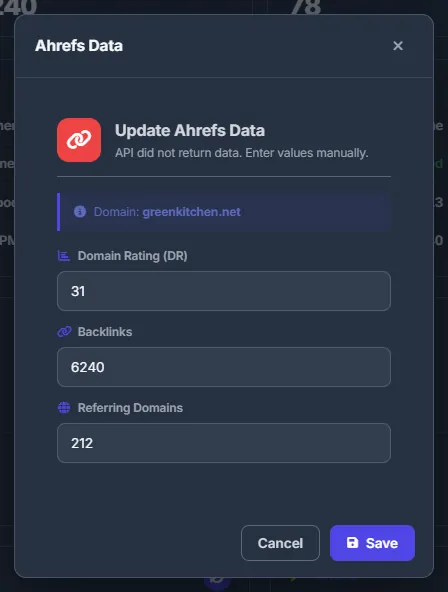
If the Ahrefs source has no data for the domain, the “Ahrefs Data” window opens: type the DR, backlinks and referring domains yourself — for example from your Ahrefs account — and click “Save”.
Lookup limits
- Figures fetched within the last 24 hours are reused: a repeated click shows the stored numbers.
- Each account can make 50 OpenPageRank lookups and 10 Ahrefs lookups a day, with a short pause between them (2 seconds and 10 seconds).
- Over the limit you see “Daily limit of N checks reached. Try again tomorrow.” or “Too many checks in a row. Wait N s and try again.”
Storage and cache
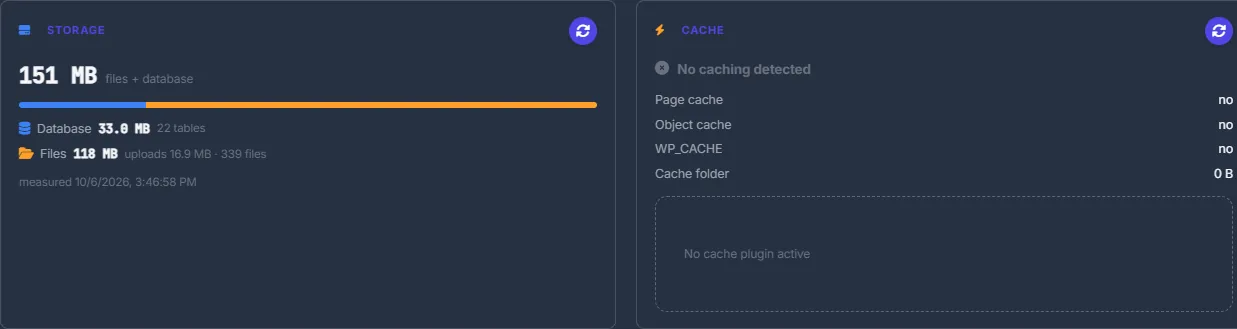
STORAGE shows the total size (files + database), a bar and the split: the database with its number of tables, and the files with the uploads size and the number of files. Under it is when the size was measured; the refresh button measures again.
CACHE says “Caching active” or “No caching detected” and lists the page cache, the object cache with its backend, WP_CACHE, the size of the cache folder and the active cache plugins. Its refresh button asks the site again.
Costs
Included in every plan, with no charges to your balance. Daily limits per account: 50 SEO metric lookups, 10 Ahrefs lookups and 300 PageSpeed tests.
Troubleshooting
| What you see | What to do |
|---|---|
| The CACHE card says “Could not read cache status” | The plugin is not connected or the site does not answer. Check Settings → Connection. |
| The CACHE card says “Detected from the plugin list — the site runs an older WPManager plugin” | Click “Update plugin” in that card. |
| STORAGE says “Not measured yet — hit refresh to ask the site.” | Click the card’s refresh button. Measuring needs the plugin. |
| Domain Rank or DR shows a dash | Nothing has been fetched yet, or the source has no data for this domain. Refresh once; for Ahrefs, enter the values by hand. |
FAQ
How is “Check” here different from “Re-check” on the Dashboard?
It is not: both run the same manual check.
Are the SEO and Ahrefs lookups paid?
No. They use WPManager’s data sources and are limited per day instead.