
AI tools for posts
AI helpers rewrite and improve text, write excerpts and titles, describe images, suggest tags and pick focus keywords backed by real search data — right in the post editor and in the post list. Nothing reaches the site until you save.
On this page
Where to find it: Overview → Dashboard → click the site → Content → “Quick edit” (the buttons inside the editor), or the number in the “Tags” or “Kw” column of a post.
Before you start
- A positive USD balance: every AI call is paid from it. Top it up as described in USD balance and top-up.
- Optional: on the site page open “Settings” → “AI Prompts”. “Output Language” sets the language of tags, keywords, excerpts and image descriptions for this site; “Tags Generation Prompt” adds your own rules for tags. See Site settings: general, connection and AI prompts.
- For keyword scores with real numbers: Search Console or Bing connected, or a DataForSEO login — see Keyword data and scores.
The tools at a glance
| Button | Where | What you get |
|---|---|---|
| Magic wand (“Rewrite title with AI”) | Next to “Title” | A new title in the field |
| “Rewrite” / “Improve” | Above “Content” | A new version of the text or of the selected fragment |
| “Auto” | Next to “Excerpt” | A short summary written from the content |
| “Vision Desc” | Above “Content” | A description of the post’s images, ready to apply to the excerpt |
| “Auto-Generate” / the “Tags” number | Editor / post list | Tag suggestions from the text or from the images |
| “AI Suggest” / the “Kw” number | Editor / post list | Focus and long-tail keywords with scores from real search data |
Rewrite and improve text
-
Rewrite the title
In the editor press the magic-wand button next to “Title” (“Rewrite title with AI”). A new title appears in the field (“Title rewritten!”). Nothing is saved until you press “Save”.
-
Choose what to process
Select a fragment of the content (more than 10 characters) to process only that part, or select nothing to process the whole text (at least 20 characters). The window tells you which mode is on: “Only the selected text will be processed…” or “Currently processing the entire content.” With a selection, links, images and tables outside it stay untouched.
-
Pick a style and generate
Press “Rewrite” or “Improve”. The window shows “Your balance” and the “Style” list:
- “Rewrite”: Creative, Similar (default), Shorter, Longer;
- “Improve”: SEO Optimized (default), More Readable, Professional, Casual.
Press “Generate” and read the “Result Preview”. Not happy? Press “Generate” again for another variant.
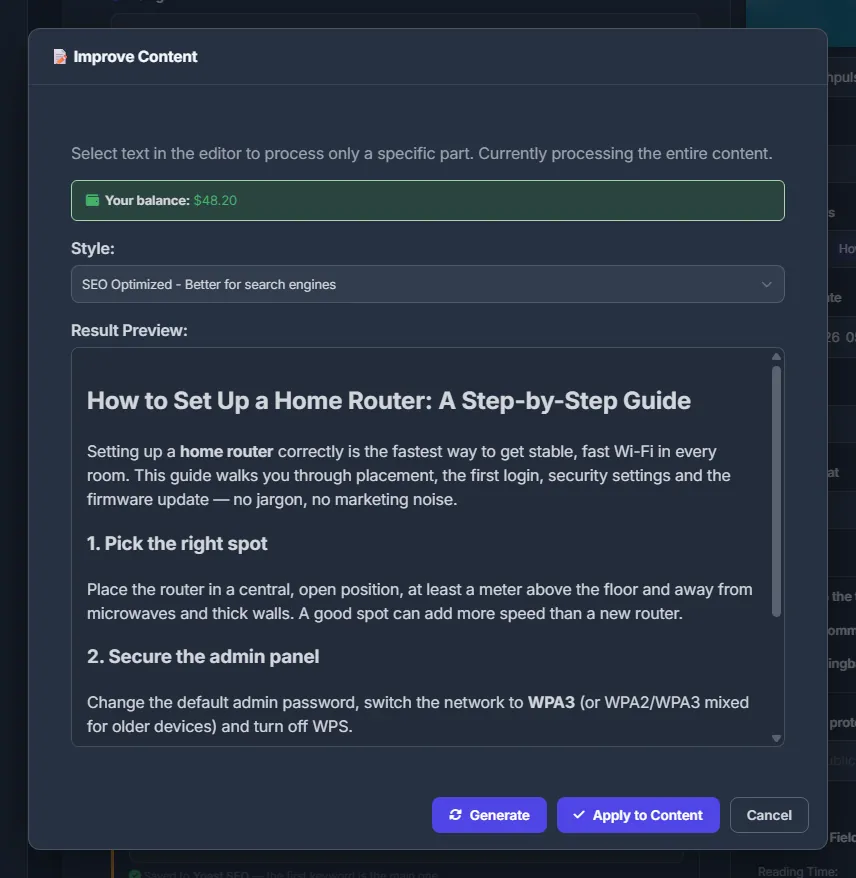
Fig. 1 “Improve”: choose a style, generate, check the preview and apply it. -
Apply and save
Press “Apply to Content” (or “Apply to Selection”). The text in the editor changes; press “Save” in the editor to send it to the site.
Excerpt and image descriptions
- Excerpt. Press “Auto” next to “Excerpt”. The content must have at least 50 characters. The excerpt is written in the site’s output language.
- Image descriptions. Press “Vision Desc”. The panel collects the featured image and the images of the post — gallery shortcodes are resolved through the media library — and sends up to four of them to a vision model. A “Vision AI Description” block appears under the excerpt with an “Apply to Excerpt” button.
Suggest tags
-
Open the tag window
Click the number in the “Tags” column of a post in the list, or press “Auto-Generate” in the editor. The window has the “Post Tags” box — pick existing tags or type new ones — and the “AI Tag Suggestions” block.
-
Get suggestions
“From Content” reads the title and the first 3,000 characters of the post. The AI knows the tags the site already has and follows your “Tags Generation Prompt”. “From Images” looks at up to four images of the post.
-
Pick and save
Click a suggested chip to add it to “Post Tags”, then press “Save”. Opened from the list, “Save” writes the tags to the site immediately. Opened from the editor, it fills the editor’s “Tags” field, and you save the post as usual.
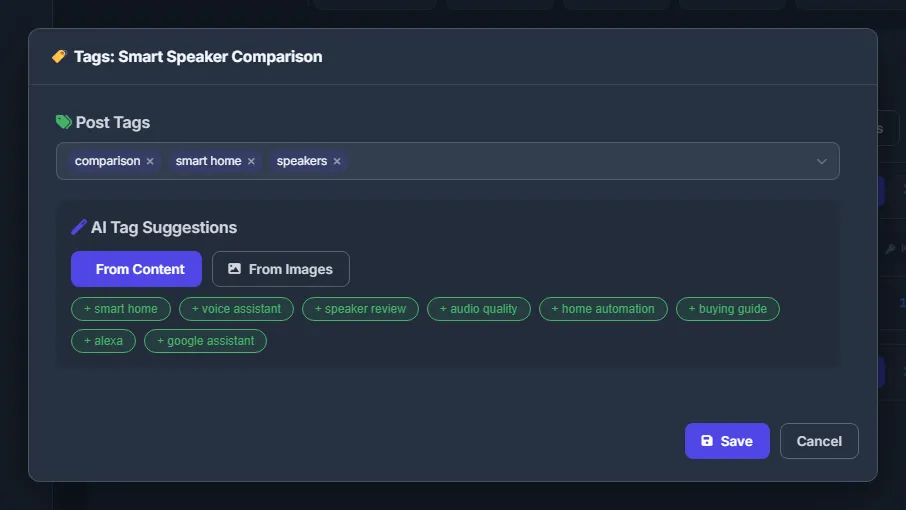
Fig. 2 AI tag suggestions from the text or from the images of the post.
Pick focus keywords
-
Open the keyword assistant
Click the number in the “Kw” column of a post, or press “AI Suggest” in the editor. The “SEO Keywords” window opens. When the post has no keywords yet, the analysis starts by itself; otherwise press “Analyze & Suggest”.
-
Read the suggestions
You get “Focus Keywords”, “Long-tail Keywords” (more specific searches) and “Related Tags”. Each line has a score and one line of facts from the sources — Search Console, Bing, Google Ads via DataForSEO — or “No data”.
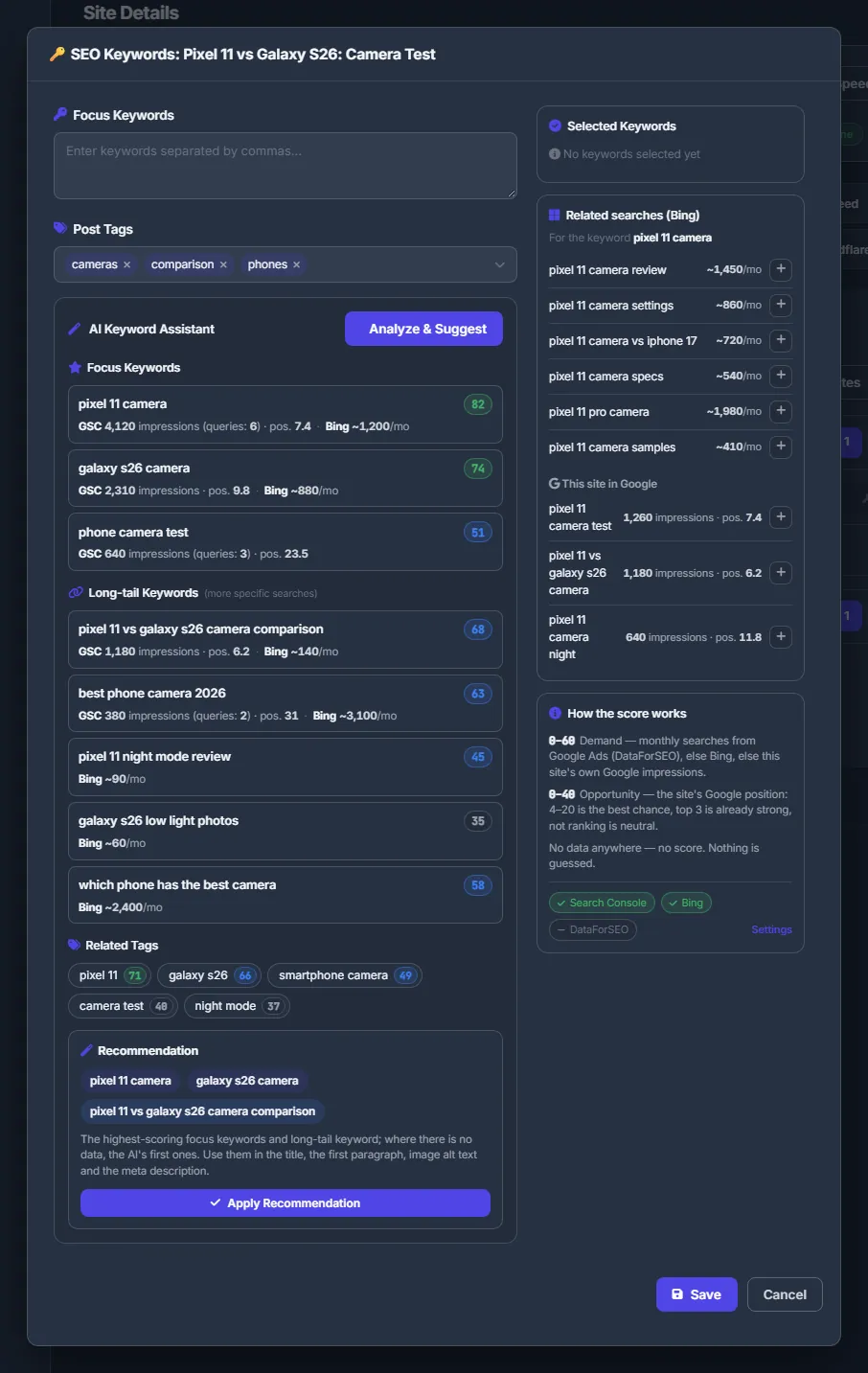
Fig. 3 The keyword assistant: AI suggestions with real search data and a one-click recommendation. -
Choose and save
Click a keyword to add it to “Focus Keywords” (click again to remove it); click a tag to add it to “Post Tags”. Or press “Apply Recommendation”: it takes the two best-scoring focus keywords and the best long-tail one. Press “Save”.
The right column of the keyword window
- Selected Keywords — your chosen keywords as chips with their score; × removes one.
- Related searches (Bing) — Bing’s related searches for the first keyword and, under “This site in Google”, the site’s own Google queries, each with a + button to add it.
- How the score works — the scoring rules and which sources are connected for this site, with a link to the site’s settings.
What the keyword score means
The score runs from 0 to 100:
- Demand, up to 60 points — monthly searches from Google Ads (via DataForSEO), else from Bing, else the site’s own Google impressions;
- Opportunity, up to 40 points — the site’s Google position: 4–20 is the best chance to climb, the top 3 is already strong, not ranking is neutral.
If no source has data for a keyword, it gets no score (“—”): nothing is guessed. More in Keyword data and scores.
Settings
| Setting | What it does |
|---|---|
| Style (“Rewrite”) | Creative, Similar (default), Shorter, Longer. |
| Style (“Improve”) | SEO Optimized (default), More Readable, Professional, Casual. |
| Output Language (“Settings” → “AI Prompts”) | Language of tags, keywords, excerpts and image descriptions for the site. |
| Tags Generation Prompt (“Settings” → “AI Prompts”) | Your own instructions, added in front of the built-in tag rules. |
Costs
Every AI call is charged from your USD balance per request, by the tokens it used, and each charge shows its price. The “Rewrite” / “Improve” window shows your balance; at zero it says “Top up balance to use AI”, and a call is refused with “Insufficient balance”. See What you pay for.
Each press of “Generate” is a new paid call. Keyword facts from DataForSEO are billed by DataForSEO to your own DataForSEO account, not to the panel balance.
Troubleshooting
| What you see | What to do |
|---|---|
| “Content is too short to process” / “Add content first” | “Rewrite” and “Improve” need at least 20 characters of text, “Auto” excerpt needs 50. Write a few sentences first. |
| “No images found” after “Vision Desc” or “From Images” | Set a featured image or add images to the content. Only http(s) image addresses are used. |
| “Insufficient balance” or a 402 error | Top up the USD balance and try again. |
| All keyword scores are “—” | No source has data for them. Connect Search Console and Bing (Analytics tab) or add a DataForSEO login on the Profile page. The state of each source is shown in “Settings” → “SEO data”. |
FAQ
Does the AI change my post on the site by itself?
No. Results go into the editor fields or the popup windows; the site changes only when you press “Save”.
Which AI model is used?
WPManager picks the model for each task — text or vision. You can see them on the Settings page, see Settings: appearance and AI.
Can I write tags and keywords in another language than the post?
Yes. Set “Output Language” in the site’s “Settings” → “AI Prompts”; tags, keywords, excerpts and image descriptions follow it.