
The Dashboard: all your sites on one screen
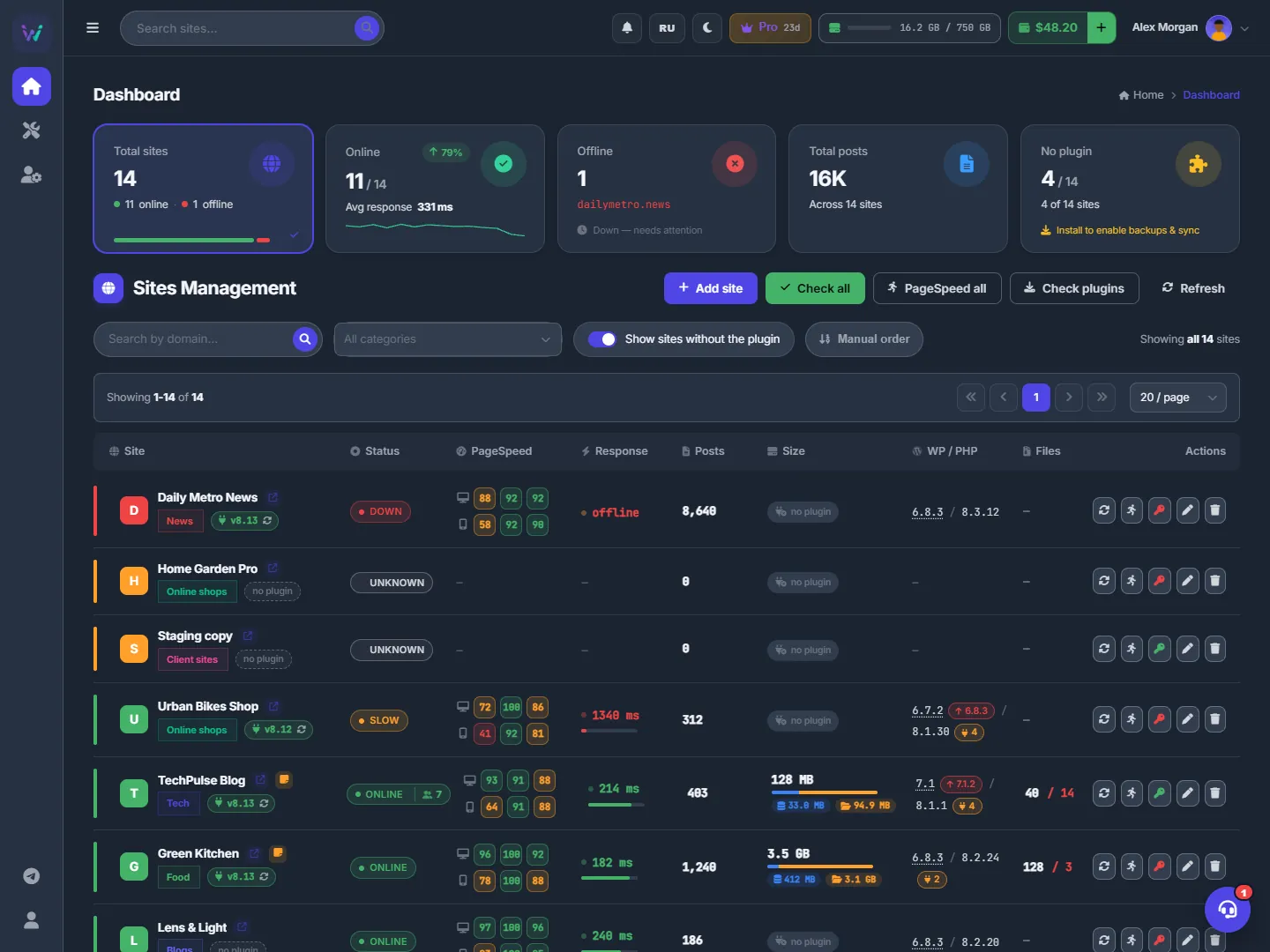
The Dashboard is the home page of the panel: every site you manage on one screen, with its live status, response time, PageSpeed scores, post count, disk size, WordPress and PHP versions and file-host links. From here you find a site, filter the list and act on any site in one click.
On this page
Where to find it: Overview → Dashboard, or the logo at the top of the icon rail. The page section is called “Sites Management”.
Before you start
- The Dashboard is part of every plan.
- Add at least one site — see Adding, editing and removing sites. Until then the page shows “No sites yet” and an “Add your first site” button.
- Sites with the WPManager plugin fill every column. Sites without it show status, response time and PageSpeed only.
The Dashboard at a glance
At the top is a row of stat cards. Under it the “Sites Management” toolbar, then the filter bar and the list of sites, one row per site. Unless you choose your own order, the sites that need attention come first.
Work with the list
-
Read the stat cards — and click them
The cards show:
- “Total sites”: how many are online and offline, with a bar;
- “Online”: the average response (“Avg response”) and a response chart for the last 14 days, which appears once there are at least two days of checks;
- “Offline”: the first site that is down, marked “Down — needs attention”;
- “Total posts”: published posts across all your sites;
- “No plugin”: sites without the WPManager plugin.
Each card is also a filter. “Online” leaves only the sites that are up, “Offline” only the ones that are down, “No plugin” only the sites without the plugin. “Total sites” and “Total posts” show everything again. The label on the right of the filter bar (“Showing … sites”) tells you how many sites the filters let through.

Fig. 2 Stat cards double as filters: click “Offline” to see only the sites that are down. -
Find a site
Type in “Search by domain…”: the list narrows as you type and matches the site name, the address and the category name. In “All categories” pick one or several categories. The “Show sites without the plugin” switch controls sites without the WPManager plugin: turn it off to hide them (the label then reads “Hide sites without the plugin”).
You can search from any page as well: type in “Search sites…” in the top bar and press Enter. The Dashboard opens with your query already applied.

Fig. 3 Search, the category filter, the switch for sites without the plugin and “Manual order”. -
Read a site row
The coloured strip on the left of a row shows the site’s health at a glance. The columns are “Site”, “Status”, “PageSpeed”, “Response”, “Posts”, “Size”, “WP / PHP”, “Files” and “Actions”; each is explained in What the columns show. Click anywhere on a row, away from its buttons and links, to open the site page.
-
Use the row buttons
On the right of every row:
- “Re-check” checks the site now and refreshes its status, response time, versions and post count;
- “PageSpeed” runs a Google PageSpeed test, which takes 60–120 seconds;
- “API key” opens the plugin key dialog. The key icon is red while no key is saved and green once it is;
- “Edit” and “Delete” are described in Adding, editing and removing sites.
The site name opens the site itself in a new tab; the small arrow next to it opens its wp-admin.
-
Use the toolbar
- “Add site” opens the add dialog;
- “Check all” re-checks every active site, three at a time;
- “PageSpeed all” queues a PageSpeed test for every site, three at a time, and notifies you as each one finishes;
- “Update all” opens the “Update all sites” window: tick what to update on all your sites (“Plugins”, “Themes”, “WordPress core” or “WPManager plugin”), then press the button at the bottom of the window. The update runs as a background task, with progress on the Tasks page; sites it did not reach are listed with the reason;
- “Refresh” reloads the list.
-
Arrange the sites in your own order
By default the list is sorted by health: sites that are down first, then sites in an unknown or error state, then slow ones (700 ms and more; the SLOW label itself appears only above 1000 ms), then healthy ones. Click “Manual order” to switch to your own order. Each row gets a grip and a position number: drag a row by its grip, or click the number to open “Move site”.
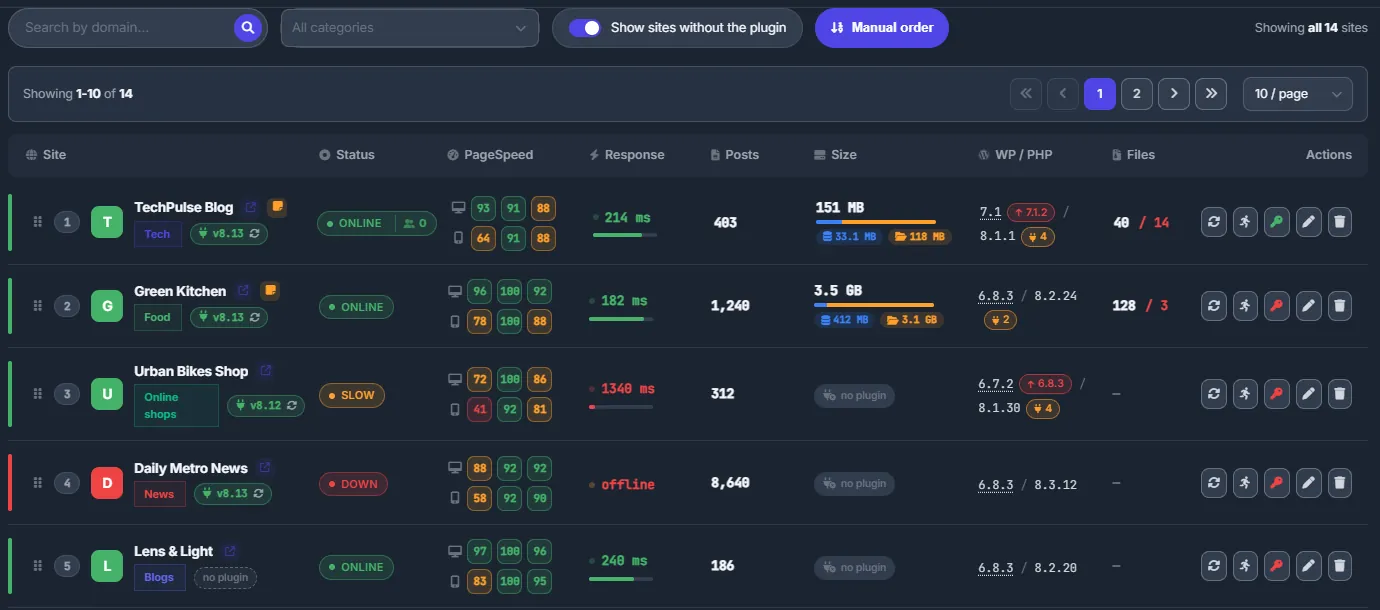
Fig. 4 Manual order: drag rows by the grip, or click the number to move a site to any position. In “Move site” type a position, or press “First” or “Last”, and click “Move”. This works across pages, so you can move a site from page 3 to the very top. The order is saved in your account; click “Manual order” again to go back to sorting by health.
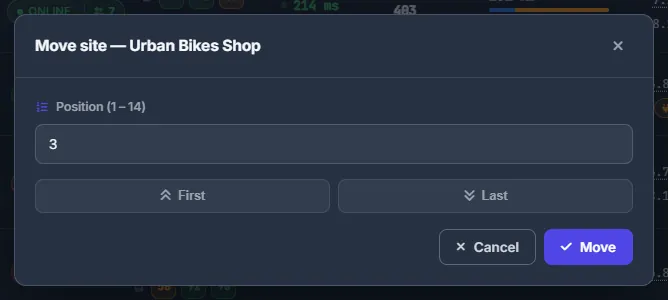
Fig. 5 Move a site to an exact position, even on another page. -
Page through a long list
Pagers sit above and below the list. In the page-size box choose 10, 20, 30, 50 or 100 sites per page (20 by default). Your choice is remembered in this browser.
What the columns show
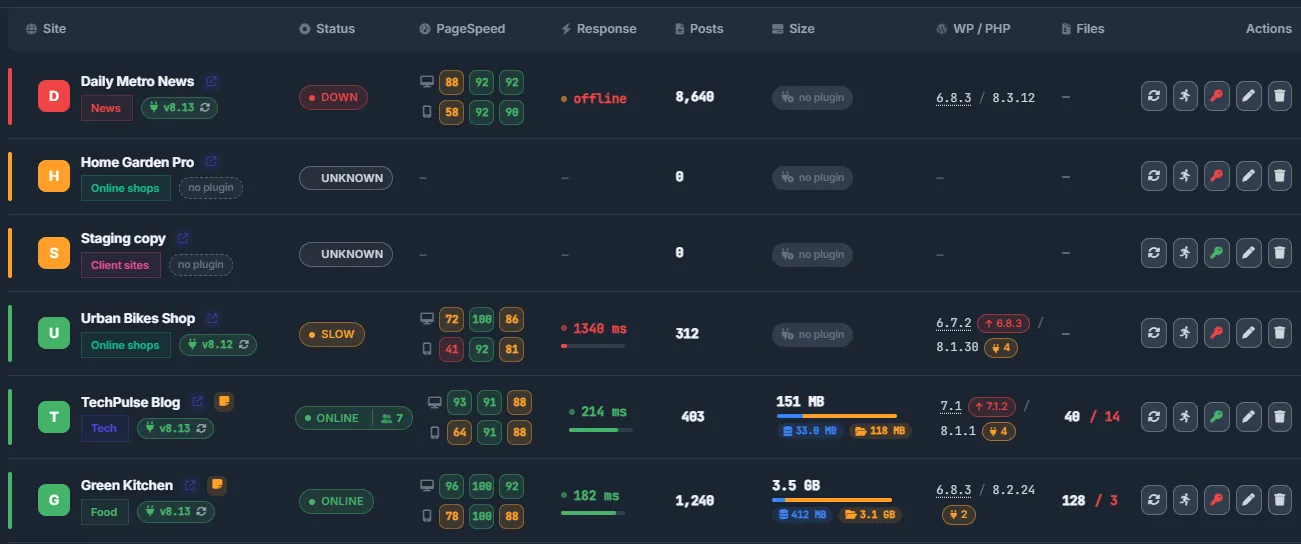
| Column | What it shows |
|---|---|
| Site | The favicon, or the first letter on a tile (green when the site is up, red when it is down, amber otherwise). The site name, which opens the site; an arrow to wp-admin; a sticky-note icon when the site has notes (hover to read, click to open them); the category chip in the category colour; and the plugin tag: v8.13 with a circular arrow when the WPManager plugin answers, “no plugin” otherwise. |
| Status | ONLINE; SLOW — online, but the last response took more than 1000 ms; DOWN; or the raw state, such as UNKNOWN before the first check or ERROR after a manual check that got an error code. Sites with the plugin also show a people icon with the number of visitors active in the last 5 minutes. |
| PageSpeed | Two rows, desktop and phone, each with three squares: Performance, SEO, Accessibility. Green is 90–100, amber 50–89, red below 50. Any score below 99 can be clicked for details. |
| Response | The last measured response time with a bar: green under 300 ms, amber under 700 ms, red from 700 ms. “offline” in red when the site is down. Hover to see when the last check ran. |
| Posts | Published posts on the site. |
| Size | Database plus files on disk: the total, a bar with the split and a chip for each part. The plugin measures it, and it is measured again automatically once a day; click the cell to measure right now. “measure” means there is no measurement yet; “no plugin” means it cannot be measured. |
| WP / PHP | The WordPress and PHP versions. Click the WordPress version to open the updates dialog. An arrow button with a version number means WordPress reported a newer core; a plug button with a number counts pending plugin and theme updates. |
| Files | File-host links the panel tracks on this site and, after the slash, how many of them were dead at the last scan. See Scanner. |
| Actions | “Re-check”, “PageSpeed”, “API key”, “Edit”, “Delete”. |
Update WordPress, plugins and themes from the Dashboard
Click the WordPress version in the “WP / PHP” column, or the arrow or plug button next to it. The “Updates” dialog lists “WordPress core”, “Plugins” and “Themes”, each item as current → new version.
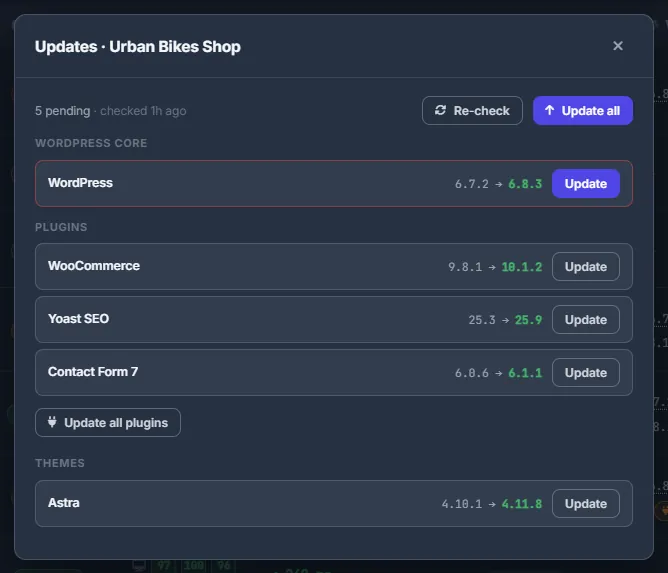
- In the site’s updates window, click “Update” on one item, or “Update all plugins”, or “Update all”. “Re-check” asks the site for a fresh list.
- Every update asks you to confirm and warns that the site may be in maintenance mode for a minute. Keep the page open until the result appears.
- If the stored list is older than 6 hours, the dialog asks the site right away. The panel also re-reads pending updates from every connected site every 6 hours on its own.
- Installing updates needs WPManager plugin 7.5 or newer. With an older plugin the dialog shows “Plugin too old” and offers to update the plugin first.
Updates of one site, with more options, are covered in Updating WordPress, plugins and themes.
PageSpeed details
Click any PageSpeed square with a score below 99. The popup shows the score, the device and when it was tested, plus a “Full report” link to pagespeed.web.dev. For Performance it also lists FCP, LCP, TBT, CLS, Speed Index and TTI. Under that are the failed audits, the most important first. “Re-check” runs a new test.
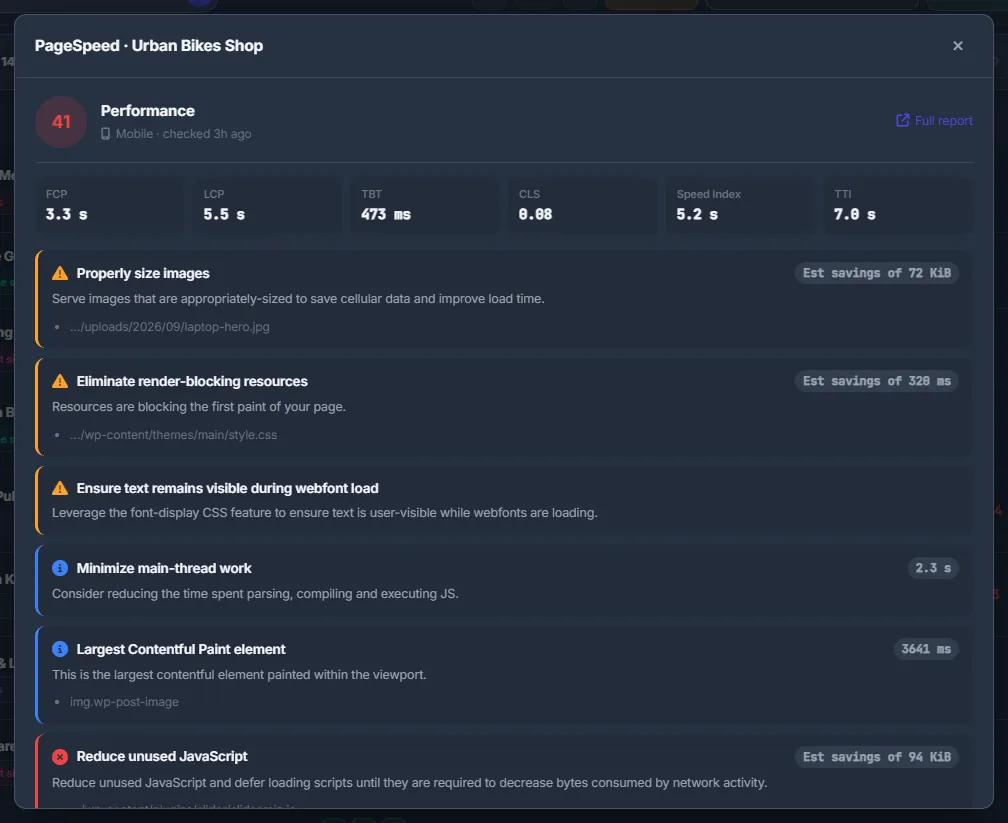
The panel tests every active site automatically once a day. If that daily run stored only the scores, the details are fetched when you open the popup. More in PageSpeed: speed scores and what to fix.
Live updates
There is no need to reload the page. Every minute the Dashboard reads the latest status and response time from the server, and changed cells flash. The visitors-online counters refresh every minute too. The server checks each site on its own schedule — every minute by default; see Uptime monitoring and alerts.
Settings on this page
| Setting | What it does |
|---|---|
| Show sites without the plugin | When off, sites without the WPManager plugin are hidden. Remembered in this browser. |
| Manual order | Switches between sorting by health and your own order. The switch is remembered in this browser; the order itself is saved in your account. |
| Sites per page | 10, 20 (default), 30, 50 or 100. Remembered in this browser. |
| Search and category filter | Narrow the list while you work on the page; not saved. |
Costs
The Dashboard is included in every plan. How many sites you can keep depends on your plan’s site limit — see Plans & Pricing.
PageSpeed tests are not charged to your balance, but each account can run up to 300 tests a day. One site is tested at most once every 5 minutes: a repeated click within that time returns the stored result.
Tips
- Start the day with a click on the “Offline” card: only the sites that are down remain.
- Turn “Show sites without the plugin” off to hide the sites the panel can only ping and focus on the connected ones.
- Combine categories with “Manual order” to keep each client’s sites together at the top.
- There is no need to run “PageSpeed all” every day on a large portfolio — the panel already tests every active site daily.
Troubleshooting
| What you see | What to do |
|---|---|
| A site I added is not in the list | Check the filters: the active stat card (click “Total sites”), the search box, “All categories” and “Show sites without the plugin” — sites without the plugin are hidden while it is off. “Showing … sites” tells you how many sites the filters let through. |
| The status stays UNKNOWN after adding a site | The first automatic check runs within about a minute. Click “Re-check” in the row to check right away. |
| PageSpeed shows a dash, or the test fails | A test takes 60–120 seconds. “Daily limit of 300 checks reached. Try again tomorrow.” means the account has used today’s PageSpeed tests; the automatic daily test still runs. |
| “This site runs an older WPManager plugin — update it to measure sizes” | Update the plugin — see Keep the plugin up to date. |
| “Timed out while measuring — the site has a lot of files, try again” | Click the “Size” cell again a bit later. |
| A site is in the list but is no longer monitored | When a plan ends and the account has more sites than the new plan allows, the newest extra sites are paused: no monitoring, scans or disk measuring. They stay in the list as usual and resume by themselves once you choose a plan with enough room. |
FAQ
How often is the status updated?
The server checks each site every minute by default (you can set 1–60 minutes per site), and the Dashboard pulls fresh values every minute.
How is “Check all” different from the automatic monitoring?
Monitoring runs on its own all the time. “Check all” is a full manual check right now that also refreshes the WordPress and PHP versions and the post counts. You will rarely need it.
Why is a site marked SLOW?
It answered, but the last response took more than 1000 ms. Look at the site’s PageSpeed tab and at the response time chart in Uptime.