
Mailboxes and automation for abuse reports
Connect the mailboxes that receive DMCA notices — Gmail through Google sign-in, or any mailbox over IMAP — choose how many messages each check reads, and process new reports in one go with the auto-fix.
On this page
Where to find it: Links & files → Abuse Reports → tabs “Email Accounts” and “Automation”.
Before you start
- Access to the mailbox: the Google account for Gmail, or the IMAP server, login and password of any other mailbox.
- For the auto-fix: what the actions do and cost is described in Abuse reports (DMCA): review and resolve.
Add a mailbox
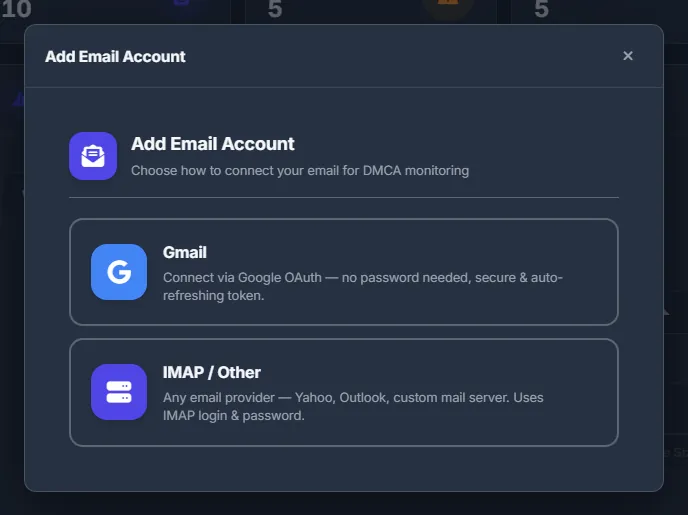
Open the “Email Accounts” tab and click “Add Email Account”. Choose Gmail (Google sign-in, no password is stored) or IMAP / Other (Yahoo, Outlook or your own mail server).
Connect Gmail
Saving a Gmail mailbox takes you straight to Google to sign in.
-
Save the mailbox
Fill in “Account Name”, “Gmail Address” and “Folder to Watch” (INBOX by default) and click “Connect Gmail”. The panel saves the mailbox (“Email account added”) and opens Google.
-
Sign in to Google
Sign in with that address and allow access. The panel asks for the right to read and manage the mail of this mailbox, so that it can mark notices it has handled.
-
Check the status
Back on the page you see “Gmail connected successfully!”, and the Provider column shows OK.
Connect a mailbox over IMAP
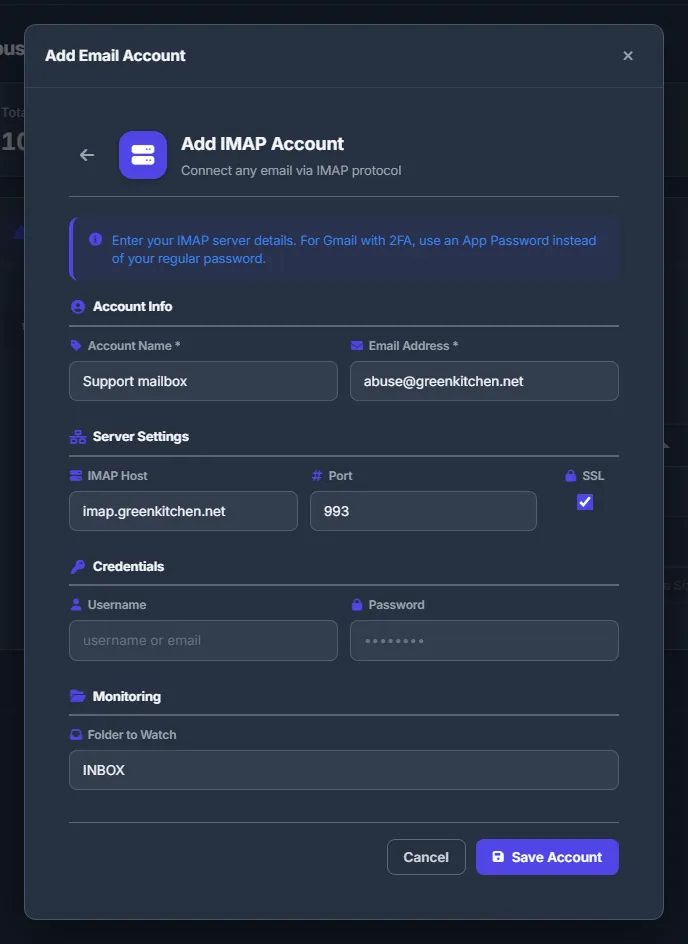
Fill in “Account Name” and “Email Address” (both required), “IMAP Host”, “Port” (993) with “SSL” ticked, “Username”, “Password” and “Folder to Watch”, then click “Save Account”. Use “Test Connection” in the mailbox’s row to check the settings.
Tune each mailbox
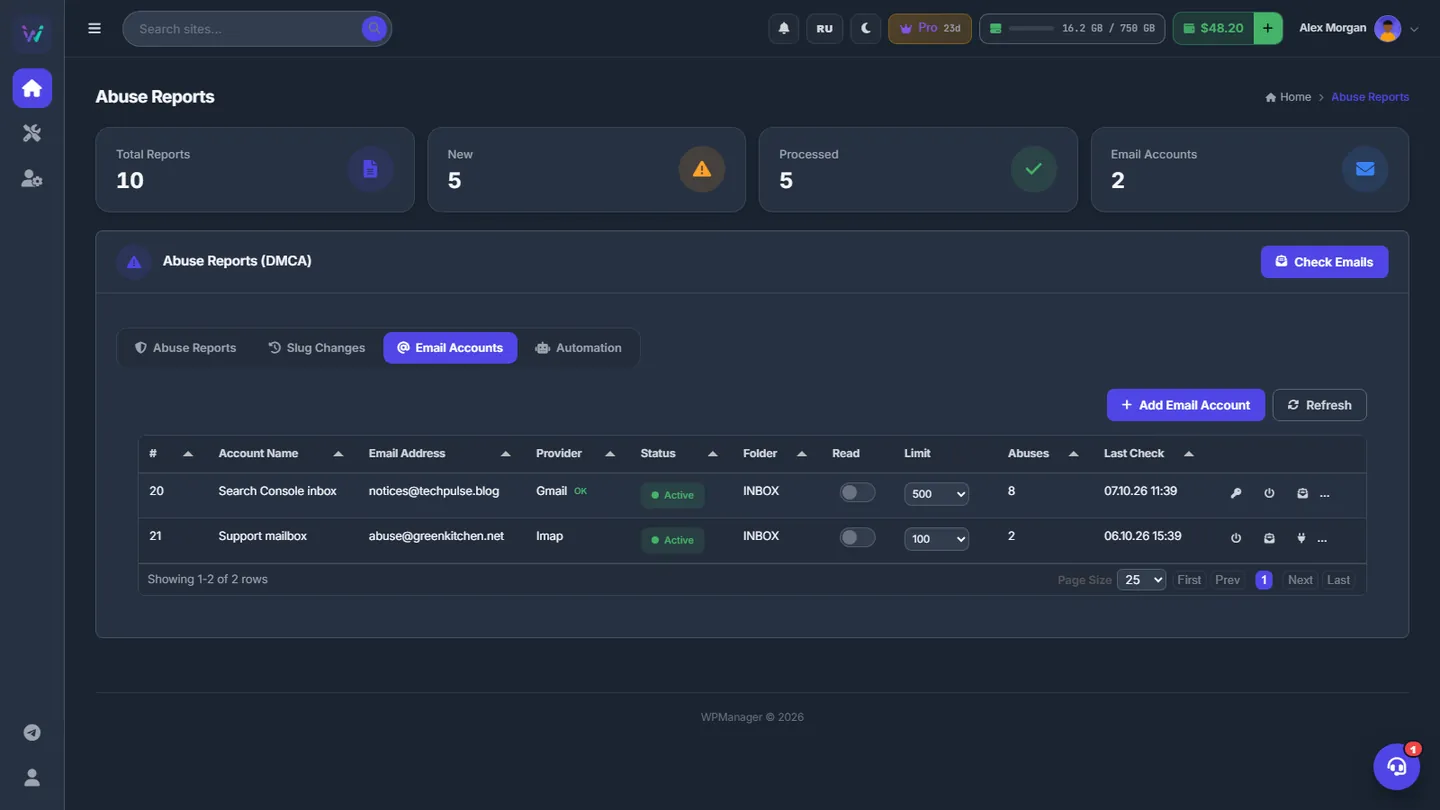
Each row of the table has two settings and a set of buttons:
- “Read” switch — ON reads all matching messages, OFF only the unread ones.
- “Limit” — how many messages one check reads: 100, 500, 1000, 5000 or ALL.
- Buttons — “Connect Gmail” (key icon, Gmail only; also used to reconnect), “Toggle Active”, “Check Emails” (this mailbox only), “Test Connection”, “Edit” (name, address, Active and the IMAP settings; leave the password empty to keep it) and “Delete”.
A triangle in the Provider column shows the last error when you hover it. “Reconnect!” means the Google access must be granted again.
Auto-fix new reports
-
Choose what to do
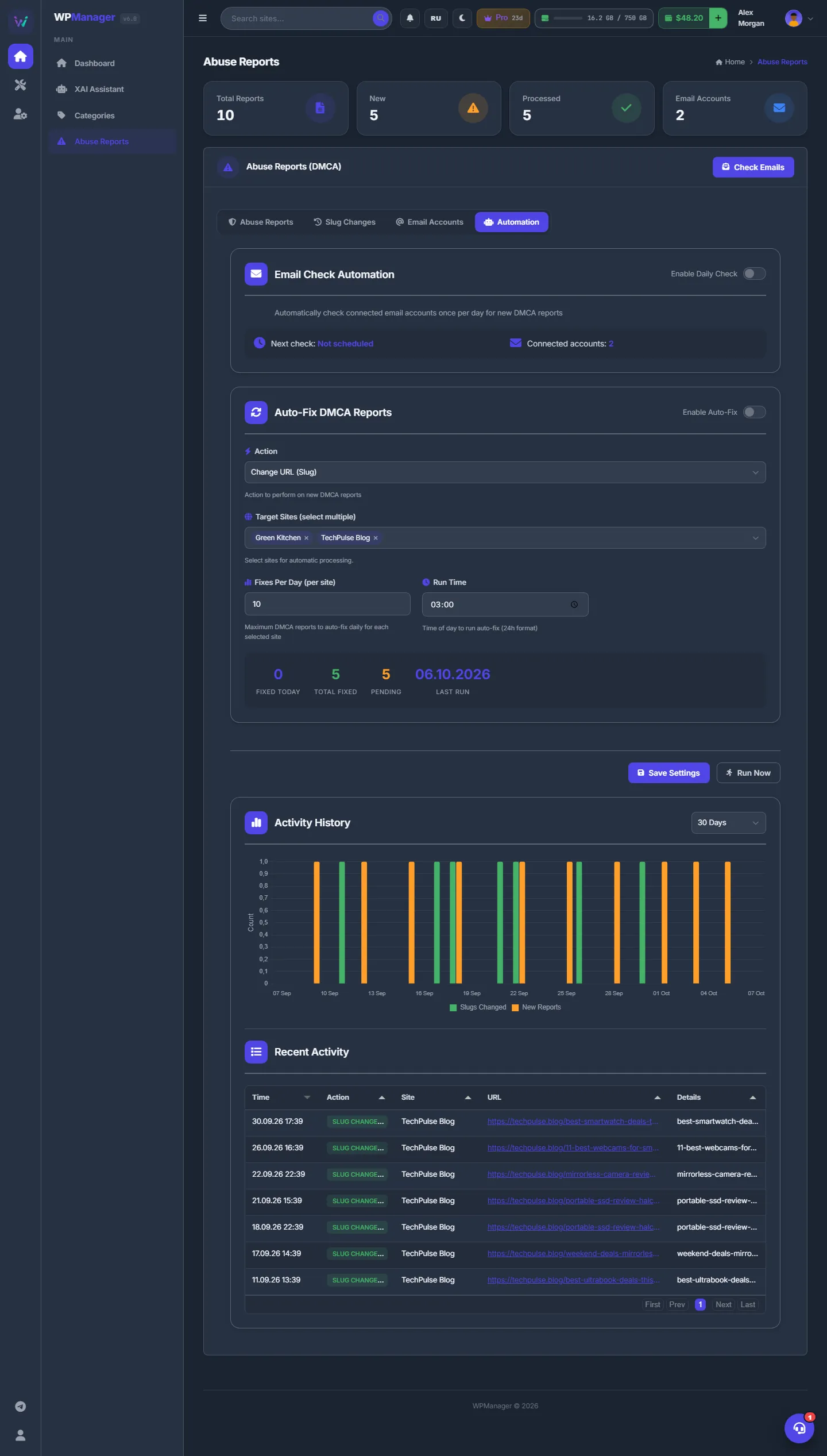
Open the “Automation” tab. In “Auto-Fix DMCA Reports” choose the “Action” — Change URL (Slug), Set Private, Delete Post or Ignore — the “Target Sites (select multiple)”, and “Fixes Per Day (per site)”: how many new reports of each site one run handles, 10 by default. Click “Save Settings”.
-
Check the counters
For the chosen sites you see Fixed Today (reports handled today), Total Fixed (all handled reports), Pending (reports that are still New) and Last Run.
-
Run it
Click “Run Now” and confirm “Run "<action>" for up to N DMCA reports per site (K sites). Continue?”. The oldest new reports of each chosen site are processed, and a message tells you how many.
Below the settings, “Activity History” charts slug changes and newly received reports per day over 7, 14, 30 or 90 days, and “Recent Activity” lists the latest slug changes: Time, Action, Site, URL and Details (old → new slug).
About the schedule switches
“Enable Daily Check” (in “Email Check Automation”), “Enable Auto-Fix” and the “Run Time” are saved with your settings, but in the current version they do not start anything on their own — “Next check” shows “Not scheduled”. Fetch notices with “Check Emails” and process them with “Run Now”.
Settings
| Setting | What it does |
|---|---|
| Folder to Watch | The mailbox folder to read; INBOX by default. |
| Read | ON — read all matching messages; OFF — only unread ones. |
| Limit | Messages per check: 100, 500, 1000, 5000 or ALL. |
| Action (auto-fix) | What “Run Now” does with each new report. |
| Fixes Per Day (per site) | How many new reports of each site one run handles (10 by default). |
| Run Time | A saved time of day, 24-hour format, 03:00 by default. |
Costs
Connecting mailboxes and checking mail is free. “Run Now” is charged like the manual actions: each successful Change URL, Set Private or Delete Post costs $0.10 per successful action. Ignore is free. See Abuse reports: costs.
Troubleshooting
| What you see | What to do |
|---|---|
| The check log says “… needs reconnection” with a “Reconnect Gmail” link | The Google access expired or was revoked. Click the link (or the key button in the row) and allow access again. |
| “IMAP settings not configured. Please set IMAP host and username.” | Open “Edit” and fill in the IMAP Host and Username. |
| “Please select at least one site first” | Pick the target sites on the “Automation” tab before “Run Now”. |
| The Provider column says “Reconnect!” right after adding Gmail | The Google sign-in was not finished, so the mailbox is saved but not connected. Click the key button “Connect Gmail” in its row to sign in. |
FAQ
Can I connect several mailboxes?
Yes. “Check Emails” at the top reads all active mailboxes, and each report remembers which mailbox it came from.
Is my Gmail password stored in the panel?
No. Gmail connects through Google sign-in, so the panel never sees the password. For IMAP mailboxes the password you enter is saved with the mailbox.