
Ordering videos by links (the order desk)
Can’t find a video in the catalogue? Send links to the videos you want. The team fetches them and sets one price for the whole order, and you check posters, screenshots and short samples before paying.
On this page
Where to find it: Content → Content store → “Orders”.
Before you start
- The order desk is open: the “Orders” tab is visible and the “New order” form is active.
- Links (
http://orhttps://) to the pages of the videos you want, typed or saved in a text file. - Balance for the price the team quotes. You need it only when you pay — see USD balance and top-up.
Send an order
-
Open the “Orders” tab
The “New order” form is at the top. The team may show a note there — what they can fetch and how fast. If the desk is closed, you see “The order desk is closed right now — try again later.”
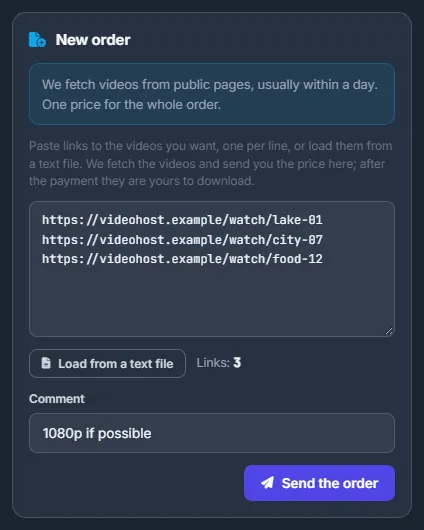
Fig. 1 A new order: links, an optional comment and “Send the order”. -
Add the links
Paste links into the big field, one per line. Or click “Load from a text file” and choose a
.txt,.csvor.lstfile of up to 5 MB: every http(s) link in it is added and repeats are skipped. The “Links: N” counter shows how many will be sent; commas and dots at the end of a link are trimmed automatically. -
Add a comment and send
Optionally fill in “Comment” — the quality, the part of the video you need, the deadline. Click “Send the order”. You see “Order #N is sent — the price appears here when the videos are ready”, and the order appears in the list with the status “Order sent”.
Order fields
| Field | What to enter |
|---|---|
| Links | One http(s) link per line, or loaded from a .txt, .csv or .lst file of up to 5 MB. |
| Comment | Optional wishes for the team — quality, part of the video, deadline. Up to 2,000 characters. |
Check the videos and pay
-
Wait for the price
While the team fetches the videos, the status is “In work”. When everything is ready and priced, it changes to “Waiting for your payment”. With Telegram alerts on you get a message “Order #N is ready: K video(s) — $X…” with a link. The list refreshes by itself every 30 seconds, and orders waiting for payment come first.
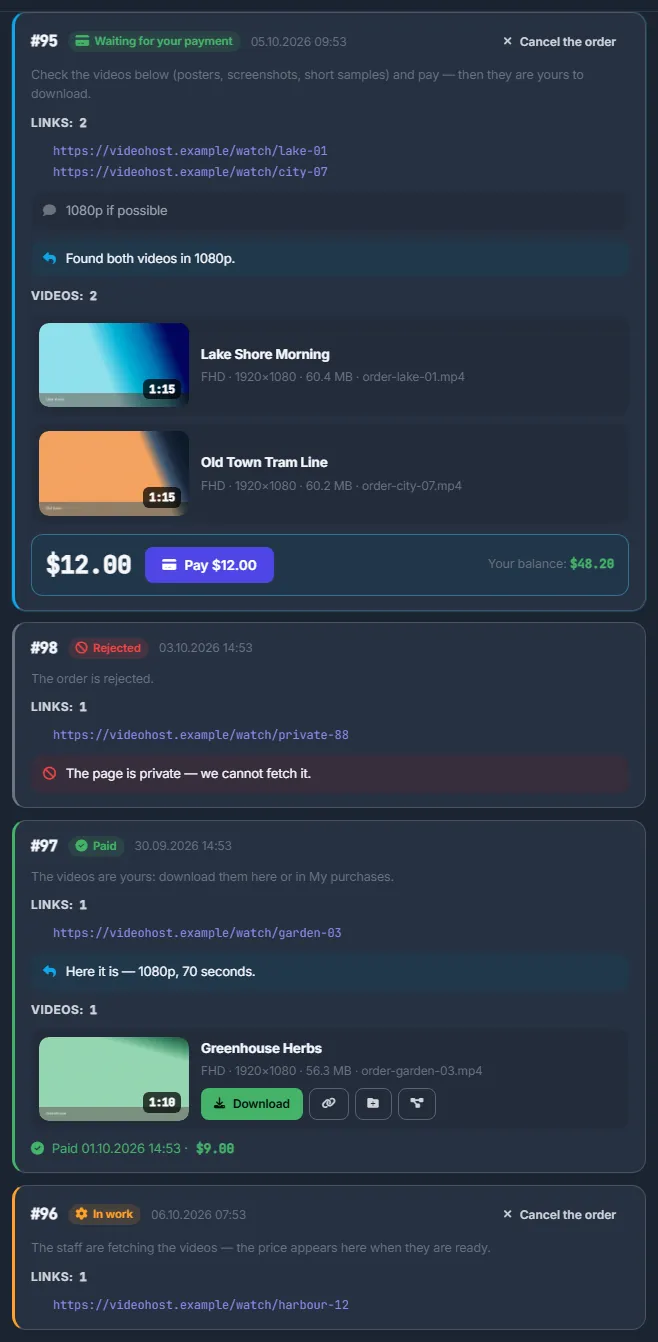
Fig. 2 Orders waiting for your payment come first; a rejected order shows the team’s reason. -
Check the videos
A priced order lists its “Videos” with quality, resolution, size and file name, and may carry a reply from the team. The pay box shows one price for the whole order and “Your balance”.
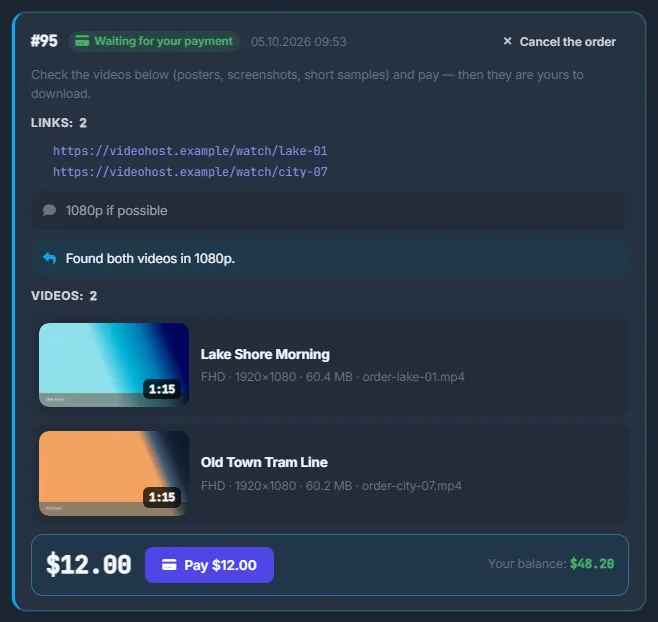
Fig. 3 A priced order: the videos, the team’s reply and one price. -
Look at the samples
Click a video’s poster to open its samples: short muted cuts from across the video and the screenshots. These are the real files you will get; the whole file comes after the payment.
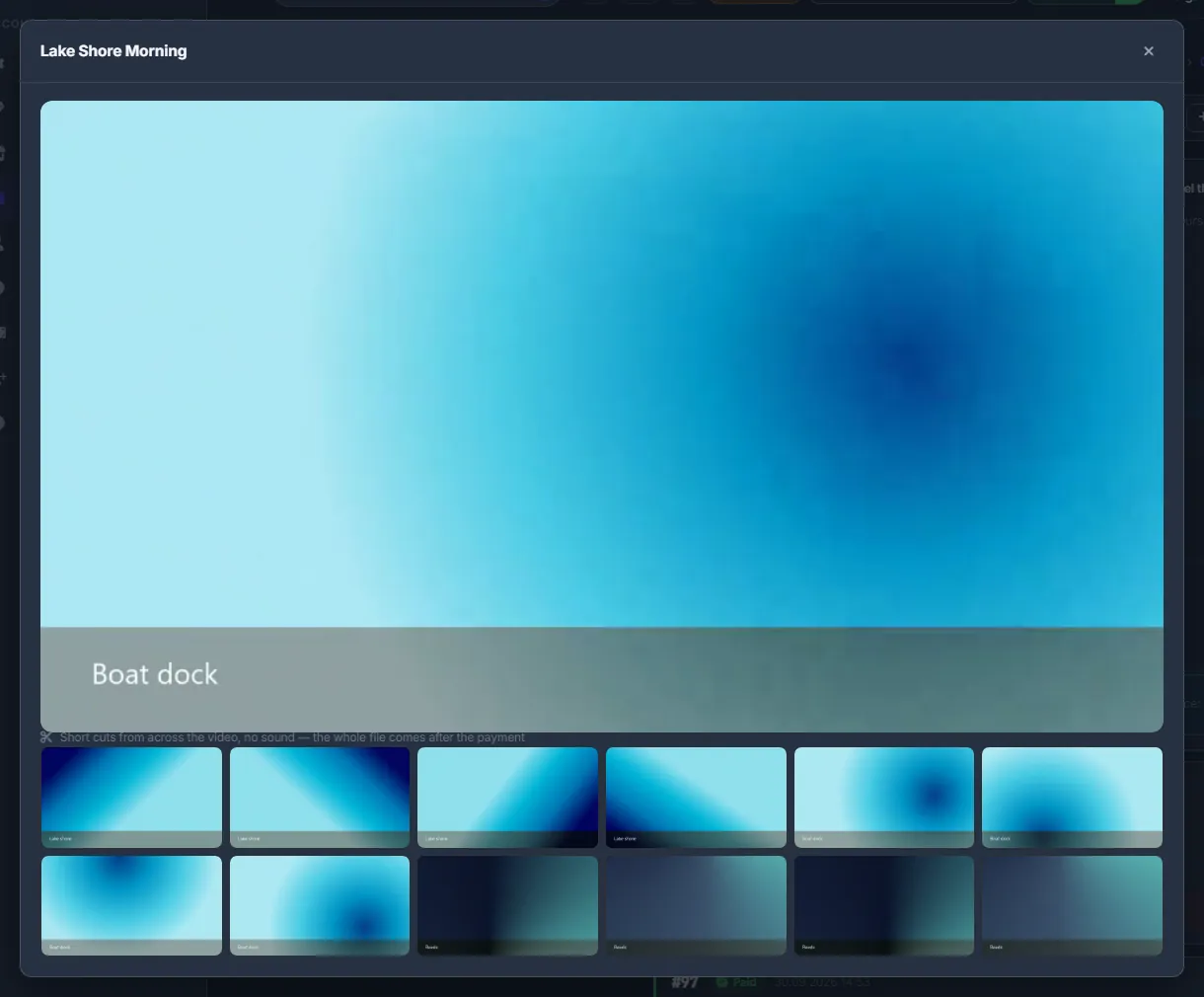
Fig. 4 Samples and screenshots of the real file, before you pay. -
Pay
Click “Pay $X” and confirm “Pay for order #N — $X?”. If the price is $0 the button reads “Take the videos”; if the balance is short, “Top up to pay”. After the payment you see “Paid — download the videos here or in My purchases”, and the order shows the payment date and amount.
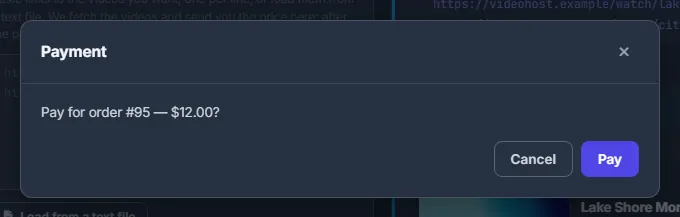
Fig. 5 One confirmation pays for the whole order. -
Get the videos
Each video of a paid order gets the same four buttons as any purchase — download, a link for a download manager, a copy into Files and the conveyor — right in the order card and in My purchases.
Order statuses
| Status | What it means |
|---|---|
| Order sent | Waiting for the team to take it. |
| In work | The team is fetching the videos. |
| Waiting for your payment | The price is set. Check the videos and pay. |
| Paid | The videos are yours. |
| Rejected | The team could not do it. The reason is shown in the card. |
| Cancelled | You cancelled the order. |
Cancelling an order
While an order is “Order sent”, “In work” or “Waiting for your payment”, its card has “Cancel the order”. Nothing is charged before you pay, so cancelling costs nothing. A paid order cannot be cancelled — for a refund, write in the support chat.
Limits
- Up to 500 links in one order; one link up to 2,000 characters; all links of an order up to 100,000 characters together.
- Up to 30 orders in 24 hours, cancelled ones included.
- Up to 20 orders waiting at the same time (“Order sent” and “In work” together).
Need more? Put more links into one order, or split a long list into several.
If the order changes while you look
You always pay exactly the price and the set of videos you saw. If the team changes the price or the files in the meantime, the payment stops with “The order has changed since you opened it — check the price and the videos again”, the card reloads and nothing is charged. A price change is also announced in Telegram.
Costs
Sending an order is free. After fetching the videos, the team sets one price for the whole order; it is charged from your USD balance only when you click Pay. In “My purchases” the price is split equally between the videos of the order.
Troubleshooting
| What you see | What to do |
|---|---|
| “Send the order” stays grey | No valid links were found. Every link must start with http:// or https://. |
| “At most 500 links in one order — split them into several orders” | Split the list and send several orders. |
| “You have 20 orders in the queue already…” or “You have sent 30 orders in the last 24 hours…” | Wait for the current orders, cancel some, or put more links into one order. |
| “The file is too large — a list of links is a few KB” or “No links in this file” | Choose a plain-text file with the links, up to 5 MB. |
| “The videos of this order are being prepared — try again in a few minutes” | The store is still processing a file of the order. Wait and pay again. |
FAQ
What links can I send?
Any http(s) link to the page of the video you want. Whether a video can be fetched is up to the team: if not, they reply in the order or reject it with the reason.
Do ordered videos appear in the catalogue for others?
The files of your order are visible only to you until it is paid. Later the team may also add them to the catalogue.