
Site settings: general, connection and AI prompts
The Settings tab of a site holds its name and address, the WPManager plugin connection and the language and prompts the AI uses for this site. Two more sub-tabs, SEO data and Publishing, set where keyword data comes from and where the panel puts things when it posts to the site.
On this page
Where to find it: the site page → Settings, or /Home/Site/<id>?tab=Settings.
Before you start
- The site is added — see Adding, editing and removing sites.
- The SEO data and Publishing sub-tabs need the WPManager plugin connected.
The Settings tab
The tab has five sub-tabs: “General”, “Connection”, “SEO data”, “AI Prompts” and “Publishing”. SEO data and Publishing load only when you open them.
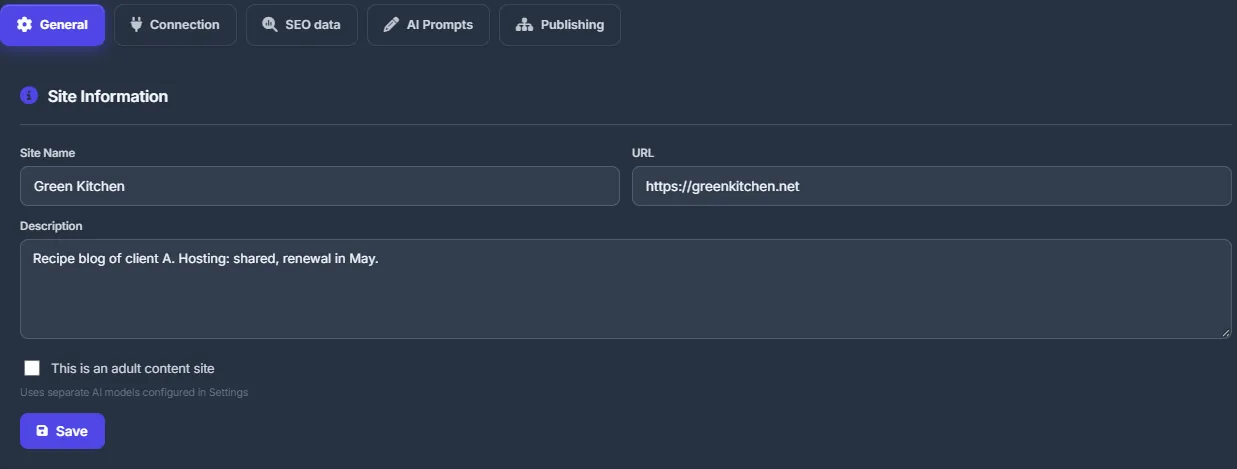
General
The “Site Information” card has:
- “Site Name”, “URL” and “Description” — the same fields as in the Dashboard’s “Edit Site” dialog;
- “Adult Site” — the checkbox “This is an adult content site”. Under it the hint reads “Uses separate AI models configured in Settings”. When it is ticked, the AI features of this site use the models in the “Adult models” card on the “AI Settings” tab of “Settings”, if that card is filled in.
Click “Save”; you see “Settings saved!”. The category is not on this tab: change it in the “Edit Site” dialog on the Dashboard.
Changing the URL
When a site moves to a new domain, change “URL” here or in the Dashboard’s edit dialog. The new address is checked by the same rules as a new site (see Address rules). The SEO and Ahrefs figures are marked as outdated, so the next refresh reads the new domain. Monitoring, the plugin key and the history stay with the site.
Connection
The “WPManager Plugin” card shows one of three states: “Connected”, “Key saved, not verified” (with the reason) or “Not Connected”. Below are the “API Key” field with “Save”, “Disconnect” while the site is connected, and “How to connect” with the download link. Everything about this card is in Installing and connecting the WPManager plugin.
AI Prompts
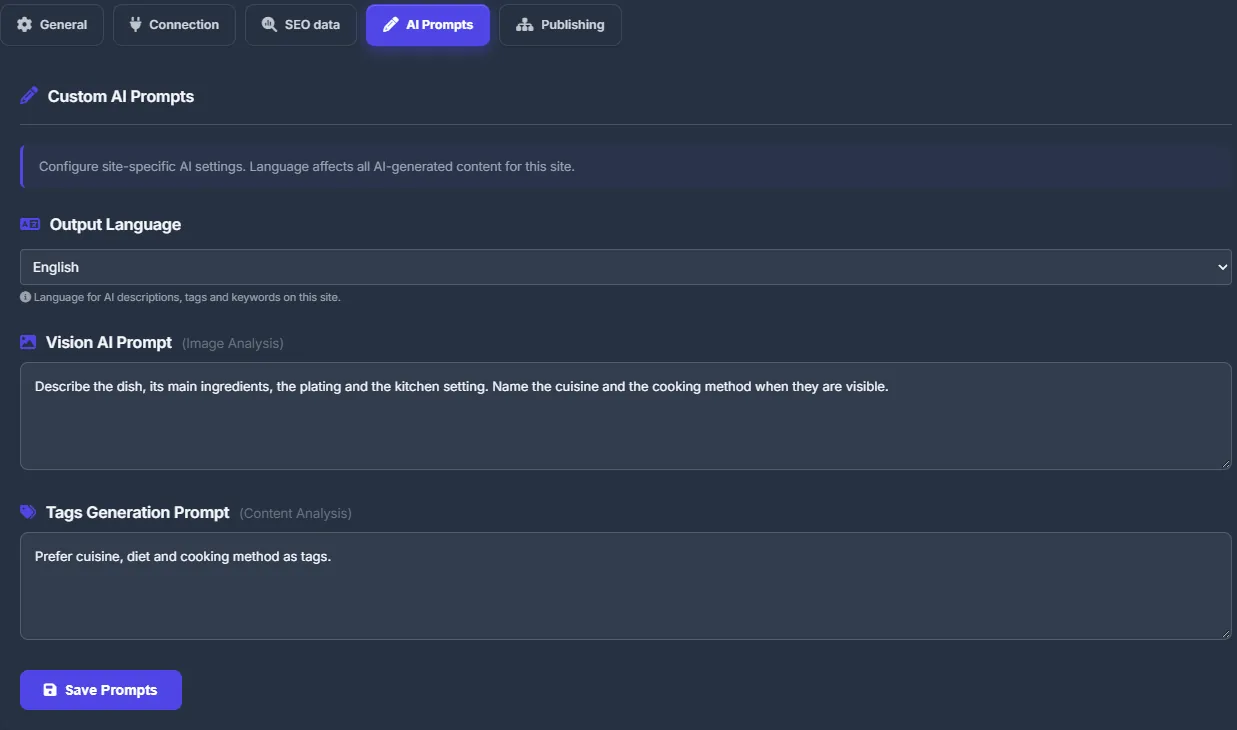
The “Custom AI Prompts” card sets how the AI writes for this site:
- “Output Language” — “Auto-detect from content”, English, Japanese, Ukrainian, Russian, German, French, Spanish, Chinese or Korean. AI descriptions, tags and keywords for this site are written in this language.
- “Vision AI Prompt (Image Analysis)” — leave it empty to use the built-in prompt. Your text replaces it; the JSON format the panel needs is added automatically.
- “Tags Generation Prompt (Content Analysis)” — leave it empty to use the built-in rules. Your text is put in front of them, for example Prefer cuisine, diet and cooking method as tags.
Click “Save Prompts”; you see “AI prompts saved”.
SEO data and Publishing
- “SEO data” sets where keyword data for this site comes from, and for which country and language — see Keyword data and scores.
- “Publishing” sets where the panel puts links, covers, screenshots, tags and custom fields when it posts to this site — see Where things go on the site.
Settings on this tab
| Setting | What it does |
|---|---|
| Site Name / URL / Description | The same as in the “Edit Site” dialog. |
| Adult Site | Switches the site’s AI features to the models in the “Adult models” card, if it is filled in. |
| Output Language | The language of AI texts for this site; “Auto-detect from content” by default. |
| Vision AI Prompt | When filled, replaces the built-in image-analysis prompt. |
| Tags Generation Prompt | When filled, is put in front of the built-in tag rules. |
Costs
The settings are free. AI features that use these prompts are paid as described in What you pay for.
Troubleshooting
| What you see | What to do |
|---|---|
| “Save failed” with a message about the URL | The new address does not pass the address rules — see Address rules. |
| Publishing says “Connect the WPManager plugin first (Connection)” | Click the “Connection” button in that message and connect the plugin. |
FAQ
Where do I change the category?
In the Dashboard row: pencil → “Edit Site” → “Category”.
Do the AI prompts apply to all my sites?
No. They are saved for this site only; every site has its own language and prompts.