
File backups: copies of your file-host files
The Backups page copies the files behind the download links in your posts — from your file-host accounts — to your own FTP server or to local storage in your account, so a dead link can be brought back later. Storages, runs with live progress, a report for every run, the file index and the restore history are all here.
On this page
Where to find it: Links & files → Backups (the page is called “File Backups”).
Before you start
- Your sites’ posts contain file-host links that the panel tracks — see Scanner.
- At least one file-host account in Links & files → File Hosters that a backup can download from: an XFileSharing host with API URL and API key, or a WayShare / FlorenFile account with its login and password saved and an active premium. Links on other hosts are not copied. See File host accounts and WayShare and FlorenFile.
- If Backups is missing from your menu, ask in the support chat.
The page
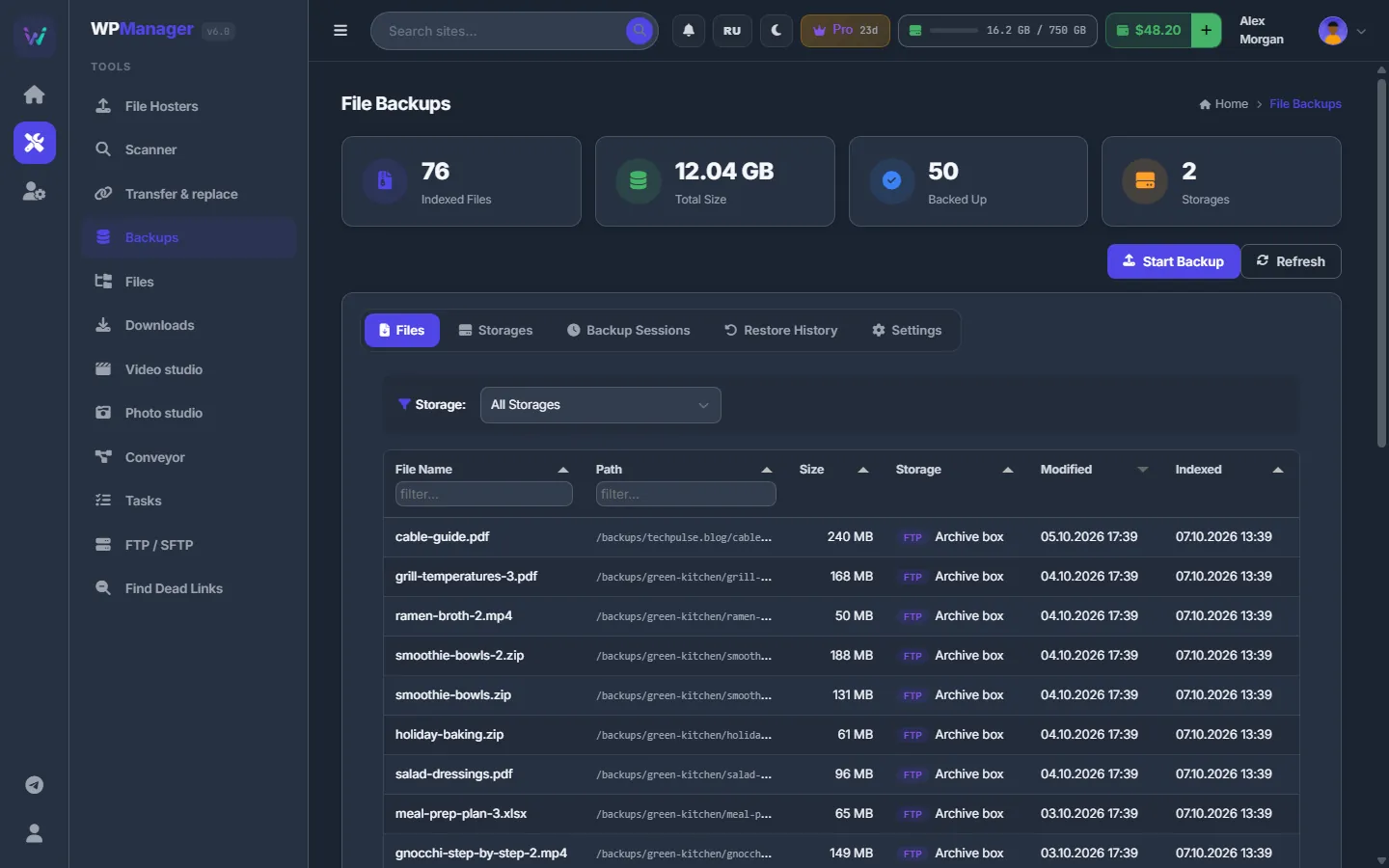
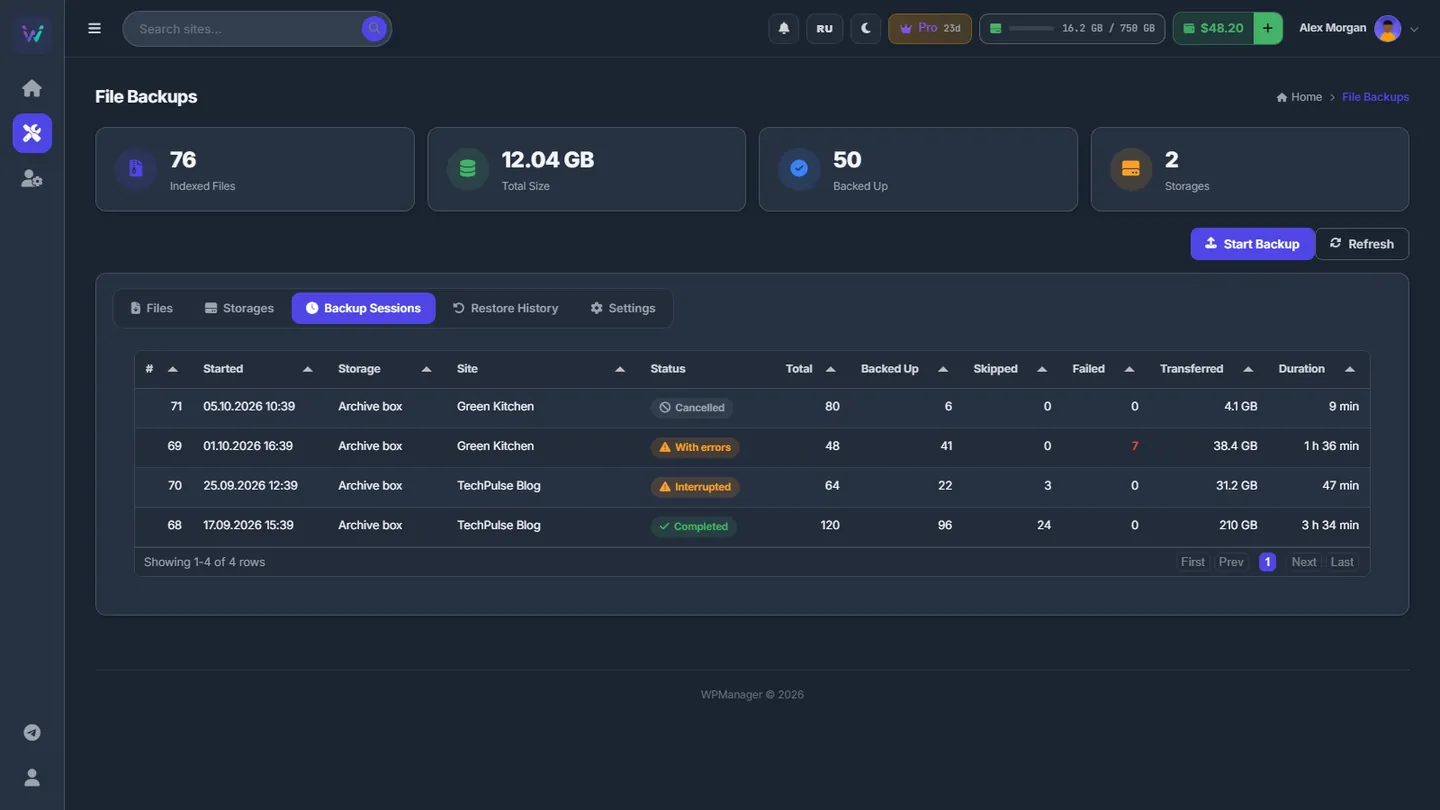
On top are four cards: Indexed Files, Total Size (of the indexed files), Backed Up (files copied by the panel) and Storages (active ones), with “Start Backup” and “Refresh” below. The tabs are Files, Storages, Backup Sessions, Restore History and Settings.
“Files” lists the indexed files of all storages, or of the one chosen in “Storage:”: File Name and Path (each with a filter), Size, Storage (LOCAL / FTP), Modified and Indexed; 25, 50 or 100 per page.
Add a storage
-
Open the form
Go to “Storages” → “Add Storage”. Choose the “Storage Type” — FTP Storage or Local Storage — and set the “Priority (lower = first)” and a “Name”.
-
Fill in the connection
For FTP: Host, Port (21), Username, Password, Root Path (for example
/backups) and “Max Storage (GB, 0=unlimited)”; tick “Passive Mode” or “Use FTPS (SSL)” as your server expects. A Local Storage needs no address: its files are stored in your account’s space, and its limit is your storage quota. -
Choose the options
Optionally add “Additional Scan Paths” — extra folders on the same server whose video and archive files are indexed. In “Assign Sites” pick the sites this storage serves (empty means all sites). Tick “Put each site into its own folder” to give every site its own folder, named after its domain unless you type another name.
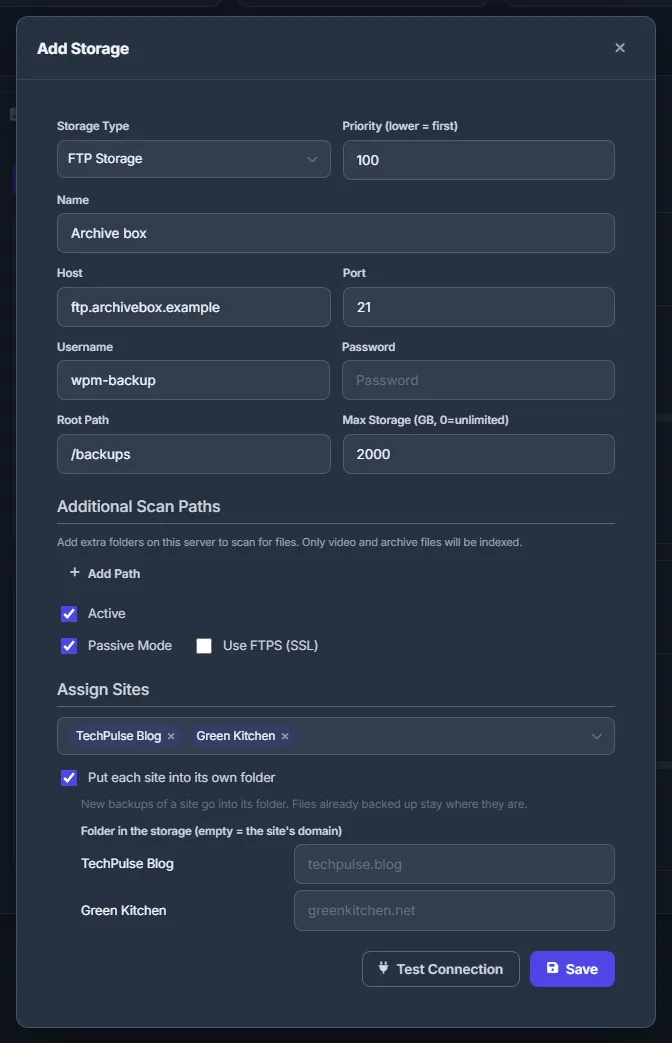
Fig. 2 Adding an FTP storage for two sites, each with its own folder. -
Test and save
Press “Test Connection”, then “Save”.
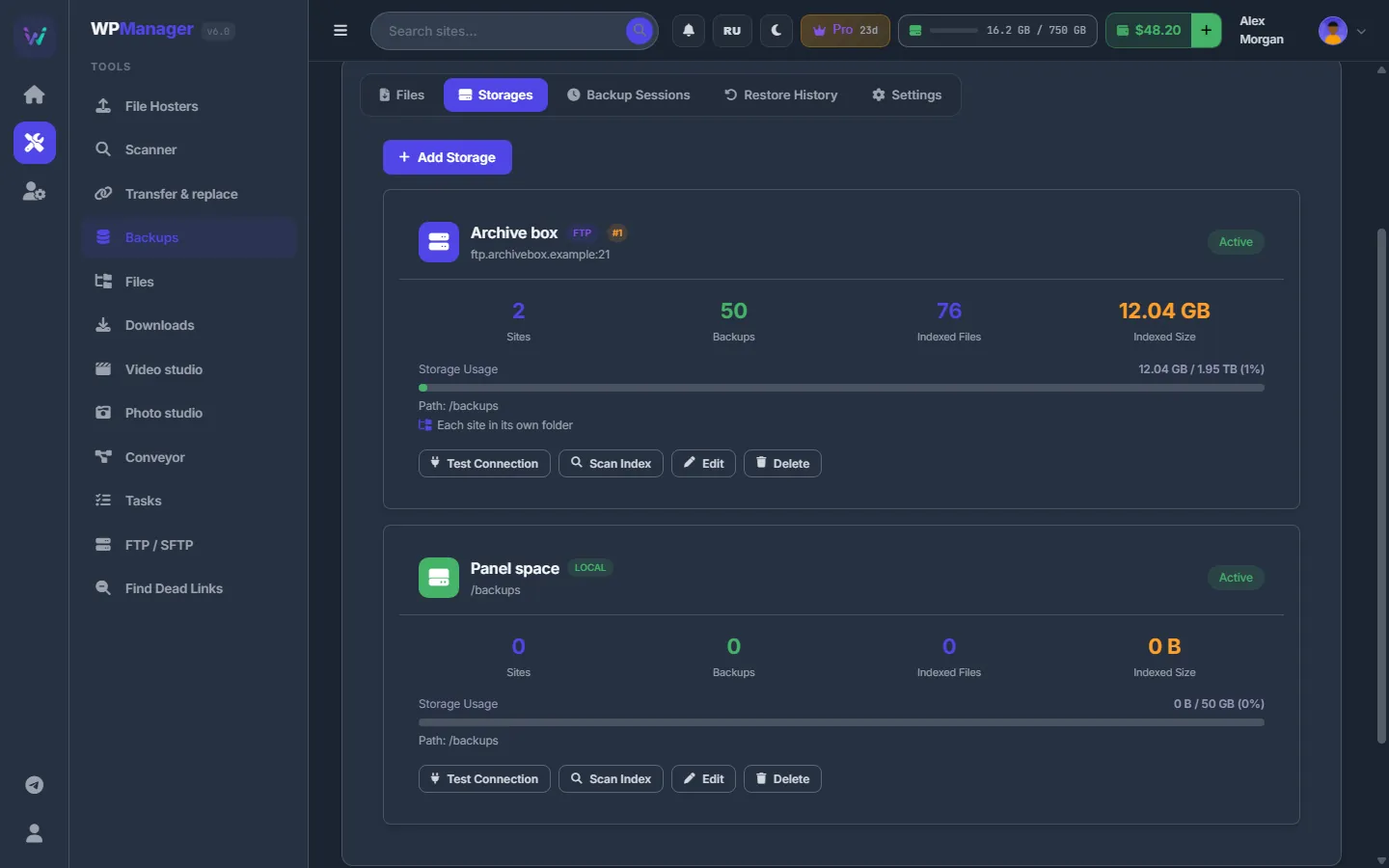
Each storage then gets a card with its type (LOCAL / FTP), priority, status (Active, Active (not checked) or Inactive), Sites, Backups, Indexed Files, Indexed Size, Storage Usage and the path, and the buttons “Test Connection”, “Scan Index”, “Edit” and “Delete”.
Index what is already there
If a storage already holds files, press “Scan Index” on its card. The card shows a live progress — indexable files, total scanned, size and the current path — and ends with “Scan complete: N files indexed (size)”. Thanks to the index, a run reuses files that are already in the storage instead of downloading them again, and restores can find them.
Run a backup
-
Start the run
Press “Start Backup” at the top. Choose the “Storage” (active storages, the lowest priority number preselected), the “Sites” (empty means all sites) and “Concurrent Downloads” — from 1 (slow & safe) to 10 (fast), 3 by default. Press “Start Backup”. Only active links that have no backup yet are processed.
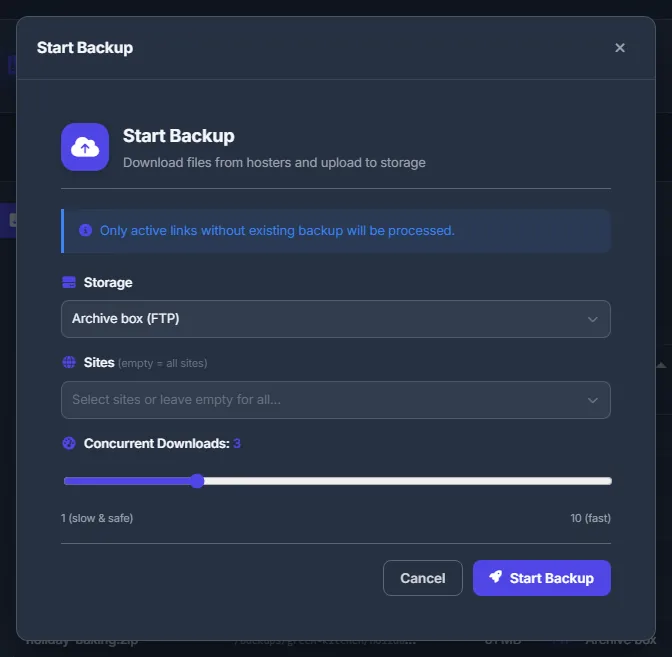
Fig. 4 Starting a run: storage, sites and the number of parallel downloads. -
Watch the progress
The “Backup in Progress” panel shows the storage and the site, Progress, Processed, Backed Up, Skipped, Failed and Transferred (including the bytes still in flight), and a line per download slot: the phase, speed, file name and percent. “Stop” asks to confirm and ends the run.
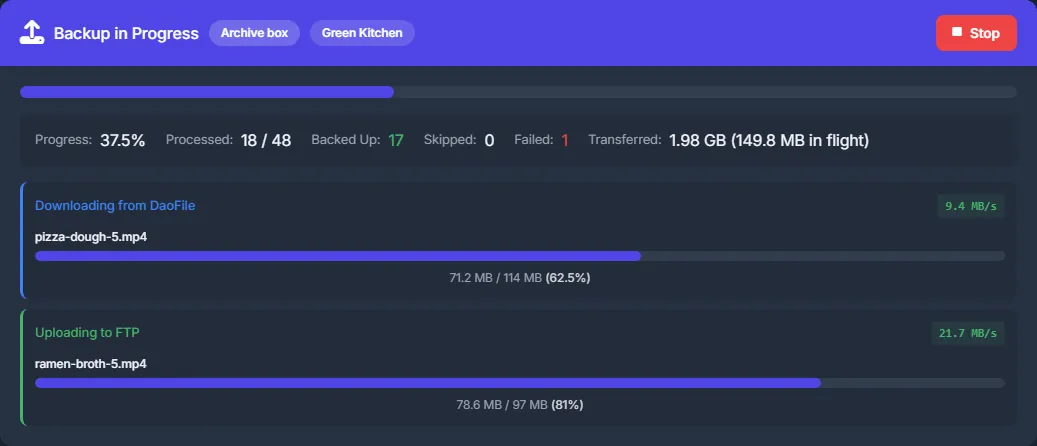
Fig. 5 A run in progress: one file downloading from the host, one uploading to FTP. -
Read the summary
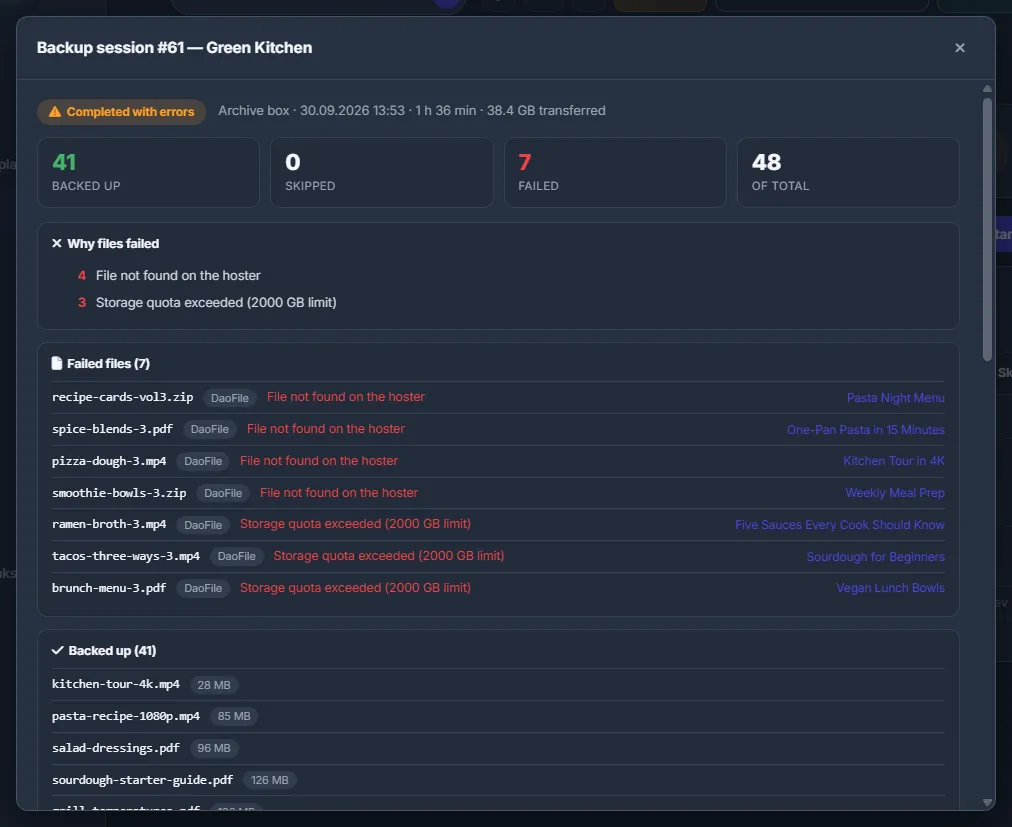
When the run ends, the panel turns into “Backup finished”: the outcome (Completed, Completed with errors, Interrupted or Cancelled), the tiles Backed up, Skipped, Failed, Transferred and Of total, “Why files failed” grouped by reason, the first failed files with their host and post, and the buttons “Open in Backup Sessions” and “Dismiss”.
What a run copies
A run takes the active links of the chosen sites — or of the sites assigned to the storage, or of all sites — on file-host accounts it can download from, and skips links that already have a completed backup. The storage keeps one file per content:
- a file with the same name (and size, when it is known) anywhere in the storage is reused;
- after a download, the same size and MD5 counts as Skipped;
- a different file with the same name is saved as
name (2).ext. Nothing is overwritten.
Files go to the storage’s Root Path, or to <Root Path>/<site folder>/ with “Put each site into its own folder”; files backed up earlier stay where they are.
One run at a time, on demand
An account runs one backup at a time (“Backup is already running”). A run that shows no progress for 15 minutes is released as “Interrupted — no progress for over 15 minutes”. Runs start when you press “Start Backup” — there is no schedule. The XAI Assistant can also start a run for you: it asks you to confirm and uses your first active storage.
Backup sessions
“Backup Sessions” lists every run: #, Started, Storage, Site, Status (Running, Cancelled, Interrupted, With errors, Completed), Total, Backed Up, Skipped, Failed, Transferred and Duration. Click a row for the full report with every failed and every copied file.
Restore history
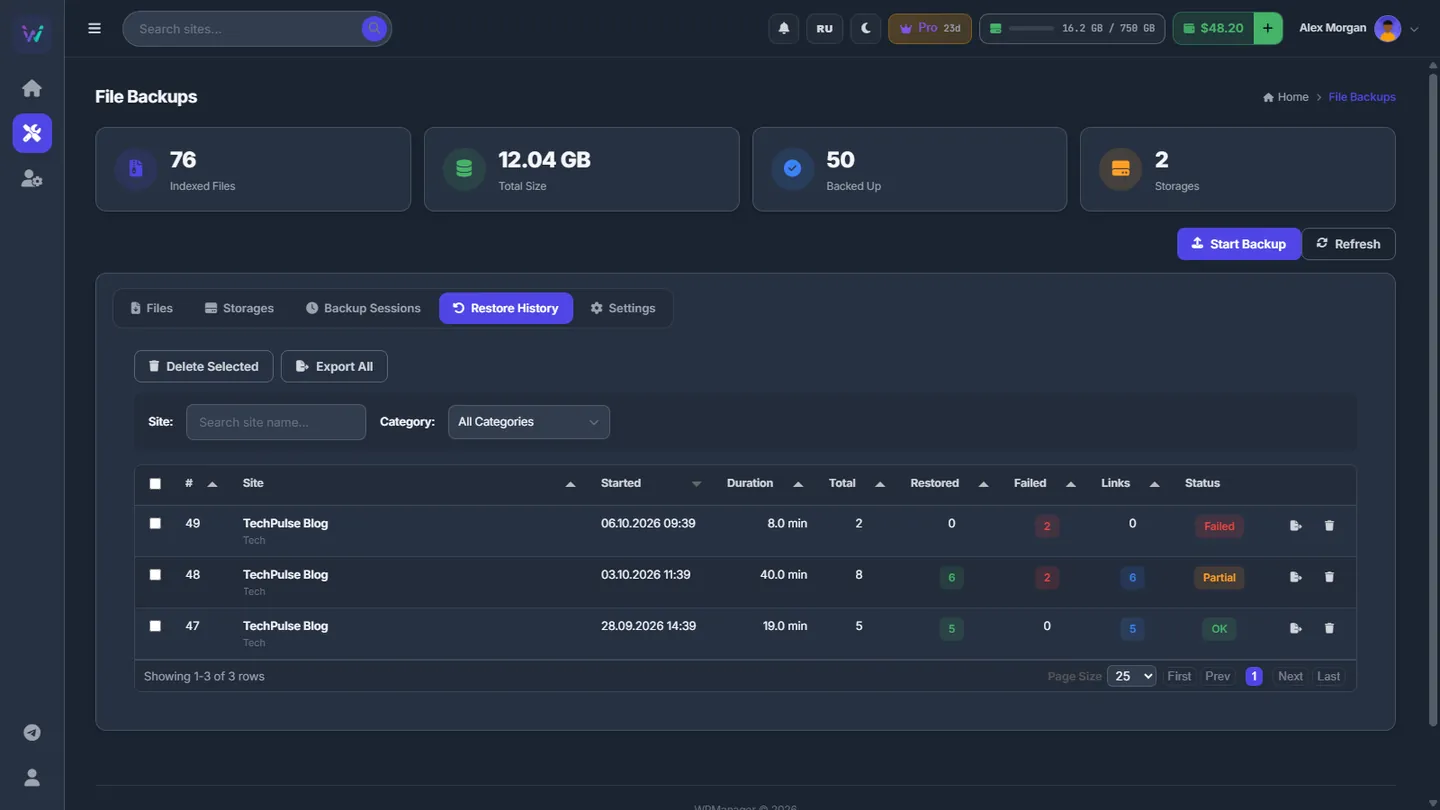
Files are restored on the Find Dead Links page: the backed-up file is uploaded to a file host again and the dead link is replaced in the post. “Restore History” lists those restores: Site, Started, Duration, Total, Restored, Failed, Links and Status (OK, Partial, Failed, Running, Cancelled).
- Filter by site name and category.
- Click a row for the tabs Restored (file, post, old and new URL), Errors and Link Replacements; “Export” saves the session as JSON.
- “Delete Selected” removes the ticked entries from the history; “Export All” saves the whole history.
Settings
| Setting | What it does |
|---|---|
| Priority (lower = first) | Order of the storages in lists; the Start Backup window preselects the storage with the lowest number. |
| Max Storage (GB, 0=unlimited) | Cap for an FTP storage. A file that would not fit fails with “Storage quota exceeded”. |
| Additional Scan Paths | Extra folders on the same server that “Scan Index” reads (video and archive files only). |
| Assign Sites | Sites whose files this storage takes when a run covers all sites; empty means all sites. |
| Put each site into its own folder | New backups of a site go into its own folder (named after the domain by default). |
| Concurrent Downloads | 1–10 files at a time per run; 3 by default. |
The “Settings” tab holds the defaults of the restore window on Find Dead Links: “Default Concurrent Threads” (1–10, 3 by default) and “Default Upload Folder ID” (the file-host folder for re-uploads; empty means the root). “Save Settings” and “Reset to Defaults” apply to this browser only. To choose which storage a new run offers first, set the storages’ priorities.
Costs
There is no fee per file. A Local Storage uses your account’s storage quota, which comes with your plan (see Plans & Pricing); an FTP storage is limited only by its Max Storage. The storage figure of your account also counts the files indexed on your FTP storages. Downloads from file hosts count against the limits of your own host accounts.
Troubleshooting
| What you see | What to do |
|---|---|
| “No active storages. Please add one first.” | Add a storage on the Storages tab, or tick Active on an existing one. |
| “Connection failed: …” on Test Connection | Check the host, port, user and password; try switching “Passive Mode” or “Use FTPS (SSL)” to what your FTP server expects. |
| A run ends immediately as Interrupted with “No file hosters configured with download capability” | Add an XFileSharing host with API URL and API key, or a WayShare / FlorenFile account with its login, password and an active premium, in File Hosters. |
| Files fail with “Storage quota exceeded (N GB limit)” | Free room in the storage, raise Max Storage of the FTP storage, or — for a Local Storage — move to a plan with more storage. |
| “Backup is already running” | Wait for the current run, or press “Stop” on its progress panel. |
| “Error: Failed to start” after Start Backup | The run could not start. Try again; if it repeats, write to the support chat with the time it happened. |
FAQ
Is this the same as the site’s Backups tab?
No. The site’s Backups tab saves the WordPress site itself — database, media, plugins and themes (see Site backups). This page copies the files your posts link to on file hosts.
How do I restore a file from here?
Restores start on the Find Dead Links page: it uploads the backed-up file again and replaces the link in the post. This page shows their history.
Which links are not backed up?
Dead links, links that already have a completed backup, and links on hosts a run cannot download from — anything other than XFileSharing hosts with an API key and WayShare / FlorenFile with premium.