
XAI Assistant: AI chat and the WPManager Agent
The XAI Assistant is a chat with AI models and with the WPManager Agent — an assistant that knows your sites, traffic, health, dead links, backups, payments, files and downloads, and can look at live pages. When the agent wants to change something on your sites, it prepares the change and waits for you to press “Confirm”.
On this page
Where to find it: Overview → XAI Assistant.
Before you start
- Money on the balance: every answer is paid (see USD balance and top-up).
- The agent is listed as “WPManager Agent” in the model picker; every plan includes it (see Plans & Pricing).
- For work on your sites, the sites must be connected with the WPManager plugin; for search data, Google Search Console must be connected.
The chat page
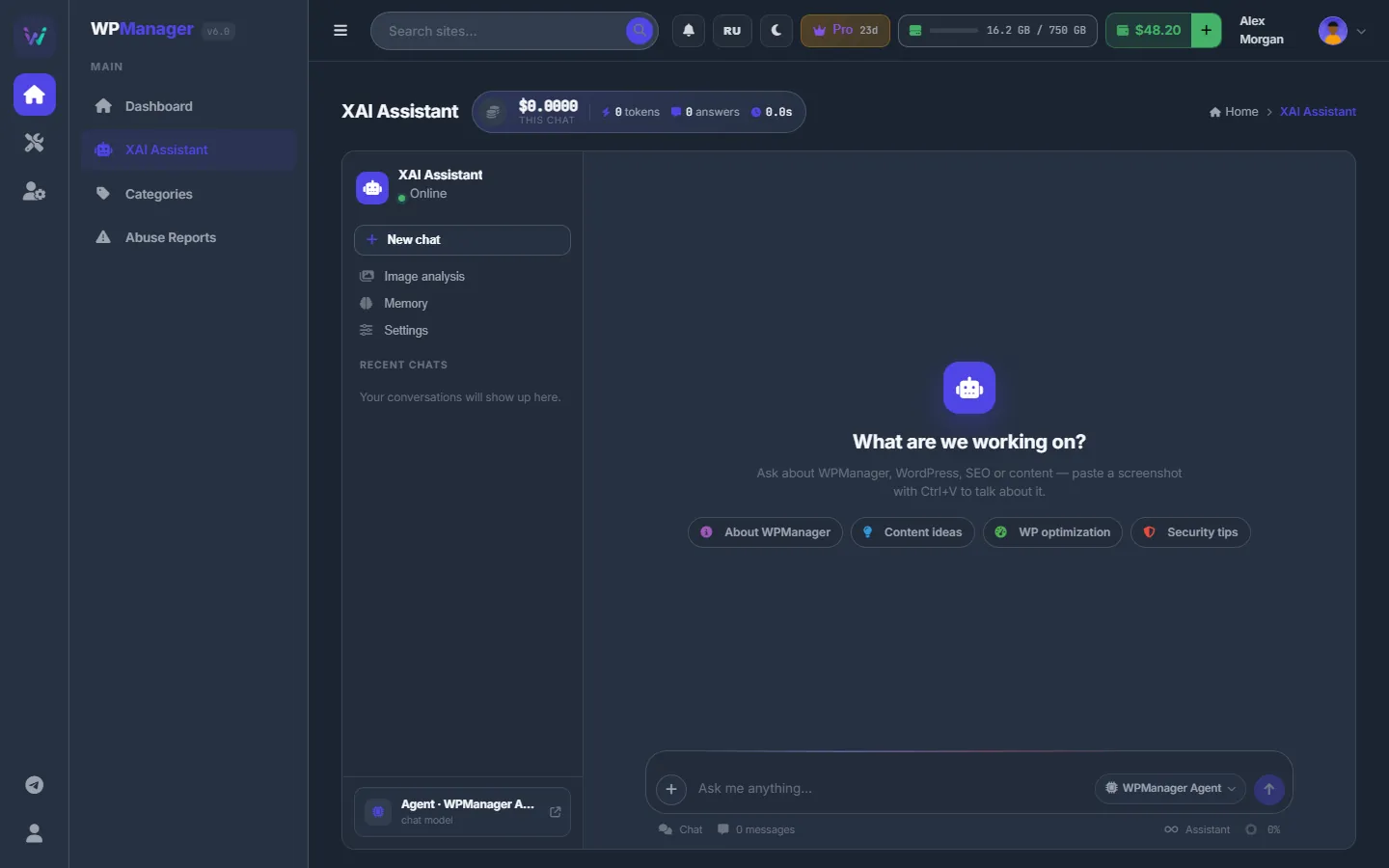
On the left: “New chat”, quick buttons “Image analysis”, “Memory” and “Settings”, “Recent chats” (grouped into Today, Yesterday and Earlier, each with its cost) and the current chat model. The status at the top of the sidebar says “Online” when the AI service answers. An empty chat offers starter chips: About WPManager, Content ideas, WP optimization, Security tips.
Talk to the agent
-
Choose the model
Click the model pill in the message box:
- “WPManager Agent” knows your account and uses tools to look things up and prepare changes.
- “Agent · model” entries are the same agent with the same tools, thinking with another model. The price per 1M tokens is shown.
- The other entries are plain chat models chosen by WPManager. They answer questions but do not see your account.
Your choice is remembered in this browser.
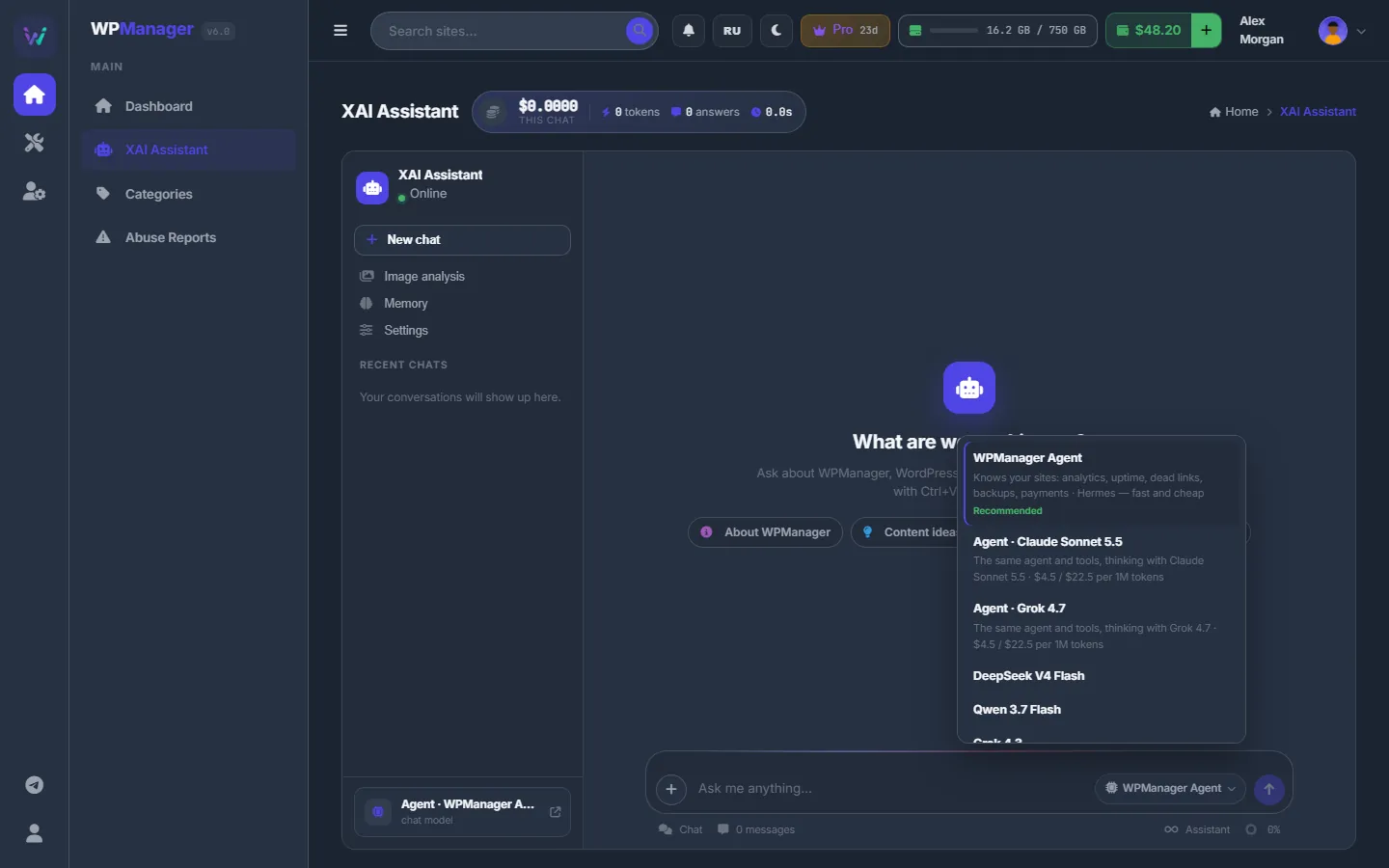
Fig. 2 The agent comes first, then the agent on other models with their prices, then plain chat models. -
Ask
Type your question and press Enter (Shift+Enter starts a new line). To show a picture, paste a screenshot with Ctrl+V, drop pictures onto the chat, or use “+” → “Attach a picture to the message” — up to 6 pictures per message. For the agent, a vision model describes them first.
The agent may take a while. The thread shows “Agent is checking your data”, and for long tasks “Agent is still working — you can leave this page, the answer will wait here”.
-
Read the answer
Above each answer you see how long it thought, which tools the agent used, the tokens, the cost and the model. Under it: “Copy”, “Good answer” / “Bad answer”, and “Regenerate” for the last answer.
-
Confirm changes
The agent never changes anything by itself. When it wants to edit or create a post, update WordPress or a plugin, switch a theme, edit a theme file or Additional CSS, run a dead-link scan or a backup, purge the Cloudflare cache, change Cloudflare rules or the security level, log a payment or remember a fact, a row appears under its answer. The row shows what will happen, the agent’s note and “What will change” with the exact details.
Press “Confirm” to run it or “Cancel” to drop it. A prepared action waits 15 minutes.
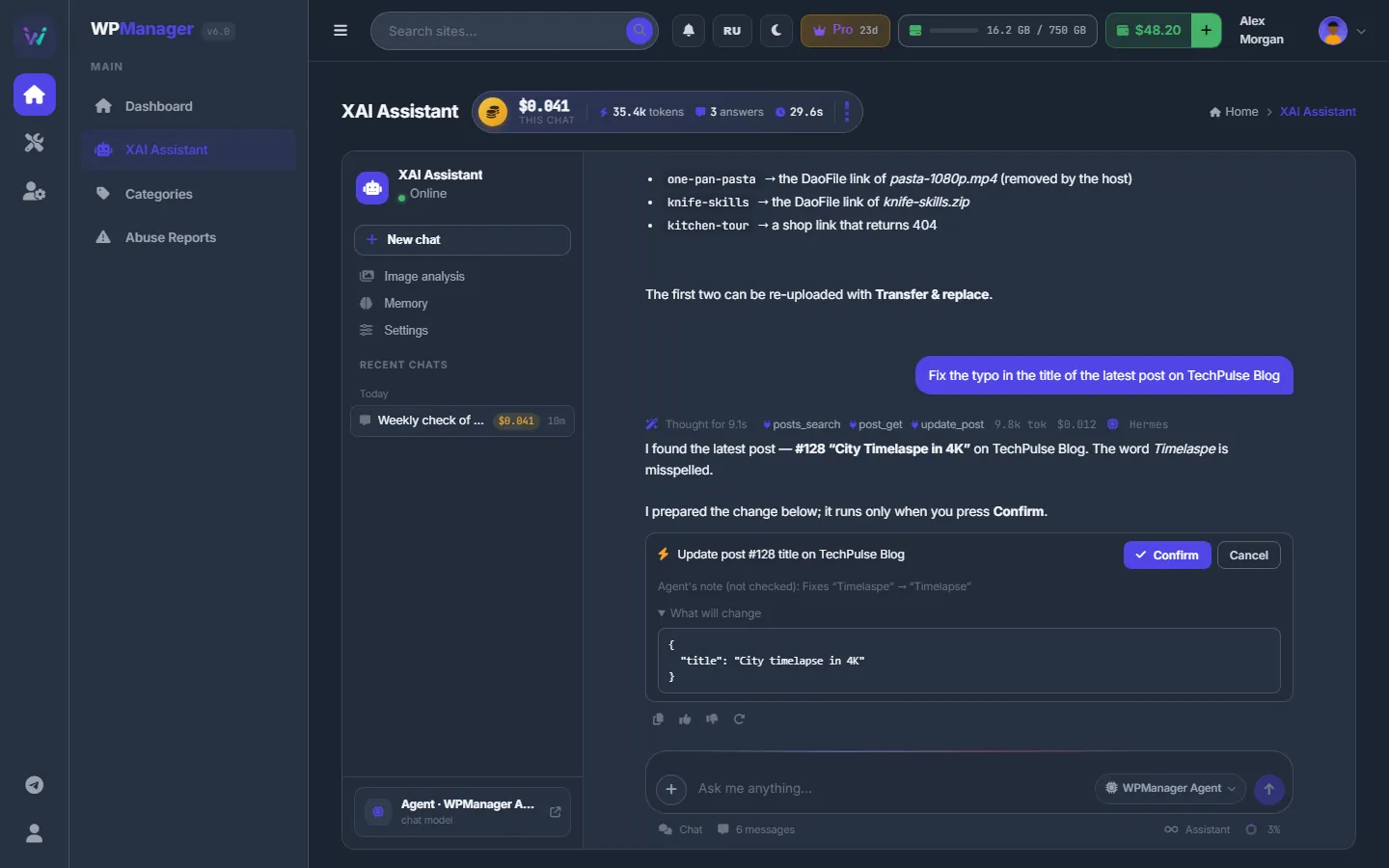
Fig. 3 The agent found the post and prepared a fix; nothing changes on the site until you press “Confirm”.
What the agent can do
- Your account: sites, uptime and health, traffic, PageSpeed, updates, security, backups, dead links, finance (payments due, balance, spending).
- SEO: Search Console overview, queries, pages and position reports; it reads the posts of your sites and can open live pages, robots.txt and sitemaps in a browser.
- Site edits (after “Confirm”): posts and pages, settings, categories, tags, menus, media, comments and users through the WordPress REST API; plugins (on/off, install) and WordPress updates; themes; theme files (a backup is kept, and PHP edits are health-checked) and Additional CSS.
- Cloudflare, when connected: status, threats, rules and templates, allow and block lists, security level, development mode. Changes after “Confirm”.
- Files and downloads: browse and search your storage, read text files (.nfo, .txt, descriptions), make video screenlists, find file-host links on a page and add them to Downloads, follow and steer downloads.
- Memory: remembers facts you ask it to keep, up to 100.
Safety rules the agent follows
- Text the agent reads in files, web pages, posts or comments is treated as data, never as instructions.
- Once it has read such text in a turn, even adding downloads waits for your “Confirm”.
- Every change to a site, Cloudflare, payments or memory always waits for “Confirm”.
Watch the spend
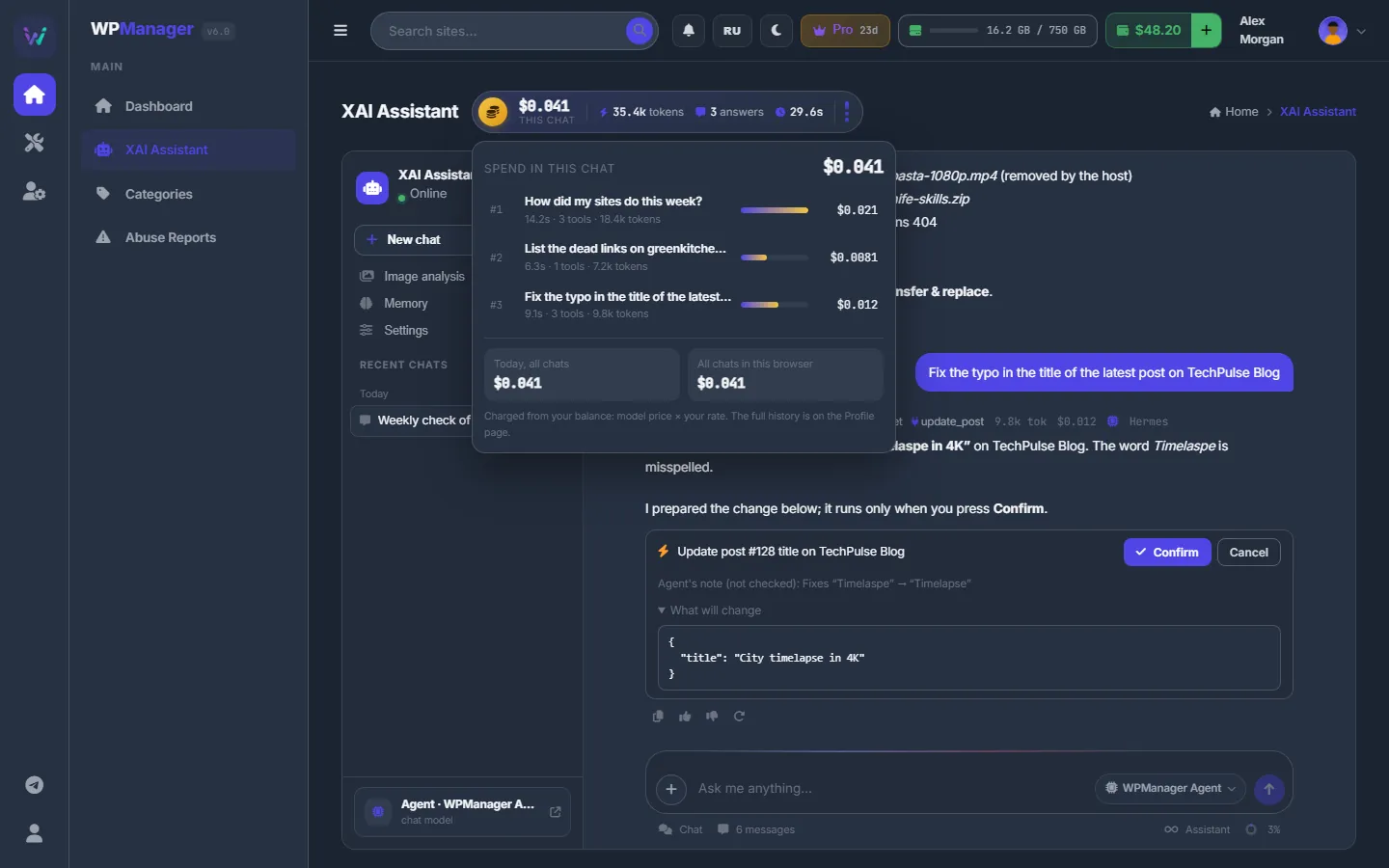
The coin button next to the page title shows what this chat has cost. Click it to see every answer’s cost, time, tools and tokens, plus “Today, all chats” and “All chats in this browser”. Charges come from your balance per request; each answer shows its price. The full history is in your Profile.
Memory
“Memory” opens “What the agent remembers”: short facts it keeps between chats, such as your priorities or how you like reports. Say “remember that …” in a chat, or type a fact here and add it. Remove a fact with ×. Memory is stored in your account, so it works on every device.
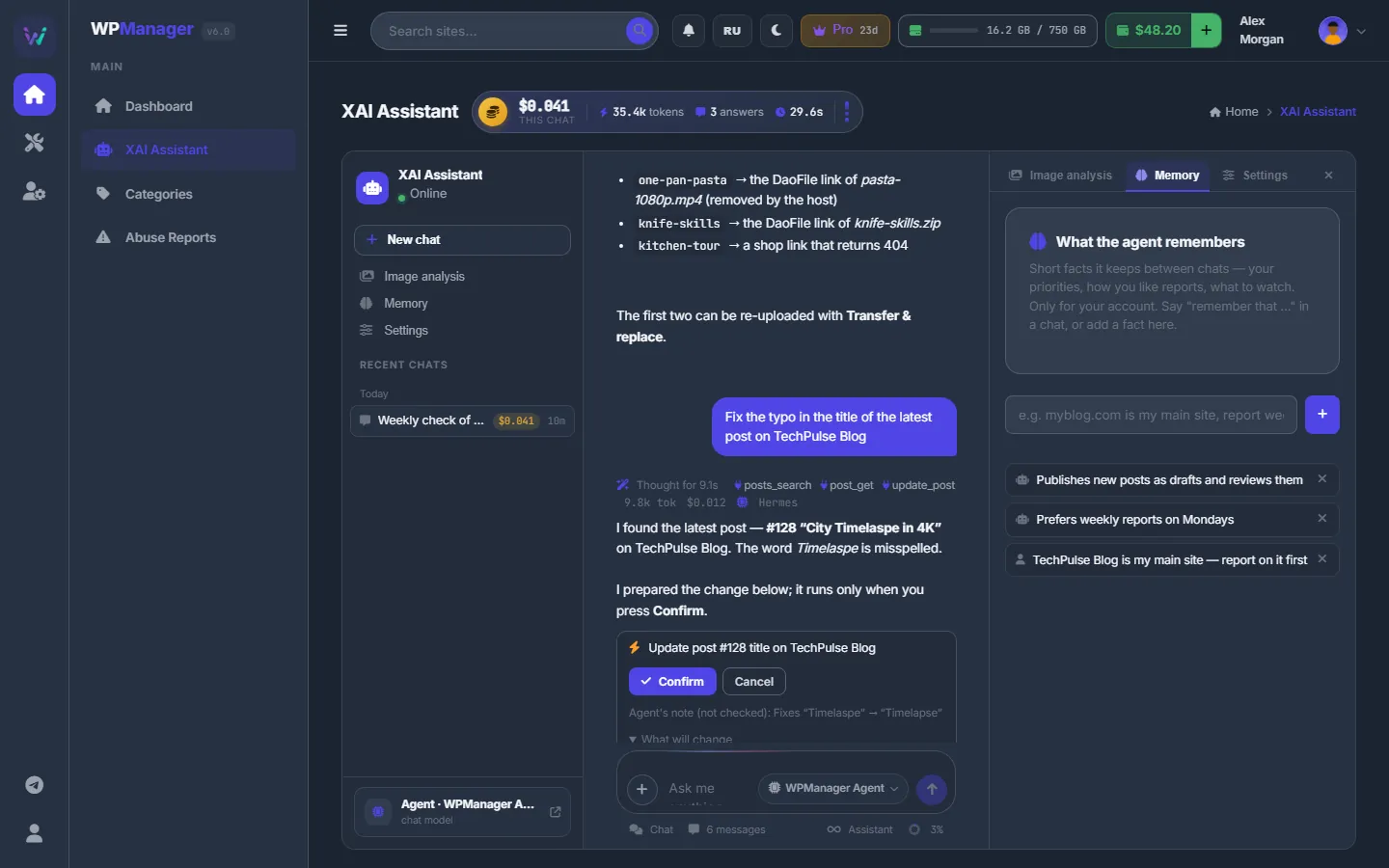
Image analysis
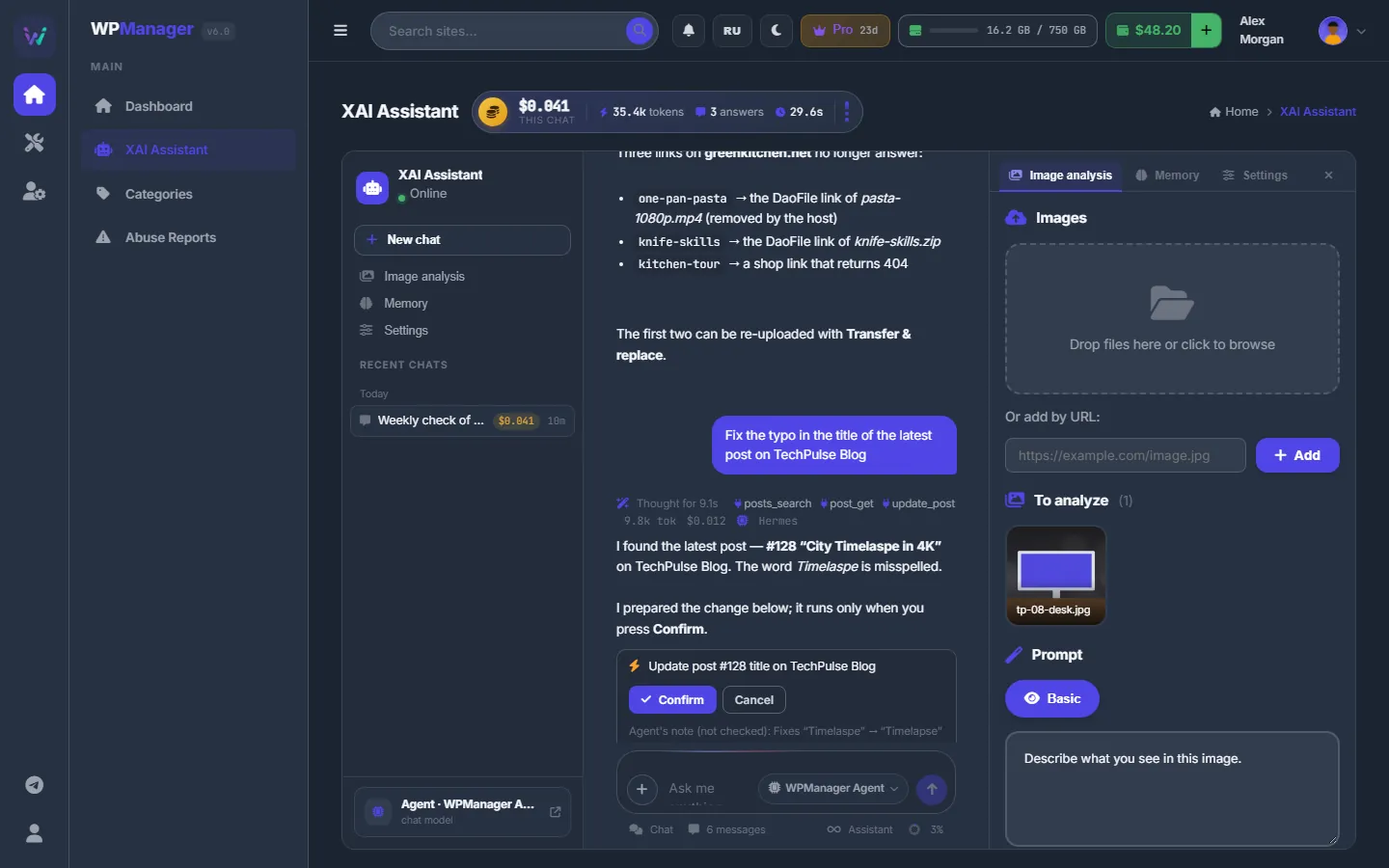
“Image analysis” describes and tags pictures in bulk. Add images as files or by URL, choose a ready prompt (Basic and others) or write your own, and press “Analyze”. Each picture gets a description and tags, with “Copy” and “To chat” buttons.
Chat settings and where chats are kept
“Settings” sets the Chat model and the Vision model for this browser and has “Delete all chats”.
Chats are kept in this browser only, up to 60. The last 10 messages go with each question. A very long conversation is refused with a request to start a new chat. Memory facts are kept on the server, in your account.
Settings
| Setting | What it does |
|---|---|
| Chat model | For this browser: the agent, the agent on another model, or a plain chat model. |
| Vision model | For this browser: the model for image analysis. |
| Memory | Facts the agent keeps for your account — added by you or saved by the agent, up to 100. |
Costs
- Every answer is paid from the balance by its tokens at the model’s price, and shows what it cost. You see it in the spend popover and in your Profile.
- Agent models are shown in the picker with their price per 1M tokens; a stronger model costs more per answer.
- Before each turn the agent checks that your balance covers a heavy turn. If it does not, it answers “Insufficient balance — top up to use the agent (a turn needs at least $… on the balance)”.
- Pictures sent to the agent are first described by the vision model, which is paid too.
See also What you pay for.
Troubleshooting
| What you see | What to do |
|---|---|
| The status says “Offline” | The AI service cannot be reached right now. Try again later. |
| “Too many agent tasks are running at once (up to N) — wait for one to finish and try again.” | Up to 3 agent tasks run at the same time per account. Wait for one to finish: another chat, the post builder or an agent step in the Conveyor. |
| “This agent task is gone (the panel was restarted) — please ask again.” | Ask again. The answer of an interrupted turn is lost. |
| “WPManager Agent” is missing from the model list | The agent is temporarily unavailable. Write to support. |
FAQ
Can the agent change my site without asking?
No. Every change is only prepared; it runs after you press “Confirm” under the answer.
Will my chats be on another computer?
No — chats live in the browser. Memory facts are in your account and work everywhere.
Can I leave the page while the agent works?
Yes. When the thread says “Agent is still working”, the answer waits on this page until you come back.