
Updating WordPress, plugins and themes
The Dashboard shows which sites have a WordPress, plugin or theme update waiting. One window per site applies them — the core, single items or everything at once — and reports what worked.
On this page
Where to find it: Dashboard → the “WP / PHP” column → click the WordPress version or the update button next to it.
Before you start
- The site is connected with the WPManager plugin (“Connected” on the site’s Settings → Connection tab — see Installing and connecting the WPManager plugin).
- To apply updates, the site needs the WPManager plugin 7.5 or newer. When it is older, the window offers to update the plugin first.
Update a site
-
Spot pending updates on the Dashboard
In the “WP / PHP” column every site shows its WordPress and PHP versions. A highlighted button with an up arrow and a version number means the site itself reports a new WordPress release. A button with a plug icon and a number counts the plugin and theme updates waiting.
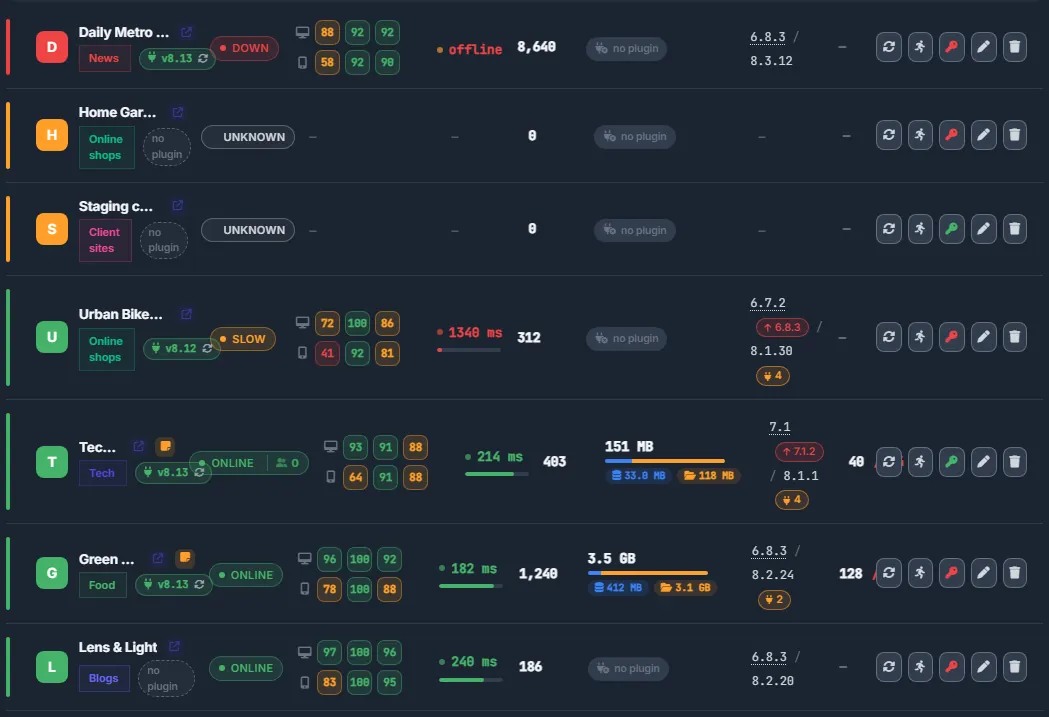
Fig. 1 Pending updates at a glance: the core-update button and the plug counter. -
Open the updates window
Click the WordPress version (dotted underline) or one of the buttons. The window “Updates · <site>” lists what is pending and when the site was last checked (“5 pending · checked 1h ago”). If that check is older than 6 hours, the panel asks the site again first (“Asking the site…”). “Re-check” asks the site at any time.
-
Choose what to update
The sections “WordPress core”, “Plugins” and “Themes” show each item as “old → new” with its own “Update” button. “Update all plugins” appears when more than one plugin waits; “Update all” at the top updates everything, the core included.
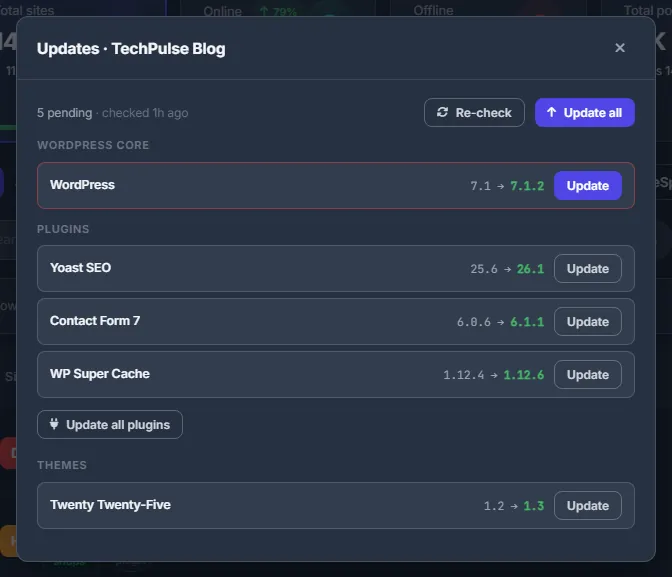
Fig. 2 Core, plugin and theme updates of one site in one window. -
Confirm and wait
Confirm the question — it reminds you that “The site may be in maintenance mode for a minute.” Keep the window open while it says “Updating… this can take a few minutes, do not close the page.” The panel waits up to 12 minutes for the site to answer.
-
Read the result
“Result: N updated, M failed” appears on top, with a line for each item: its new version, “already up to date”, or the error WordPress returned. The list below and the Dashboard counters update immediately.
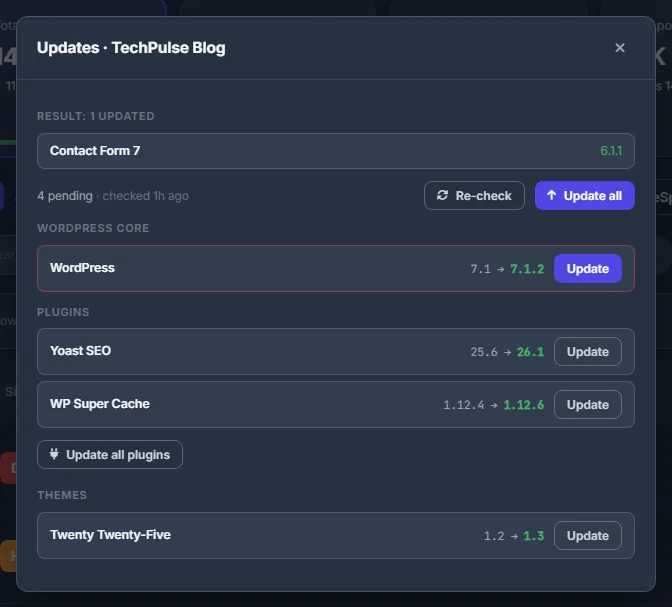
Fig. 3 The report after updating one plugin; the rest of the list stays below.
How the list stays fresh
Every 6 hours the panel asks all your connected sites which updates they have, so the Dashboard counters stay current without a click. Opening the window re-checks a site whose data is older than 6 hours.
The panel only checks — it never installs updates on its own. You decide when to apply them. If you want WordPress to install new versions of a particular plugin by itself, turn on that plugin’s Auto-update on the WordPress tab.
Telegram notice
If Telegram alerts are linked to your account, you get a message after a WordPress core update (“WordPress updated”) and whenever any item fails (“WordPress update: errors”), with the list of items.
Other places with updates
- Dashboard → “Update all” above the sites list — updates on all sites at once, by the kinds you pick (plugins, themes, WordPress core, the WPManager plugin); see Dashboard.
- WordPress tab → Plugins: “Update plugin” per plugin, the bulk “Update”, and the Auto-update switch — see Managing plugins.
- Security tab: the score loses points for pending plugin updates and an outdated core; its “Updates” button opens the WordPress tab — see Security tab.
Costs
Free.
Troubleshooting
| What you see | What to do |
|---|---|
| “Plugin too old”: the WPManager plugin on this site is older than 7.5 | Answer yes: the panel updates its plugin on the site and checks again. |
| “The site took too long to answer. The update may still be running — re-check in a minute.” | Wait a minute and press “Re-check”. Do not start the same update twice. |
| “WPManager plugin is not connected on this site” | Save the plugin key in “Settings” → “Connection” on the site page. |
| An item fails with an error from WordPress | Read the error in the report. Typical causes are file permissions on the host and a plugin that needs a newer PHP. Fix the cause and press “Update” on that item again. |
FAQ
Does the panel update my sites automatically?
No. It checks for updates every 6 hours; you apply them. A plugin’s Auto-update switch on the WordPress tab lets WordPress itself install new versions of that plugin.
Why does the window say “Asking the site…” when it opens?
The last check of this site is older than 6 hours, so the panel asks it for a fresh list before showing anything.
Can I close the page while an update runs?
Keep it open until the report appears. If the page was closed, wait a minute, open the window again and press “Re-check” — it shows what is still pending.