
Conveyor: start plans and follow runs
Start a plan on files you select in Files, on links you paste in Downloads, or right from the Conveyor page. Then follow every run on the Runs tab: live progress, the result of each step, cancel, and retry from the step that failed.
On this page
Where to find it: Links & files → Files → (select) → “Conveyor”; Links & files → Downloads → “Conveyor”; Content → Conveyor → tab “Runs”.
Before you start
- A saved plan (see Conveyor: build a plan): a plan with “Files from the storage” to start from Files, a plan with “Links” to start from Downloads.
- For plans with paid steps (AI, Video studio): money on the balance.
Start a plan
From Files
-
Select the files
Open Links & files → Files and tick the files or folders. A folder is processed as a whole.
-
Press “Conveyor” and pick a plan
Press “Conveyor” in the selection bar. The “Run a plan” dialog lists your plans that work on files. Each row shows the chain of step icons and how many runs the start will make — “3 runs” for three items in a plan set to “Each item separately”. Click a plan: the runs start, and a message says “Started: … — progress on the Conveyor page”.
If you have no files plans yet, the dialog offers “Create a plan”; “All plans and runs” opens the Conveyor page.
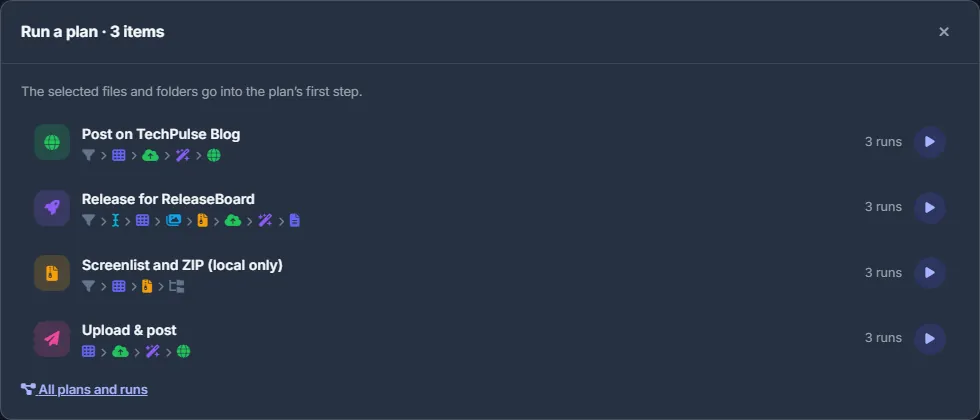
Fig. 1 Three videos selected: each files plan shows its chain and “3 runs”.
From Downloads
-
Paste the links
Open Links & files → Downloads and press “Conveyor”. In “Links into the conveyor” paste one link per line: file hosts, direct links, magnets, web pages. Optionally type a Folder in your storage; empty means the storage root.
-
Choose the plan
Press “Choose the plan” and pick one of your links plans. When the links include magnets or .torrent links, a “Torrent files” switch appears: “As in the plan” (each plan’s own rule), “Choose by hand”, “Only video”, “All files”, “The largest file”. For a single torrent it starts on “Choose by hand”.
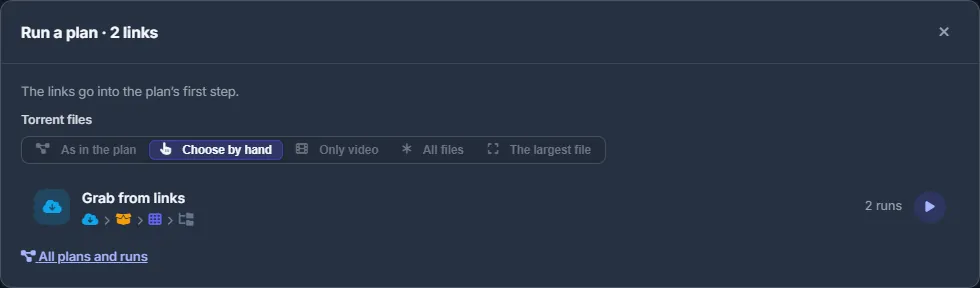
Fig. 2 A file-host link and a magnet go into a links plan; the switch decides which torrent files to take.
From the Conveyor page
In the plan editor press “Run”. Unsaved changes are saved first; a plan with an unfinished step does not start and shows that step’s hint instead.
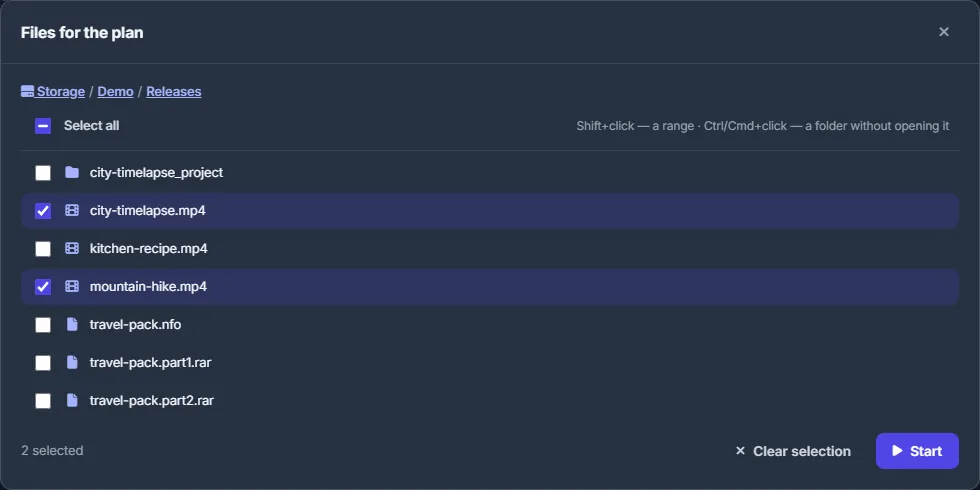
- A files plan opens “Files for the plan”, a browser of your storage. A click opens a folder; the checkbox or a click on a file ticks it. Shift+click ticks a range, Ctrl/Cmd+click ticks a folder without opening it, and “Select all” ticks everything in the open folder. Then press “Start”.
- A links plan opens “Links for the plan” with the same fields as in Downloads.
After the start the page switches to the Runs tab.
From the Content store
A video bought in the Content store can go straight into a files plan with “Send to the conveyor”; it is copied into Files first when needed. See My purchases.
Per item or all in one
A plan set to “Each item separately” makes one run per selected item: 10 videos give 10 runs in one batch, and a failure in one does not stop the others. “All in one run” makes a single run with every item. The launcher shows how many runs a start will make before you click.
Follow the runs
Open Content → Conveyor → “Runs”. While runs are active, the tab shows a counter.
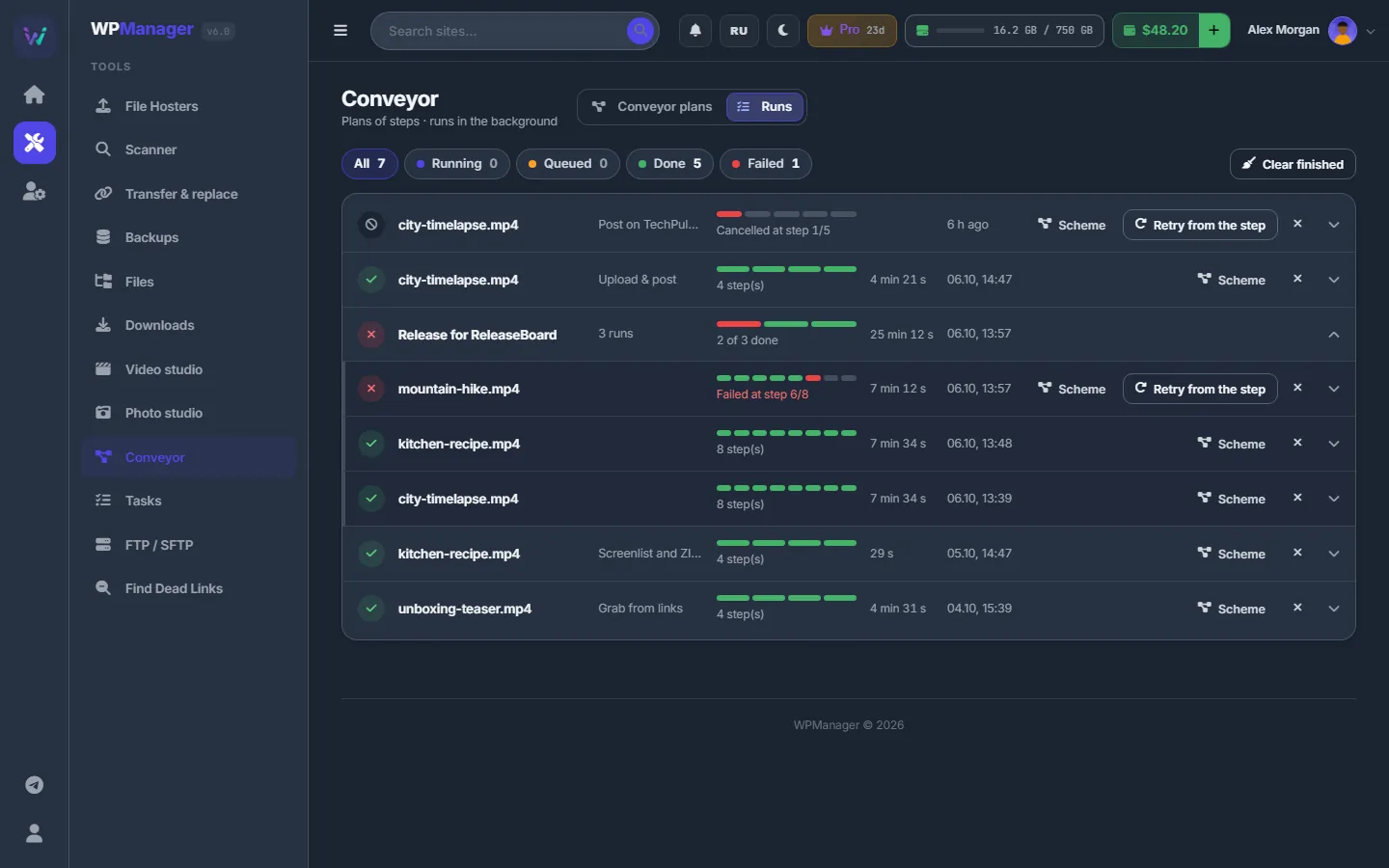
- The chips at the top — All, Running, Queued, Done, Failed — count the runs and filter the list. Click a chip again to show all runs.
- Runs started together are grouped into a batch row with “N runs”, “X of N done” and a bar with one segment per run. Click the row to fold or unfold it.
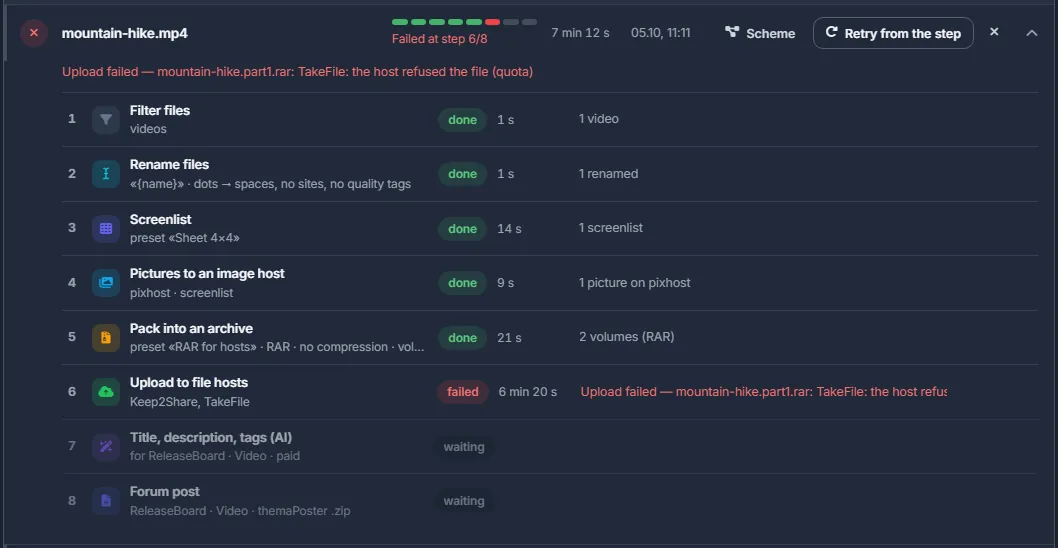
- Each run row shows its status, what it works on, the plan, a bar with one segment per step and a caption such as “Step 2/5 · 45%” or “Failed at step 3/5”, how long it took and when it started.
The list refreshes every few seconds while something runs, and shows your 80 newest runs.
Run details
Click a run row to open it; a running run is open already. You see:
- the current message;
- live rows of what the step is doing right now: a download with %, size, speed, time left and connections; an upload; the AI with “spent $…”;
- every step with its time, status (done, skipped, running, failed, waiting) and a result line.
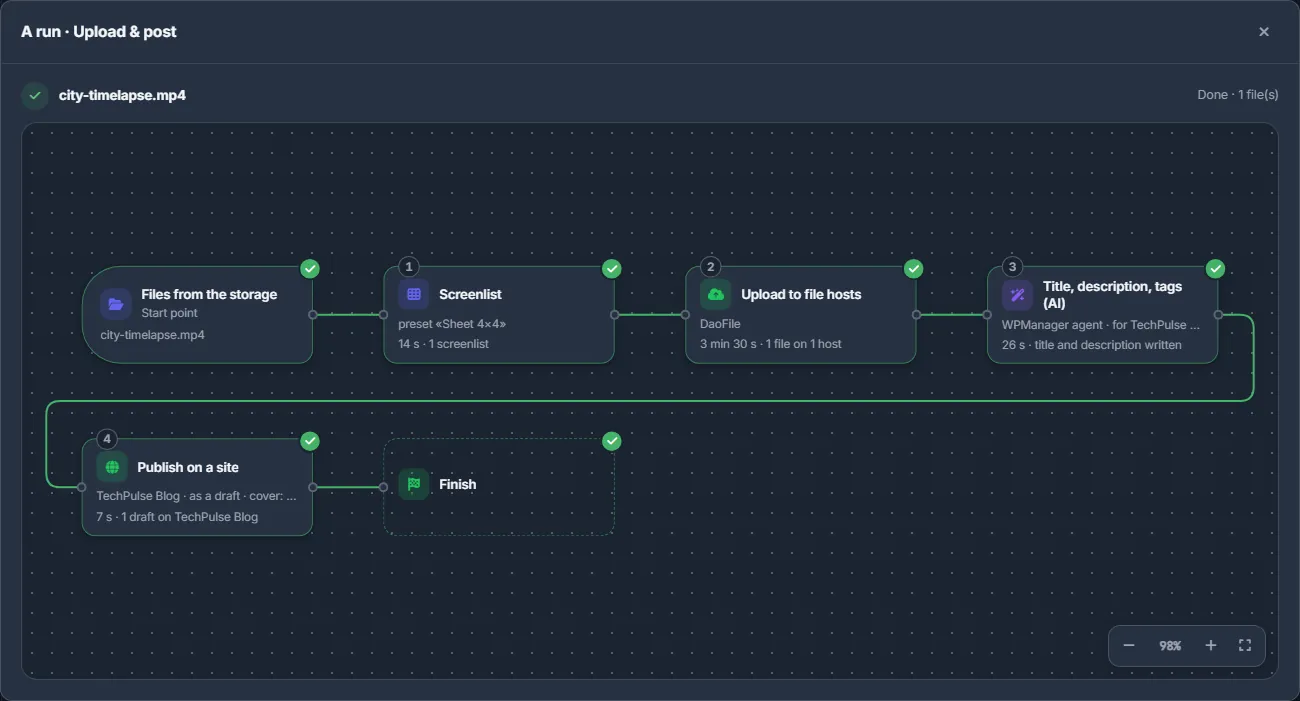
“Scheme” opens the run as a read-only scheme that updates live.
Cancel, retry, clean up
- “Cancel” stops a running or queued run.
- “Retry from the step” continues a failed or cancelled run from the step where it stopped, with the files that step had. Steps already done are not repeated.
- × (“Remove from the list”) removes a finished run; “Clear finished” removes all done, failed and cancelled runs. Removing a run from the list does not touch its files.
Torrents chosen by hand
When a Download step’s rule is “Choose by hand”, the run waits once the torrent’s metadata arrives (“Waiting for you to choose the torrent's files”), and its row gets a “Choose files” button. A run started from the Conveyor page opens the file list by itself, once. You can also choose the files in the torrent’s row on the Downloads page. The choice must be made within 24 hours.
Balance while paid steps run
While an AI or Video studio step runs, the balance in the page header follows it (about every 10 seconds), and the run’s live row shows “spent $…”. Each AI text is paid as soon as it is written. If the balance runs out, the AI step stops the run: top up and press “Retry from the step”.
Limits
- Up to 500 items per start (“At most 500 items at once”).
- Up to 1,000 runs waiting or running per account. Above that a start is refused until some finish.
- Each account runs up to 2 runs at the same time; the others wait as “Queued”. A run that waits for you to choose torrent files keeps its place.
- Time per step: a download step up to 24 hours; a step with torrents up to about 4 days (30 minutes for metadata, 24 hours for your choice, 72 hours to download); any other step up to 6 hours.
Settings of the start dialogs
| Setting | What it does |
|---|---|
| Torrent files | Overrides the Download step’s rule for this start: As in the plan / Choose by hand / Only video / All files / The largest file, plus By mask when the plan uses a mask. |
| Folder | Links dialog: where a links run starts; empty means the storage root. When the Download step has a folder of its own, that folder wins. |
Costs
Starting and following runs is free. A run pays for its paid steps — AI texts, a text of its own for a site, the Video studio — as they happen. See step costs.
Troubleshooting
| What you see | What to do |
|---|---|
| A run failed with “The server restarted during this step — press Retry” | Press “Retry from the step”. The run continues from that step with the same files. |
| Runs stay “Queued” | Your parallel limit is in use; one of the runs may be waiting for you to choose torrent files. Finish or cancel it, or wait. |
| “This plan starts by reading web pages — magnets and .torrent links go to a plan that starts with Download” | For magnets and .torrent links use a links plan whose first step is “Download links and torrents”. |
| “A path points outside your storage” or “Select the files or folders this plan works on” | Start the plan from Files with something ticked, or tick items in the “Files for the plan” dialog. |
FAQ
Can I close the page while runs are in progress?
Yes. Runs keep running on the server. Come back to Conveyor → Runs to see the results.
What does “Retry from the step” repeat?
Only the step that failed and the ones after it, with the files that step had. Steps already done are kept.
Does removing a run from the list delete its files?
No. The files the run made stay in your storage.