
Keyword data and scores
“Settings” → “SEO data” shows where the site’s keyword facts come from — Search Console, Bing, DataForSEO — which country and language they are read for, and the site’s top Google queries. These facts drive the keyword scores in the post tools and feed the AI writer.
On this page
Where to find it: Overview → Dashboard → click the site → Settings → “SEO data”.
Before you start
You need at least one source:
- Search Console connected for the site — see Google Search Console in the panel;
- Bing connected on any of your sites — see Bing Webmaster Tools;
- or a DataForSEO login saved on the Profile page — see below.
Check the sources
-
Open SEO data
On the site page open “Settings” and the “SEO data” sub-tab. The “Settings” link in the keyword window leads here too. As the text at the top says, every source the site and your account have is used automatically — there is nothing to choose.
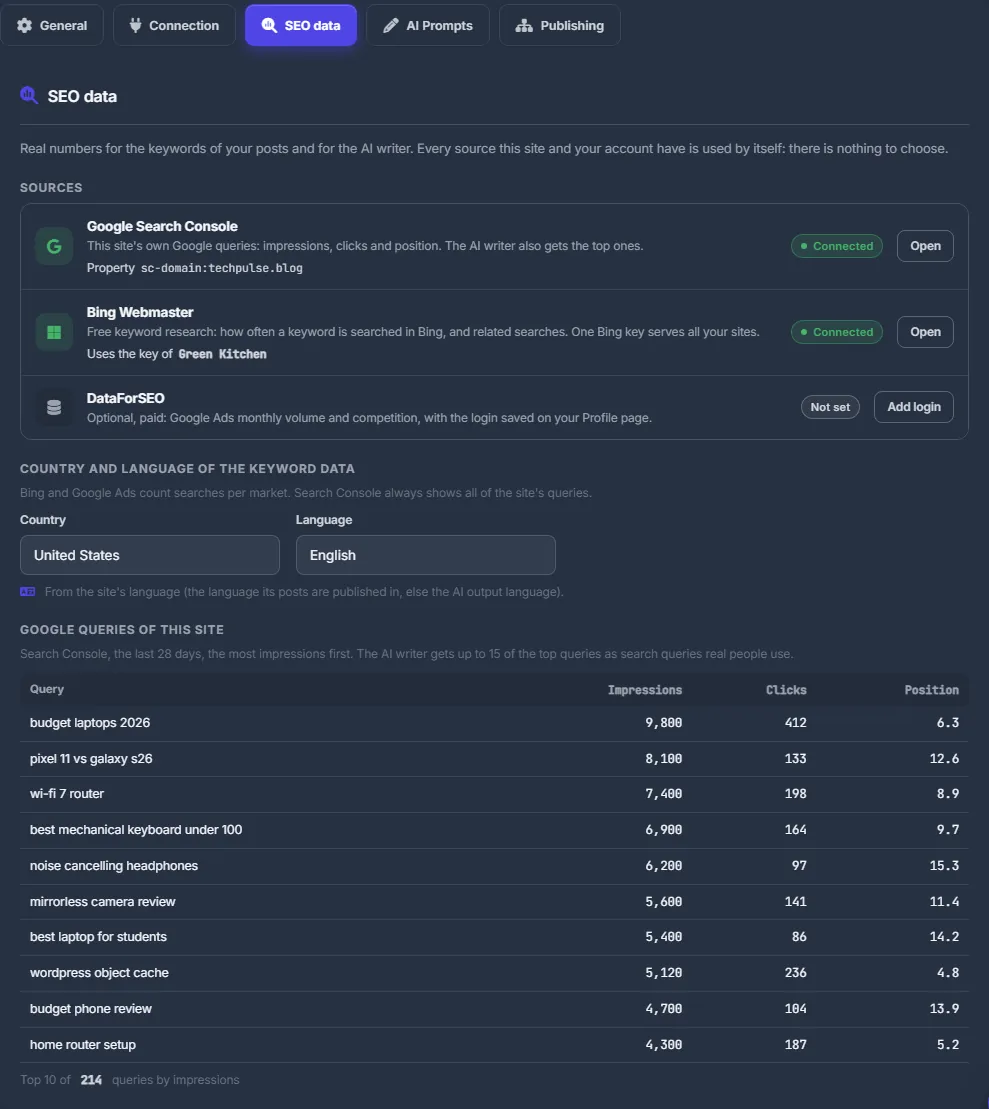
Fig. 1 Where the keyword facts of the site come from, and for which market. -
Read the source rows
“Sources” lists three rows:
- Google Search Console — this site’s own queries: impressions, clicks and position. The AI writer also gets the top ones.
- Bing Webmaster — free keyword research: how often a word is searched on Bing, and related searches. One Bing key serves all your sites, so the row may say “Uses the key of <site>”.
- DataForSEO — optional and paid: Google Ads monthly volume and competition, through the login saved in your profile.
Each row shows its state — “Connected”, “Not connected”, “Not set” or “Not on your plan” — and an action: “Open” or “Connect”, “Plans”, “Add login” or “Change”.
-
Set the market
Under “Country and language of the keyword data”: Bing and Google Ads count searches per market. By default the market follows the site’s language — the language its posts are published in, otherwise the AI output language. Choose a “Country” and a “Language” to override it (“Chosen for this site.”), or press “Use the site’s language” to go back to the default. Search Console always shows all of the site’s queries, whatever you choose here.
-
Look at the site’s Google queries
“Google queries of this site” lists Search Console queries of the last 28 days, the most impressions first: Query, Impressions, Clicks, Position (“Top 10 of N queries by impressions”). The AI writer gets up to 15 of the top queries as real search phrases.
Add DataForSEO (optional)
-
Open your profile
Go to the Profile page and find the “Keyword data” block. “Where to find the API login and password” opens DataForSEO.
-
Save the login
Enter the DataForSEO “API login” and “API password” and press “Save”. The login is checked with DataForSEO before it is saved, stored encrypted and used only for your own requests. “Remove” deletes it.
How the score works
Every keyword suggestion in the post tools gets a score from 0 to 100, built only from real data:
- 0–60, Demand — monthly searches from Google Ads (DataForSEO), else from Bing, else this site’s own Google impressions;
- 0–40, Opportunity — the site’s Google position: 4–20 is the best chance, the top 3 is already strong, not ranking is neutral;
- no data anywhere — no score. Nothing is guessed.
Scores of 70 and more are shown as high, 45–69 as medium, below 45 as low. Hover a score in the keyword window to see how it was made.
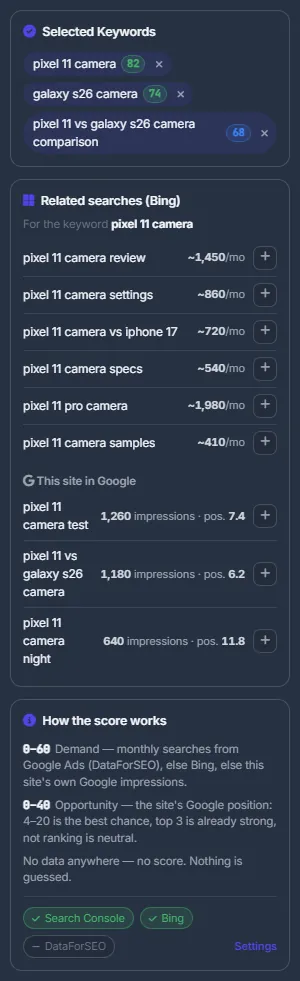
Where the scores are used: AI tools for posts.
Settings
| Setting | What it does |
|---|---|
| Country | The market for Bing and Google Ads volumes. Default: from the site’s language. |
| Language | The language of the keyword data. Default: from the site’s language. |
| DataForSEO login (Profile) | API login and password of your own DataForSEO account. |
Costs
Search Console and Bing facts are free; Search Console needs the “Advanced analytics” feature of your plan, otherwise its row says “Not on your plan”. DataForSEO requests are billed by DataForSEO to your own account, not by the panel.
Troubleshooting
| What you see | What to do |
|---|---|
| “Keyword data is not available right now — …” in the keyword window | A source did not answer; the message gives the reason. Check the source states in “Settings” → “SEO data” and try again later. |
| “Search Console has no queries of this site for the last 28 days.” | The property is new, or the wrong one is selected. Check Analytics → Search Console. |
| The DataForSEO login is not saved | DataForSEO rejected it. The API password is not the password you sign in with: copy the API login and API password again from the API access page of your DataForSEO account. |
FAQ
Do I need DataForSEO?
No. Search Console and Bing give scores for most keywords. DataForSEO adds Google Ads volumes for keywords you do not rank for yet.
Can other WPManager users see my DataForSEO login?
No. It is stored encrypted and used only for your own requests.