
Site backups: create, download and restore
Back up a site’s database, media, plugins and themes in one click, keep the copies off-site in your WPManager storage or on the site’s own host, download them, and restore them — even backups of several gigabytes, which the panel sends to the site in parts, in the background.
On this page
Where to find it: Dashboard → click the site → Backups tab.
Before you start
- The site is connected with the WPManager plugin (“Connected” on the site’s Settings → Connection tab — see Installing and connecting the WPManager plugin).
- Free room in your account’s storage for Platform backups. The storage bar in the panel header and this tab show how much is left.
- Restoring big Platform backups through Cloudflare needs the WPManager plugin 8.4 or newer — it takes the backup in parts.
The Backups tab
On the site page click “Backups” (direct link: /Home/Site/<site id>?tab=Backups).
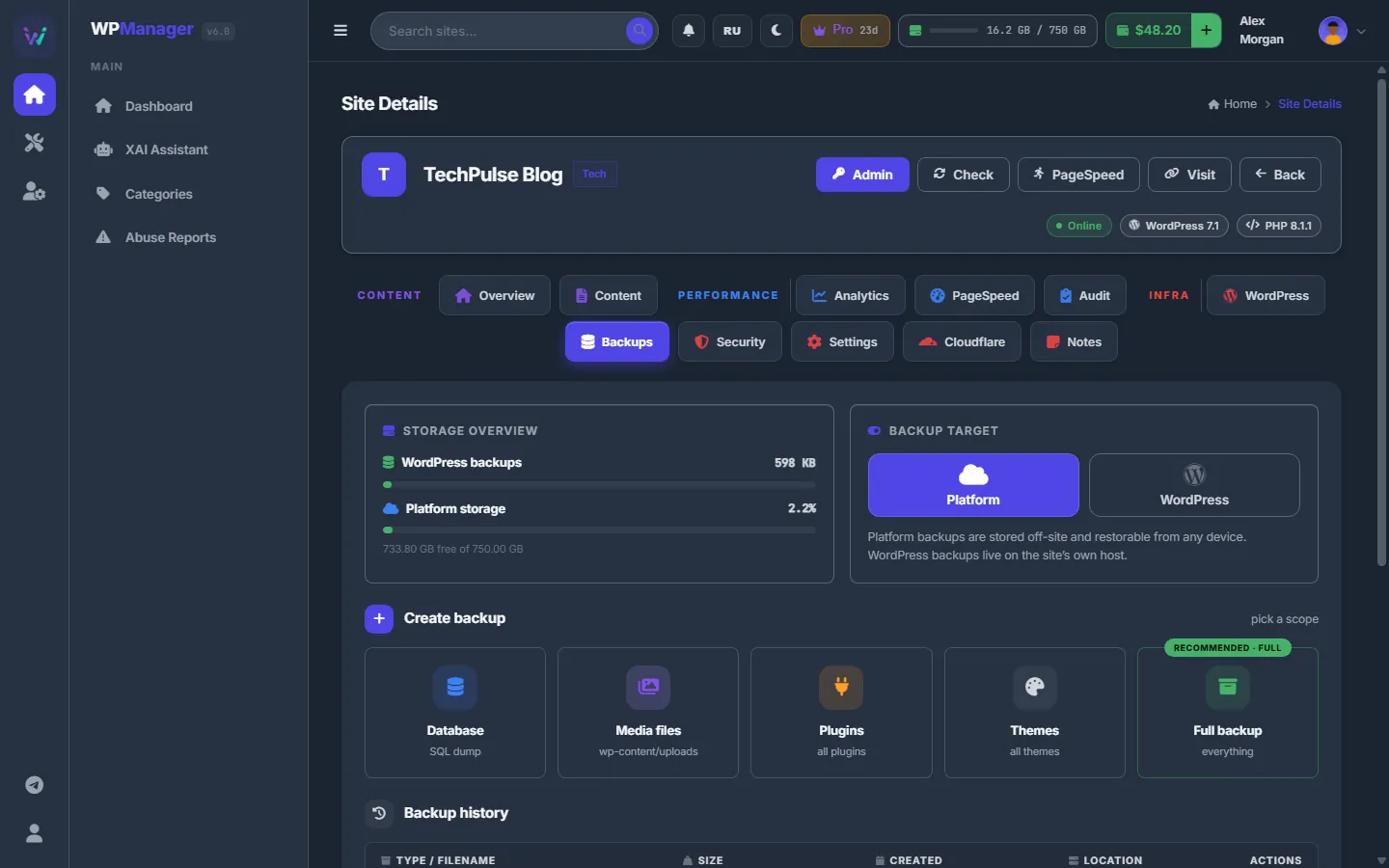
- Storage overview shows the size of the WordPress backups kept on the site and how full your Platform storage is (“X free of Y”).
- Backup target sets where new backups go, separately for each site:
- Platform (default) — once the site has made a backup, the panel copies it to your WPManager storage and removes it from the site. The copy survives even if the hosting dies.
- WordPress — backups stay in a hidden folder on the site’s own host.
Create a backup
-
Pick a scope
Under “Create backup — pick a scope” click a card: Database (SQL dump), Media files (
wp-content/uploads), Plugins (all plugins), Themes (all themes) or Full backup (uploads, plugins and themes together; marked “RECOMMENDED · FULL”). -
Watch the bar
A bar at the top of the page shows “Creating backup...”, then “Completed! Size: …”. With the Platform target it goes on with “Storing on platform...” → “Stored on platform! Size: …”.

Fig. 2 A database backup being created. -
Find it in the history
“Backup history” lists every backup of the site: Type / filename (Database or Files, and the file name), Size, Created, Location (Platform or WordPress) and the actions.
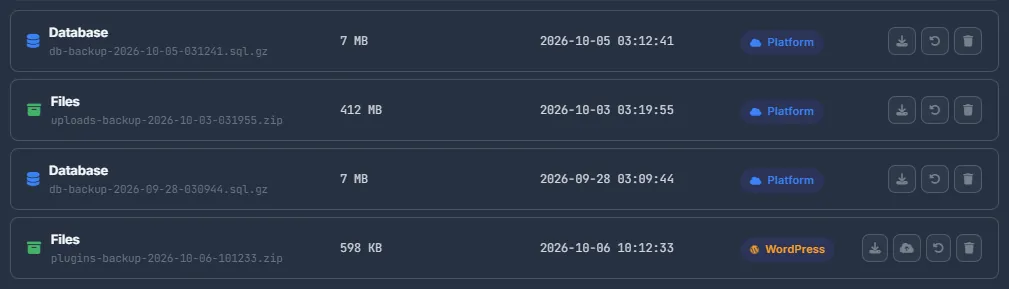
Fig. 3 Backup history: three copies in your WPManager storage, one on the site.
What each backup contains
| Scope | Contents and file |
|---|---|
| Database | Every table of the site: db-backup-YYYY-MM-DD-HHMMSS.sql.gz (.sql if the host has no gzip). |
| Media files | wp-content/uploads: files-uploads-….zip. |
| Plugins / Themes | All plugins or all themes: files-plugins-….zip, files-themes-….zip. |
| Full backup | Uploads, plugins and themes in one files-all-….zip. |
Download or move a backup
- Download starts the browser download straight away — from your WPManager storage, or from the site through the panel.
- Store on Platform (cloud icon, only for copies kept on WordPress) copies the backup into your WPManager storage and then deletes it from the site. One such copy runs at a time per account.
- Delete (trash) asks “Delete backup “…” from platform / from WordPress? This cannot be undone.” Deleting Platform copies frees your storage immediately.
Restore a backup
-
Press Restore and read the warning
A database restore OVERWRITES the current database; a files restore OVERWRITES files with the same names. For a Platform copy the window adds “Backup will be uploaded from platform to WordPress for restore.”
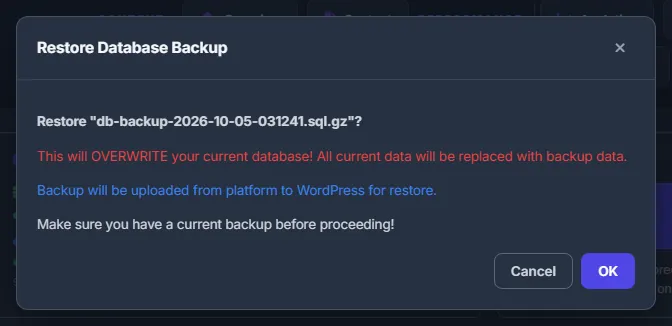
Fig. 4 The restore asks before it overwrites anything. -
Confirm and follow the bar
A restore of a Platform copy runs in the panel, not in your browser. The bar shows “Sending the backup to the site: 37% (152.4 of 411.8 MB)”, then the restore itself. At the end you see “Executed N SQL statements” or “Extracted N files”, with the number of errors if there were any.

Fig. 5 A big backup goes to the site in parts. -
Close the page if you like
You may close the bar or the page — a restore of a Platform copy keeps running. Open the Backups tab again to see how far it got or how it ended. Only one restore per site runs at a time.
How big backups are restored
For a restore of a Platform copy the panel first asks the site how much it can take in one piece and how much free space it has; a backup that would not fit is refused before anything is sent. Then it sends the file in parts — up to 32 MB each, smaller when the site or Cloudflare limits requests — and checks every part. After a hiccup it resumes from where the site stopped, retrying a part for about 5 minutes before giving up. The site checks the checksum of the whole file, restores it and removes the uploaded copy; the backup itself stays in your storage.
A backup can be up to 50 GB. A plugin older than 8.4 gets the whole file in one request, which Cloudflare (100 MB) or the PHP upload limits may refuse.
Where backups are stored
- WordPress: a hidden folder named
wpm-backups-<random>one level above the site’s root when the host allows it, otherwise insidewp-content/uploads. Web access to it is closed. - Platform: your account’s storage, folder
backups/<site id>. The Files page hides this folder until “Show backups” is ticked, and it counts toward your storage quota.
Backups are made on demand
Site backups are made when you click a card — there is no automatic schedule for them. Make a fresh Database and Full backup before updates, theme changes and clean-ups.
Settings
| Setting | What it does |
|---|---|
| Backup target | Platform (default) or WordPress, per site. |
Costs
There is no fee per backup. Platform backups take room in your account’s storage quota, which comes with your plan — see Plans & Pricing. When the storage is 90% full, the tab warns “Storage almost full. Delete old backups or upgrade your plan.”
Troubleshooting
| What you see | What to do |
|---|---|
| “Server timeout or error (…). The backup may be too large. Try backing up individual components (plugins, themes) separately instead of 'all'.” | The host cut the request. Back up Media files, Plugins and Themes one by one. |
| “Not enough storage space! Backup created on WordPress but could not store on platform.” | The copy stays on the site. Delete old Platform backups or move to a plan with more storage, then press “Store on Platform” on that row. |
| “WordPress sent nothing for 2 minutes, so the copy was stopped…” or “…too slowly…” | The site stalled while sending the file. Try again later, or download the backup directly. |
| “A backup is already being restored to this site — wait for it to finish” | Open the Backups tab: the running restore is shown in the bar. Wait for it to end. |
| “The backup is too large for one upload to this site (Cloudflare or PHP upload limits). Update the WPManager plugin to 8.4 to send it in parts.” | Update the WPManager plugin on the site and restore again. |
| “The panel stopped waiting for an answer. The restore may still be running — check the site later before trying again.” | Restoring a backup kept on WordPress took longer than 10 minutes. Check the site after a while, and do not start a second restore right away. |
| After a database restore the panel says the plugin key is rejected | The database came back with the key it had when the backup was made. Copy the key from WordPress → Settings → WPManager API and save it in “Settings” → “Connection”. |
FAQ
Can I restore a backup to another site?
The Restore button puts a backup back only on the site it belongs to. Download the file if you need it elsewhere.
Does closing the browser stop a restore?
A restore of a Platform copy keeps running in the panel. A restore of a copy kept on WordPress runs on the site itself; the page just stops waiting for its answer.
Is this the same as File backups?
No. This tab saves the WordPress site itself. File backups copy the files your posts link to on file hosts.