
Video studio: cutting, clips and batch conversion
Cut the pieces you need out of a video, make samples, GIFs and parts for file hosts, and convert whole batches with one preset. The server does the work with ffmpeg while you watch the estimate and the progress.
On this page
Where to find it: Content → Video studio, or select videos in Files → “Video” → “Video studio”.
Before you start
- Videos in your storage.
- ffmpeg on the server.
- If the converter is paid: converter minutes left in your plan, or money on your balance (see Costs below).
Make a clip or convert a batch
-
Open the studio with your videos
In Files select videos or folders and press “Video” → “Video studio” — or right-click → “Video studio: convert, cut, crop…”, or press “Video studio” in a video preview. You can also open Content → Video studio and press “Add videos” (or + above the list) to pick videos from the storage; ticking a folder adds every video in it.
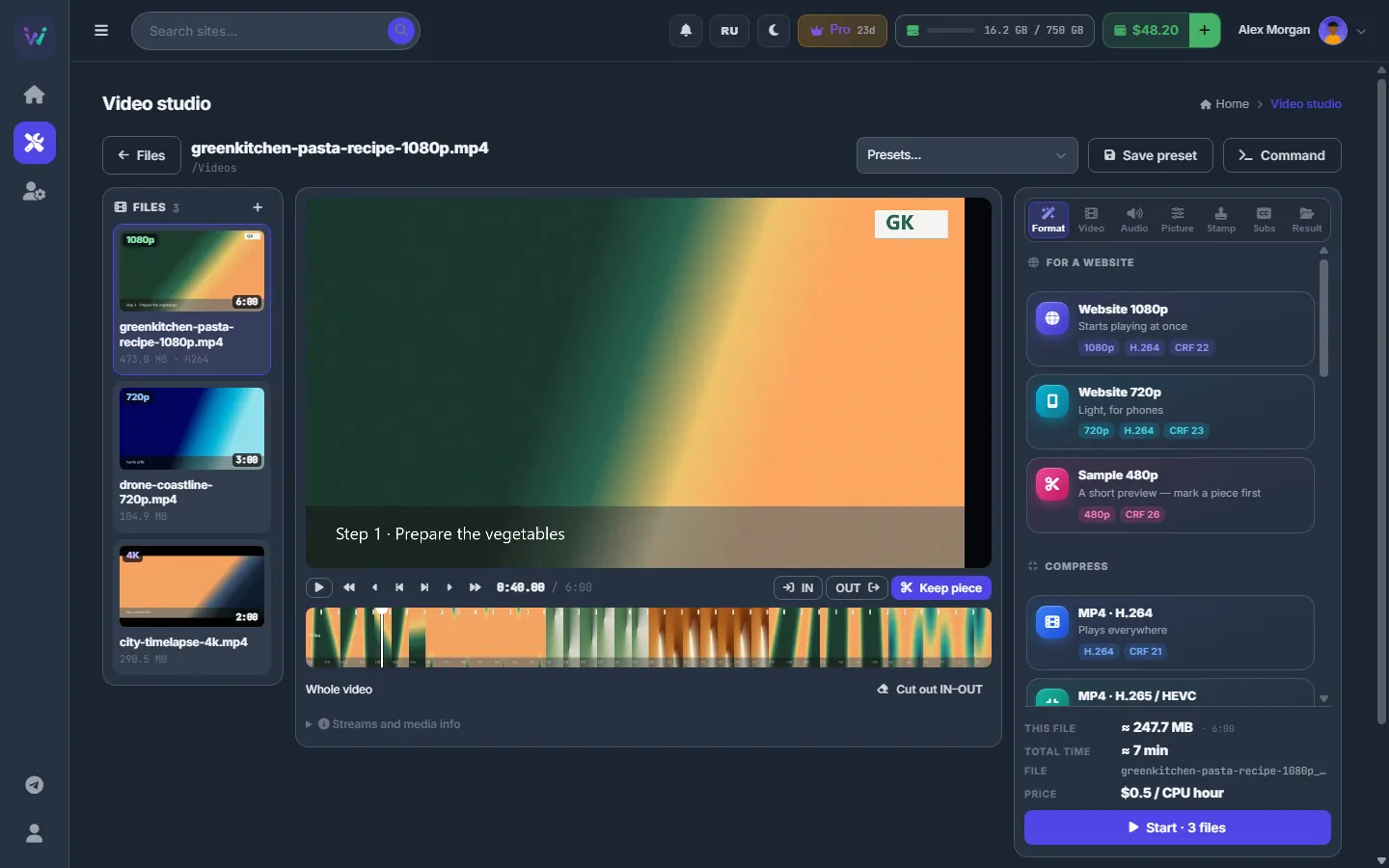
Fig. 1 Three videos in the queue, the player with the timeline, and the built-in presets on the right. -
Pick a video in the queue
The “Files” list on the left shows every video with a thumbnail, quality, duration, size and codec, plus marks for pieces, crop and blur areas. Click one to load it into the player; × removes it from the list, not from the storage. Under the player, “Streams and media info” lists the container and the video, audio and subtitle streams.
-
Mark the pieces to keep
Play the video or click the timeline to find the start and press “IN” (I); find the end and press “OUT” (O); press “Keep piece” (A). Repeat for more pieces — they are joined in order.
To remove a part instead, set IN and OUT around it and press “Cut out IN–OUT” (C): the rest of the video is kept. Drag the edges of a piece on the timeline or type exact times in the list under it. The play button jumps to a piece, × removes it, and “Whole video” drops all pieces.
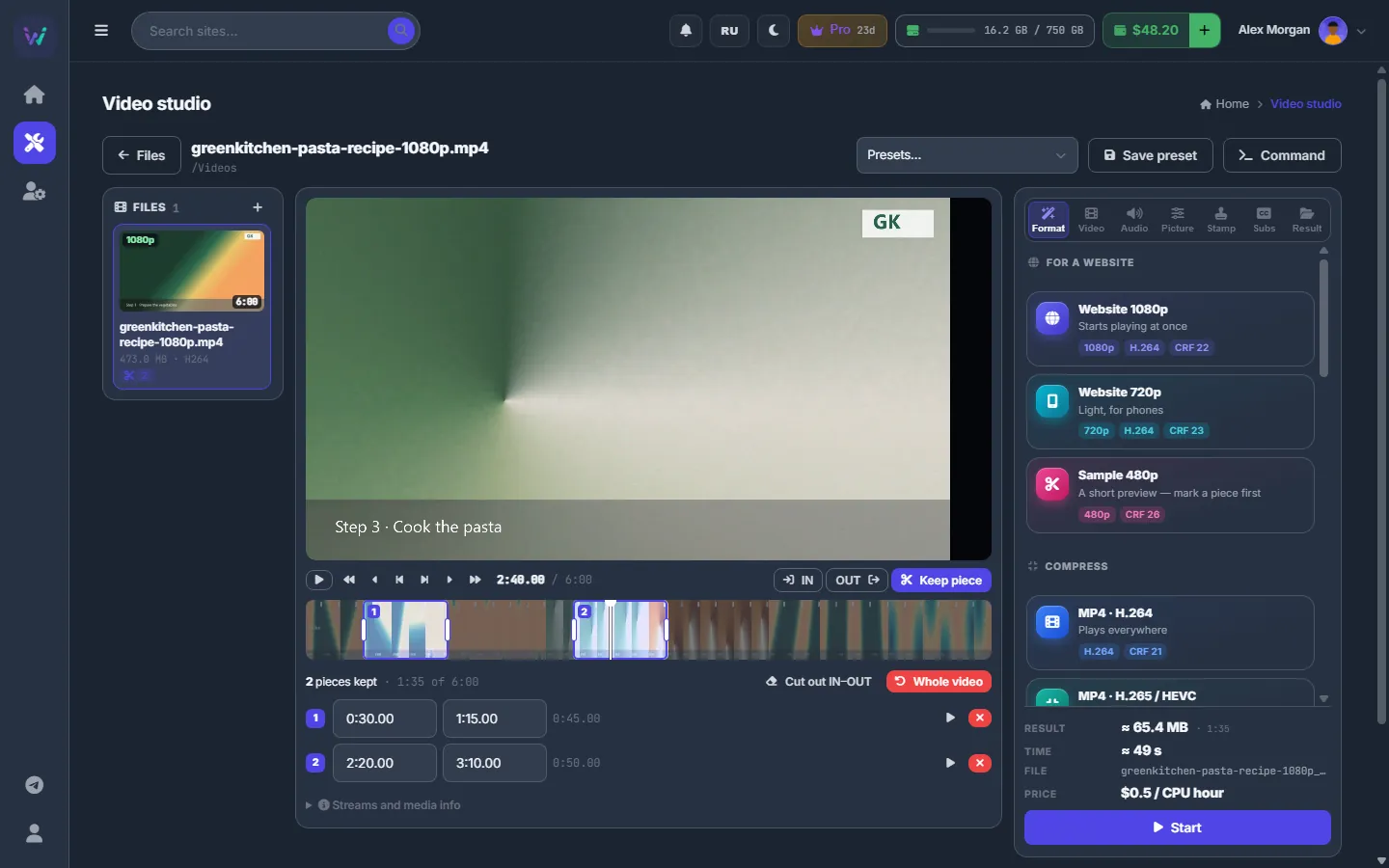
Fig. 2 Two pieces kept — 1:35 of a 6-minute video — with exact start and end times under the timeline. -
Choose what to make
On the “Format” tab click a built-in preset (see the table below) or one of “My presets”. The same list is in the “Presets…” menu at the top. Fine-tune on the other tabs if you need to — see Video studio settings.
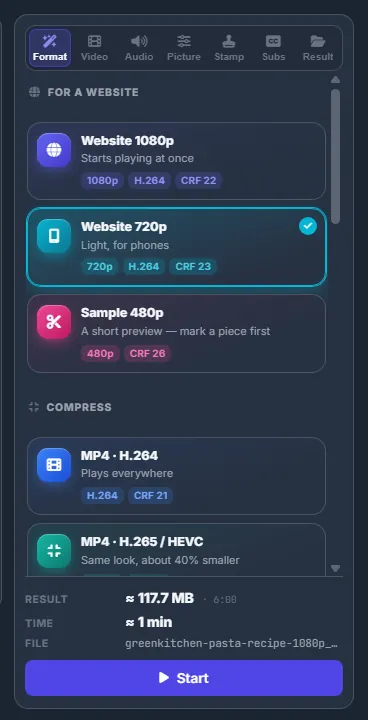
Fig. 3 Built-in presets on the Format tab, with the estimate under them. -
Check the estimate
Above the “Start” button you see the expected result size and duration, the time the work will take (“Total time” for several files), the output file name and — when the converter is paid — the price per CPU hour with your plan minutes left. Notes from the server appear under it, for example about keyframes in copy mode. A red note means the settings cannot work together, and “Start” stays disabled until you change them.
-
Start and wait
Press “Start” (for a batch the button says “Start · N files”). If the original is going to be deleted or replaced, confirm it. The whole batch runs as one task: the bar under the button shows the percentage and the current step, “Cancel” stops it, and when it is done “Open in Files” shows the result. Progress is also on the Tasks page, so you can leave the studio.
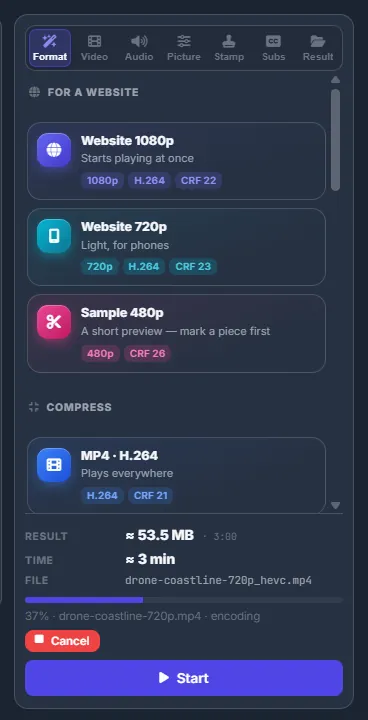
Fig. 4 A conversion at 37 %: the bar shows the file and the current step.
Built-in presets
| Group | Presets |
|---|---|
| For a website | Website 1080p, Website 720p, Sample 480p (mark a piece first) |
| Compress | MP4 · H.264, MP4 · H.265 / HEVC, Fit a file size, WebM · VP9, AV1 · smallest |
| No re-encode — instant | Copy — no re-encode, Parts for file hosts |
| Animation | GIF, Animated WebP |
| Sound only | Sound · MP3, Sound · FLAC |
What belongs to each video and what to the batch
Pieces, crop and blur areas are set for each video separately. Every other setting — format, codec, quality, size, filters, watermark, subtitles, output — applies to the whole batch, so one preset converts a folder of videos the same way. One run takes up to 200 files.
Keyboard shortcuts
| Key | What it does |
|---|---|
| Space | Play / pause. |
| ← / → | 1 s back / forward; with Shift — 10 s; with Ctrl — one frame. |
| I / O | Set IN / OUT. |
| A | Keep the piece between IN and OUT. |
| C | Cut out IN–OUT. |
| Home / End | Start / end of the video. |
| Esc | Stop drawing crop or blur areas. |
The letter keys work in the Russian keyboard layout too.
Formats the browser cannot play
MKV, AVI, WMV and similar files are shown as exact frames from the server instead of a player — the studio says “The browser cannot play this file — showing frames instead”. Use the timeline and the step buttons; cutting works the same way.
Your own presets
“Save preset” at the top stores every setting — format, quality, filters, watermark, output — under a name, for example “Site 720p with logo”. Pieces, crop and blur areas belong to each video and are not saved; “delete / replace the original” is never saved either. Your presets appear under “My presets” (with a delete button) and in the “Presets…” menu, and the Conveyor’s video step can use them (see Conveyor: all steps and their settings).
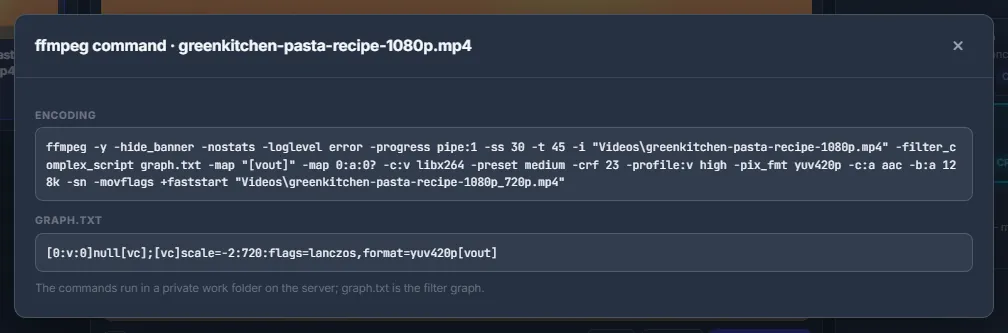
The exact ffmpeg command
“Command” at the top shows the exact ffmpeg commands for the selected video, step by step, with the helper files — graph.txt is the filter graph. They run in a private work folder on the server.
Settings
| Setting | What it does |
|---|---|
| Presets… | Built-in presets and ★ your presets in one menu. |
| Split into parts (Format tab) | No — one file; into N equal parts; every N minutes; parts of N MB (≈), with quick buttons from 500 MB to 10 GB. |
Every other setting is described tab by tab in Video studio settings.
Costs
- The converter may be billed per CPU hour; the estimate shows the current price — when it is $0, conversion is free.
- Your plan may include converter minutes each month — the plan card then shows the video converter in min/mo. Minutes above that are charged from your balance after the task; the task line shows the CPU minutes and the amount, or that they were included in the plan.
- With a paid converter and no plan minutes left, a task starts only with money on the balance — otherwise you see “Top up your balance to use the video converter”.
- Copy mode (no re-encode) takes almost no processor time, so it costs next to nothing.
The current price and the minutes left are shown next to the estimate. See also What you pay for.
Troubleshooting
| What you see | What to do |
|---|---|
| “ffmpeg is not installed on the server” | The studio needs ffmpeg on the server — write to the support chat. |
| The task waits as queued | The server limits how many conversions run at the same time. It starts as soon as a slot frees. |
| One file of a batch failed | The task message names the file and the reason; the other files are processed anyway. Fix the settings for that file and run it alone. |
| A red note under the estimate and “Start” is disabled | The note says which settings do not fit together. Change one of them — see Video studio settings. |
FAQ
Is the original changed?
No — unless you choose “Delete after success” or “Replace it” on the Result tab, and even then only after the new file was written successfully.
Can I convert sound files?
Yes. MP3, M4A, AAC, FLAC, WAV, OGG, Opus and WMA files in a chosen folder go into the queue too, and the “Sound only” presets make audio from videos.