
Categories: grouping your sites
Categories are coloured labels for your sites — one per client, niche or project. They colour the chips on the Dashboard and on the site page, and let you filter the site list down to the sites you need.
On this page
Where to find it: Content → Categories.
Before you start
- The “Categories” item is in your menu. If it is missing from your menu, ask in the support chat.
Manage categories
-
Open Categories
Click “Categories” in the “Content” group of the menu. The “Categories Management” table lists your categories with their colour, “Name”, “Sites” (how many sites use the category) and “Sort” (the position).
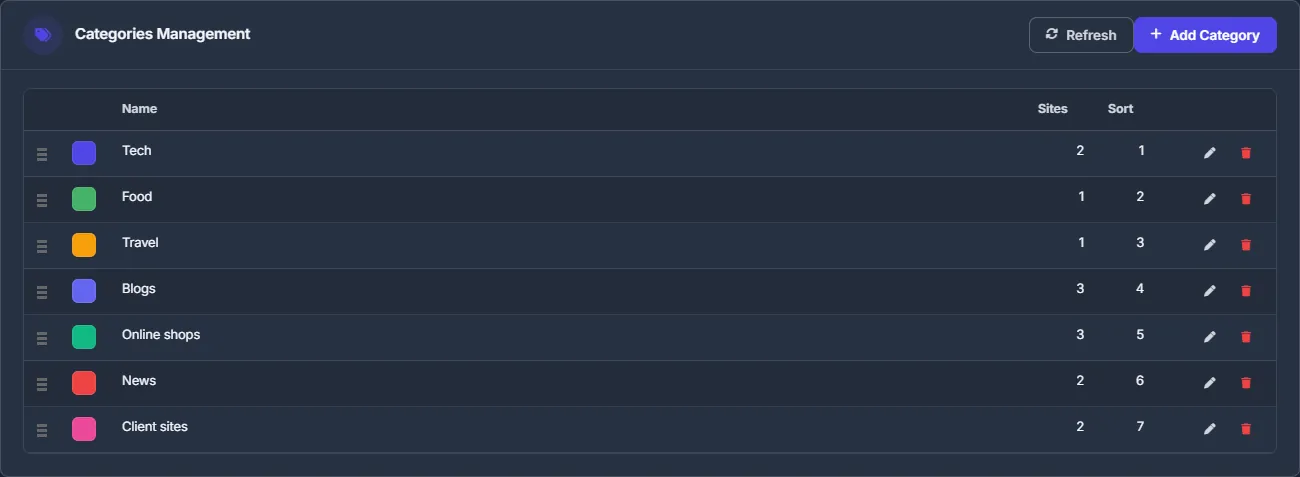
Fig. 1 Categories with their colours and the number of sites in each. -
Add a category
Click “Add Category”, type a “Name”, pick a “Color” in the colour picker (indigo by default) and click “Create”.
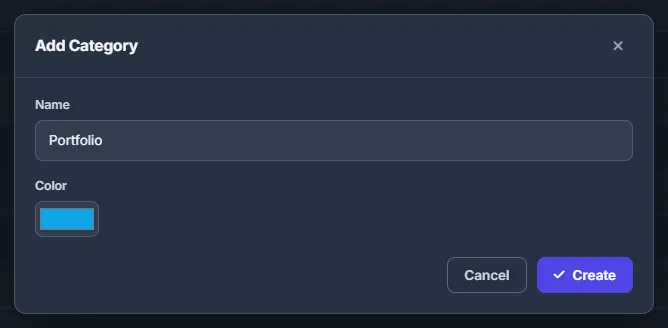
Fig. 2 A category needs only a name and a colour. -
Edit or delete
The pencil opens “Edit Category”; save with “Update”. The red trash icon deletes the category after you confirm. Deleting a category never deletes sites: they simply lose the label.
-
Reorder
Drag a row by the handle on the left. The new order is saved immediately and is used in every category list and filter.
Assign categories to sites
Pick the category in the “Add New Site” or “Edit Site” dialog on the Dashboard. Both dialogs also have “+ New category” to create one on the spot — see Adding, editing and removing sites. A site has one category or none.
Filter the Dashboard by category
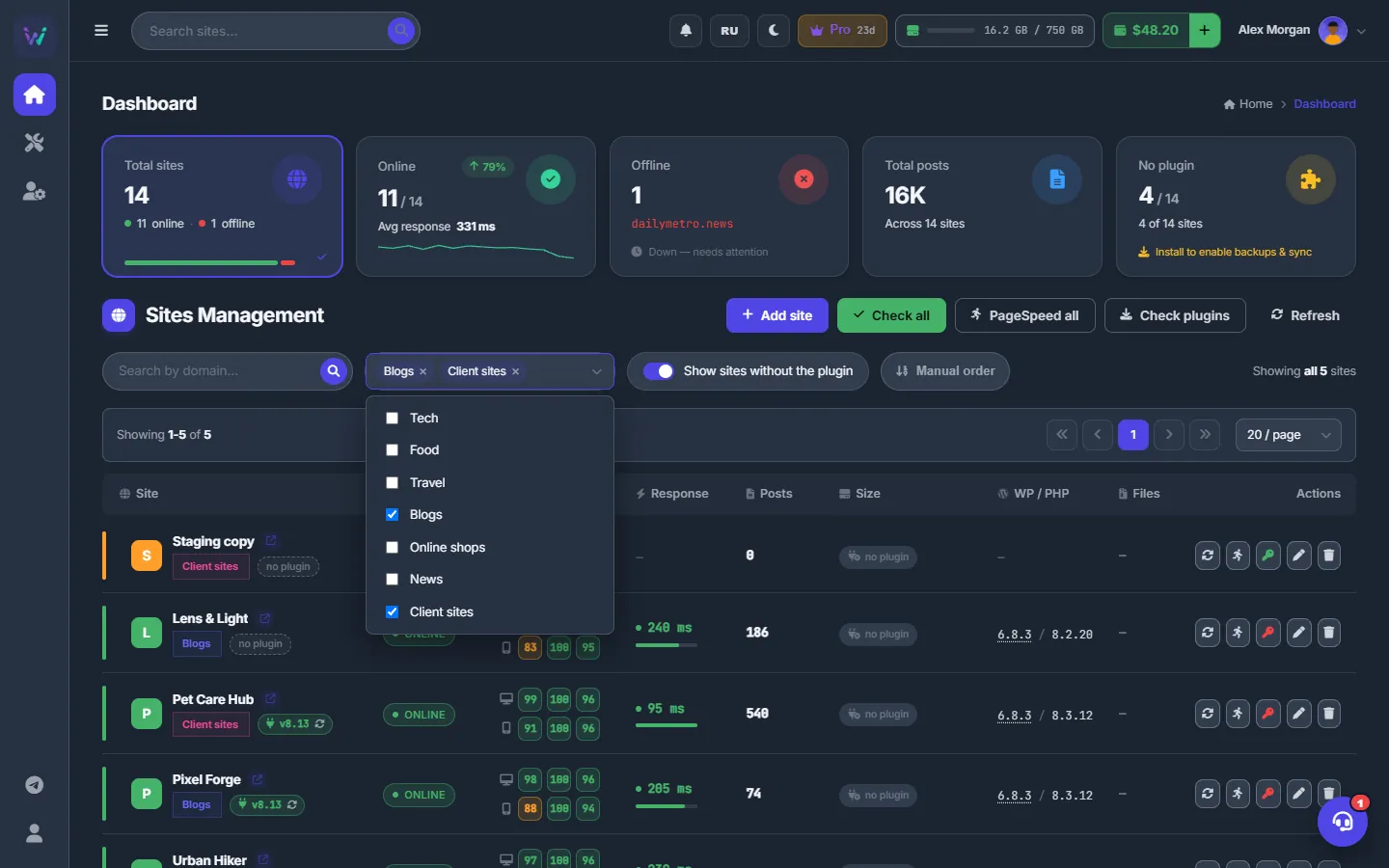
On the Dashboard open “All categories” and tick one or more categories. The list and the “Showing … sites” label update immediately. To clear the filter, remove the tags from the box.
Where categories show up
- Dashboard: a chip in the category colour under the site name, and the “All categories” filter. Text search matches category names too.
- Site page: a chip next to the site name; the site’s icon tile uses the category colour.
Categories are private to your account.
Category fields
| Field | What it does |
|---|---|
| Name | Required; must be unique in your account. |
| Color | Any colour from the picker. The quick editor in the site dialogs offers eight ready colours. |
| Sort | The position; change it by dragging rows. |
Costs
Free, with no limit on the number of categories.
Tips
- One category per client lets you show a client only their sites, and keep them together at the top with “Manual order” on the Dashboard.
- Choose clearly different colours: in a long list your eye catches the chip colour first.
Troubleshooting
| What you see | What to do |
|---|---|
| “A category with this name already exists” | Choose another name or edit the existing category. The name of a deleted category can be used again. |
| “Name is required” | Type a name before you click “Create” or “Update”. |
| Sites lost their category chip | The category was deleted. Create it again and assign it in the “Edit Site” dialog. |
FAQ
Can I give a site several categories?
No. Each site has one category or none.
Does deleting a category delete its sites?
No. The sites stay; only the label goes.