
Content store: the catalogue
A catalogue of ready videos you can buy from your balance. Search and filters, hover previews, trailers, screenshots and full technical details show exactly what you get before you pay.
On this page
Where to find it: the Content store icon (clapperboard) in the left icon bar → “Catalogue”.
Before you start
- You are signed in to the panel.
- The “Content store” icon appears when the store has videos on sale or takes custom orders. If it is missing, see the FAQ below.
The Content store page
The tabs at the top are:
- Catalogue — every video on sale, with their number;
- My purchases — what you own, with their number (see My purchases);
- Orders — shown when the store takes custom orders or you already have some, with a counter of orders waiting for your payment (see Ordering videos by links (the order desk)).
On the right are the “Cart” button and “Your balance” with “Top up”. If nothing is on sale yet but orders are taken, the page opens on “Orders”.
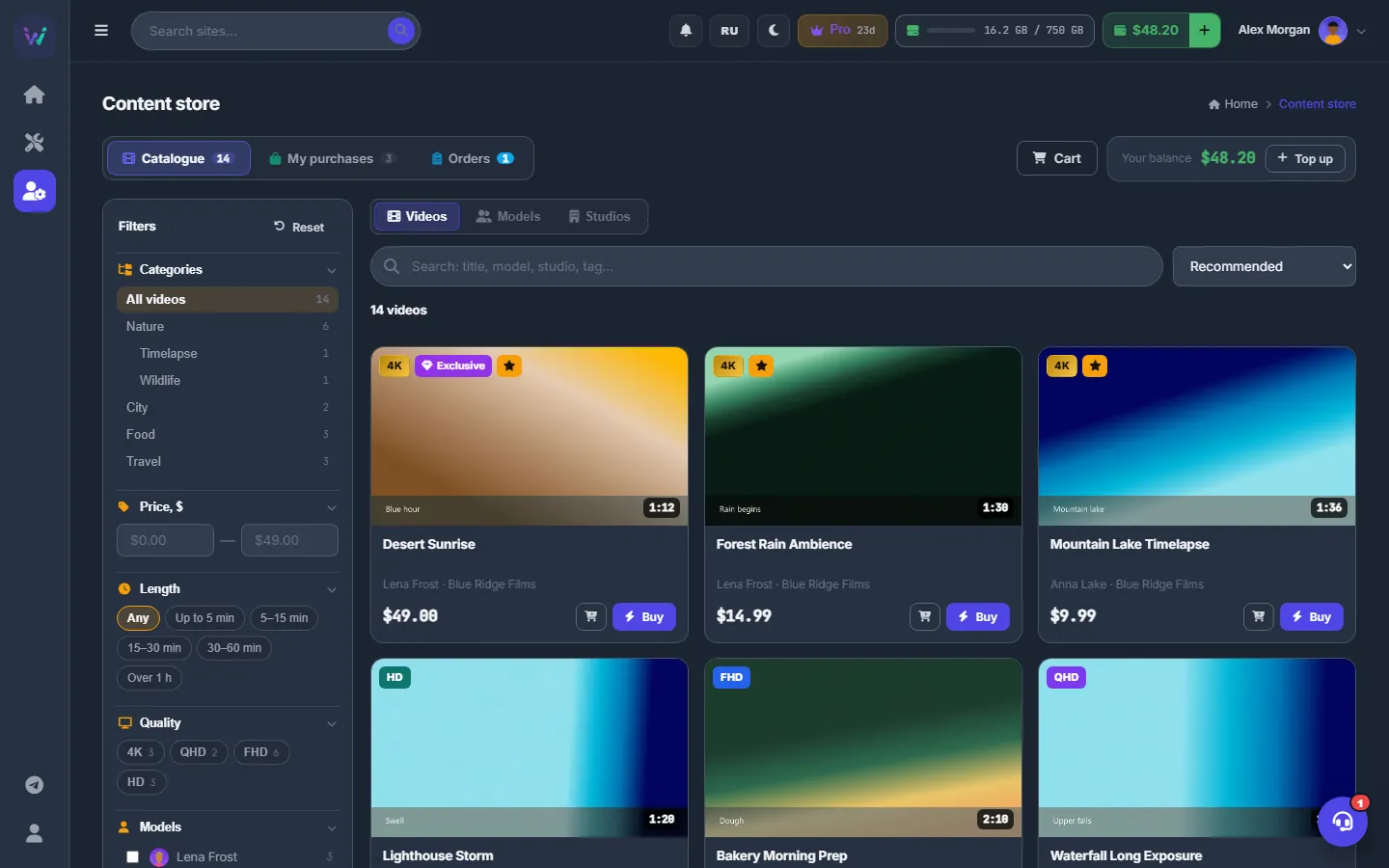
Find a video
-
Search
Type into “Search: title, model, studio, tag…”. Every word you type must match. The search looks at the title, the description, the tags, the people together with their other names, the studio and the category.
-
Sort
The sort list next to the search offers “Recommended” (the team’s picks first), “Newest”, “Popular” (most bought, then most viewed), “Price: low to high”, “Price: high to low”, “Longest” and “Title A–Z”.
-
Narrow down with filters
Use the “Filters” panel on the left (the table below explains each filter). “Reset” at the top of the panel clears everything. On a narrow screen the panel opens with the “Filters” button.
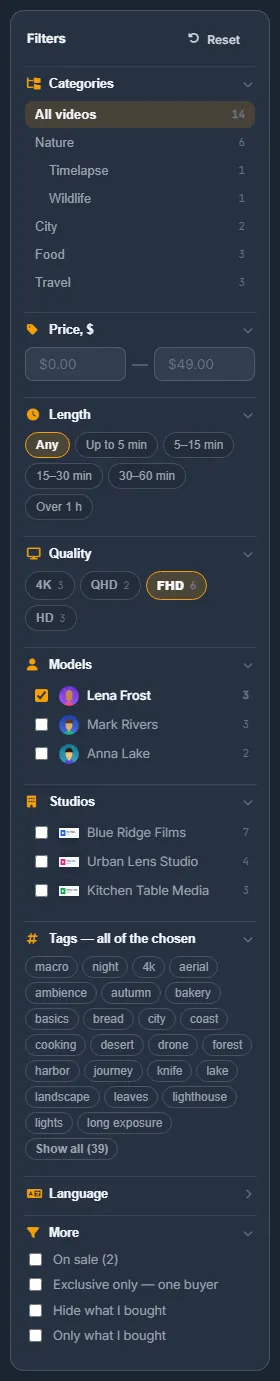
Fig. 2 The filter panel, with FHD and one person ticked. -
Check the active filters
Above the grid you see how many videos match and a chip for every active filter. The × on a chip removes that filter; “Clear all” removes them all. The filters are kept in the page address, so you can bookmark a filtered view or send it to a colleague.
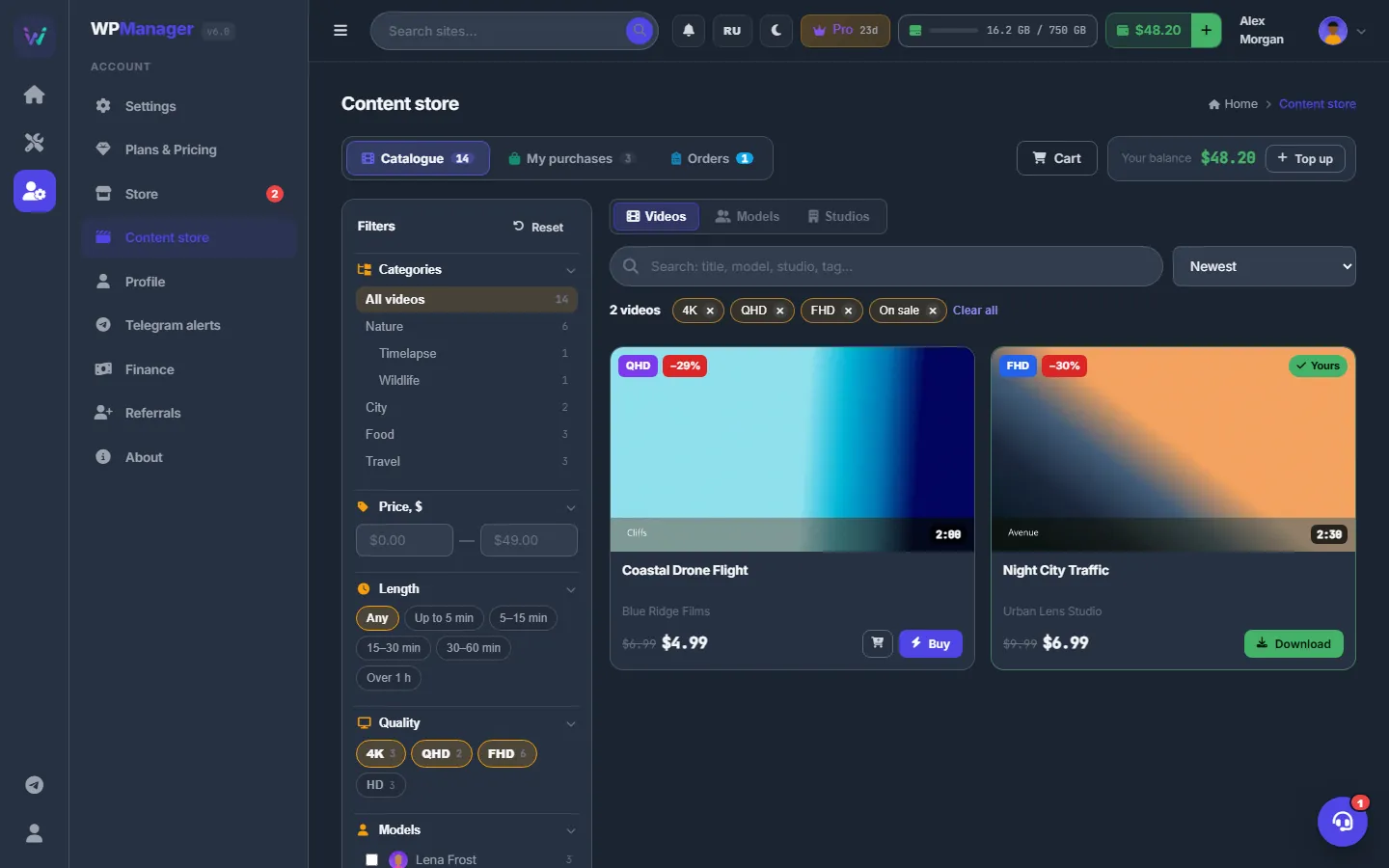
Fig. 3 Every active filter becomes a chip with its own ×.
The filters
| Filter | How it works |
|---|---|
| Categories | A tree of categories. A category includes its sub-categories; “All videos” resets the choice. |
| Price, $ | A from–to range. |
| Length | “Any”, “Up to 5 min”, “5–15 min”, “15–30 min”, “30–60 min”, “Over 1 h”. |
| Quality | 4K, QHD, FHD, HD, SD, each with the number of videos. See Quality labels. |
| Models, Studios | Tick any number. “Show all (N)” opens the full list. |
| Tags — all of the chosen | A video must have every tag you tick, not just one of them. |
| Language | Folded by default; shown when the store has videos in several languages. |
| More | “On sale”, “Exclusive only — one buyer”, “Hide what I bought”, “Only what I bought”. |
Browse by people or studios
The “Videos / Models / Studios” switch above the search turns the grid into cards of the people or studios that have videos on sale, each with a photo or logo and the number of videos. The search box changes to “Find a model…” or “Find a studio…”. Click a card to see its videos.
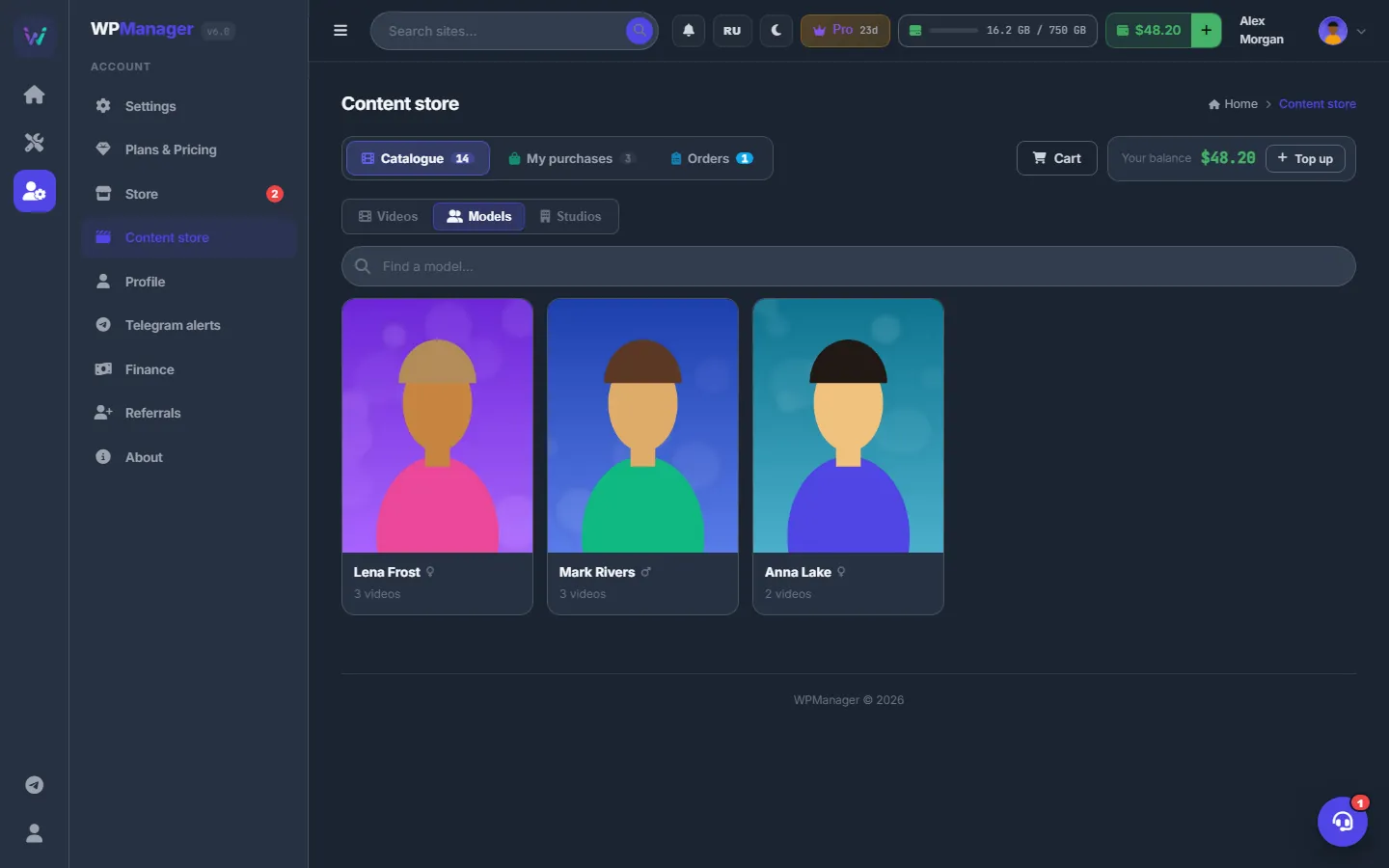
Profiles of people and studios
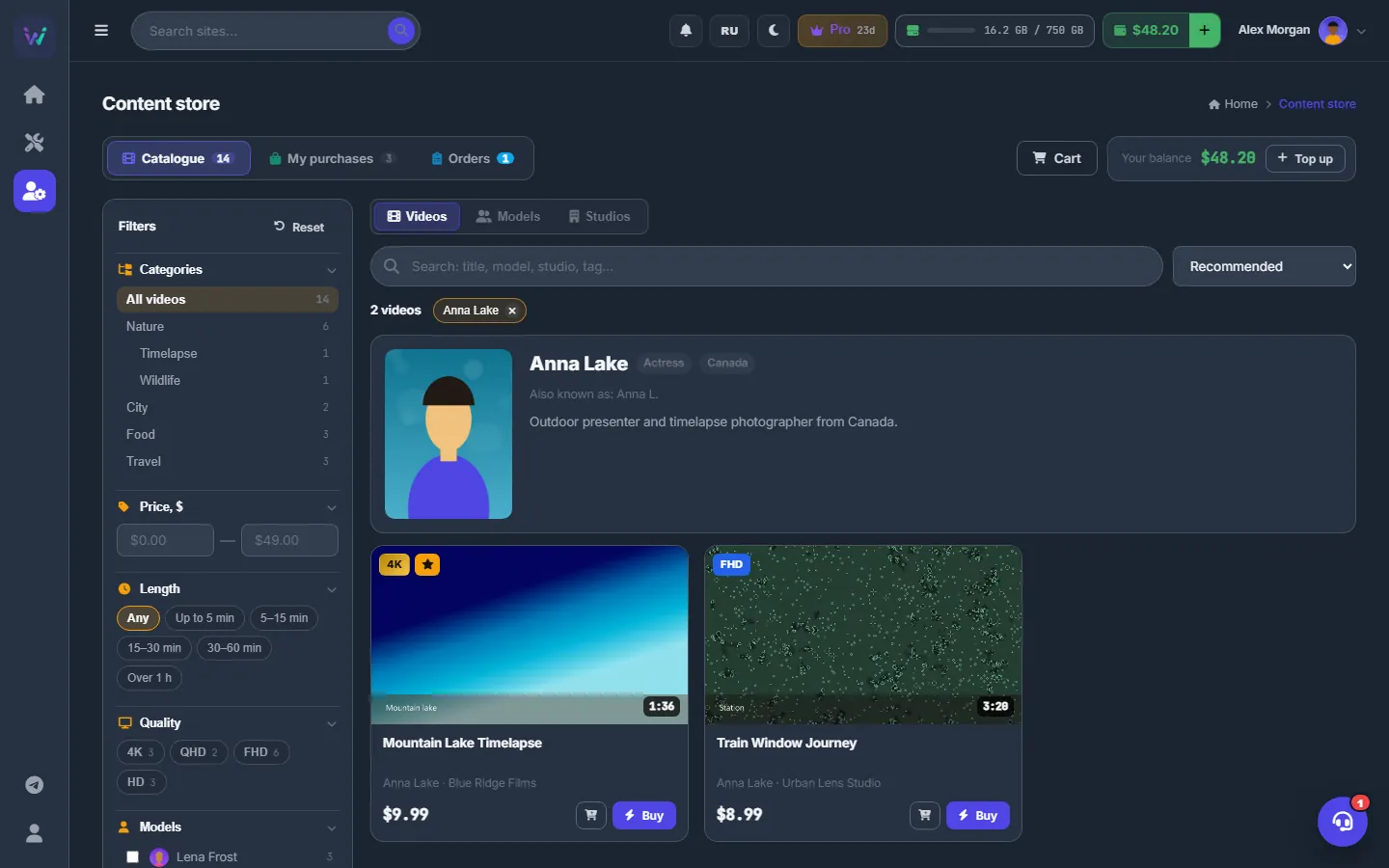
When exactly one person or one studio is chosen — on the cards, in the filter or with a click in a video window — a profile card sits above the videos: photo or logo, name, role (“Actress”, “Actor”), country, other names under “Also known as”, a description and a website. A category with a description shows that description instead.
Look before you buy
Hover preview
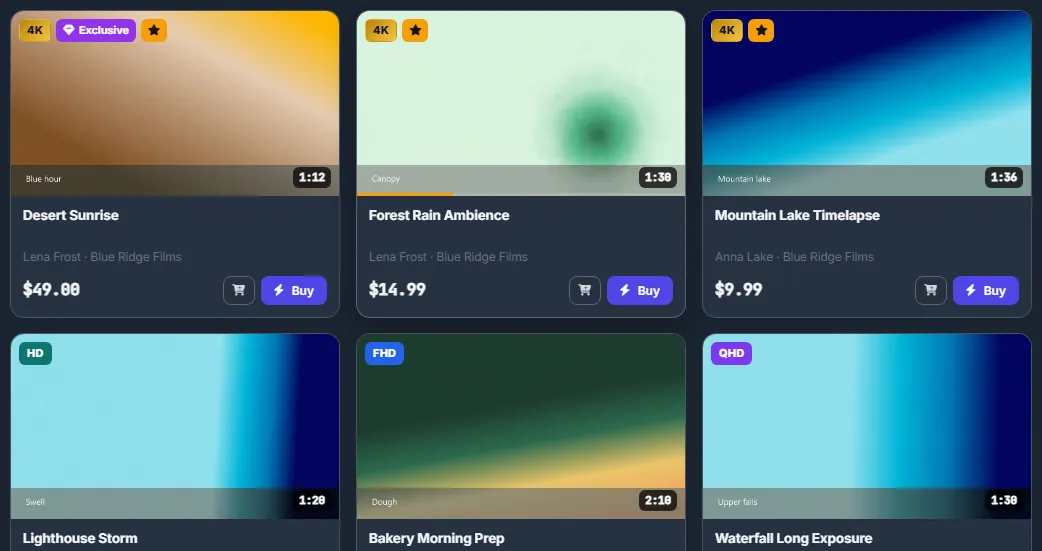
Rest the mouse on a card for a moment: a short muted preview starts, with a progress bar at the bottom. On touch screens there is no hover — tap the card to open it.
The badges on the poster show the quality, “Exclusive”, a sale discount (−N%), a star for “Recommended”, “Yours” for videos you own, and the length. Under the poster are the title, the people and the studio, the price (the old one struck through during a sale, “Free” for free videos), the cart button and “Buy” — or “Download” if the video is already yours.
The video window
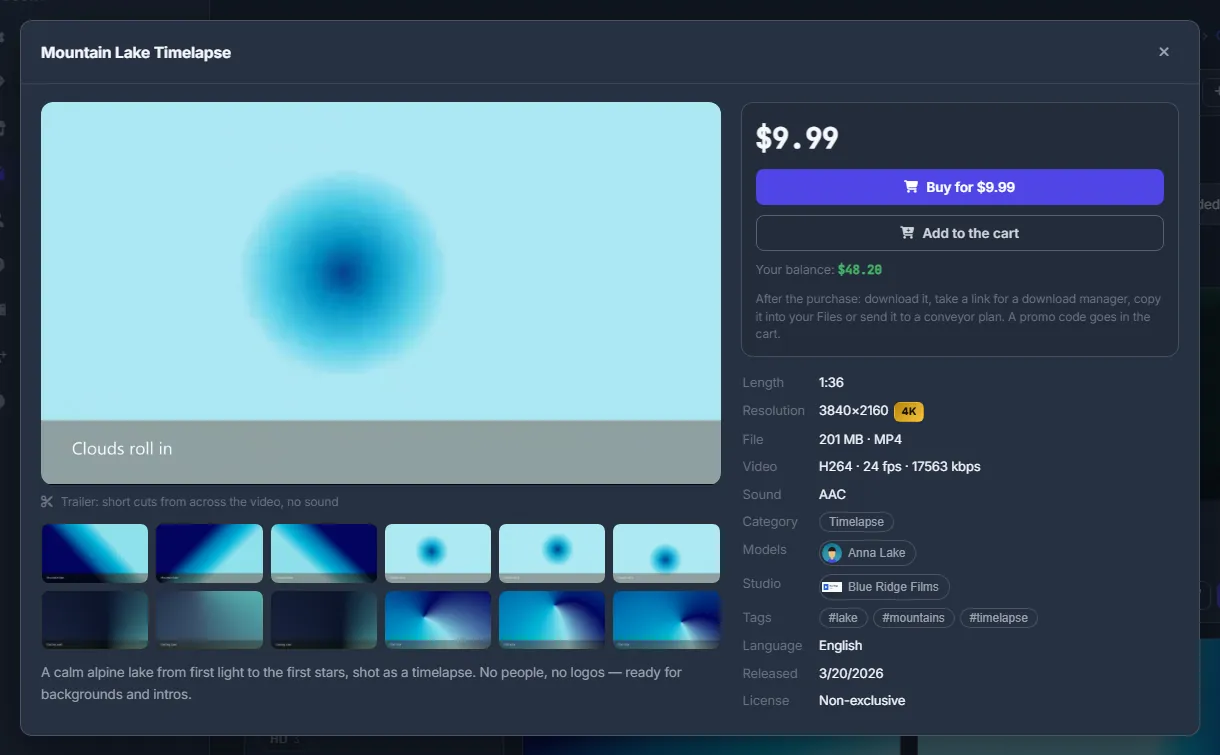
Click a card to open the video window. It has a trailer — short muted cuts from across the video — the screenshots, the description, the price box and every detail of the file:
| Detail | What it shows |
|---|---|
| Length | The duration of the video. |
| Resolution | The frame size, for example 1920×1080, with the quality label. |
| File | The file size and the container, for example MP4. |
| Video | The codec, the frame rate (fps) and the bitrate (kbps). |
| Sound | The audio codec, or “none” for a video without sound. |
| Category, Models, Studio, Tags | Click any of them to see all videos with it. |
| Language, Released | The language and the release date. |
| License | Non-exclusive or exclusive — see Licenses and copies. |
| Copies | Only for limited videos: copies sold / copies in total. |
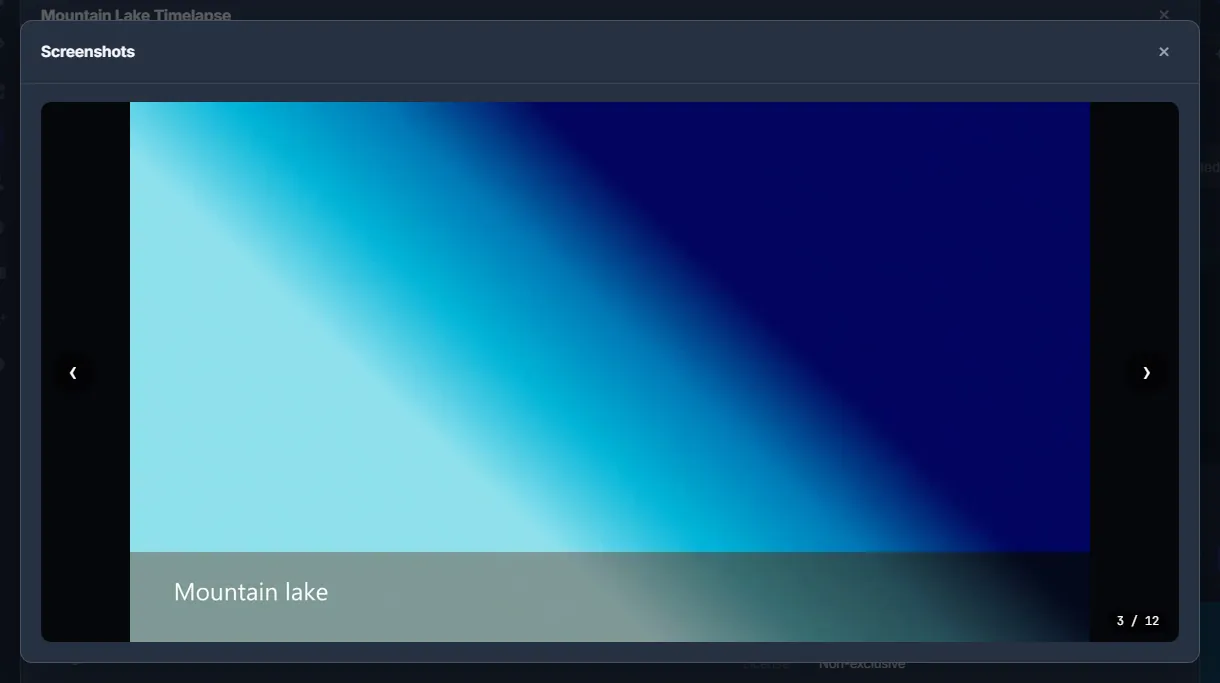
Click a screenshot to open it large; the arrows or the ← → keys switch between them.
What the previews show
For every video the panel makes a poster, up to 12 screenshots, a hover preview (six short cuts at 360p) and a trailer (ten short cuts at 540p). Previews and trailers are always muted and never longer than a tenth of the video, so a short clip is not given away by its trailer. The whole file is available only after the purchase.
Quality labels
The label comes from the frame size: the longer side, or the shorter one for 4:3 and vertical video.
| Label | Long side from | Short side from |
|---|---|---|
| 4K | 3800 px | 2100 px |
| QHD | 2500 px | 1400 px |
| FHD | 1900 px | 1060 px |
| HD | 1260 px | 700 px |
| SD | Anything smaller | |
Licenses and copies
- Non-exclusive — many people can buy the video. Some videos have a limited number of copies: the window shows “Copies”, for example 3 / 10, and after the last copy the video is “Sold out”.
- Exclusive — one buyer only — the first buyer gets it, and the video leaves the store.
Links to a video or a view
The filters live in the page address after #, so the address of a filtered catalogue reopens the same view. An address with ?item=<number> opens that video’s window right away.
Costs
Browsing the catalogue, previews, trailers and screenshots are free. Each video has its own price, set by the store team — see Buying videos: one click, the cart and promo codes.
Troubleshooting
| What you see | What to do |
|---|---|
| “Nothing matches these filters” | Loosen a filter or click “Clear filters”. Remember that “Tags” need all of the chosen tags at once. |
| “The store is empty for now” | Nothing is on sale yet; new videos appear as soon as the team adds them. If the “Orders” tab is shown, you can order videos by links there. |
| No preview on hover | Not every video has a hover preview. Open the video window for the trailer and the screenshots. On touch screens, tap the card. |
| The window says “Sold out” or “Not on sale right now” | The last copy (or the exclusive) has been bought, or the team took the video off sale. It cannot be bought now. |
FAQ
Why is the Content store missing from my menu?
The item is shown only while the store has videos on sale or takes custom orders.
Can I watch the whole video before buying?
No. Before buying you get the poster, up to 12 screenshots, a muted preview and a muted trailer of at most a tenth of the video, plus the full technical details.