
Position report and AI SEO advice
A full-page report compares two periods of Search Console data — movers, opportunities, queries and every page — and gives AI advice for any page: a score, what to change in the title, content, keywords and snippet, and quick wins.
On this page
Where to find it: the report has its own address, /Home/GscReport?siteId=<site id>. The site id is the number at the end of the site page address, /Home/Site/<site id>.
Before you start
- Search Console is connected for the site — see Google Search Console in the panel.
- Your plan includes “Google integration” and “Advanced analytics”.
- For AI advice: a positive USD balance (USD balance and top-up).
Open the report
-
Find the site id
Open the site page from the Dashboard and look at the address bar: in
…/Home/Site/42the site id is42. -
Go to the report address
Replace the end of the address with
/Home/GscReport?siteId=42(your own id) and press Enter. While “Loading Position Report...” is shown, two periods are read from Google Search Console. The header then shows the site name and “current period vs previous period”.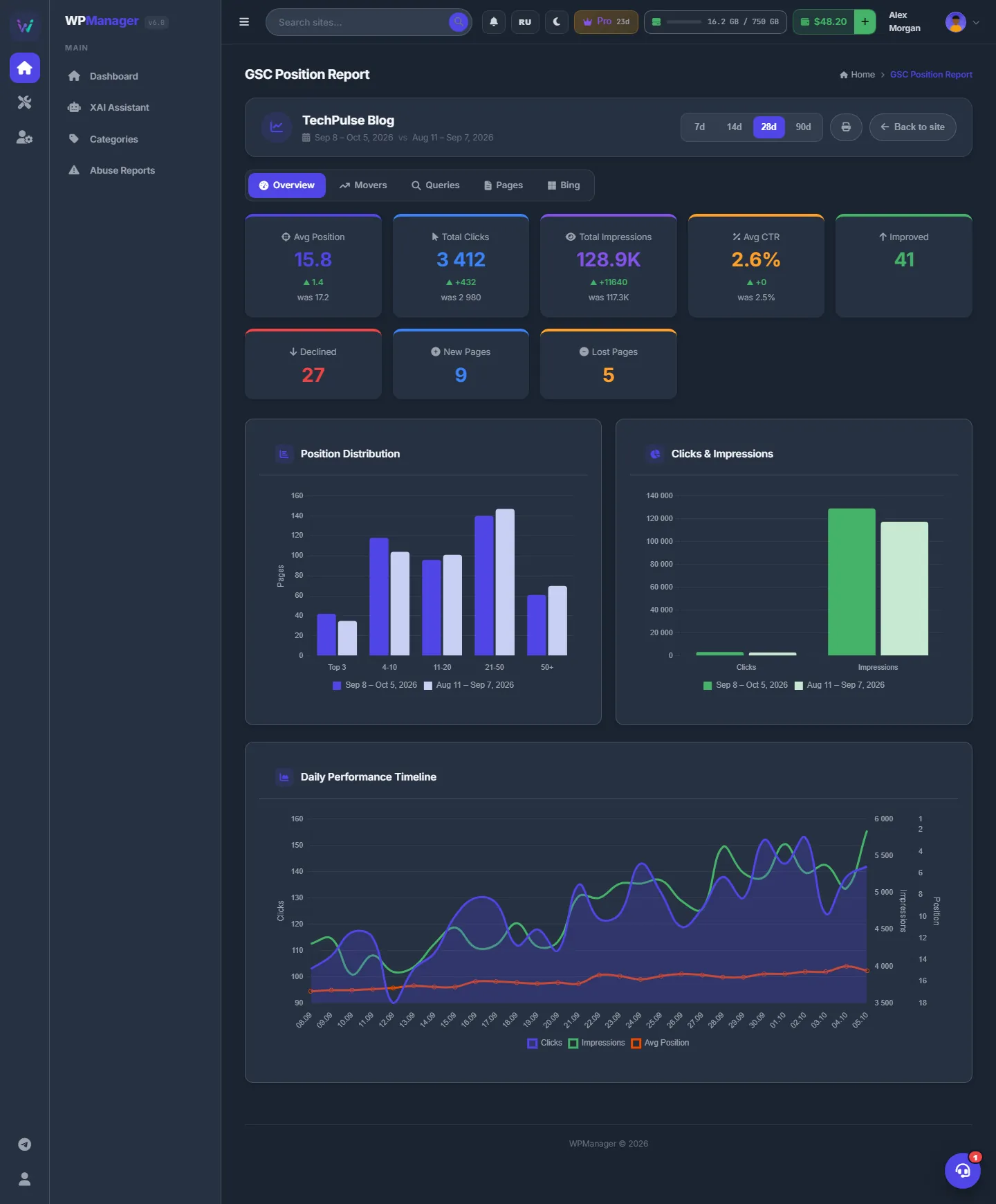
Fig. 1 Two periods side by side: positions, clicks, impressions and CTR. -
Pick the period, print or go back
The “7d”, “14d”, “28d” and “90d” buttons switch the period (28 days by default); the previous period always has the same length. “Print” opens the browser’s print dialog, where you can also save a PDF. “Back to site” returns to the site page.
The tabs of the report
Overview
Cards for Avg Position, Total Clicks, Total Impressions and Avg CTR — each with the change and the previous value — and for Improved, Declined, New Pages and Lost Pages. Below: the “Position Distribution” and “Clicks & Impressions” charts (current against previous period) and the “Daily Performance Timeline” with clicks, impressions and average position.
Movers
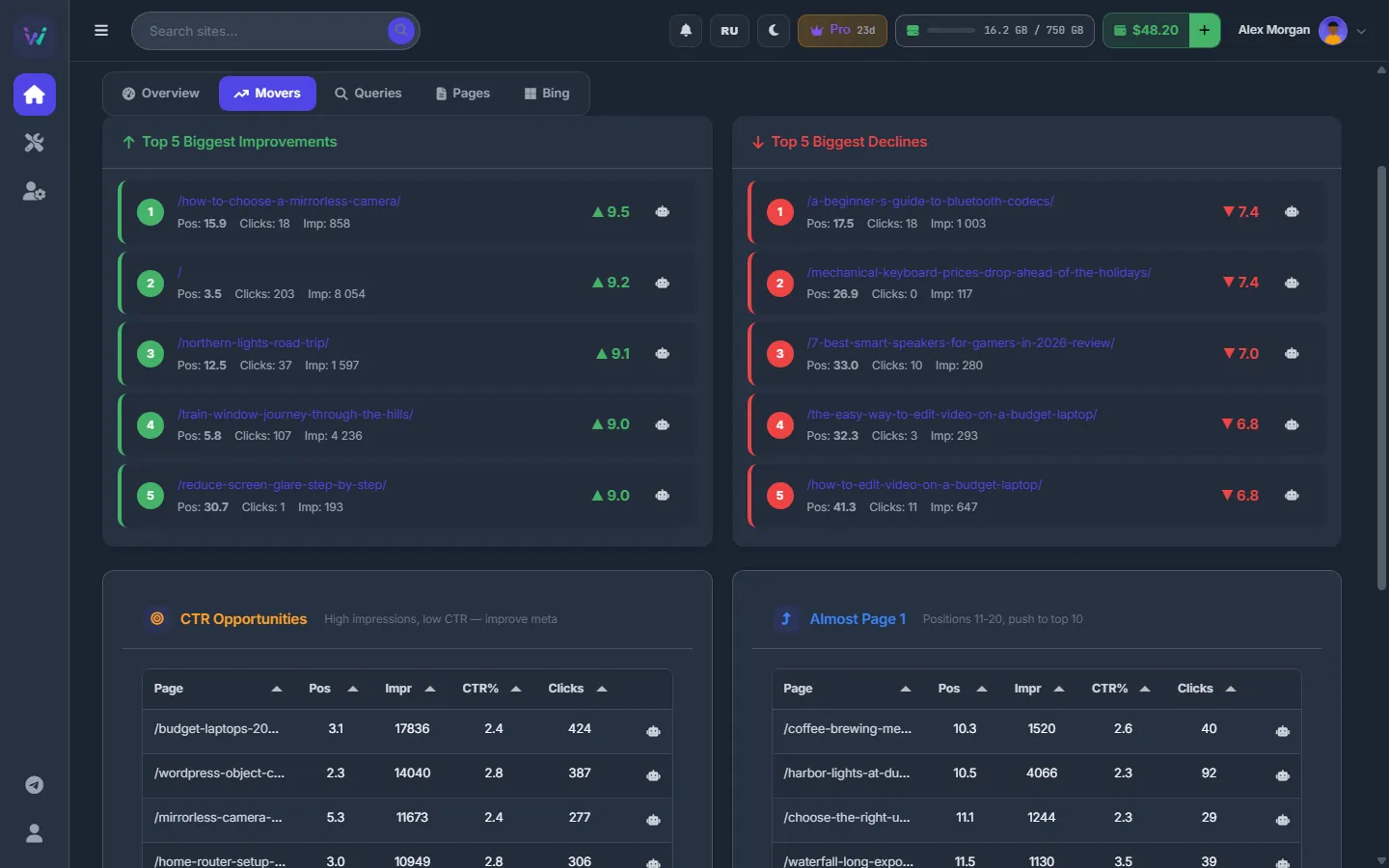
“Top 5 Biggest Improvements” and “Top 5 Biggest Declines”. Below them:
- CTR Opportunities — pages with more than 100 impressions and a CTR under 3 %: improve their title and meta description;
- Almost Page 1 — pages in positions 11–20: push them into the top 10.
Queries and Pages
- Queries — “Top Search Queries” with clicks, impressions, CTR % and average position, with a text filter.
- Pages — “All Pages Detail” with the tabs All, Improved, Declined, New and Lost; the columns Page, Position, Was, Change, Clicks, Impressions and CTR %; and an “Export” button for CSV.
Bing
The Bing tab repeats the Bing Webmaster figures of the last 30 days — clicks, impressions, CTR, top queries and pages — with a link to the full Bing tab. If Bing is not connected, it offers “Connect Bing” (see Bing Webmaster Tools).
Get AI advice for a page
-
Press the robot button
Next to any page in Movers, in the opportunity tables or in Pages there is a robot button (“AI Advice”). Press it.
-
Read the advice
The “AI SEO Advice” window shows the page with its position, clicks, impressions and CTR, an “SEO Score” out of 10 and a short summary. Then come the sections “Title Optimization”, “Content Advice”, “Keywords”, “CTR Improvement”, “Technical SEO” and “Quick Wins”.
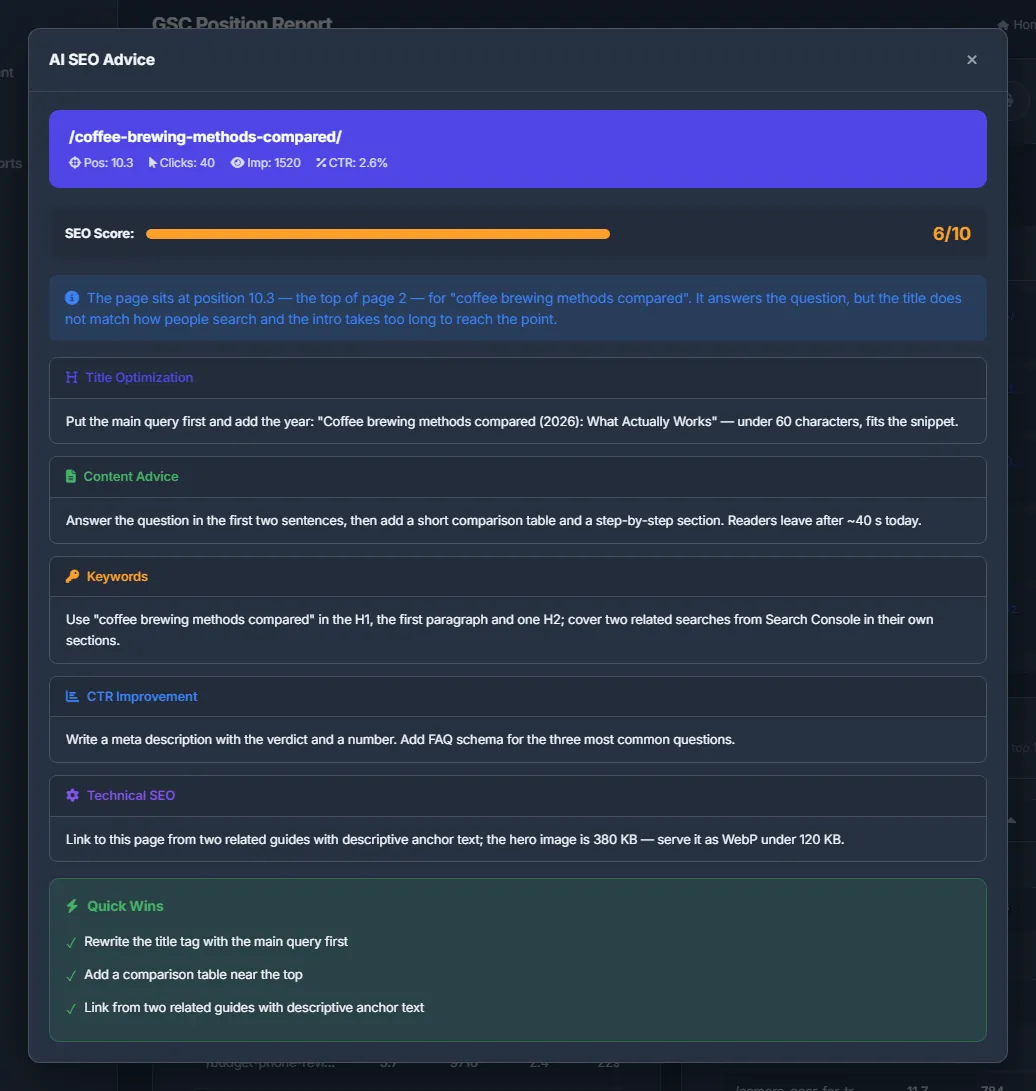
Fig. 3 AI advice for one page: a score, concrete changes and quick wins. -
Apply it in the editor
The advice does not change anything on the site. Open the post in the post editor and apply the changes you agree with.
The advice is based on the page address, its title when the panel knows it, and the page’s position, clicks, impressions and CTR from Search Console.
Settings
| Setting | What it does |
|---|---|
| Period | 7d, 14d, 28d (default) or 90d, against the previous period of the same length. |
Costs
The report itself is free; it needs the same plan features as Search Console. Each “AI Advice” is an AI call charged from your USD balance per request; each answer shows its price. See What you pay for.
Troubleshooting
| What you see | What to do |
|---|---|
| An error and a “Back to Site” button | Search Console is not connected for this site, the access expired, or the plan lacks “Advanced analytics”. Reconnect in Analytics → Search Console on the site page. |
| “AI request failed” or a balance error in the advice window | Top up the balance on the Profile page and press the robot button again. |
FAQ
Why is there no robot button on some pages?
Pages without a current position — lost pages — cannot be analysed.
Is this the same as “Position Report” on the Search Console sub-tab?
No. The button on the sub-tab opens a quick window with position changes. This page is the full report, with movers, opportunities, queries, all pages and AI advice.