
Conveyor: all steps and their settings
A reference of every step the Conveyor offers: what it takes, what it passes on and every option it has — from downloading torrents to publishing on your site with a text of its own.
On this page
- Before you start
- Working with steps
- Input
- Download links and torrents
- Links from web pages
- Files
- Unpack archives
- Filter files
- Rename files
- Pictures and video
- Screenlist
- Video studio
- Pack
- Pack into an archive
- Change MD5
- Upload
- Upload to file hosts
- Pictures to an image host
- Post
- Title, description, tags (AI)
- Forum post
- Publish on a site
- Folders
- Move to a folder
- Delete
- Releases: what the AI, picture and publish steps take
- Settings shared by several steps
- Costs
- Troubleshooting
- FAQ
- Related
Where to find it: Content → Conveyor → tab “Conveyor plans” → “Add a step”.
Before you start
- A plan open in the editor (see Conveyor: build a plan).
- The accounts the steps use: file hosts that can take uploads, an image host, a forum, a site with the WPManager plugin.
Working with steps
- Add and open. A step added from the palette opens immediately. Fill in its fields: the summary in the header follows your changes, and a yellow chip names what is still required.
- Skip and go on. Steps that handle many files (Rename, Upload, Publish…) have a “Skip a … that fails and go on” box. Unticked, the first failure stops the run, and you can retry from that step. Ticked, the step finishes the rest and reports “N failed (skipped)”.
- Mind the order. Steps that make pictures come before the steps that upload them, and the AI step comes before “Forum post” and “Publish on a site”.
A typical release chain:
[Download] → Unpack → Rename → Filter → Screenlist / Video studio → Pack into an archive → Change MD5 → Upload to file hosts → Pictures to an image host → Title, description, tags (AI) → Forum post / Publish on a site → Move to a folder
Input
Download links and torrents
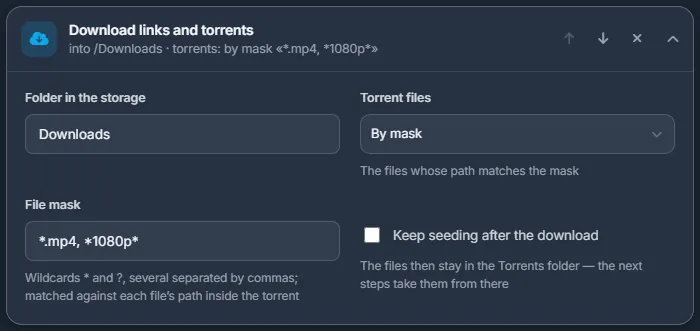
Downloads every link of the run: file-host links, direct http(s) links, magnet links and links to .torrent files. It exists only in a plan that starts from links, as the first step or right after “Links from web pages”.
- Folder in the storage — where the files go. Empty means the folder the plan was started in.
- Torrent files — which files of a torrent to take:
- “Only video” (default; a torrent without any video is downloaded whole);
- “All files”;
- “The largest file”;
- “By mask” — fill in File mask, for example
*.mp4, *1080p*. Use*and?, separate several masks with commas; they are matched against the path inside the torrent (up to 300 characters); - “Choose by hand” — the run waits until you tick the files: “Choose files” on the Runs tab, or the torrent’s row on the Downloads page.
- Keep seeding after the download — the files stay in the Torrents folder and the next steps take them from there. Unticked, the torrent is removed after the download and its folder is moved into the step’s folder.
Time limits: up to 24 hours for normal downloads. A torrent gets 30 minutes to fetch its metadata, 24 hours for you to choose its files and 72 hours to download. One run takes up to 20 torrents. The step needs the server’s download manager and says so if it is not available. More on torrents: Torrents: magnets and .torrent files.
Links from web pages
Each pasted link to a web page (a forum topic, a blog post) is replaced by the file-host links found on that page, and the next step — always “Download links and torrents” — downloads them. No settings. Only as the first step of a links plan; magnets and .torrent links are not accepted by such a plan.
Files
Unpack archives
Unpacks every archive set (by its first part) and passes on what came out.
- Password — only for encrypted archives.
- Delete the archives after unpacking — removes the archives once they are unpacked. Deleted permanently.
Filter files
Passes on only some of the files. Folders are walked through, up to 2,000 files.
- Which files go on: All, Videos, Pictures, Archives, By extension (fill in Extensions, for example
mp4, mkv) or By name (fill in The name contains). - Not smaller than, MB and Not bigger than, MB — size limits; 0 means no limit.
- Only the first — take only the first N files.
Rename files
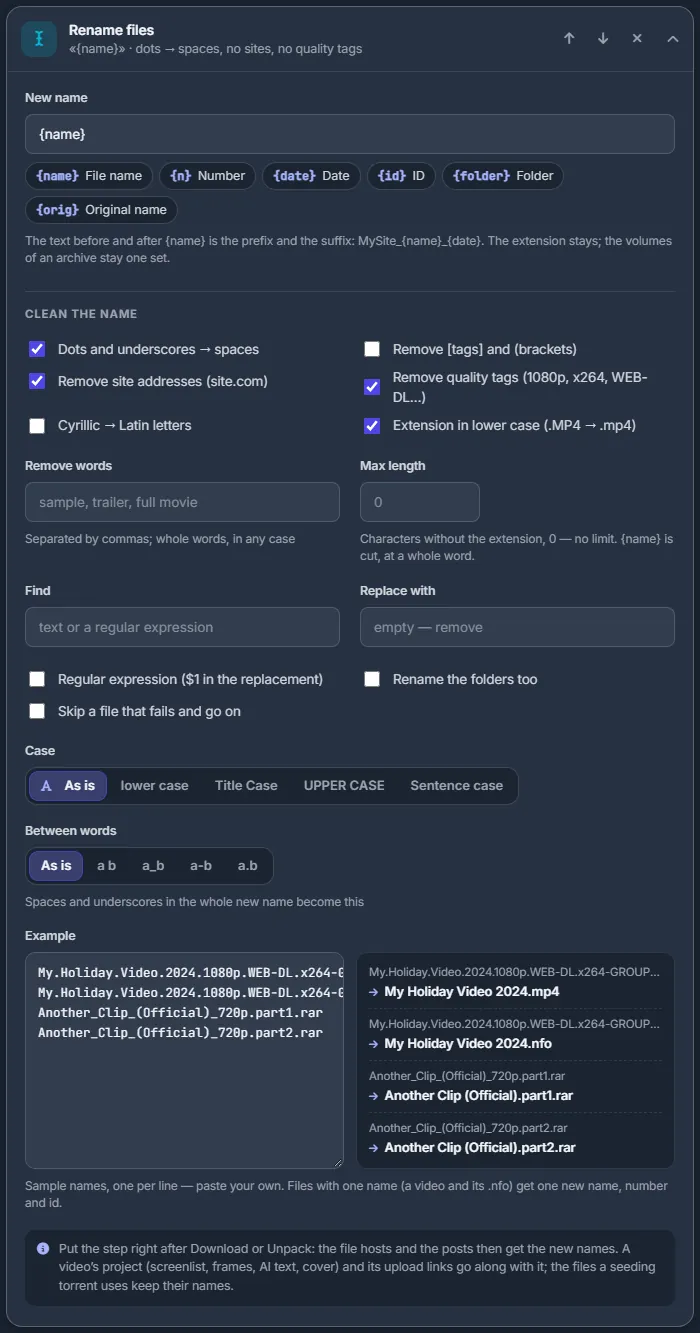
Gives files clean, uniform names. Put it right after Download or Unpack, so that file hosts and posts get the new names. A video’s project (screenlist, frames, AI text, cover) and its upload links move along with the file.
New name is a template. Click a chip to insert a token where the cursor is:
| Token | What it becomes |
|---|---|
{name} | The cleaned name. Text around it is a prefix or suffix, e.g. MySite_{name}_{date}. |
{n} | A number. Options: Numbers start at, Digits (01 / 001 / 0001). |
{date} | A date. Options: Date format (6 formats), Which date (Today / The file’s date). |
{id} | A short random id, the same for a video and its .nfo. Options: ID length (4–16), ID characters (a–z 0–9 / 0–9 / 0–9 a–f). |
{folder} | The folder name. |
{orig} | The original name. |
The extension is kept, and archive volumes stay one set. The other options:
- Clean the name: Dots and underscores → spaces; Remove [tags] and (brackets); Remove site addresses (site.com); Remove quality tags (1080p, x264, WEB-DL…); Cyrillic → Latin letters; Extension in lower case (.MP4 → .mp4).
- Remove words (whole words, comma-separated); Max length (0–200 characters;
{name}is cut at a whole word); Find and Replace with, with Regular expression ($1 in the replacement); Rename the folders too; Skip a file that fails and go on. - Case: As is, lower case, Title Case, UPPER CASE, Sentence case. Between words: As is, space, underscore, dash, dot.
- Example — paste a few sample names, one per line. The preview shows what the rule makes of them, computed by the server exactly as the run will do it.
Pictures and video
Screenlist
Makes a screenlist (contact sheet) of every video. Screenlist preset: leave it empty for the standard settings, or pick one of your presets. “Create a preset” opens the screenshot settings right in the step, and the new preset is picked for you. Chips under the field show what the preset holds: shots, columns, width, format and quality, separate frames, theme, watermark. See Video screenshots (screenlists).
Video studio
Processes every video with a Video studio preset, which is required. Video studio preset lists the built-in presets (Website 1080p, Website 720p, Sample 480p, MP4 · H.264, MP4 · H.265 / HEVC, AV1 · smallest, WebM · VP9, Fit a file size, Copy — no re-encode, Parts for file hosts, GIF, Animated WebP, Sound · MP3, Sound · FLAC) and your own, marked ★.
“Create in the Video studio” opens the studio in a new tab. Set it up and press “Save as preset”: the tab closes and the preset lands in the step. Allow pop-ups for the panel for this to work. The next steps get the files the studio made. See Video studio.
Pack
Pack into an archive
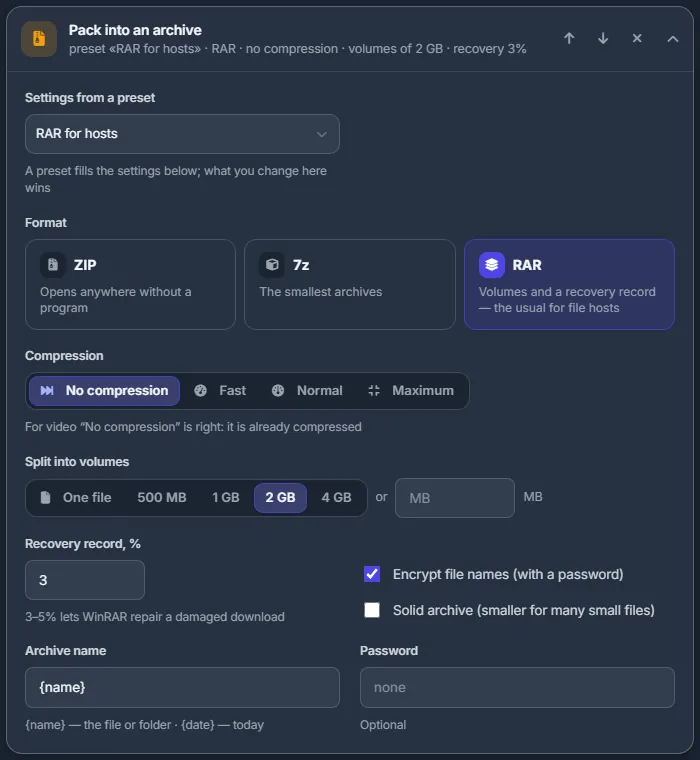
Packs the files into an archive; the next steps get every volume.
- Settings from a preset (shown when you have archive presets) — a preset fills in the settings below; whatever you change here wins.
- Format: ZIP (opens anywhere), 7z (the smallest archives), RAR (volumes and a recovery record — the usual choice for file hosts). 7z and RAR need the tool on the server; a missing one is marked “not installed”.
- Compression: No compression, Fast, Normal, Maximum. For video, “No compression” is the right choice.
- Split into volumes: One file, 500 MB, 1 GB, 2 GB, 4 GB or your own size in MB.
- RAR only: Recovery record, % (0–20, default 3; 3–5% lets WinRAR repair a damaged download), Encrypt file names (with a password), Solid archive.
- Archive name — with
{name}(the file or folder) and{date}(today). Password — optional.
Change MD5
Writes a few random bytes at the end of each file. The file plays and unpacks as before, but file hosts see it as a new file. Applies to videos and archives; tick Pictures too to include pictures. Descriptions, checksums and subtitles are left alone.
Of a split 7z or ZIP (.001, .002…) only the last part changes, because changing the inner parts would break the archive. With RAR volumes every part changes.
Upload
Upload to file hosts
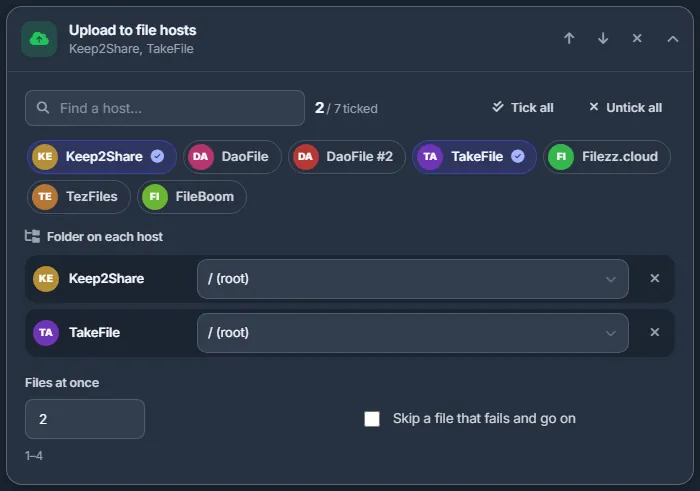
Uploads the files to the file hosts you tick.
- Tick hosts as chips. With more than six accounts a “Find a host…” box appears; “Tick all” and “Untick all” help with long lists. Up to 50 hosts per step.
- Folder on each host — a folder for every ticked host, the root by default.
- Files at once — 1 to 4 uploads at the same time, 2 by default.
- Skip a file that fails and go on — unticked, the first failure stops the run.
The panel keeps the links with each file, so “Forum post”, “Publish on a site”, Build post and Publish with AI pick them up. See Uploading to file hosts.
Pictures to an image host
Puts the pictures for the posts on your image host.
- Image host — required.
- Screenlist — on by default.
- Frames — 0 to 32.
A video gets its screenlist and frames, which are made first if missing. An archive puts up its cover and the pictures the agent found on the release’s page. Either the screenlist or some frames must be on.
Post
Title, description, tags (AI)
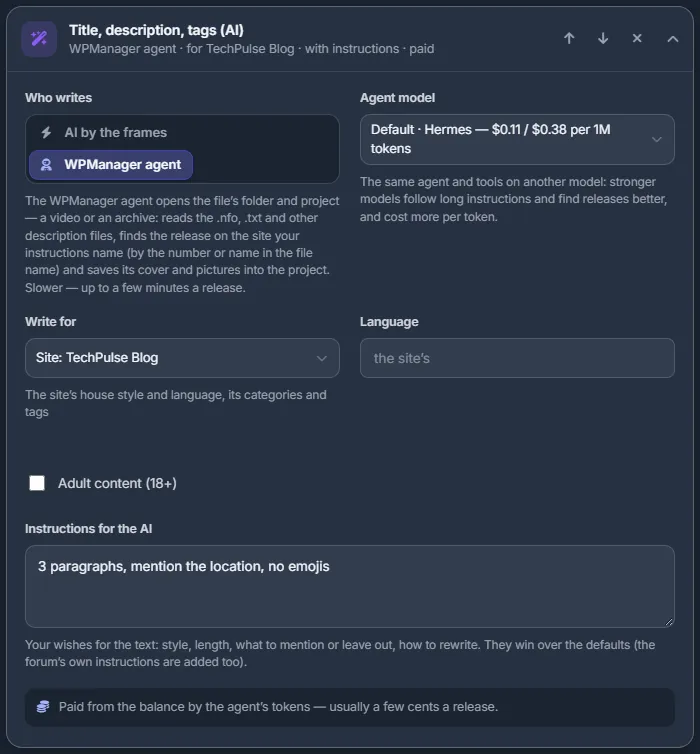
Writes the post text for each release and keeps it in the file’s project.
- Who writes:
- “AI by the frames” looks at the frames you picked by hand, or at the screenlist, and writes from what it sees. Fast and cheap; videos and pictures only.
- “WPManager agent” opens the file’s folder and project (a video or an archive), reads .nfo, .txt and other description files, finds the release on the site your instructions name (by the number or name in the file name) and saves its cover and pictures into the project. Slower: up to a few minutes per release.
- Agent model (agent only, when more than one is offered) — the same agent on another model; the price per 1M tokens is shown.
- Write for: Any (English), a forum (its language and instructions) or a site (its house style, language, categories and tags).
- Language — empty means the site’s or forum’s language, otherwise English.
- Adult content (18+) — ticked by default in a new step; choosing a site marked 18+ ticks it too.
- Instructions for the AI — up to 3,000 characters. Your wishes win over the defaults; a forum’s own instructions are added to them.
A release whose project already has a text is not paid for twice, unless that text was written for another site. A text you corrected by hand is never overwritten. The AI also finds performers and the studio in file and folder names, .nfo and .txt files and captions on the frames — never by guessing from faces.
Forum post
Builds a post for each release from a forum’s template, with its links and pictures.
- Template — choose a forum (required). Post templates saved earlier are listed too.
- Save: “Only build” (the posts are built, nothing is saved), “.txt” (all posts in one .txt file) or “themaPoster .zip” (one .txt per post in themaPoster’s folders).
- Folder for the file — empty means next to the files.
Forums and their templates are described in Forum posts and themaPoster export.
Publish on a site
Turns each release’s project into a post on your WordPress site: through the Content API on XSOnlyTube (our video theme from the Store), and through the WPManager plugin on any other theme.
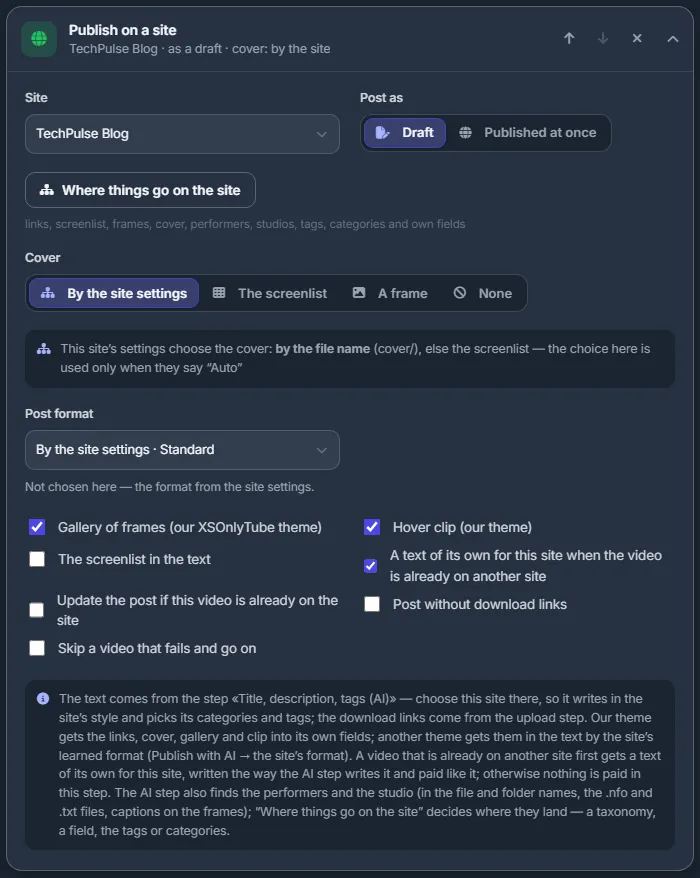
- Site (required) and Post as: Draft or Published immediately.
- Where things go on the site — opens the site’s publishing settings: links, screenlist, frames, cover, performers, studios, tags, categories, own fields. See Where things go on the site.
- Cover: By the site settings, The screenlist, A frame, None. If the site’s settings choose the cover themselves, a note under the field says so, and the choice here is used only when they are set to “Auto”.
- Gallery of frames and Hover clip (XSOnlyTube only) — both on by default.
- The screenlist in the text.
- A text of its own for this site when the video is already on another site — on by default; see below.
- Update the post if this video is already on the site — unticked, such a video is skipped.
- Post without download links.
- Skip a video that fails and go on.
The text comes from the step “Title, description, tags (AI)”: choose the same site there, so the AI writes in the site’s style and picks its categories and tags. The links come from the upload step.
Each site gets its own text. When the project’s text was written for another site, or the video is already posted on another of your sites, this step first writes a new text for this site, the same way the AI step does and at the same price. The AI is shown the titles and texts the video already carries on up to four of your other sites and must write a clearly different title and description. A text you corrected by hand is posted as it is. Untick the box to post the same text everywhere.
Folders
Move to a folder
Folder (required, e.g. Ready/2026) and Copy instead of moving. If a name is already taken in the target folder, the file gets “ (2)” added.
Delete
Deletes either “The archives” — the archives among the step’s input plus every archive an Unpack step of this run opened — or “The files of this step”. Files are deleted permanently, as everywhere in the panel.
Releases: what the AI, picture and publish steps take
“Pictures to an image host”, “Title, description, tags (AI)” and “Publish on a site” work per release:
- a video, when there is one;
- otherwise an archive (by its first volume) with the pictures next to it;
- a folder counts as its main file.
Side files such as .nfo, .txt and checksums never become posts of their own. “AI by the frames” skips anything that is not a video or picture and says so; choose “WPManager agent” to write for archives.
Settings shared by several steps
| Setting | What it does |
|---|---|
| Skip … that fails and go on | In Rename, Upload, Publish and other steps that handle many files. Ticked: failures are skipped and counted. Unticked: the run stops at the first failure. |
| Folder in the storage | Download step: where the files land. Empty means the folder the plan was started in. |
| Instructions for the AI | AI step: up to 3,000 characters of wishes for the text. They win over the defaults. |
Costs
- Title, description, tags (AI): “AI by the frames” is paid per post from the balance; each charge shows its price. “WPManager agent” is paid by its tokens at the chosen model’s price — usually a few cents per release; a stronger model costs several times more.
- Publish on a site is paid only when it writes a text of its own for the site, the same as the AI step.
- Video studio is billed by CPU time, beyond any minutes your plan includes.
- All other steps have no separate charge.
See also What you pay for.
Troubleshooting
| What you see | What to do |
|---|---|
| The AI step says “The AI by the frames needs a video or a picture to look at” | The input has only archives or other files. Switch “Who writes” to “WPManager agent”, or add a Screenlist step for videos. |
| A RAR or 7z tile shows “not installed” | That tool is not available right now. Use ZIP, or ask in the support chat. |
| “Publish on a site” skips videos as already there | The video already has a post on that site. Tick “Update the post if this video is already on the site” to update it instead. |
| A run stops with a message about an insufficient balance | AI steps need money on the balance. Top up, then press “Retry from the step” on the run. |
FAQ
Will the AI step pay again for files it has already written for?
No. A release whose project already has a text is skipped (“already had it”), unless that text was written for a different site than the one the step writes for.
Can the same video go to two sites with different texts?
Yes, that is the default. The publish step writes a text of its own for the second site and shows the AI what the first site already carries.
Does Change MD5 damage the video?
No. Only a few bytes are added at the end of the file; it plays and unpacks as before.