
Telegram alerts
Connect the WPManager bot in two clicks and get a Telegram message when a site goes down or comes back, when SSL or a domain is about to expire, about payments and your plan, support replies and Finance reminders.
On this page
Where to find it: Account → Telegram alerts, or the Telegram icon at the bottom of the sidebar rail.
Before you start
- Telegram on your phone or computer.
Connect Telegram
-
Open the page
Open Account → Telegram alerts. While nothing is connected, the page says “Telegram not connected” and explains the three steps.
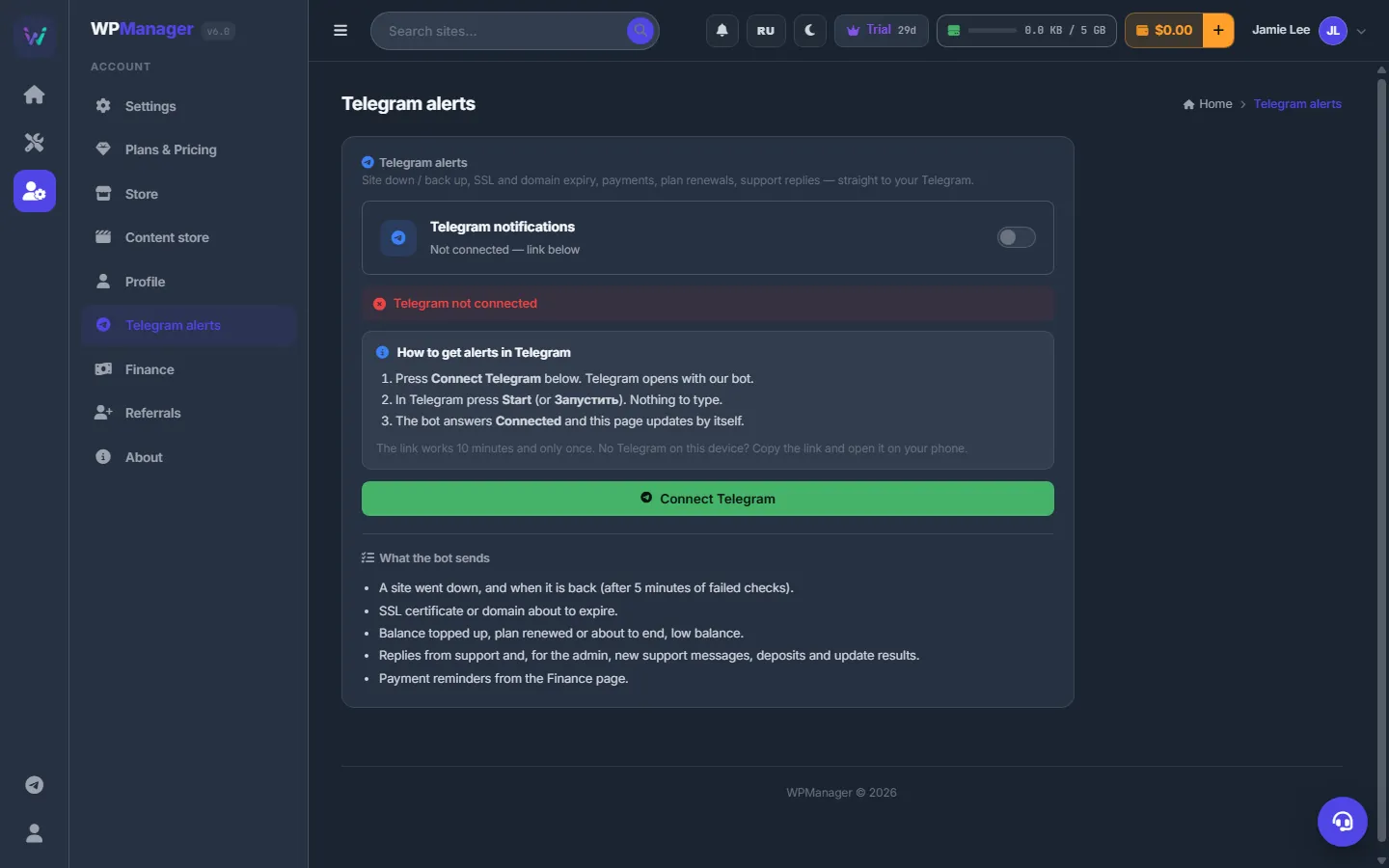
Fig. 1 Before connecting: three simple steps and the list of what the bot sends. -
Click “Connect Telegram”
The button shows “Preparing link…”, then Telegram opens with the WPManager bot, and the button changes to “Waiting for you to press Start in Telegram…”.
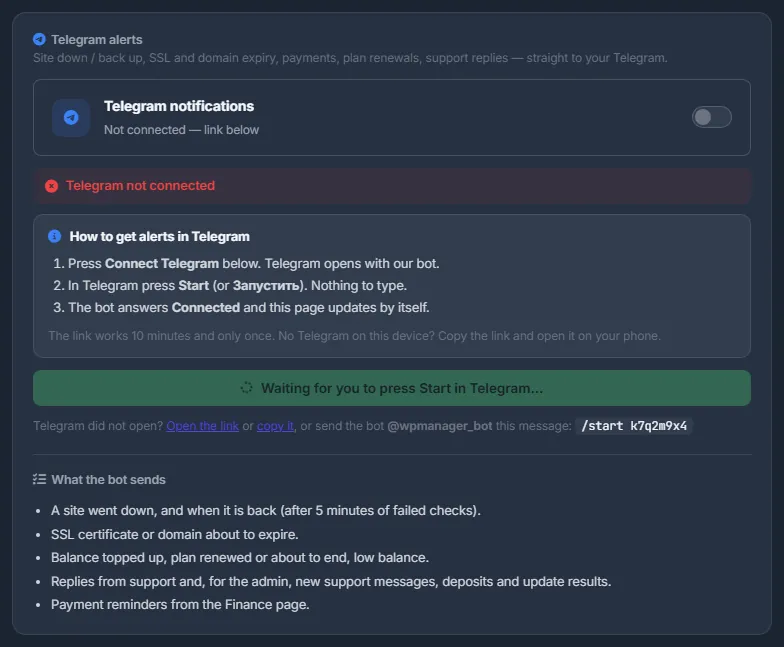
Fig. 2 Waiting for you to press Start in Telegram. -
Press Start in Telegram
Press Start in the bot — there is nothing to type. The bot replies “Connected!” with your email and the list of what it will send.
-
Check the page
The page updates by itself: “Telegram linked”, “Connected — Chat ID: …”, and the switch is on.
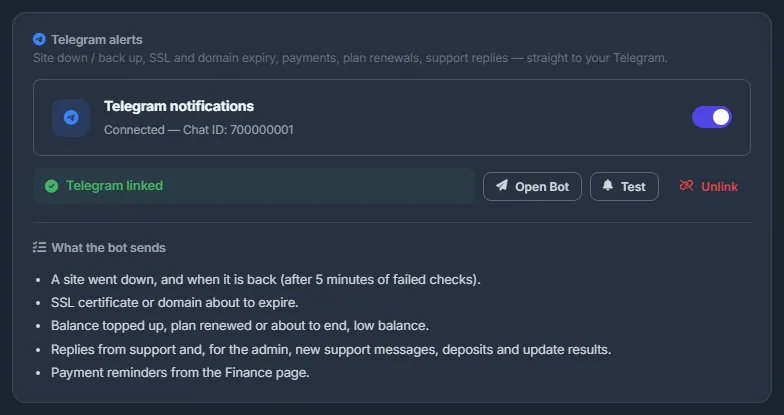
Fig. 3 Connected: test or unlink at any time.
Telegram did not open?
Under the button you can “Open the link”, “copy it” (to open it on your phone), or send the bot the message shown there, /start <code>. The link works for 10 minutes and only once.
Test and unlink
- Test sends a test message: “Test message sent! Check your Telegram.”
- Open Bot opens the chat with the bot.
- Unlink stops the alerts after you confirm “Disconnect Telegram?”. Sending
/unlinkto the bot does the same.
What the bot sends
- A site went down — once it has been down longer than the alert delay you set (5 minutes by default) — and when it is back. See Uptime monitoring and alerts.
- An SSL certificate or a domain is about to expire.
- Balance topped up, plan renewed or about to end, low balance.
- Your plan was activated, renewed or has ended — and, 3 days before the end, a warning when the renewal will not go through.
- Replies from support, with a link that opens the chat; for the admin, also new support messages, deposits and update results.
- Payment reminders from the Finance page.
- WordPress core updates made from the panel, and any update that failed. See Updating WordPress, plugins and themes.
- Alerts you switch on elsewhere, such as file-host balance changes and Store order updates.
Bot commands
| Command | What it does |
|---|---|
/sites or /status | Your sites with their status |
/site name | Details of one site |
/unlink | Disconnect this chat from your account |
/help | The list of commands |
One chat — one account
A Telegram chat belongs to one WPManager account. Connecting the same chat to another account disconnects it from the previous one. A chat cannot be entered by hand — only the one-time link connects it.
The switch on this page
The “Telegram notifications” switch only records your preference — to stop alerts, press “Unlink”.
Costs
Free.
Troubleshooting
| What you see | What to do |
|---|---|
| The bot says “This link has expired or was already used.” | Go back to the page and click “Connect Telegram” again; use the new link within 10 minutes. |
| The page keeps waiting | Make sure you pressed Start in the WPManager bot that the link opened, not in another chat. After about 10 minutes the button comes back — try again. |
| “Telegram bot is not configured on this platform yet.” | The Telegram bot is temporarily unavailable. Write to the support chat. |
| “Failed to send message…” after “Test” | You may have blocked or deleted the bot. Open it and press Start, or unlink and connect again. |
FAQ
Can alerts go to a group?
The page connects a personal chat. If you need a group or a channel, ask in the support chat.
Can two people get the alerts?
Not yet: an account sends alerts to one chat. Use a Telegram account you share, or ask support about a group chat.
Do alerts also come by email?
No. WPManager sends email only to confirm your address and to reset your password; alerts go to Telegram.