
Uploading files to your storage
Put files into your storage from your computer: single files, whole folders or simply drag and drop. Big files go up in pieces and pick up where they stopped if the connection drops.
On this page
Where to find it: Links & files → Files → “Upload”.
Before you start
- Free space in your storage quota for the files you upload. “Storage used” at the top right of the Files page shows how much is left.
Upload from your computer
-
Open the target folder
Files go into the folder that is open. If it does not exist yet, create it with “New folder”.
-
Pick the files
Press “Upload” and choose one or several files in your computer’s window. Or drag files from your desktop straight into the list; drop them onto a folder row (or a part of the path at the top) to upload into that folder.
-
Or upload a whole folder
Press the arrow next to “Upload” and choose “Upload a folder”. The folder goes up with all its subfolders, and the structure is kept. Folders cannot be dragged into the list — use this item for them.
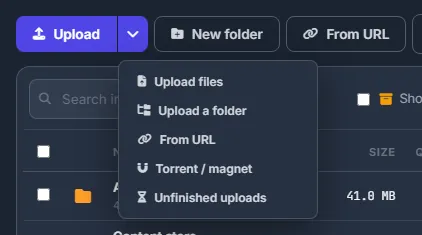
Fig. 1 The arrow next to “Upload” holds the other ways in. -
Watch the progress
A bar above the list shows the percentage, uploaded and total size, the speed and the time left. The × on the bar cancels the upload. When it ends you see “Uploaded to the storage: N file(s)”, and the list refreshes.
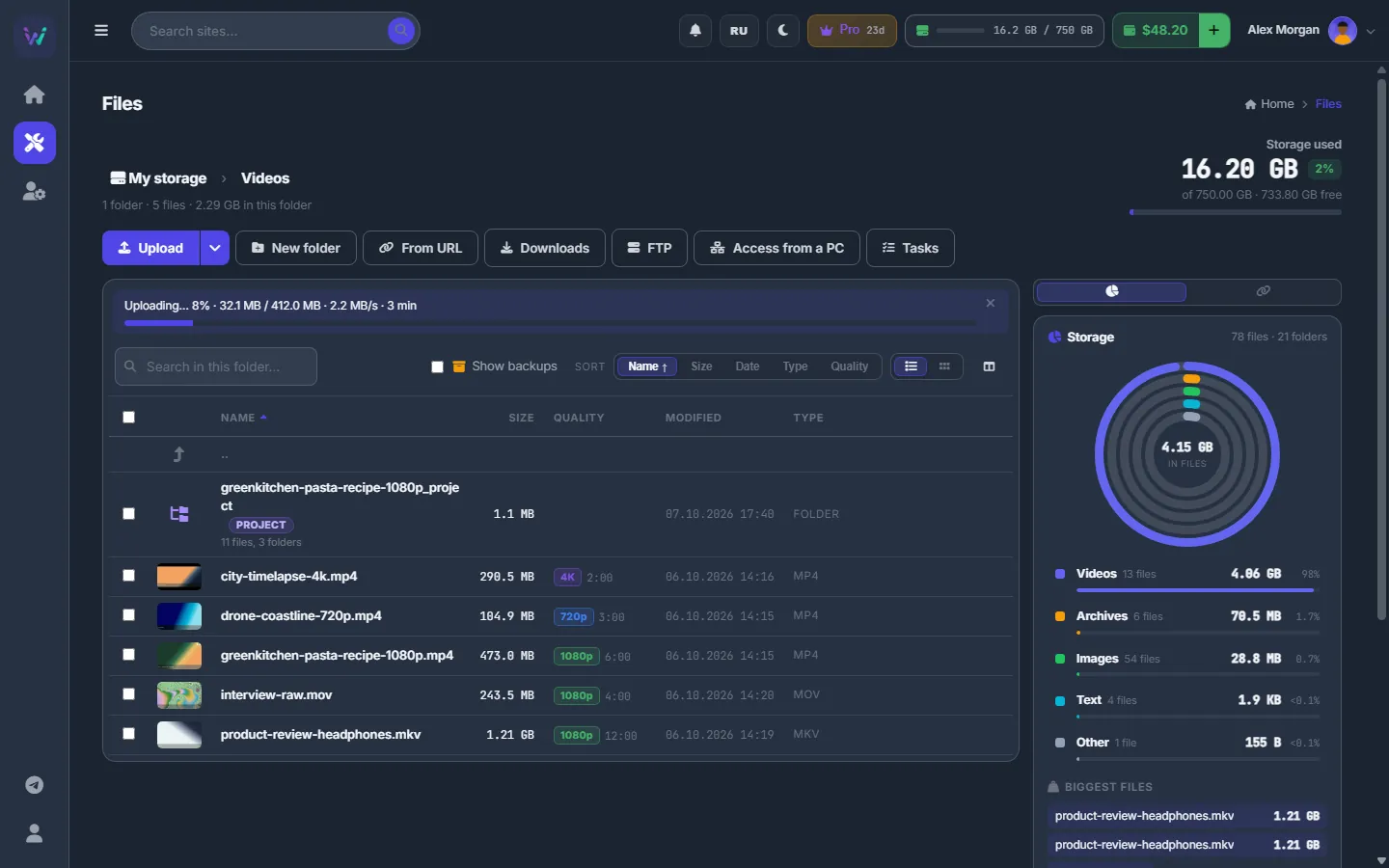
Fig. 2 A 412 MB upload at 8 %: the bar above the list shows the speed and the time left.
Big files and resuming
Small files are sent in batches of up to 200 MB or 200 files per request. A file of 128 MB or more goes up in 64 MB pieces: if the connection drops, only the current piece is sent again, and the bar says “connection lost, retrying in N s”.
If an upload stops completely — the tab was closed, the computer went to sleep — upload the same file into the same folder again. It continues from where it stopped, and you see “Continuing the unfinished upload of …”.
Unfinished uploads
“Upload” ▾ → “Unfinished uploads” lists the big files that did not finish: the name, the folder, how much arrived and when. To finish one, upload the same file into the same folder again. “Cancel” deletes the unfinished part and frees the space it holds.
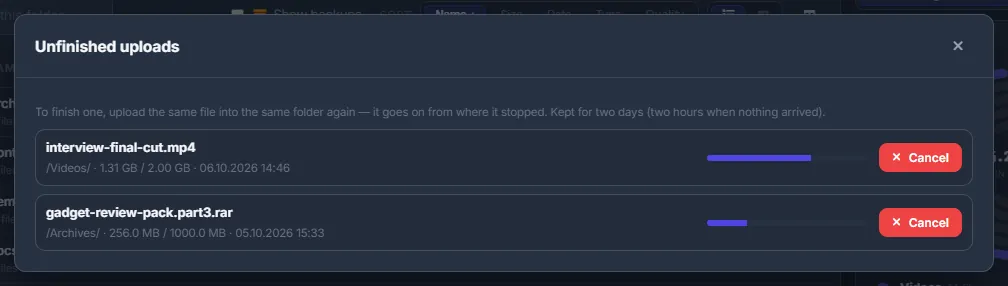
Unfinished uploads are kept for two days (two hours if nothing arrived at all). Up to 12 can wait at the same time.
Names and duplicates
A file with the same name as an existing one is saved as name (2).ext — nothing is overwritten. Files whose names contain characters that are not allowed in file names are skipped, and you see “Skipped — the name is not allowed” with the list of names.
Other ways to get files in
- “From URL” — download links from file hosts, direct links or magnets straight into the open folder. See Downloads: links, file hosts and the queue.
- Torrents — magnets and .torrent files go into your storage on the server. See Torrents: magnets and .torrent files.
- “Access from a PC” — upload with FileZilla, WinSCP or a network drive. See Access from a PC: SFTP, FTP and WebDAV.
- FTP / SFTP — copy from your own server into the storage. See FTP / SFTP servers.
- Content store — videos you bought can be copied into Files. See My purchases.
Costs
Uploading is free; the files count against your storage quota. An unfinished upload of a big file holds its full size in the quota until it finishes or you cancel it.
Troubleshooting
| What you see | What to do |
|---|---|
| “Storage quota exceeded: … used, … more needed” | Free some space: delete files, cancel unfinished uploads or wait for running tasks to finish. Or move to a bigger plan. The message also says how much unfinished uploads and running tasks hold. |
| “Too many unfinished uploads — finish or cancel some first” | Open “Upload” ▾ → “Unfinished uploads” and finish or cancel some of them. Up to 12 may wait at the same time. |
| “Folders cannot be dropped here — use Upload → Upload a folder” | Browsers do not hand over dropped folders reliably. Use “Upload” ▾ → “Upload a folder”. |
| The bar says “paused: a read-only client view is open in another tab” | Another tab of the same browser has an account open in read-only mode. Close that tab and the upload goes on by itself. |
FAQ
Is there a file size limit?
Only your free space. Big files are uploaded in pieces and can be resumed.
Can I close the browser while files upload?
Not while uploading from your computer — the browser sends the files. Downloads by link, torrents and copies from your servers run on the server, so for them you can close the page.