
Files: your storage in the panel
Files is your personal storage inside WPManager. Videos, pictures and archives live here, and the other tools — the studios, uploads to file hosts, the Conveyor and publishing — take their files from here.
On this page
Where to find it: Links & files → Files.
Before you start
- A WPManager account. The size of your storage comes from your plan — every plan card on Plans & Pricing shows it.
Browse the storage
-
Open the storage
In the left menu open Links & files → Files. At the top left you see where you are (“My storage” › folder › …) and how many folders and files the open folder holds and how much space they take. At the top right, “Storage used” shows the space taken, the share of your quota and how much is free (or “unlimited storage”), with a bar under it.
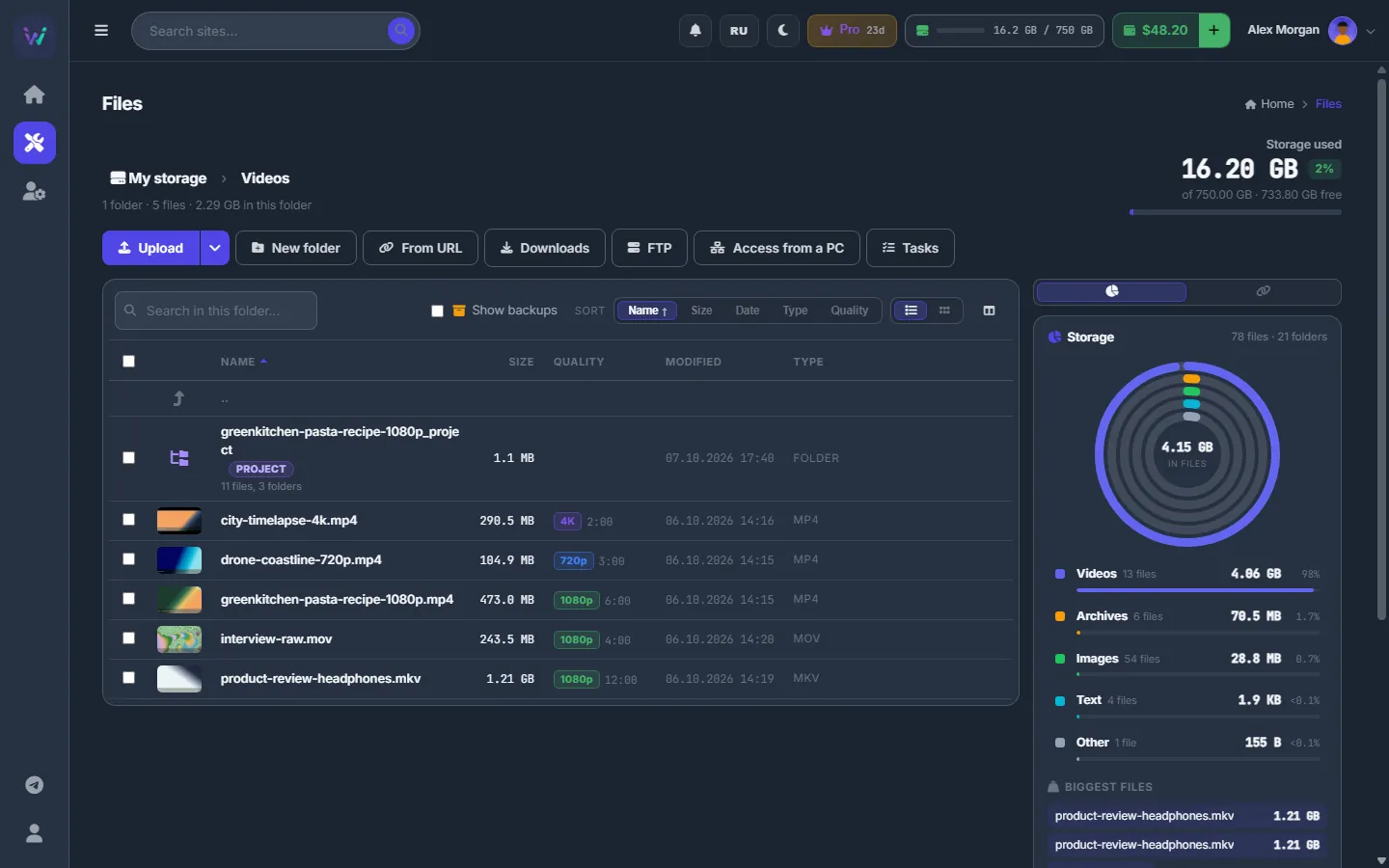
Fig. 1 The Videos folder in the list view: thumbnails, quality badges and durations, with the storage rings in the side panel. -
Move between folders
Click a folder to open it. To go up, click the “..” row or a part of the path at the top, or press Backspace.
-
Choose the view and the order
The “List” and “Grid” buttons above the list switch between a table and big thumbnails. Sort by “Name”, “Size”, “Date”, “Type” or “Quality”; click the same button again to reverse the order. “Quality” sorts videos by resolution, 4K first. Folders always stay on top. Your browser remembers the view and the sort.
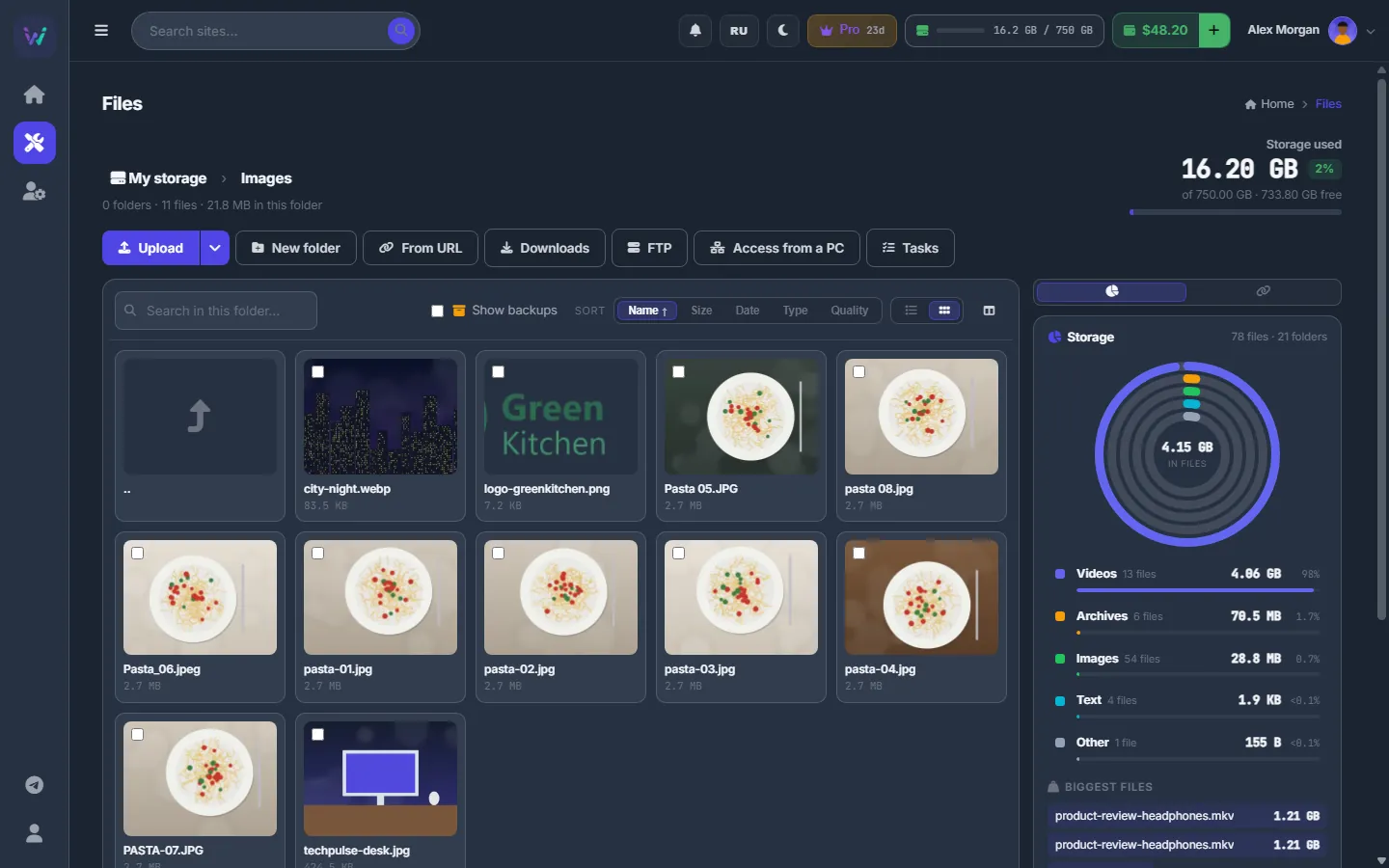
Fig. 2 The grid view is handy for pictures. -
Search
Type in “Search in this folder…”. The search looks through the open folder and all its subfolders by part of the name and shows up to 500 results.
-
Open or preview a file
Click a file:
- a picture opens in a gallery (← and → go to the next one) with “Properties”, “Convert” and “Download”;
- a video opens in a player with “Media info”, “Screenshots”, “Video studio” and “Download”;
- a text file up to 2 MB is shown as text;
- an archive opens the unpack dialog;
- any other file is downloaded to your computer.
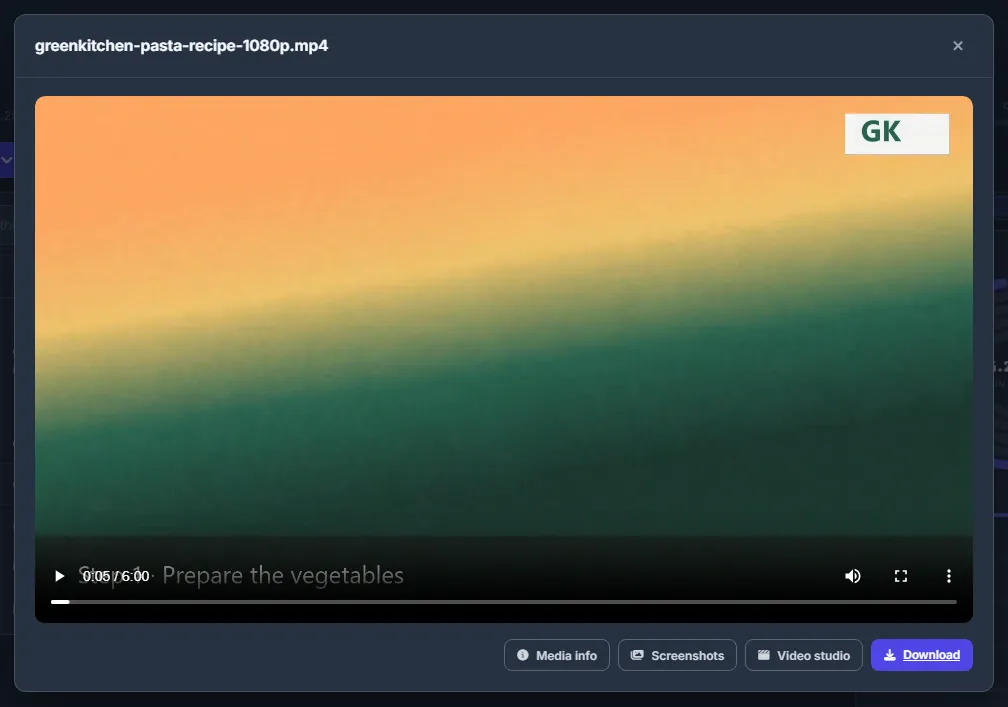
Fig. 3 A video opens in a player, with shortcuts to its media info, screenshots and the video studio.
Act on files
-
Select files
Tick the checkbox of a row. Ctrl+click adds one more item, Shift+click selects a range, Ctrl+A selects everything in the folder.
-
Use the action bar
As soon as something is selected, an action bar appears above the list with the number of selected items and the buttons “Download”, “To file hosts”, “To image host”, “Archive”, “Images”, “Video”, “MD5”, “Post”, “Publish with AI”, “Conveyor”, “Rename”, “Move”, “Copy” and “Delete”. Buttons that do not fit the selection are hidden — “Images” appears for pictures, “Video” for videos. The × button clears the selection.
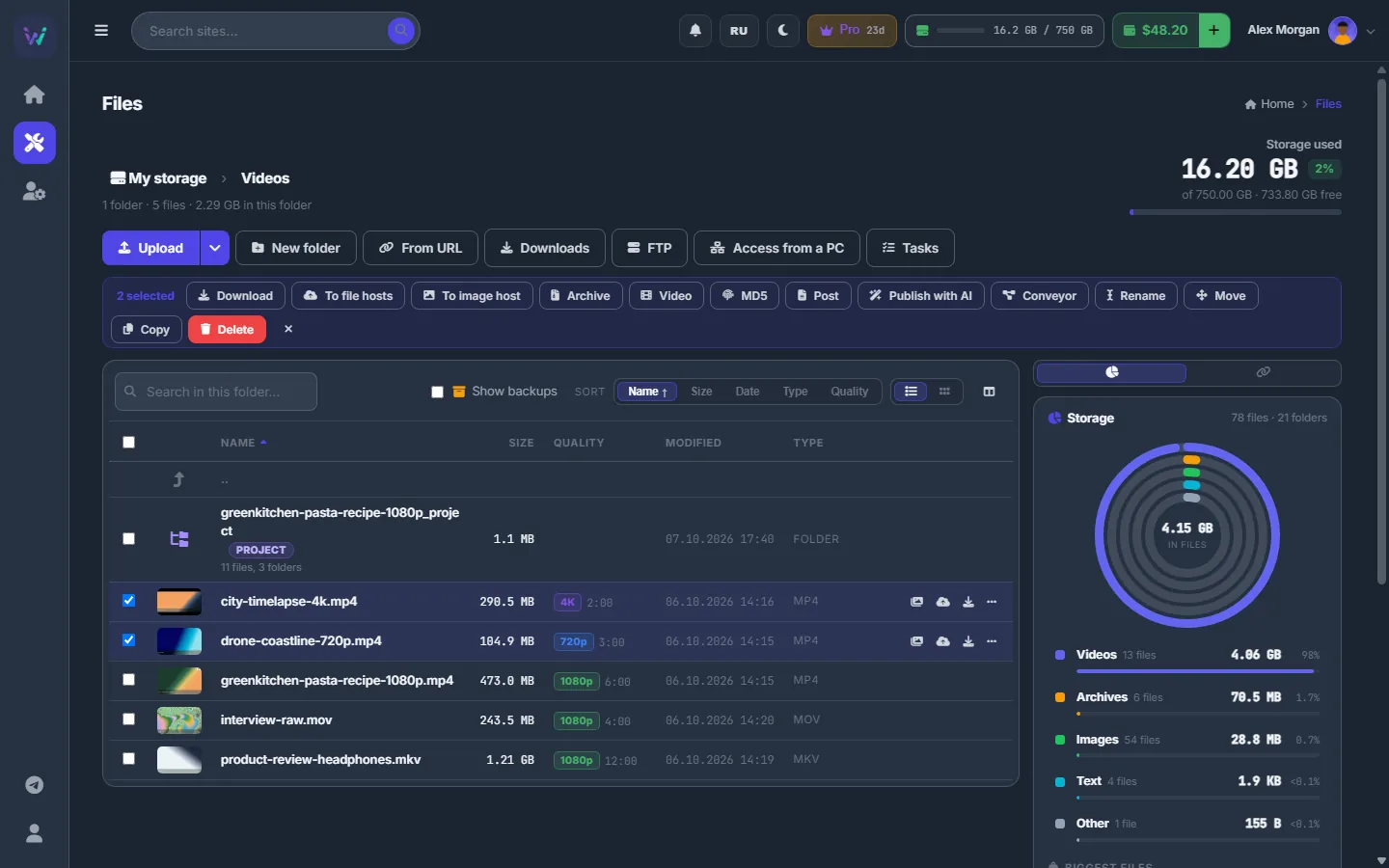
Fig. 4 Two videos selected: the action bar shows everything you can do with them. -
Or right-click
Right-click a file or folder (or press the … button at the end of its row). The menu holds every action for the selection: “Open / preview”, “Download” (“Download as zip” for several items), “Upload to file hosts”, “Upload to image host”, “Cut”, “Copy”, “Paste here”, “Move to…”, “Copy to…”, “Rename” (“Bulk rename” for several), “Archive”, “Unpack”, “Convert images”, “Video screenshots”, “Video studio: convert, cut, crop…”, “Pick frames (photo studio)”, “Make a collage (photo studio)”, “MD5 / checksums”, “Build post”, “Publish with AI”, “Properties” and “Delete”. Only the items that fit the selection are shown.
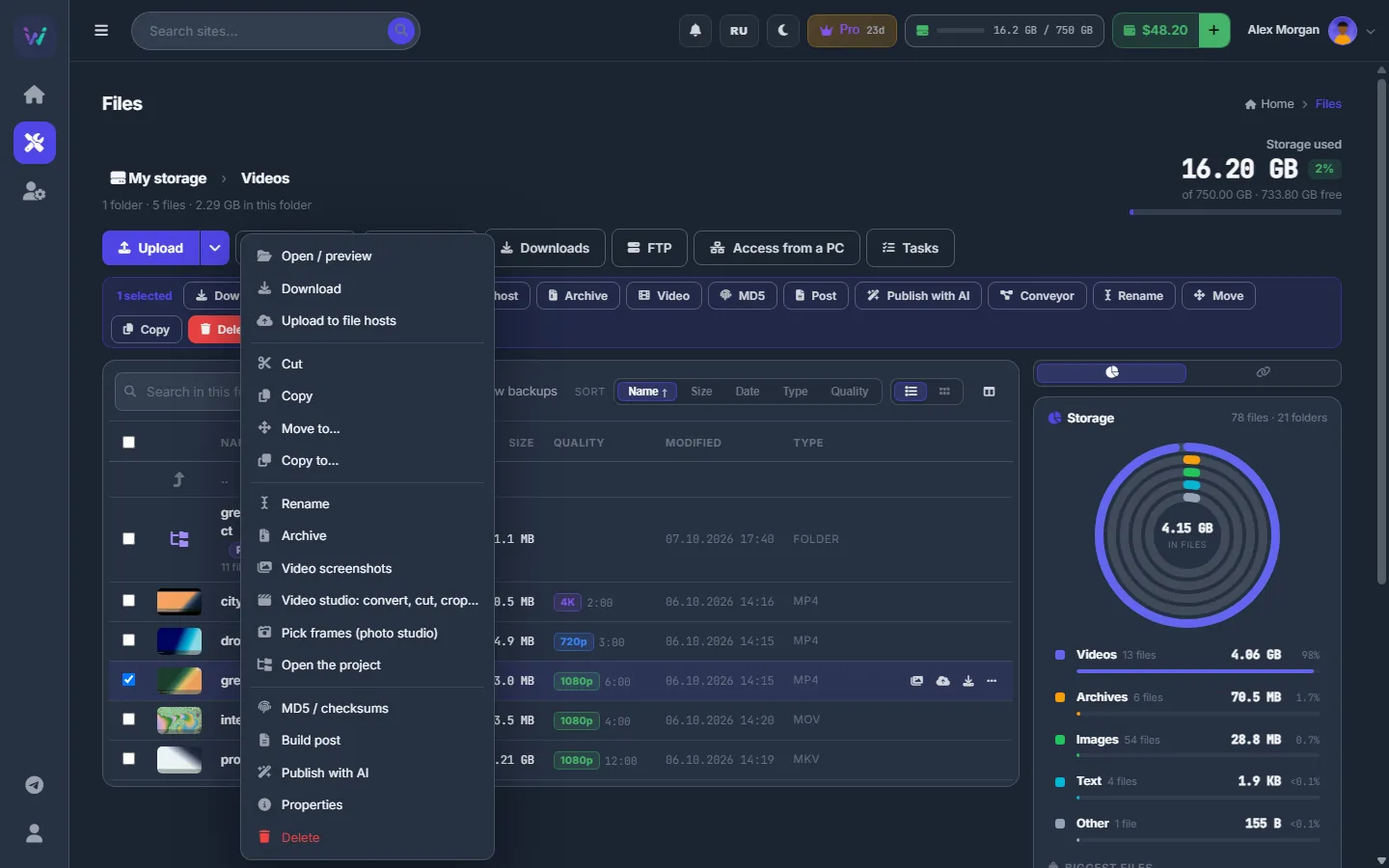
Fig. 5 The right-click menu of a video, including “Open the project” for its project folder.
The toolbar and row buttons
The buttons above the list:
- “Upload” — files from your computer. The arrow next to it opens “Upload files”, “Upload a folder”, “From URL”, “Torrent / magnet” and “Unfinished uploads”. See Uploading files to your storage.
- “New folder” — creates a folder in the open one.
- “From URL” — downloads links into the open folder. See Downloads: links, file hosts and the queue.
- “Downloads” — the download manager. The badge counts running and queued link downloads.
- “FTP” — the two-pane view with your own servers. See FTP / SFTP servers.
- “Access from a PC” — an SFTP, FTP or WebDAV login for your computer. See Access from a PC: SFTP, FTP and WebDAV.
- “Tasks” — background jobs. The badge counts running ones.
- “Paste” — appears after “Cut” or “Copy” and shows how many items are waiting.
Every row also has quick buttons on the right: “Unpack” for archives, “Screenshots” for videos, “Upload to file hosts” for any file, “Upload to image host” for pictures, “Download”, and “More” (…), which opens the same menu as a right-click.
Video quality and duration
Videos get a thumbnail, a quality badge (8K, 4K, 1440p, 1080p, 720p or lower), an HDR mark when it applies, and the duration. Hover the badge to see the exact resolution and codec. The badges are made by ffmpeg on the server and appear a few seconds after the folder opens.
Project folders
Everything you make from one video — picked frames, screenlists, collages — goes into one folder next to it, named <video name>_project, with the subfolders frames, screens and collages. Such folders carry a “project” tag. To jump into the project of a video, right-click the video and choose “Open the project”.
The side panel: Storage and Links
The panel on the right has two tabs:
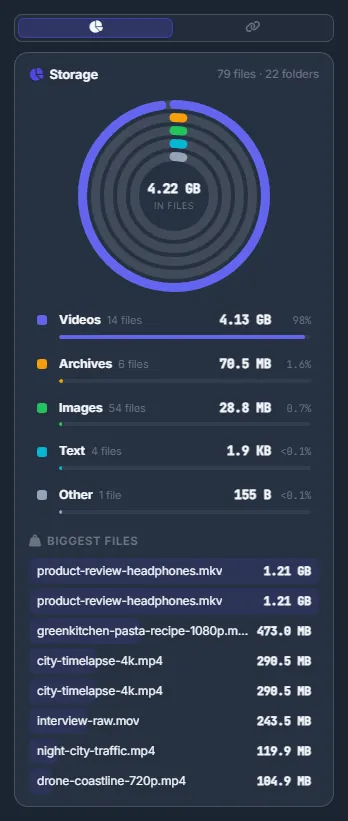
- Storage — rings by file type (Images, Videos, Archives, Text, Other) with the number of files, the size and the share of each, and the list of “Biggest files”. Click a name to open its folder.
- Links — the link manager with every link from your uploads. See Link manager.
The columns icon above the list shows or hides the panel.
The site backups folder
When your sites are backed up into the storage, the backups are kept in the backups folder at the root. The folder is hidden from the list and from search; after the folder counts you see a “site backups hidden” link. Tick “Show backups” (or click that link) to see it — it then carries a “site backups” tag.
Properties of a file
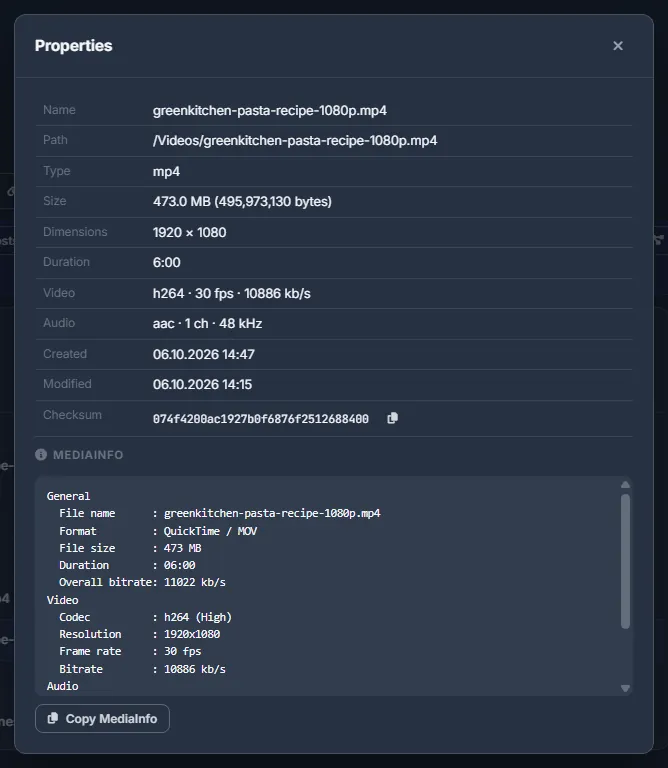
Right-click → “Properties” shows the name, path, type and size (with the exact number of bytes; for a folder — the number of files and subfolders), the dimensions of a picture, and for a video its duration, video and audio streams and the created and modified dates. The “MD5” and “SHA-256” buttons compute a checksum and put a copy button next to it. For a video the full MediaInfo text is shown below, with “Copy MediaInfo”.
Keyboard shortcuts
| Key | What it does |
|---|---|
| Enter | Opens the selected item. |
| Backspace | One folder up. |
| F2 | Rename; with several items selected — bulk rename. |
| Delete | Deletes the selection after a confirmation. |
| Ctrl+A / Esc | Selects everything / clears the selection. |
| Ctrl+C / Ctrl+X, then Ctrl+V | Copy / move the selection into another folder. |
| F5 | Refreshes the list and counts folder sizes again. |
Shortcuts do not work while you are typing in a field or while a dialog is open.
Settings
| Setting | What it does |
|---|---|
| Show backups | Shows the hidden site backups folder in the list and includes it in search. Remembered in your browser. |
| List / Grid | A table with columns or big thumbnails. Remembered in your browser. |
| Sort | Name, Size, Date, Type or Quality; folders always come first. A second click reverses the order. |
| Side panel | The columns icon shows or hides the Storage / Links panel. |
Costs
Browsing and managing files is free. How much you can keep depends on the storage size of your plan — at the time of writing 5 GB on the free trial, 50 GB on Basic, 250 GB on Advanced, 750 GB on Professional and 2 TB on Business, plus any extra storage you add at $10 per TB a month; the current figures are on Plans & Pricing. Support can also set a personal quota for your account.
Everything in the storage counts towards the quota: site backups, unfinished uploads and the space that running tasks reserve for their results.
Storage within your quota is not billed. When the quota is full, uploads stop until you free room or move to a bigger plan. Your rates are on the Profile page under “Your rates”; see What you pay for.
Troubleshooting
| What you see | What to do |
|---|---|
| Videos have no quality badge or thumbnail | Badges and thumbnails are made by ffmpeg on the server. If they never appear, ffmpeg is missing there — write to the support chat. |
| The list jumped back to “My storage” | The folder you were in no longer exists — it was renamed, moved or deleted, for example over FTP. Open the new location from the root. |
| A button such as “Upload” or “Delete” answers “Read-only client view” | Your storage is open in read-only mode — this is how support looks at an account. Changes are possible only in your own session. |
FAQ
Can other users see my files?
No. Every account has its own folder. The file manager, access from a PC and all the tools see only your files.
How do I get more space?
Move to a plan with a bigger storage on Plans & Pricing, or delete what you no longer need — the “Biggest files” list in the side panel shows where to start.