
Replace links on your sites
Already have the new links? Swap the old ones in the posts of your sites — by file name (paste only the new links) or by exact old → new pairs — on many sites at once, with a live feed while it runs and a full report at the end.
On this page
Where to find it: Links & files → Transfer & replace → tab “Replace”.
Before you start
- The WPManager plugin on the sites — see Installing and connecting the WPManager plugin. The plugin searches every post and every post field. A site without the plugin key cannot be processed: the panel asks you to connect the plugin first.
- The new links — for example, after you uploaded the files again.
Replace or Transfer?
Replace only edits links in posts; it does not move any file. Use it when the new files are already uploaded. When the files still have to be moved from one host to another, use the Transfer tab: it moves the files and replaces the links in one run.
Replace links
-
Open the Replace tab
Open Links & files → Transfer & replace and click “Replace”.
-
Paste the links — by file name
In the “Links” card keep “By file name” and paste the new links, one per line. The file name of each link — the last part of the address — finds the old link on the sites, and the whole old link is replaced by the new one.
Lines that cannot be used are counted under “Skipped”; click it to see why: not a link, two links on one line (use pairs for that), a link without a file name, or the same file name as on another line. “Load .txt” reads a .txt or .csv file; “Clear” empties the box.
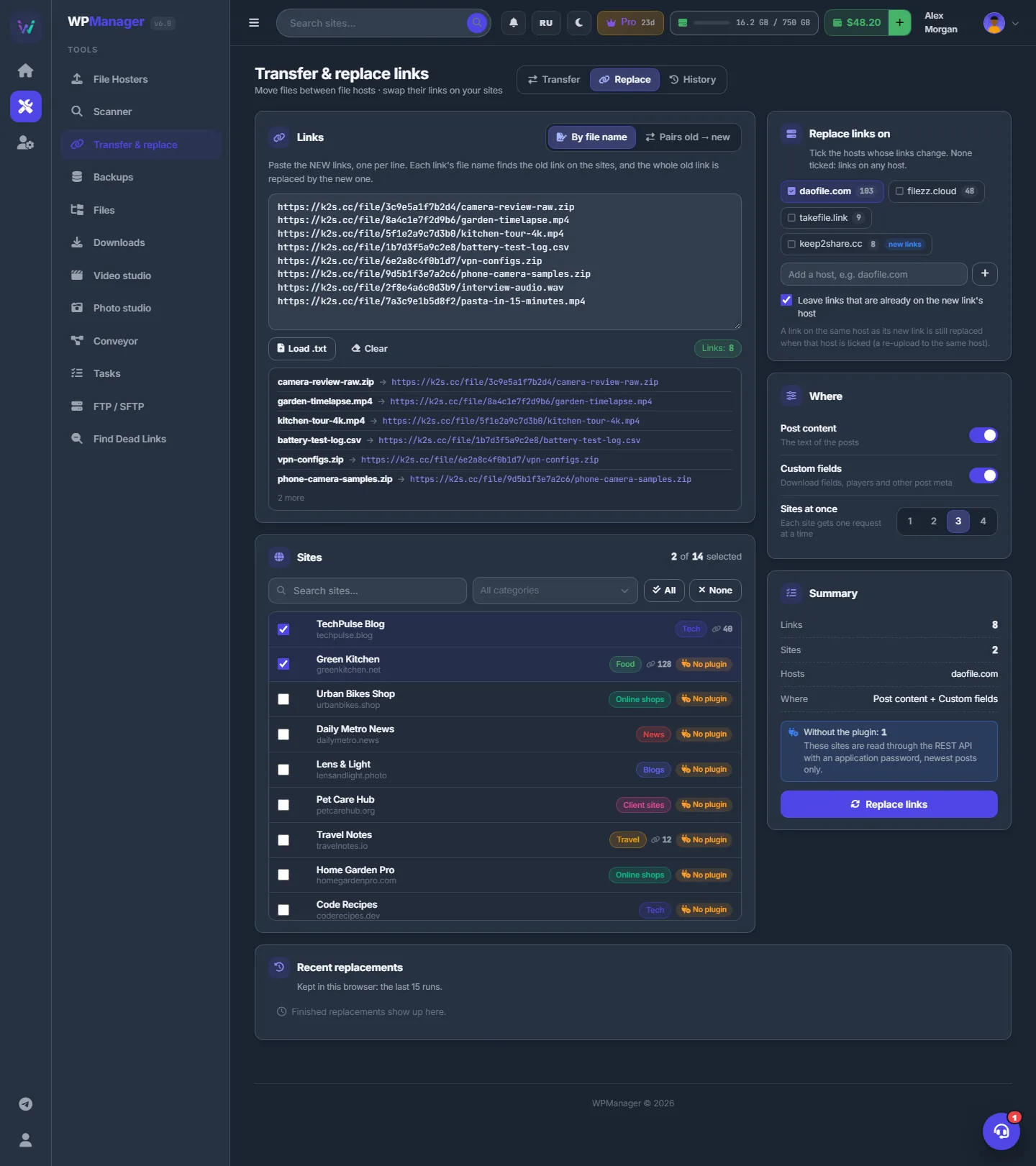
Fig. 1 By file name: new links pasted, two sites ticked and one host chosen whose links will change. -
…or paste exact pairs
Switch to “Pairs old → new” and paste one pair per line: the old link, then the new one, separated by a space, a tab,
;or->. Only that exact old link is replaced, wherever it stands. Pairs with one link, two identical links or a repeated old link are skipped, with the reason.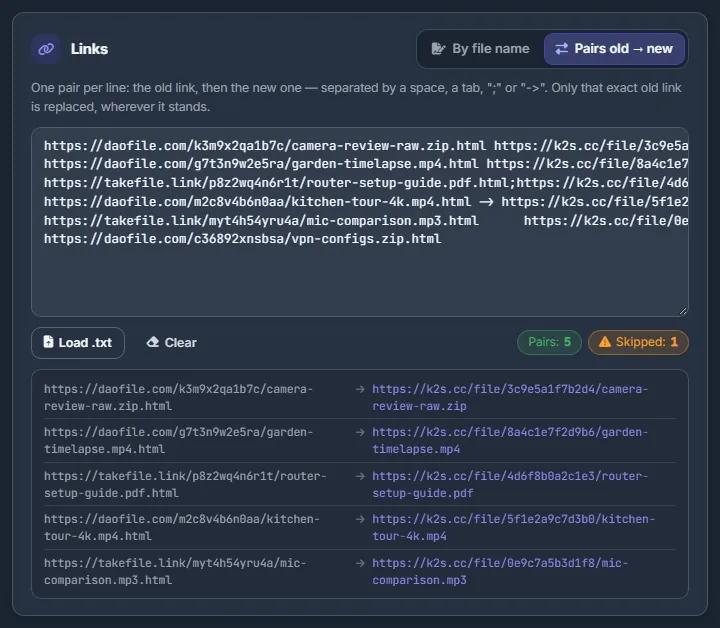
Fig. 2 Pairs mode: five pairs ready, one line skipped because it holds a single link. -
Pick the sites
In the “Sites” card tick the sites. Search, the category filter, “All” and “None” work on the filtered list. Each site shows its category, the number of links the Scanner found on it and “No plugin” when the plugin key is missing.
-
Choose the hosts
By file name: the card “Replace links on” shows the hosts of the picked sites (with their number of links) and the hosts of the new links (tag “new links”). Tick the hosts whose links should change — with none ticked, links on any host change. You can add a host by hand (“Add a host, e.g. daofile.com”). “Leave links that are already on the new link’s host” (on by default) keeps links that are already on the new host.
Pairs: the card “Hosts of the old links” lets you untick hosts; their pairs are skipped.
-
Choose where to look
In the “Where” card switch on “Post content” (the text of the posts) and/or “Custom fields” (download fields, players and other post meta). Set “Sites at once”: 1–4, 3 by default; each site gets one request at a time.
-
Run
The “Summary” shows Links (or Pairs), Sites, Hosts and Where, and what is still missing. Click “Replace links” and confirm — the posts change right away.
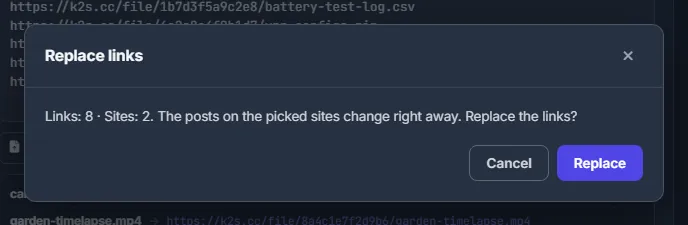
Fig. 3 The confirmation. Posts on the picked sites change as soon as you confirm.
Watch the run and read the report
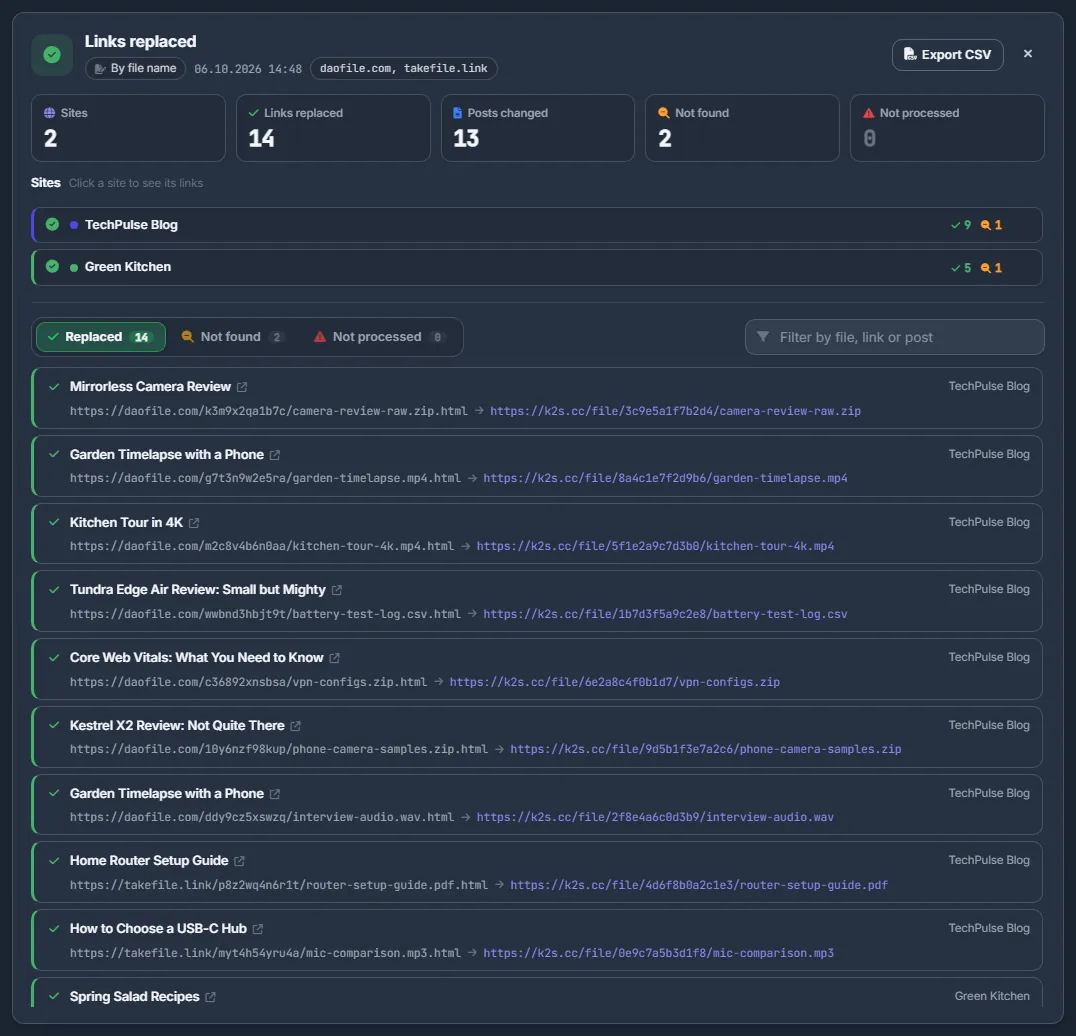
The run card shows Sites, Links replaced, Posts changed, Not found and Not processed, a progress bar, one row per site and the “Live” feed of found and missing files; click a site to follow only that site.
- “Stop” sends no new requests and lets the running ones finish; after that, “Stop now” drops them.
- When the run ends, the tabs Replaced, Not found and Not processed list every link. Click a site row to filter, or use “Filter by file, link or post”.
- “Export CSV” saves
link-replace-<date>.csvwith Site, Status, Post ID, Post, Post link, File name, Old link, New link, Where and Reason.
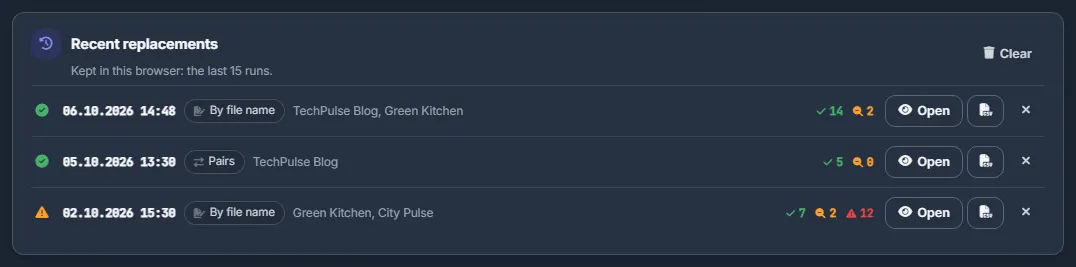
Recent replacements
Finished runs are kept in this browser — the last 15. “Open” shows a report again, the CSV button exports it, × removes it from the list and “Clear” empties the list. Removing a run from the list does not touch the links on your sites.
How a file name finds the old link
Links the Scanner already knows on the site are replaced exactly, in every variant — with or without “.html”, or on another host. The rest are found by the plugin’s file-name search.
Hosts are compared by their canonical name, so k2s.cc counts as keep2share.cc, fileboom.me as fboom.me, rg.to as rapidgator.net and nitro.download as nitroflare.com.
The Repair tab
When a replacement wrote a link under the wrong file name — the link’s visible text names the true file, but its address names another — the Repair tab puts it right. Choose a site and press “Preview”: the panel reads the posts and the file lists of your file-host accounts and shows what would change. A preview writes nothing. Tick the rows you want and press “Repair the ticked links”: the posts change one by one, and the confirmation says that only the links in the table change.
- “Drop the ?referer=... tail” — on by default: the new link ends at the file name. Untick it to keep the tail the post already carries.
- “Read the file lists from the hosts again” — each account’s file list is kept for 6 hours; tick this after uploading files.
- The result has three tabs: “To repair”, “Needs attention” (with a “Why not” column) and “Earlier runs”; “Export CSV” saves the table.
Settings
| Setting | What it does |
|---|---|
| By file name / Pairs old → new | How the old links are found. |
| Replace links on (hosts) | Only links on the ticked hosts change; none ticked means any host. |
| Leave links that are already on the new link’s host | On by default. A link on the same host as its new link is still replaced when that host is ticked — for a re-upload to the same host. |
| Post content / Custom fields | Where in the posts links are replaced; at least one must be on. |
| Sites at once | 1–4 sites processed in parallel (default 3). |
Costs
Free.
Troubleshooting
| What you see | What to do |
|---|---|
| Many links are “Not found” | The file name of the new link is not on the site, its host is not ticked, the link is already on the new host (with “Leave links…” on), or the site has no plugin and the post is older than the newest 5,000. |
| “Not processed” with an error for a site | The site or its plugin did not answer, or you stopped the run. The links listed there were not changed — run them again for that site. |
| The “Replace links” button is disabled | Read the hints above it: paste the links, pick at least one site and switch on post content and/or custom fields. |
FAQ
Is the report saved on the server?
The report of the Replace tab is kept in this browser only (the last 15 runs) — export the CSV if you need it elsewhere. Runs of the Transfer tab are kept on the server.
Can I undo a replacement?
There is no undo button. Where the report shows both the old and the new link, export the CSV and paste those rows back as “Pairs old → new”, with the new link first and the old one second.
Does it work with hosts that are not in my File Hosters list?
Yes. Replace works with link addresses, so any host can be added in “Replace links on”. Known aliases such as rg.to and rapidgator.net are treated as one host.