
Finance: your payment planner
Keep every recurring bill of your business — servers, domains, file-host premiums, ads, services, taxes — with its due date, and get a Telegram reminder before each one. Finance is a planner: no money moves here.
On this page
Where to find it: Account → Finance.
Before you start
- For reminders: Telegram connected on Account → Telegram alerts. See Telegram alerts.
The Finance page
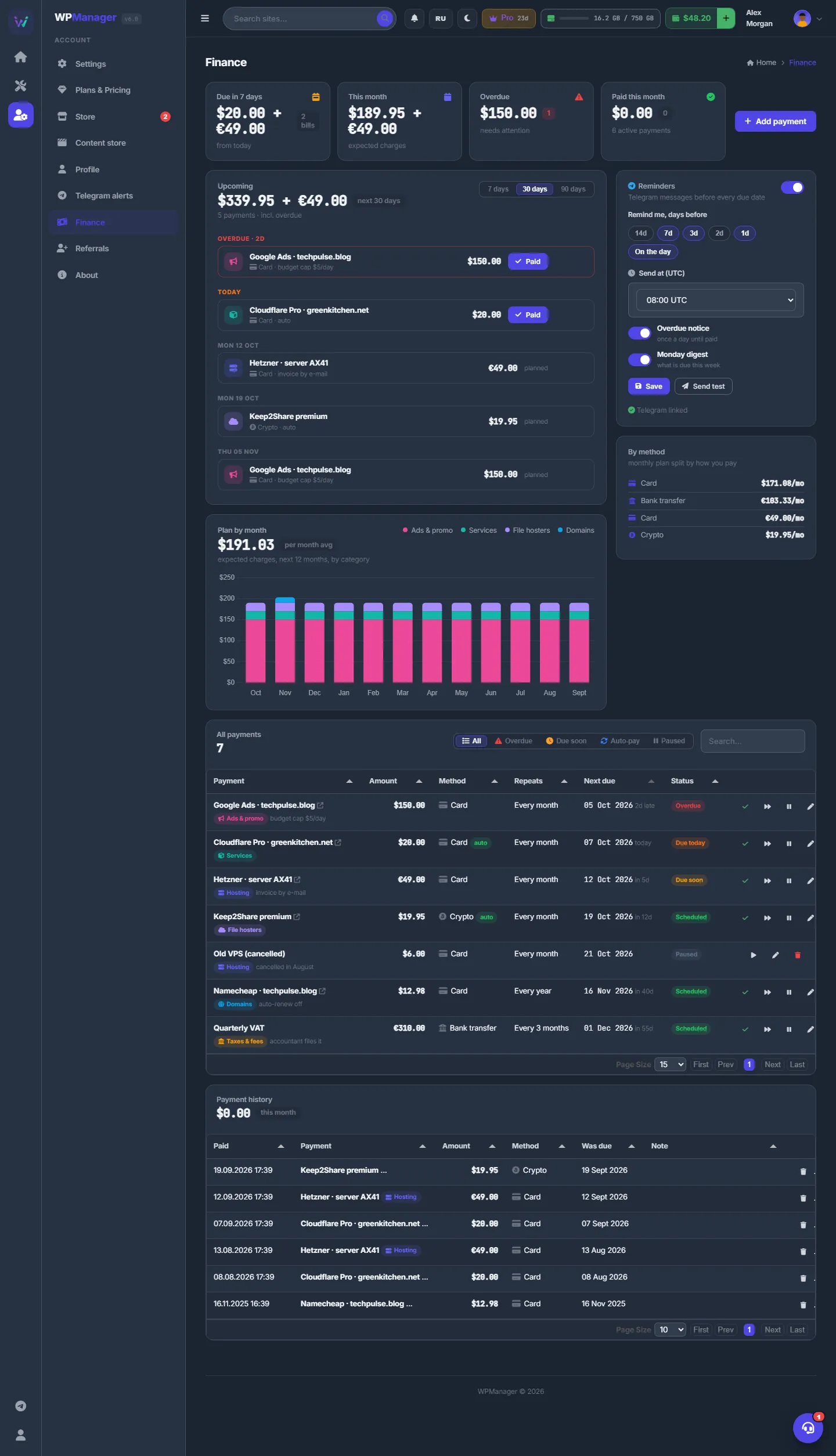
At the top are four cards: “Due in 7 days”, “This month” (expected charges), “Overdue” and “Paid this month”. Below them: “Upcoming”, the “Plan by month” chart, “Reminders”, “By method”, “All payments” and “Payment history”.
Add and pay your bills
-
Add a payment
Click “Add payment” and fill in the “New payment” dialog (the fields are listed below). Switch on “Auto-pay” if the provider charges your card by itself; turning “Active” off pauses the item. Click “Save”.
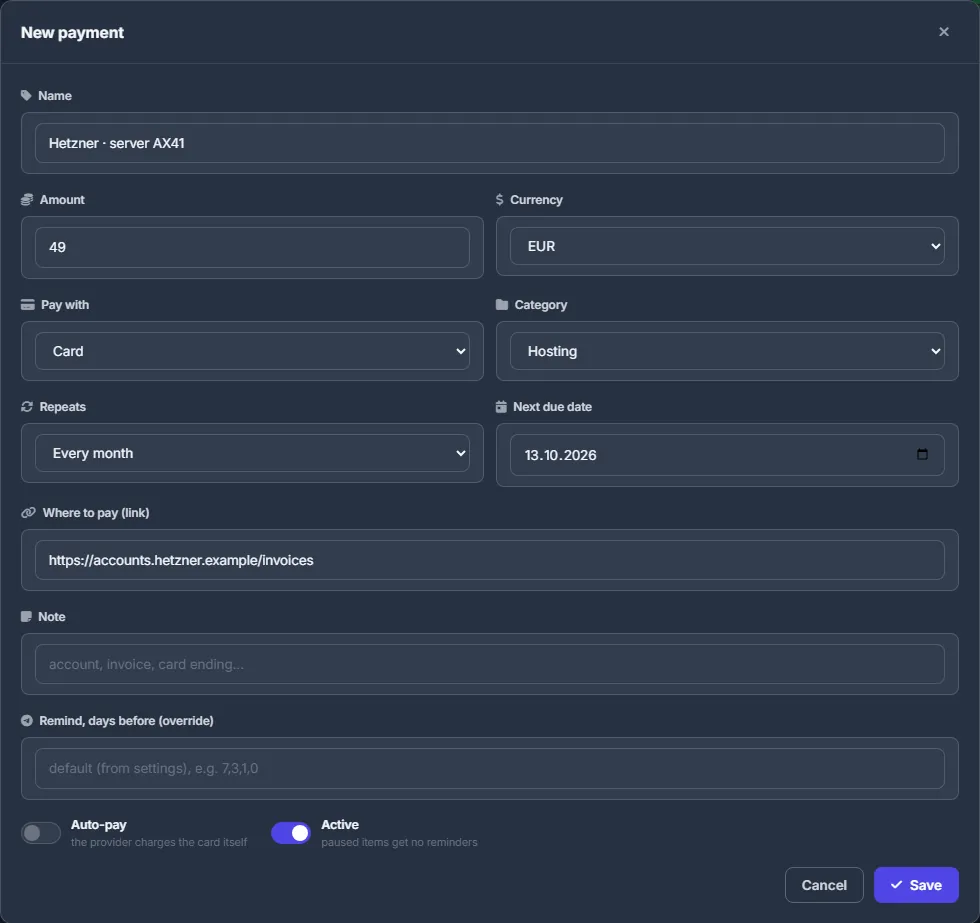
Fig. 2 A new recurring payment. -
Follow the upcoming list
“Upcoming” lists payments for 7, 30 or 90 days, grouped by day: “Overdue · Nd”, “Today”, “Tomorrow”, then dates. The current occurrence of a payment has a “Paid” button; later repeats are marked “planned”.
-
Mark it paid
When you have paid the provider, click “Paid” in “Upcoming” (or “Mark paid” in the table). Check “Amount”, “Paid on”, “Method” and “Note” and confirm with “Paid”. A repeating payment moves to its next due date; a one-off payment is paused afterwards. The record appears in “Payment history”.
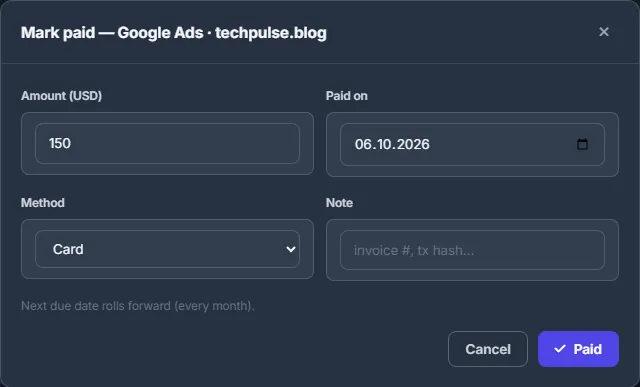
Fig. 3 Logging a payment moves the next due date forward. -
Set up reminders
In “Reminders” turn the switch on and choose the days before the due date (14d, 7d, 3d, 2d, 1d, “On the day”), the hour in “Send at (UTC)”, “Overdue notice” (once a day until paid) and “Monday digest” (what is due this week). Click “Save”; “Send test” checks the delivery.
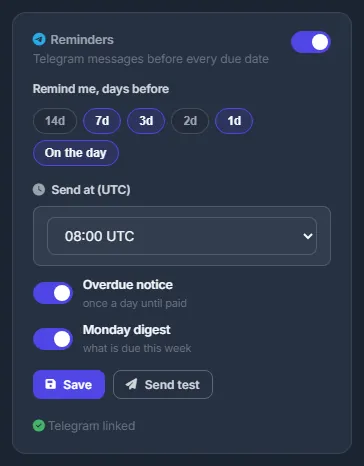
Fig. 4 Telegram reminders before every due date. -
Manage the list
“All payments” has the filters “All”, “Overdue”, “Due soon”, “Auto-pay” and “Paused”, and a search box. The icons in each row: mark paid, skip this one (move to the next date without logging a payment), pause or resume, edit, delete. Deleting a payment also deletes its history.
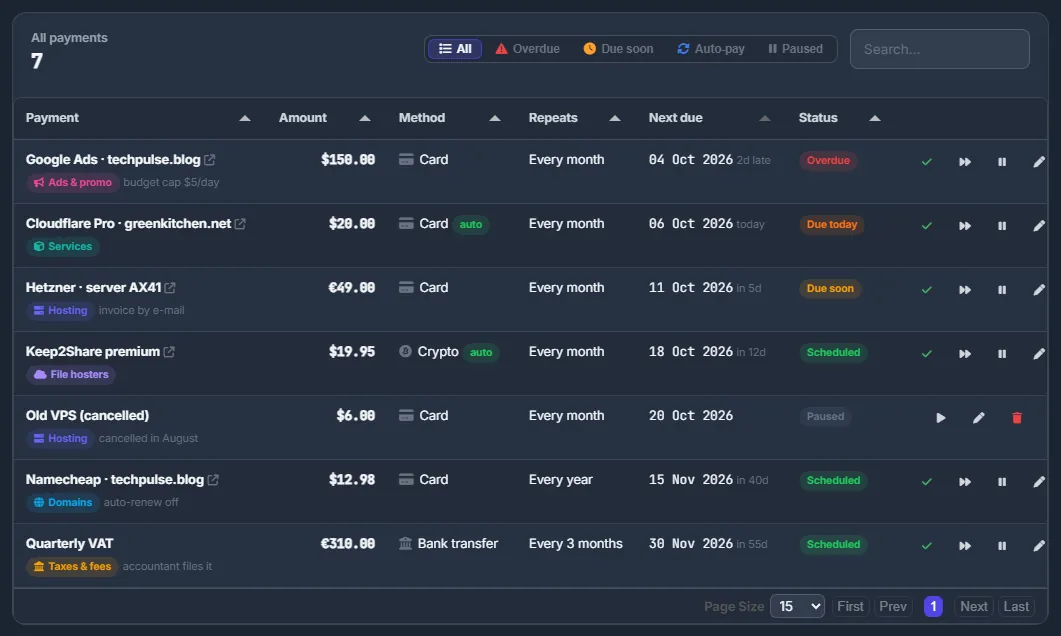
Fig. 5 All payments with their status.
Payment fields
| Field | What to enter |
|---|---|
| Name | What you pay for, e.g. Hetzner · server AX41 |
| Amount, Currency | The amount and its currency: USD, EUR, UAH, RUB, GBP or USDT |
| Pay with | Card, Crypto, PayPal, Bank transfer, Cash or Other |
| Category | Hosting, Domains, File hosters, Ads & promo, Services, Taxes & fees or Other |
| Repeats | One-off, every week, every 2 weeks, every month, every 2, 3 or 6 months, every year, every N months or every N days |
| Next due date | When the next payment is due |
| Where to pay (link) | The billing page; a small link icon next to the name in the table opens it |
| Note | Anything you want to remember: account, invoice, which card |
| Remind, days before (override) | Optional. A comma-separated list of days, e.g. 7,3,1,0, that replaces the general reminder days for this payment |
| Auto-pay | On if the provider charges you by itself |
| Active | Off pauses the payment: no reminders, no place in the upcoming list |
How reminders work
By default reminders come 7, 3 and 1 days before and on the day, at 08:00 UTC, with the overdue notice and the Monday digest on. The panel checks every 15 minutes and sends once your hour has passed; each reminder is sent once. Paused payments get no reminders.
| Setting | What it does |
|---|---|
| Reminders (switch) | Turns Telegram reminders on or off. |
| Remind me, days before | 14, 7, 3, 2, 1 days before and “On the day”. |
| Send at (UTC) | The hour of the day for reminders, in UTC. |
| Overdue notice | A daily message while a payment is overdue. |
| Monday digest | On Mondays, what is due this week. |
Charts
- Plan by month — the expected charges of the next 12 months, stacked by category. Only payments in USD are drawn.
- By method — the monthly equivalent of your recurring payments for each payment method and currency.
Not your WPManager bill
Finance does not pay anything and is not linked to your USD balance. WPManager's own charges are in Profile → “Transactions” — see Profile.
Costs
Free.
Troubleshooting
| What you see | What to do |
|---|---|
| No reminders arrive | Check that the Reminders card says “Telegram linked”, the Reminders switch is on and saved, the payment is active, and the chosen hour in UTC has passed. Then use “Send test”. |
| A payment is missing from the chart | The chart draws only payments in USD. Payments in other currencies are counted in “By method” and in the list. |
| A one-off payment disappeared from “Upcoming” | After you mark a one-off payment as paid, it is paused. Find it in “All payments” with the “Paused” filter. |
FAQ
Does Finance pay my bills?
No, it only reminds you. You pay the provider yourself and mark the payment as paid.
What does “Skip this one” do?
It moves the payment to its next due date without logging a payment — for example, when a provider skipped a month.