
PageSpeed: speed scores and what to fix
The PageSpeed tab runs Google PageSpeed Insights on the site’s home page for mobile and desktop, shows the four scores and the lab metrics, lists what to fix — and can hand the whole report to the WPManager Agent to fix it with you.
On this page
Where to find it: Overview → Dashboard → click the site → PageSpeed tab, or the “PageSpeed” button in the site header.
Before you start
- The site’s home page is reachable from the internet: Google loads it from its own servers. No plugin is needed for the test itself.
Run a test
-
Start the measurement
Open the PageSpeed tab and press “Run test” (“Run again” when there is already a result), or press “PageSpeed” in the site header. The panel shows “Measuring the site on mobile and desktop…” with a seconds counter. Google loads the page twice, which takes up to two minutes; meanwhile you can work on other tabs.
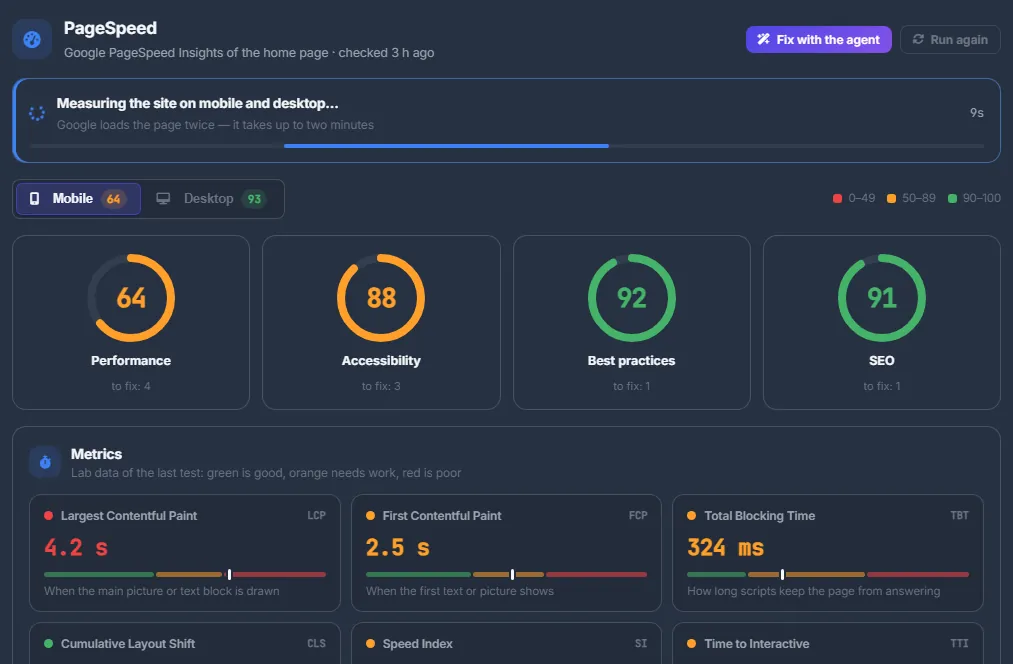
Fig. 1 A test takes up to two minutes: Google loads the page on a phone and on a desktop. -
Switch between mobile and desktop
The “Mobile” / “Desktop” switch shows each result with its performance score on the badge. Google indexes and ranks the mobile version of your site, so start there. The legend explains the colours: 0–49 red, 50–89 amber, 90–100 green.
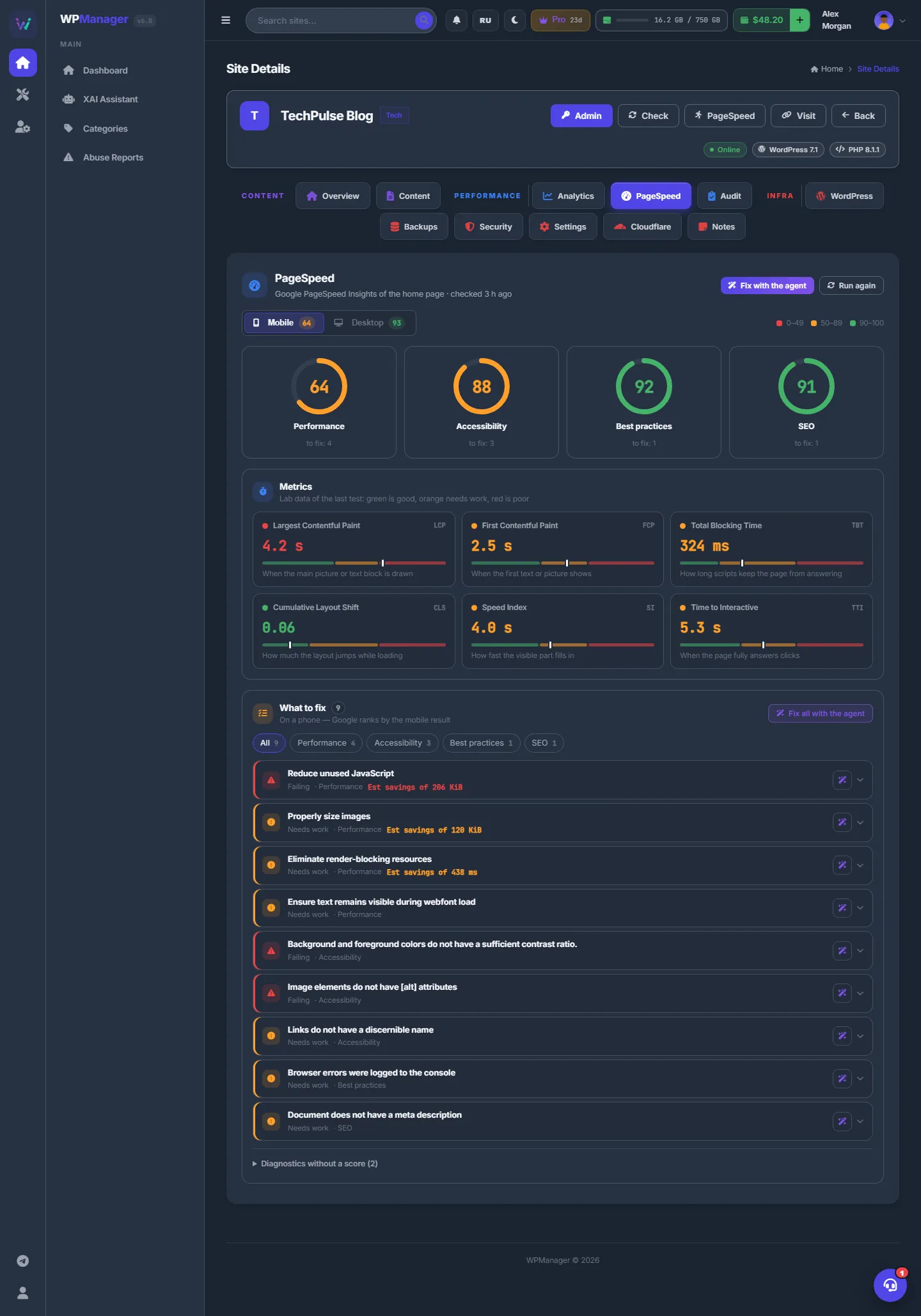
Fig. 2 PageSpeed: four scores, lab metrics and the list of what to fix. -
Read the scores and metrics
Four gauges show “Performance”, “Accessibility”, “Best practices” and “SEO”, each with the number of items to fix. Click a gauge to narrow the list to that category. “Metrics” shows LCP, FCP, TBT, CLS, Speed Index and TTI of the last test on a good / needs work / poor scale, with a one-line explanation of each.
-
Go through “What to fix”
“What to fix” lists the checks that did not pass. Each is marked “Failing”, “Needs work” or “Hint”, with its category and the measured value, such as the estimated savings. The category chips (“All”, “Performance”, “Accessibility”…) filter the list. Click an item to expand Google’s explanation and the affected files or elements. Checks without a score are folded under “Diagnostics without a score”.
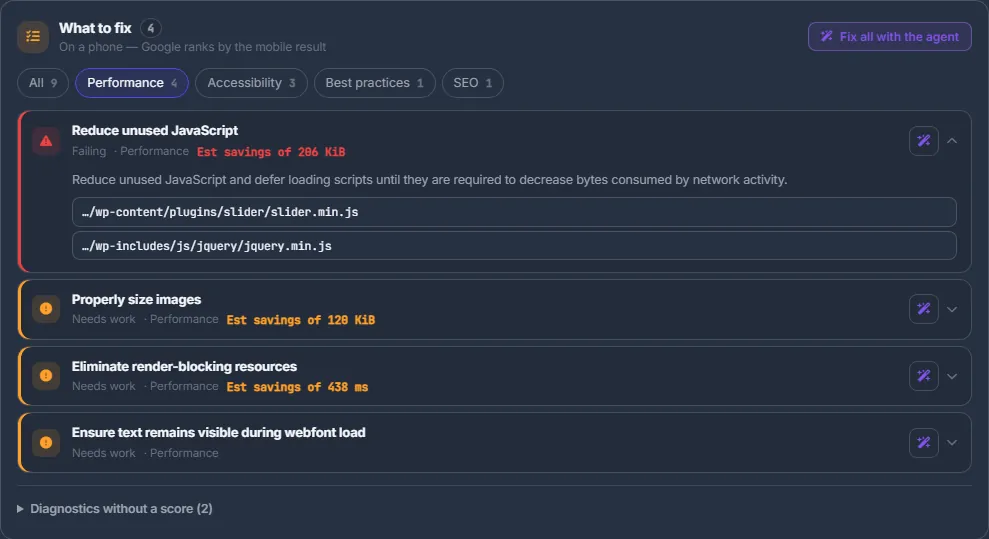
Fig. 3 Each item expands to Google’s explanation and the affected files.
Fix with the agent
-
Hand over the report
Press “Fix with the agent” for the whole report, “Fix all with the agent” for the list of problems, or the wand button of a single item (“Fix this with the agent”). The XAI Assistant opens in a new tab with a ready task for the WPManager Agent: the site, the scores and what fails.
-
Review the proposed changes
The agent reads the full report and looks at the theme and plugins. It proposes each change — plugin settings, theme files, cache, images — as a separate action with “What will change”, a “Confirm” and a “Cancel” button. Nothing is applied until you press “Confirm”.
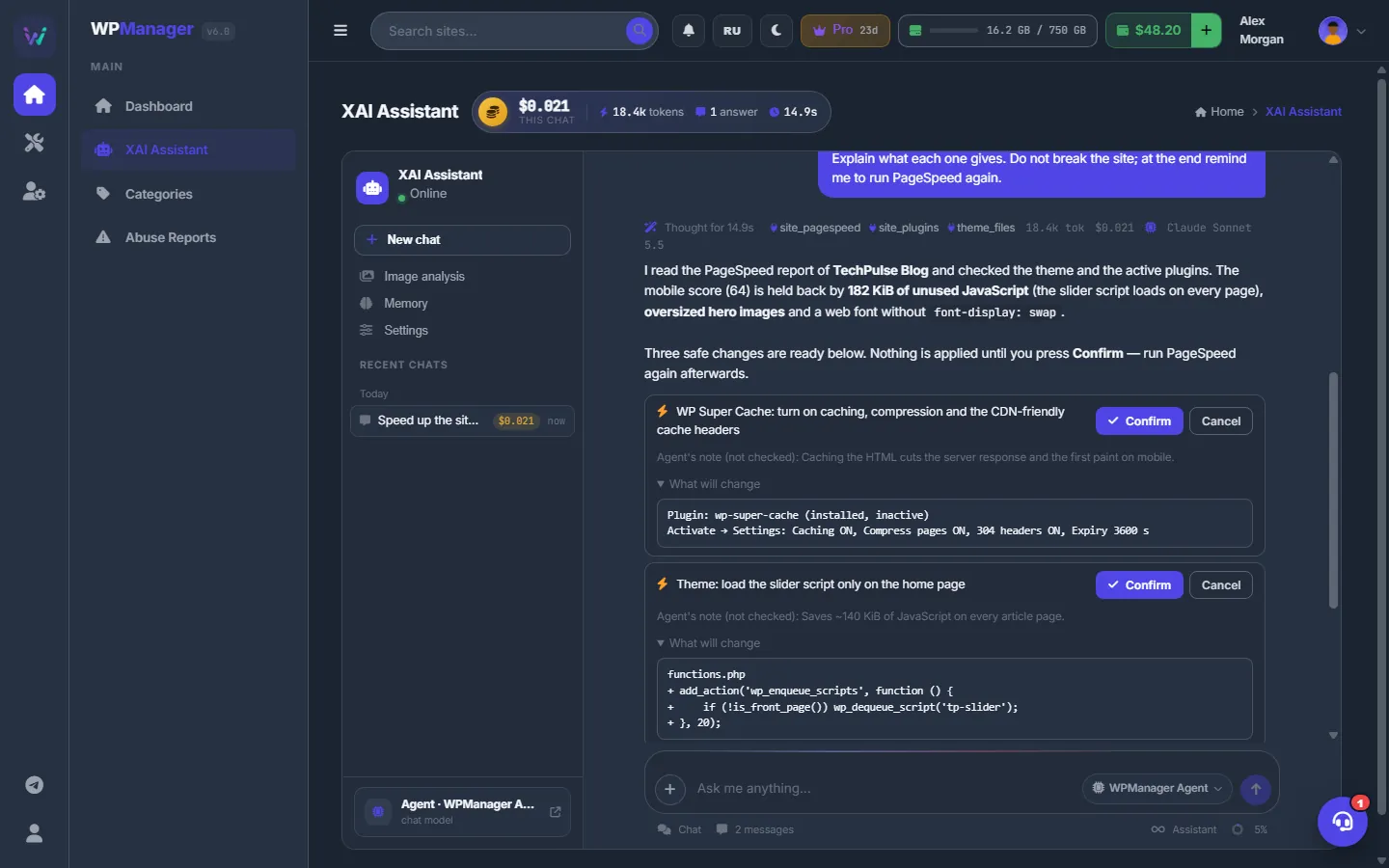
Fig. 4 The agent gets the report and proposes fixes, each waiting for your “Confirm”. -
Measure again
When the changes are applied, come back to the PageSpeed tab and press “Run again” to see the effect.
Automatic daily check
Once a day the panel measures every active site by itself, so the tab and the PageSpeed tiles on the Dashboard always show a recent result. Only the latest result is kept — there is no history of earlier runs. Write down the scores before and after your changes if you want to compare.
All sites in one go
On the Dashboard, “PageSpeed all” measures all your sites, three at a time. Each site row has PageSpeed tiles for mobile and desktop and its own PageSpeed button — see The Dashboard: all your sites on one screen.
Only the home page
The test measures the site’s home page — the site address. For the speed real visitors get on every page, look at the Web Vitals card in Analytics → Traffic: see Traffic.
Settings
| Setting | What it does |
|---|---|
| “Mobile” / “Desktop” | Which result is shown. The choice is remembered for the browser tab. |
Costs
Running PageSpeed is free, with two limits:
- if the site was measured less than 5 minutes ago, you get the stored result instead of a new run;
- each account has up to 300 runs a day.
The agent’s work in the XAI Assistant is paid from your USD balance per request; each answer shows its price. See What you pay for.
Troubleshooting
| What you see | What to do |
|---|---|
| “PageSpeed check timeout. Try again later.” | Google could not finish within two minutes: the site is slow or blocks Google’s crawler. Check your firewall and Cloudflare rules for Lighthouse and try again. |
| An error about the daily limit (HTTP 429) | You have used the 300 runs of the day. The automatic daily check still updates your sites. |
| No “Fix with the agent” buttons | Write to the support chat. |
FAQ
Why did my click return the same result?
Within 5 minutes of the last measurement the stored result is returned, to save Google’s quota. Wait a few minutes and run again.
Does the agent change my site without asking?
No. Every change is proposed as an action and runs only after you press “Confirm” in the XAI Assistant.
How is this different from the site audit?
PageSpeed is Google’s lab test of speed and best practices. The audit is the panel’s own quick check of SEO tags, security headers and WordPress-specific risks — see Site audit.