
WordPress tab: users, comments and media
Add and edit WordPress users, moderate comments and clear out spam, browse and delete media files — all on the site’s WordPress tab, without logging in to wp-admin.
On this page
Where to find it: Dashboard → click the site → WordPress tab → Users, Comments, Media or General.
Before you start
- The site is connected with the WPManager plugin (“Connected” on the site’s Settings → Connection tab — see Installing and connecting the WPManager plugin). Otherwise the WordPress tab shows “WordPress not connected”.
Users
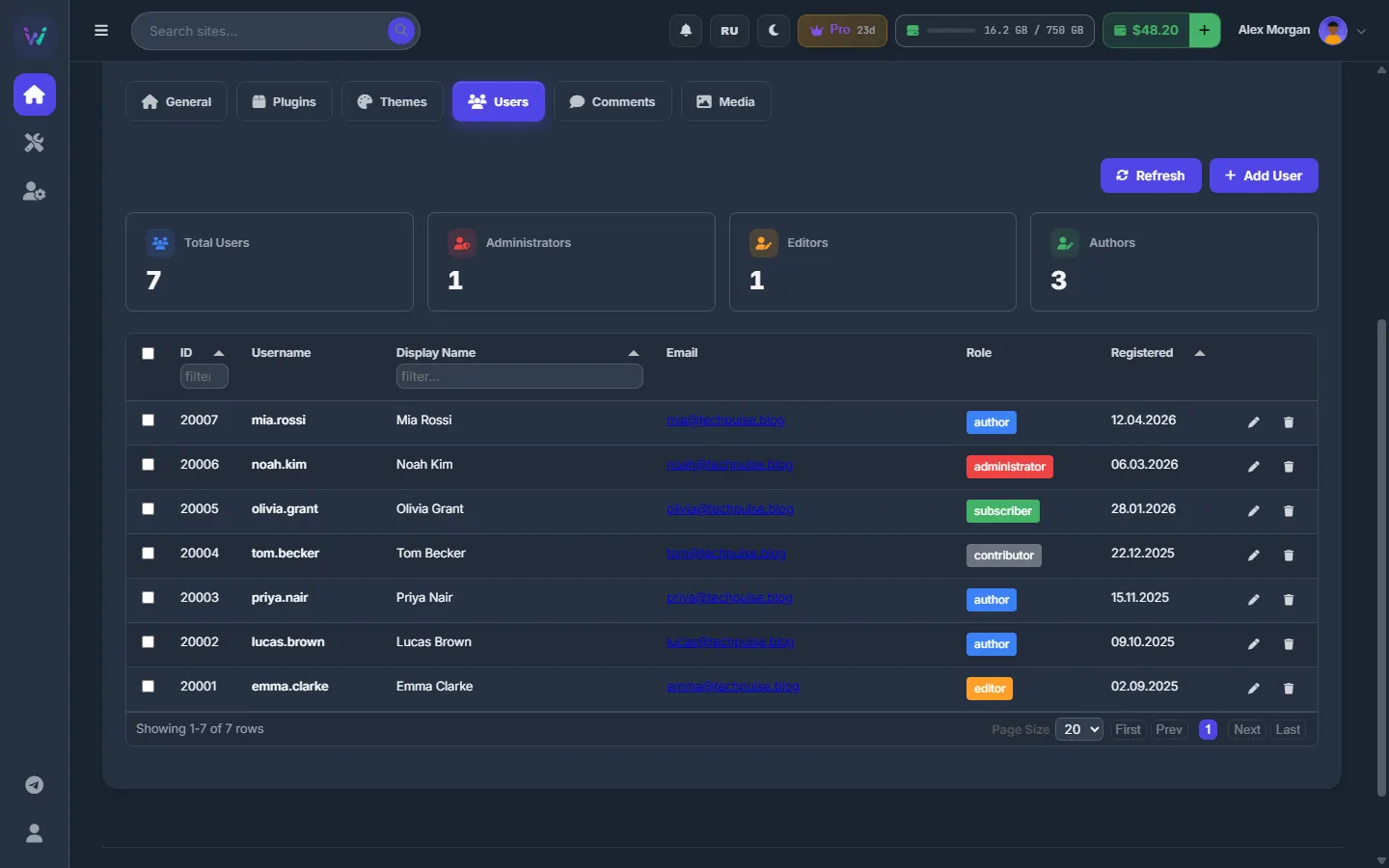
Open “WordPress” → “Users”. The counters show Total Users, Administrators, Editors and Authors. The table lists ID, Username, Display Name, Email, Role (as a coloured badge) and Registered, 20 rows per page; click a column header to sort.
Add a user
-
Open the form
Press “Add User”. The “Add New User” window opens.
-
Fill it in
“Username *” and “Email *” are required. “Display Name” and “Password” are optional: leave the password empty and WordPress generates one. Pick the “Role”: subscriber, contributor, author, editor or administrator.
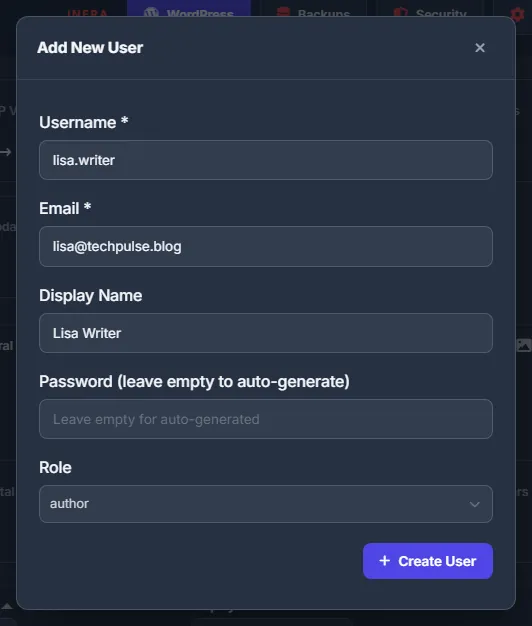
Fig. 2 A new author added from the panel. -
Create the user
Press “Create User”. If WordPress generated the password, it is shown once in the success message for a few seconds — copy it right away.
Edit or delete a user
In the user’s row press “Edit” (pencil) to change the Email, Display Name or Role, or to set a “New Password” (leave it empty to keep the current one), then press “Update User”. The username itself cannot be changed.
“Delete” (trash) removes one user. To remove several, tick their rows: “Delete Selected (N)” appears above the table. Administrators cannot be deleted in bulk — untick them first.
Both ask “Give their posts to”: the posts of the deleted users go to the user you pick — by default the first administrator who stays. “Nobody — delete their posts too” deletes the posts together with the users, as WordPress does.
Comments
Open “WordPress” → “Comments”. The counters show the total and the number of comments per status. The table lists Author (with the email), Comment, Status and Date; the status chip reads Approved, Pending (waiting for moderation) or Spam. The dropdown next to “Refresh” shows all comments or only Pending, Approved, Spam or Trash.
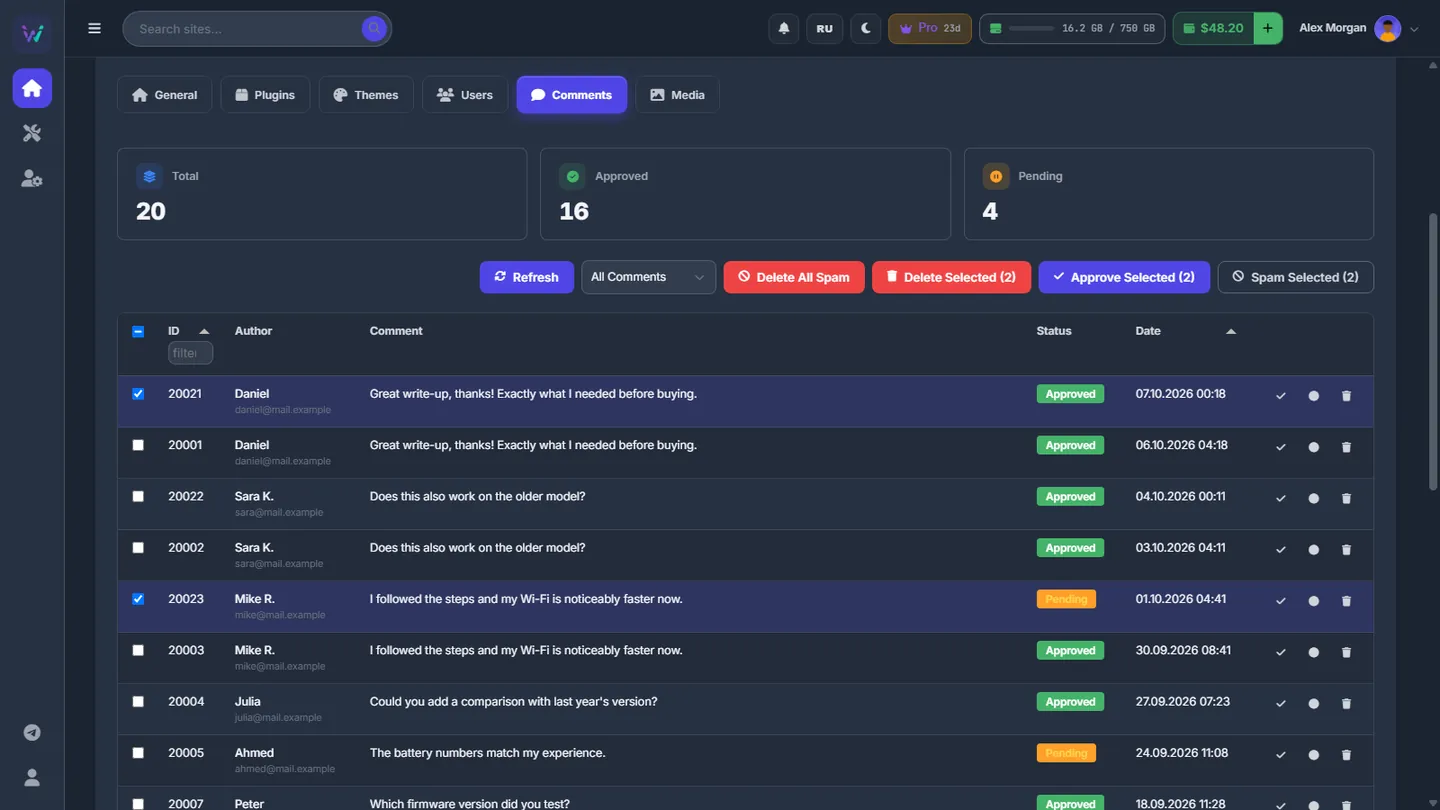
- Moderate one comment with the buttons at the end of its row: “Approve” (check mark), “Spam” and “Trash”.
- Moderate several: tick their rows and press “Approve Selected (N)”, “Spam Selected (N)” or “Delete Selected (N)”.
- Clear all spam at once with “Delete All Spam”: the panel collects every spam comment of the site, shows the list and, once you confirm, moves them to the WordPress Trash.
- “Refresh” reads the comments from the site again.
Media
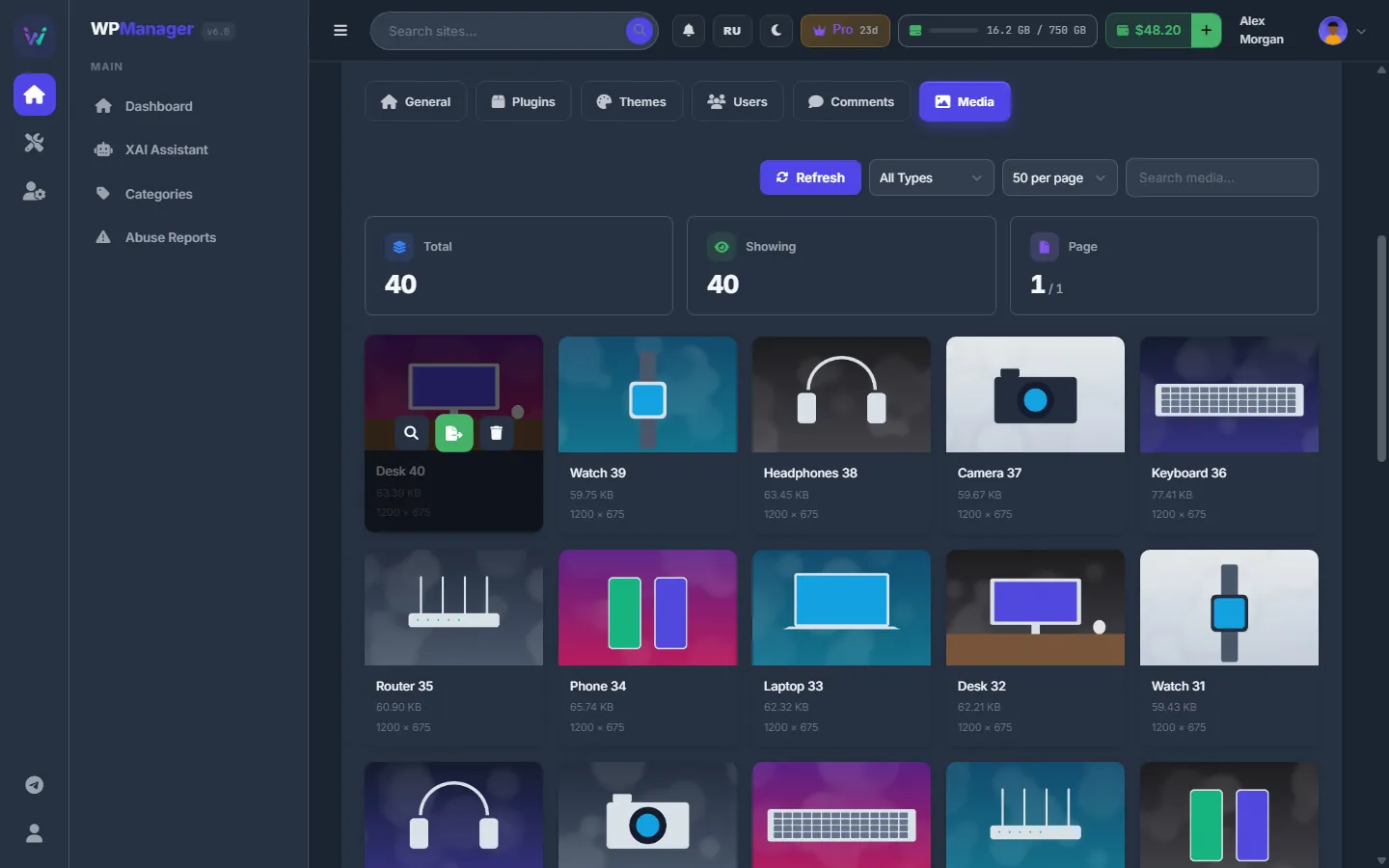
Open “WordPress” → “Media”. The counters show Total (files in the library), Showing and Page. The grid shows the files of the library, newest first, as cards with a thumbnail, title, size and dimensions.
- Above the grid: the type filter (“All Types”, “Images”, “Videos”, “Audio”, “Documents”), the page size (24, 50 or 100 per page) and “Search media...”. The pager under the grid goes through the whole library.
- Hover a card for three buttons: “View”, “Open in new tab” and “Delete”.
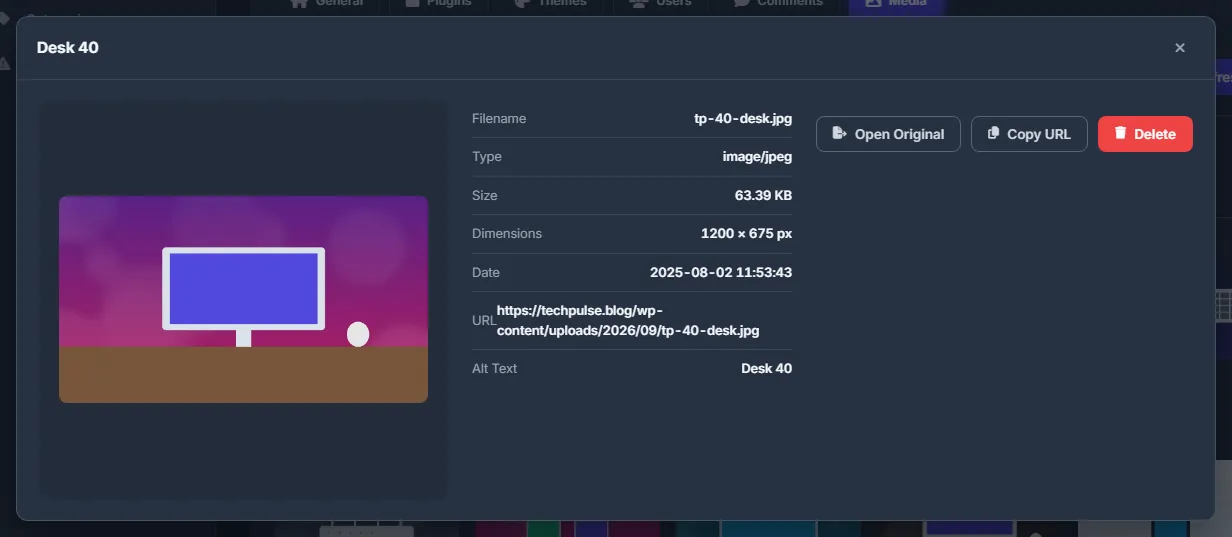
- “View” opens the file’s details: Filename, Type, Size, Dimensions, Date, URL, Alt Text and Caption, with “Open Original”, “Copy URL” and “Delete”.
What is permanent and what is not
| Action | Result |
|---|---|
| Comment → “Trash”, “Delete All Spam” | Comments go to the WordPress Trash and can still be restored in wp-admin. |
| Media → “Delete” | The file and its library entry are removed for good. |
| User → “Delete” | The user is deleted. Their posts go to the user picked in “Give their posts to”, or are deleted too with “Nobody — delete their posts too”. |
General: site identity
The “General” sub-tab shows the site’s own WordPress settings, read through the plugin: “Site Identity” (Site Title, Tagline, Admin Email), “Regional Settings” (Timezone, Date Format, Time Format, Week Starts On) and “Language & Localization” (Site Language). Change what you need and press “Save Changes”: only the changed values are sent, and the card on top shows the new title and tagline. With nothing changed you see “No changes to save”.
Settings
| Setting | What it does |
|---|---|
| Role | WordPress role of a new or edited user: subscriber, contributor, author, editor or administrator. |
| Password | Empty when adding a user: WordPress generates one. Empty “New Password” when editing: the current password stays. |
Costs
Free.
Troubleshooting
| What you see | What to do |
|---|---|
| “Username and Email are required” | Both fields marked with * must be filled in. |
| An older image is not on the first Media page | Page on with the pager under the grid, or type part of its name in “Search media...”. |
| “Save Changes” on “General” answers with an error | WordPress refused a value — the message names it. Put that field back, or install the language in wp-admin first. |
| “WordPress not connected” | Save the WPManager plugin’s API key in “Settings” → “Connection” on the site page. |
FAQ
Where do I see the password of a user I created?
Only in the success message right after “Create User”, and only when the password was left empty. If you missed it, open “Edit” and set a “New Password”.
Can I delete several users or comments in one go?
Yes. Tick the rows and use the buttons that appear above the table: “Delete Selected (N)” for users; “Approve Selected (N)”, “Spam Selected (N)” and “Delete Selected (N)” for comments. For spam there is also “Delete All Spam”, which clears every spam comment of the site in one step.
Are trashed comments gone for good?
No. “Trash” and “Delete All Spam” move comments to the WordPress Trash. Restore them in wp-admin, or let WordPress empty the Trash on its own schedule.