
Connecting Cloudflare
Connect a site’s Cloudflare zone with a scoped API token in about two minutes. The panel shows every step and every permission it needs, checks the token, and works only on that domain.
On this page
Where to find it: Dashboard → click the site → Cloudflare tab.
Before you start
- The domain is added to your Cloudflare account and is Active there: its nameservers point to Cloudflare.
- The site’s URL in the panel uses that domain (with or without
www.).
Create and connect the token
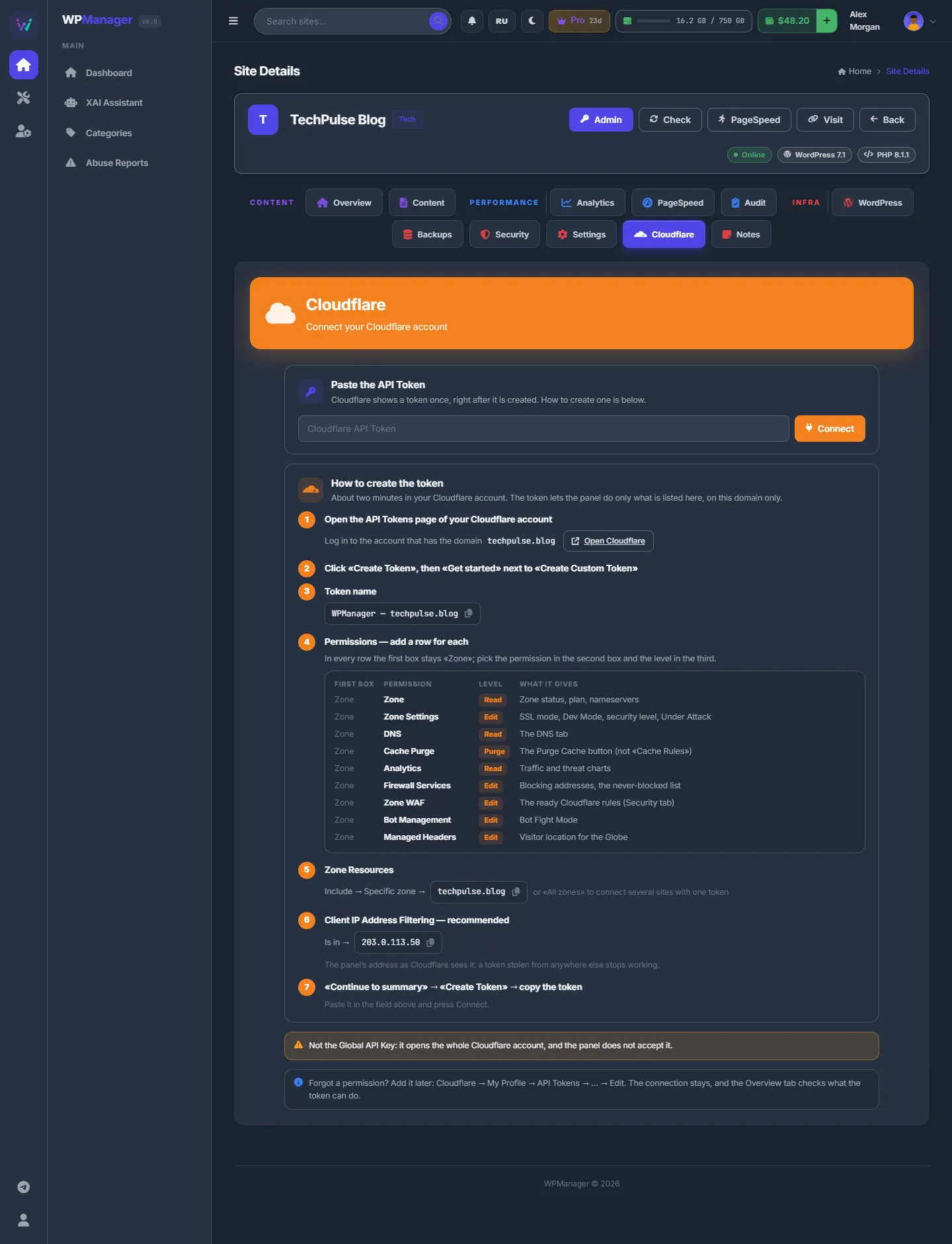
Until a token is saved, the site’s Cloudflare tab shows “Paste the API Token” and, below it, “How to create the token” — the same steps as here, with the values for your domain ready to copy.
-
Open the API Tokens page
Press “Open Cloudflare” — it opens
dash.cloudflare.com/profile/api-tokens— and log in to the account that has the domain. -
Start a custom token
Click “Create Token”, then “Get started” next to “Create Custom Token”. Use the token name the panel suggests, “WPManager — <domain>”; the copy button is next to it.
-
Add the permissions
Add one row per permission. The first box in every row stays “Zone”; pick the permission in the second box and the level in the third:
Permission Level What it switches on in the panel Zone Read Zone status, plan, nameservers Zone Settings Edit SSL mode, Dev Mode, security level, Under Attack DNS Read The DNS sub-tab Cache Purge Purge The “Purge Cache” button (not “Cache Rules”) Analytics Read Traffic and threat charts Firewall Services Edit Blocking addresses, the allowlist Zone WAF Edit The one-click Cloudflare rules Bot Management Edit Bot Fight Mode Managed Headers Edit Visitor location for the Globe 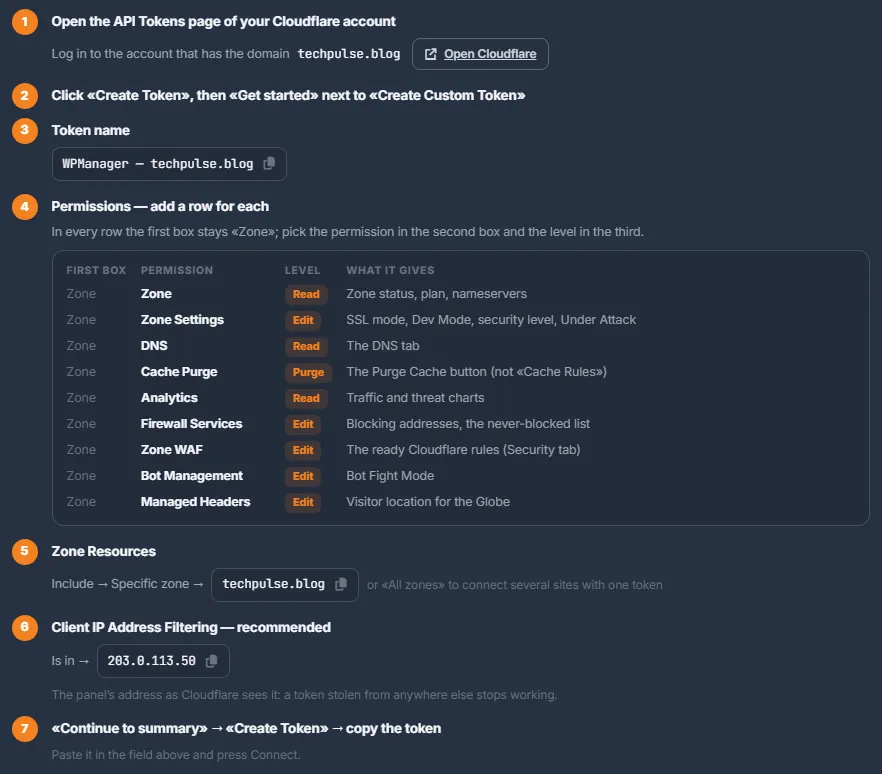
Fig. 2 The exact permissions the panel asks for, with the values for your domain. -
Limit the token to the domain
Zone Resources: Include → Specific zone → your domain. Choose “All zones” only if you want to connect several sites with one token.
-
Allow only the panel’s address (recommended)
Client IP Address Filtering: Is in → the panel’s address shown on the page, with a copy button. A token stolen and used from anywhere else then stops working.
-
Create the token and paste it
“Continue to summary” → “Create Token” → copy the token; Cloudflare shows it only once. Paste it into “Cloudflare API Token” in the panel and press “Connect”. On success the panel says “Cloudflare connected successfully”, switches the tab to the connected view and checks the token’s permissions once by itself.
-
Check the permissions
On “Overview”, the “API token” card lists every permission with a green tick or a red cross, and the part of the panel it switches on. Cache Purge cannot be tested in advance — the card shows “checked on the first purge”. If something is missing, add it to the token in Cloudflare (API Tokens → … → Edit) and press “Check permissions”; there is no need to reconnect.
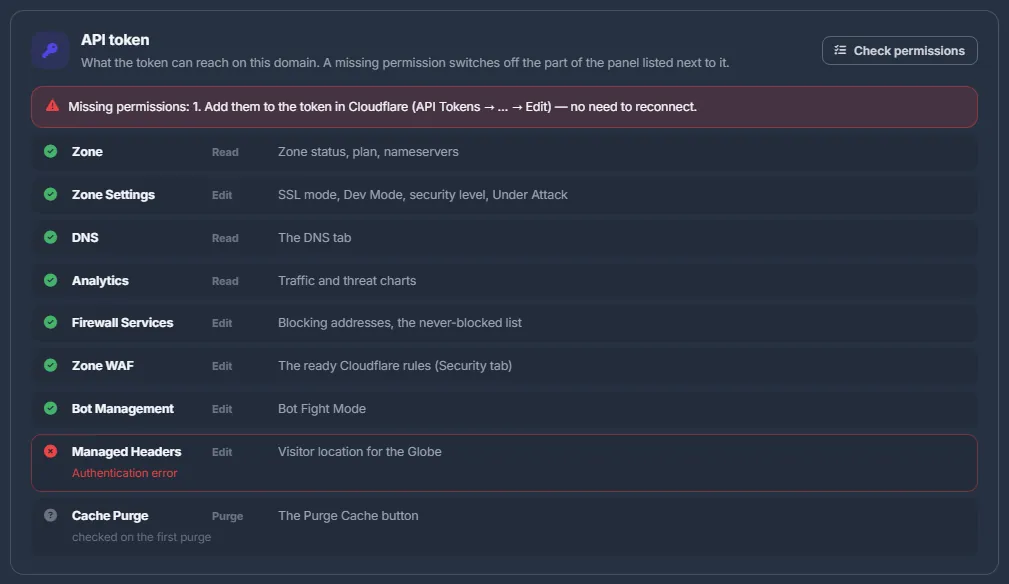
Fig. 3 Checking what the token can do: one permission is missing.
What the panel can do with the token
Only what the listed permissions allow, and only on the zones the token includes. DNS is read-only for the panel. Once connected, you get the Cloudflare tab — cache, Under Attack, analytics, DNS and zone settings — and blocking at the edge with the one-click rules on the Firewall sub-tab. The security score stops deducting points for missing edge protection.
Disconnect Cloudflare
“Overview” → “Disconnect Cloudflare” → confirm. The panel forgets the token; nothing is changed or deleted in Cloudflare. Rules the panel created stay in the zone — if you no longer want them, switch them off on the Security sub-tab before you disconnect.
Costs
Free in the panel; works with Cloudflare’s free plan.
Troubleshooting
| What you see | What to do |
|---|---|
| “This is the Global API Key. Create an API Token instead…” | Create a custom token with the steps above. |
| “Cloudflare did not accept the token: …” | The token is wrong, expired or switched off. If the message mentions the location, the token’s Client IP Address Filtering must allow the panel’s address shown on the page. |
| “'<domain>' is in Cloudflare but not active yet (pending)…” | Switch the domain’s nameservers at your registrar to the ones Cloudflare shows, wait until Cloudflare marks the zone Active, then connect. |
| “The token does not see '<domain>'…” | Zone Resources must include the domain (Include → Specific zone → domain), and the token needs Zone — Read. Also make sure the domain is in this Cloudflare account. |
| A red cross in the “API token” card | Add that permission to the token in Cloudflare and press “Check permissions”. |
FAQ
Can one token serve several sites?
Yes: choose “All zones” in Zone Resources and paste the same token on each site’s Cloudflare tab.
Why a token and not my Cloudflare login?
A scoped token gives the panel only the permissions above, only on your domain, and — with IP filtering — only from the panel’s address. You can revoke it in Cloudflare at any time.
Does the panel change my DNS records?
No. DNS is read-only for the panel: it lists the records, and you edit them in Cloudflare.