
Sessions and events
See every visit as it happens: where the visitor came from, which pages they opened and how long they stayed. Next to it runs a live feed of events, clicks, form submits and errors — including custom events you send from your own site.
On this page
Where to find it: Overview → Dashboard → click the site → Analytics → “Sessions”.
Before you start
- The WPManager plugin is installed and connected on the site (site page → “Settings” → “Connection”). Its visit counter is added to every public page; nothing else has to be installed. See Installing and connecting the WPManager plugin.
- WPManager plugin 7.1 or newer on the site.
Browse the sessions
-
Open Sessions
In Analytics click “Sessions”. The “Sessions & Events” toolbar has a “Sessions” / “Events” switch, the “Live” badge and the period list (shared with the other Analytics views).
-
Read the session list
“Sessions over time” shows sessions per hour for today, or per day for longer periods. Below, “Recent sessions — N in period” lists the visits:
- When — when the visit started;
- Visitor — country flag, device, browser and operating system;
- Source — coloured by channel, with the UTM campaign when there is one;
- Entry → Exit — the first and the last page;
- Pages and Time — how many pages and how long.
New sessions slide in at the top every 10 seconds. “Load more (N left)” adds the next 50.
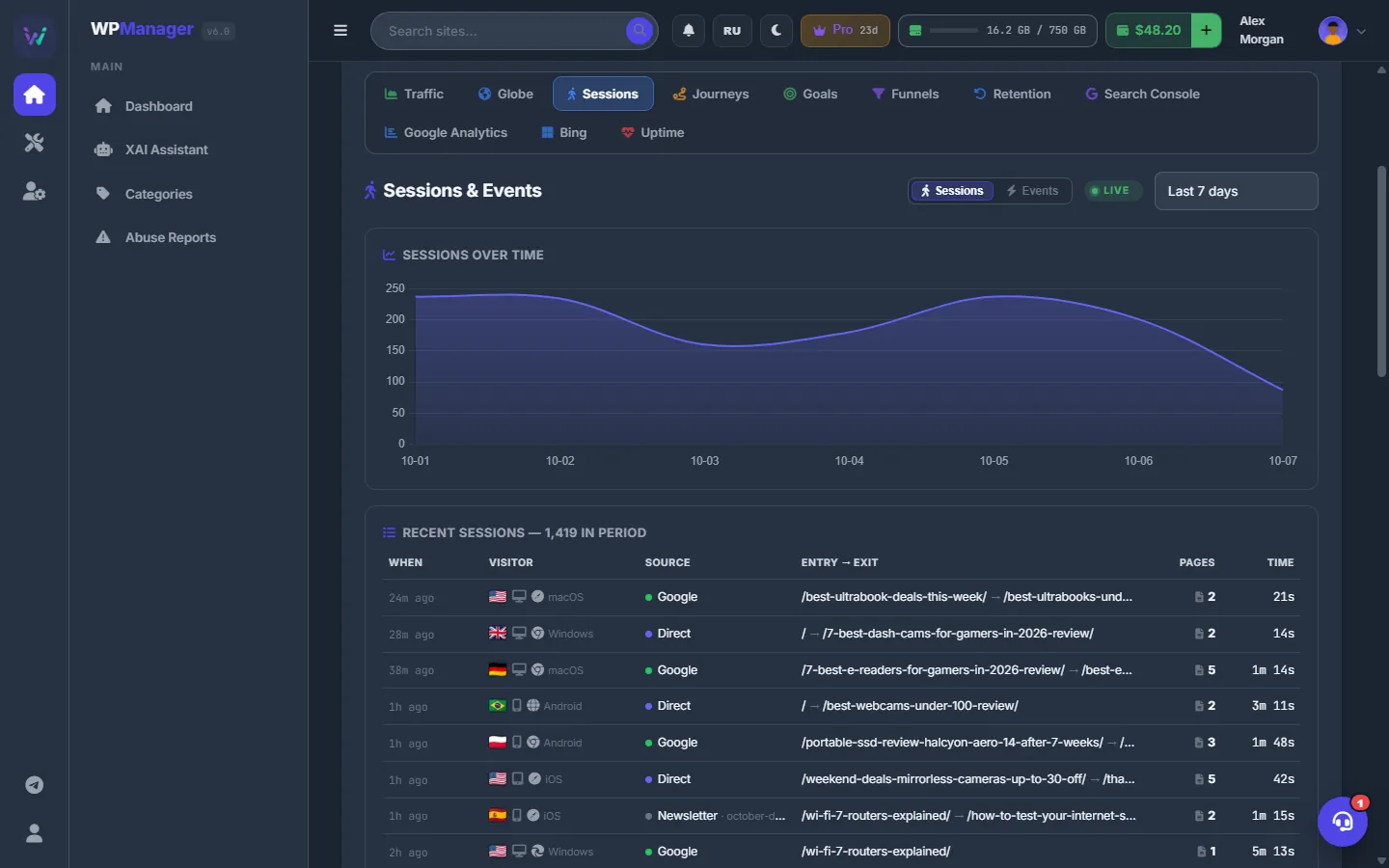
Fig. 1 Every visit with its source, path and duration, updating live. -
Open a session
Click a row. The “Session #id” window shows the visitor’s country, device, browser and OS, screen, language, source (with the referring domain), pages and duration, and the start time in UTC. Below is a timeline of everything the visitor did, with the time since the start: pageviews, custom events, outbound clicks, button clicks, copies, form submits, errors and Web Vitals.
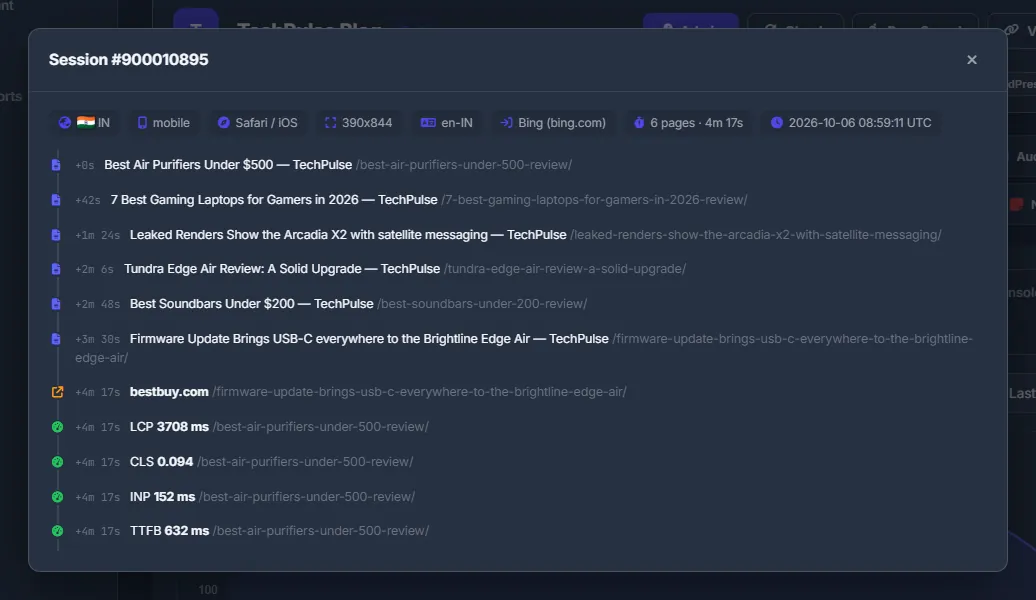
Fig. 2 One visit step by step: pages, clicks, events and performance.
Follow the event feed
-
Switch to Events
Press “Events” in the toolbar. The chart shows either “Custom events” — your top 5, 10 or 20 events — or “Event types”: Pageview, Event, Outbound link, Button click, Copy, Form submit and Error.
-
Read the realtime feed
Under the chart, the “Realtime” feed lists the latest events with When, Type, Event, Page and Visitor. Click a type chip to show only that type; click an event to open the session it belongs to.
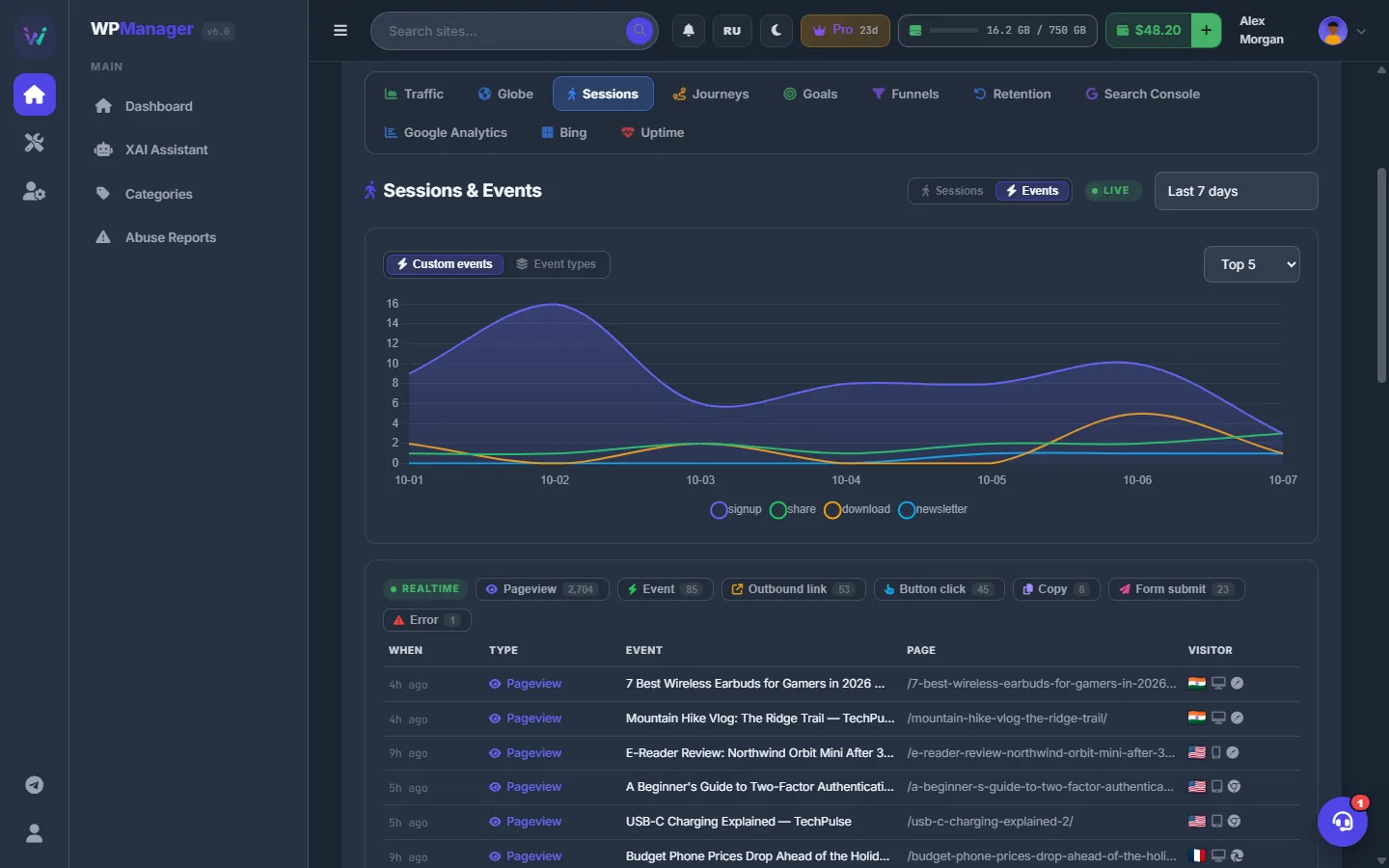
Fig. 3 The event feed: custom events, clicks, form submits and errors.
Send your own events
The visit counter defines a JavaScript function wpm on every page of the site. Call it from your theme, a button or a form handler:
wpm('signup', {plan: 'pro'})The first argument is the event name (up to 160 characters). The second is optional data, sent as JSON (up to 900 characters). Events appear in the feed within seconds, and you can use their names in goals and funnels.
What is captured automatically
Without any code, the counter records:
- clicks on links to other sites;
- JavaScript errors — up to 3 per page view;
- button clicks — up to 30 per page view;
- form submits — up to 5 per page view;
- text copies — up to 10 per page view;
- page titles, screen size, language and UTM tags.
Settings
| Setting | What it does |
|---|---|
| “Sessions” / “Events” | The two modes of the view. Your choice is remembered. |
| Top N | Top 5, Top 10 or Top 20 custom events in the chart. |
Costs
Free.
Troubleshooting
| What you see | What to do |
|---|---|
| “Update the WPManager plugin on this site to v7.1+.” | Update the plugin from the Dashboard, then reload the tab. |
| “Engine sites get this in a later release.” | Sites built on WPManager’s own site engine show Traffic, but not the behaviour views yet. |
| A custom event does not show up | Test in a private window — logged-in administrators are not tracked. If the event is still missing, check that a cache or optimisation plugin does not strip the counter’s inline script from the page footer. |
FAQ
Are visitors identified personally?
No. A visit is stored with an anonymised IP hash and a random browser id; the panel shows country, device and browser only.