
Find Dead Links and restore the files
See every dead file link of a site, find out which of the files you still have a copy of in your backup storage, and bring them back: each file is uploaded to your account on the same host, and the new link replaces the dead one in your posts.
On this page
Where to find it: Links & files → Find Dead Links, or the red “Dead” badge on the Scanner page.
Before you start
- The site has been scanned in the Scanner. Dead links come from the latest scan that checked links.
- For “With Backup”: an FTP storage with copies of your files, connected and indexed on the Backups page — see File backups. A dead link counts as backed up when the storage holds a file with the same name, or when a backup of this exact link was made.
- Your account on the link’s host with an API key on the File Hosters page — restored files are uploaded there. See File host accounts.
- The WPManager plugin on the site — it swaps the links in the posts.
Find the dead links of a site
-
Pick the site and search
Choose the site in “Pick a site” — you can type to search — and click “Find Dead Links”. From the Scanner, the red dead-links badge opens this page with the site already chosen and the search done. The page remembers your last search in this browser for 24 hours.
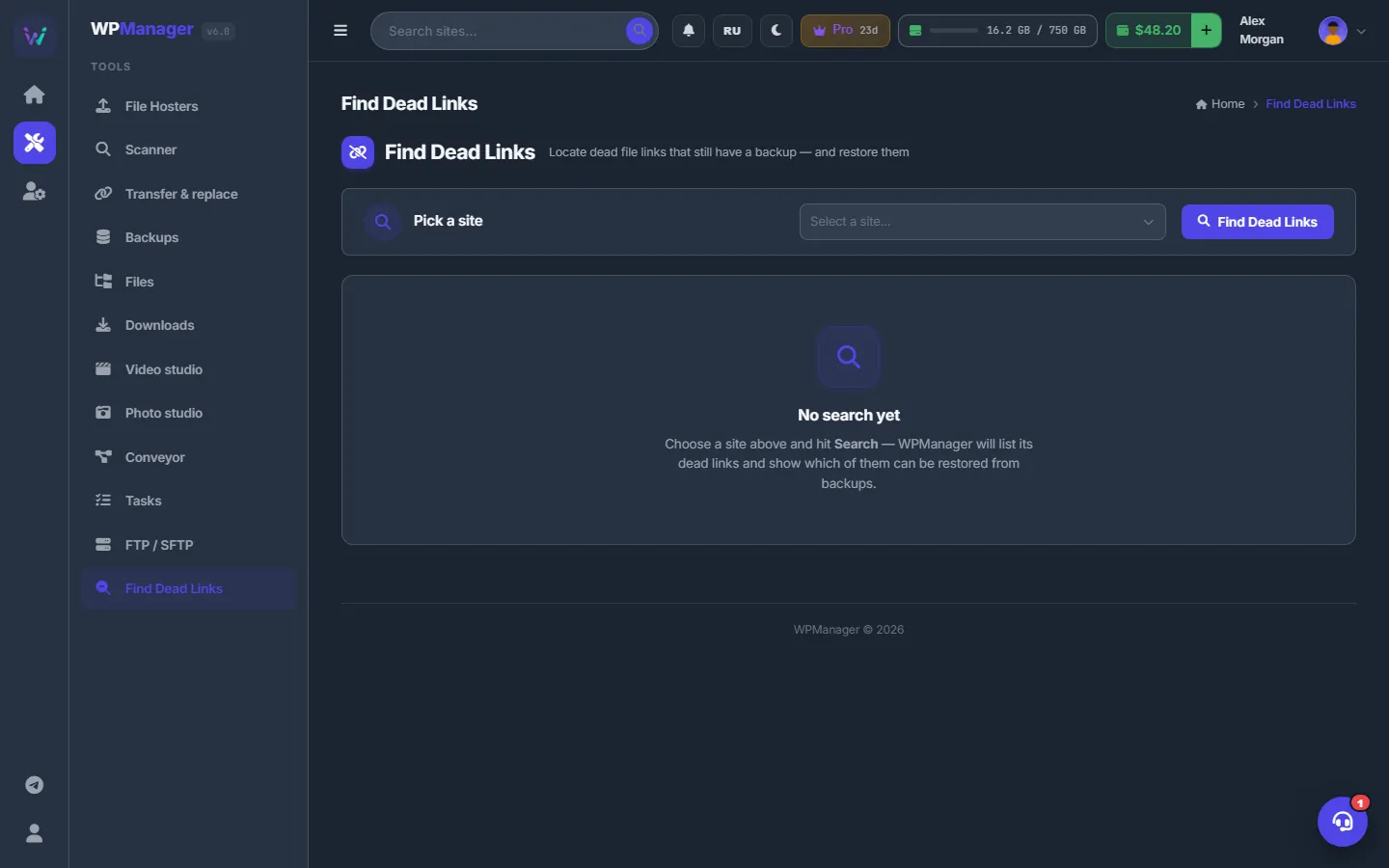
Fig. 1 Pick a site and click “Find Dead Links”. -
Read the counters
At the top: Total Dead Links, With Backup, Without Backup and Backup Size — the total size of the files you have copies of.
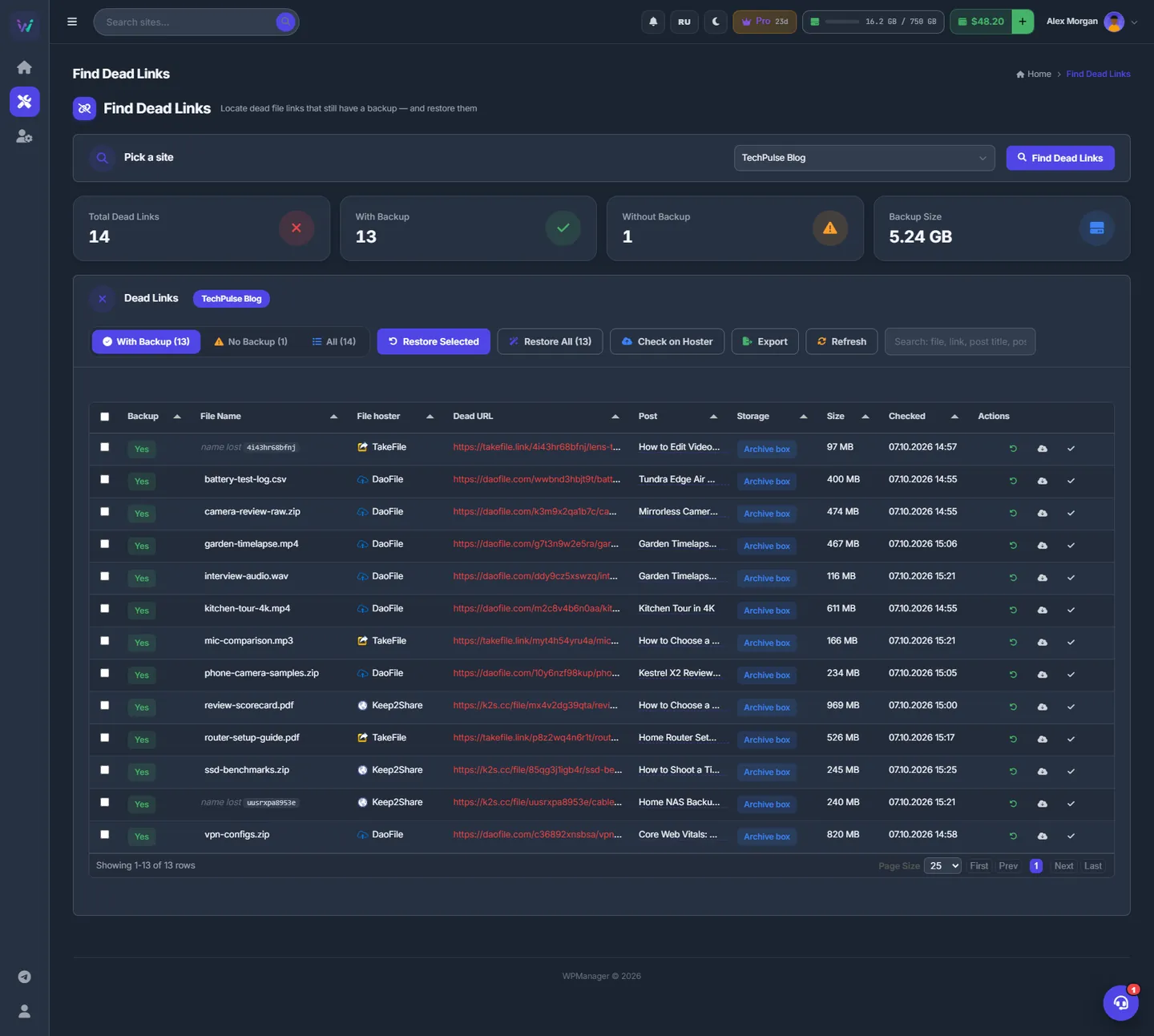
Fig. 2 The dead links of one site. Rows with a backup can be restored straight away. -
Browse the list
Switch between “With Backup (n)”, “No Backup (n)” and “All (n)”, and search with “Search: file, link, post title, post ID…”. The columns are:
- Backup — Yes or No;
- File Name — click to copy. “name lost” with the host’s code means the file was deleted and its link carried no name;
- Host, Dead URL and Post (opens the post);
- Storage, Size, Checked and Actions.
Restore from your backups
-
Choose the files
Tick rows and click “Restore Selected” — only rows with a backup count — or click “Restore All (n)”.
-
Set the options
In “Restore Options” enter the “Upload Folder ID” — the number of the folder in your host account; leave it empty for the root folder. For several files, set “Concurrent Threads” (1–10, 3 by default). Click “Start Restore”.
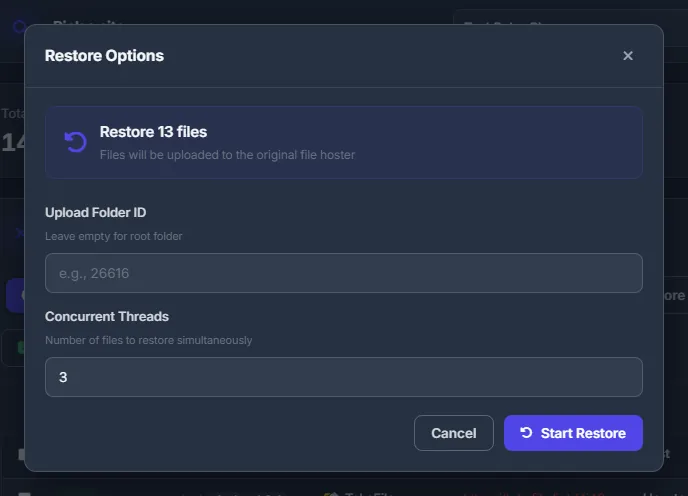
Fig. 3 Where the files go in your host account and how many are restored at the same time. -
Watch the progress
The “Restore in Progress” panel shows Progress, Processed, Success, Failed and Uploaded, a bar for each file in progress (phase, size, speed) and a log of OK / FAIL lines with the post each link was fixed in. After the uploads the panel still replaces the links in WordPress — the phase line tells you so. “Stop” ends the run. Only one restore per account runs at a time.
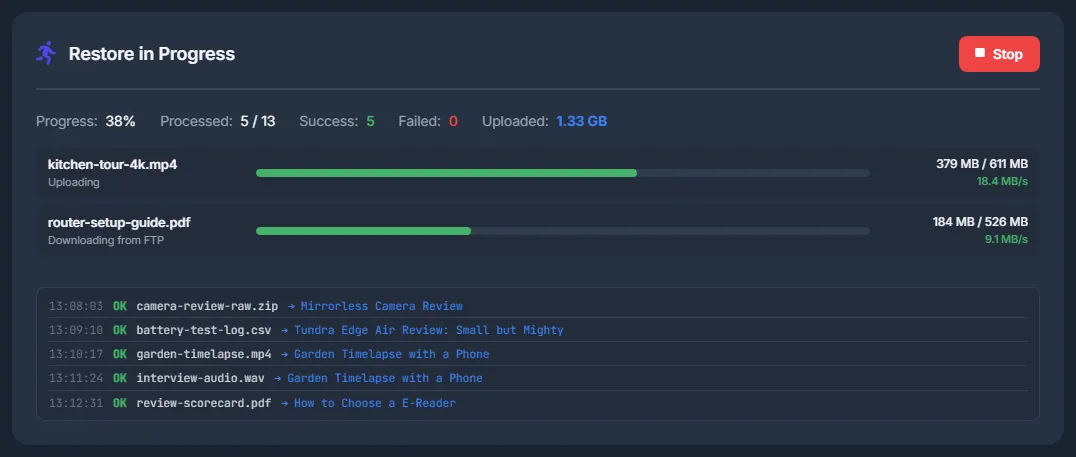
Fig. 4 A restore in progress: counters, a bar per file and the log. -
Read the results
At the end, the “Restore Results” dialog shows Total, Restored, Failed and Links Replaced, with three tabs: “Restored” (File, Post, Old URL, New URL), “Errors” and “Link Replacements” (per site: replaced, not found, files). The list then refreshes.
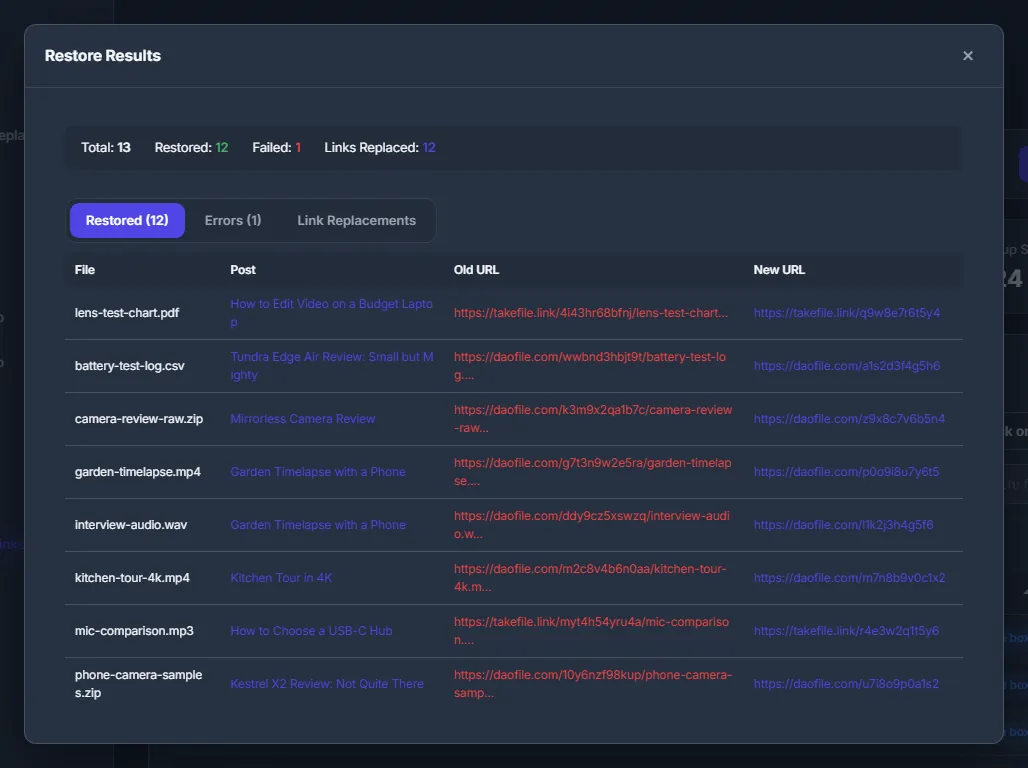
Fig. 5 What was restored and where the links were changed.
What happens during a restore
For each file the panel:
- asks the host whether the file is really gone. If it is available again, the file is skipped and marked Active, so nothing is uploaded twice;
- downloads the copy from your storage;
- uploads it to your account on the same host, into the folder you gave;
- replaces the old link with the new one in the WordPress posts and updates the panel’s copy of the posts.
Only files that were uploaded get their links replaced. Failures are listed on the “Errors” tab and the old link stays as it was.
Relink files that are still in your account
A file may still be in your host account under a new link — for example, because you uploaded it again. Then there is nothing to upload: you only need its link.
-
Check on the host
Click “Check on Hoster”. The panel searches your account on each link’s host for a file with the same name. The “Check on Hosters” dialog shows the progress, Found, Multiple, Not Found, Errors, the speed and the time left; “Cancel” stops it.
-
Review the matches
The list gets an “On Hoster” column (Found / Multiple / Not found / Error / —) and a tab “On Hoster (n)”.
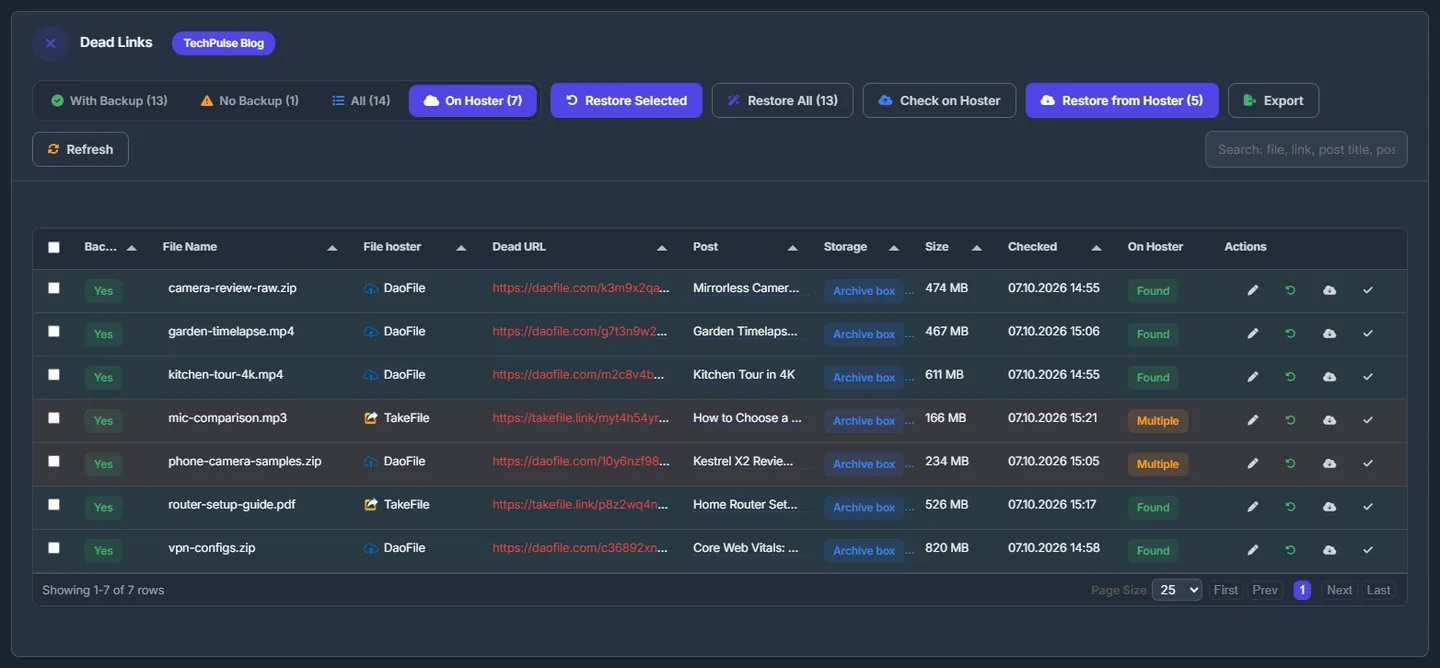
Fig. 6 Files found in your account. “Restore from Hoster” relinks every dead link with exactly one match. -
Relink
“Restore from Hoster (n)” swaps every dead link that has exactly one match for that file’s link — confirm with “Replace”. Rows marked Multiple are left for you to decide one by one (see below).
Name search works for XFileSharing accounts with an API key and for WayShare / FlorenFile accounts with a login. For other hosts, such as Keep2Share, the column shows “—” and “Search on …” answers that the host does not support search through its API.
Fix one link by hand
The Actions column of each row has:
- Pencil “Edit post in WordPress” — opens the post editor on the site.
- “Restore this file” — rows with a backup.
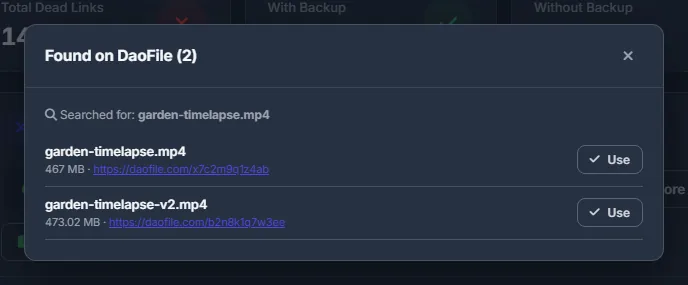
- “Search on <host>” — lists the files with that name in your account. “Use” next to the right one replaces the dead link on WordPress: “Link replaced on WordPress! (N post(s))”.
- “Recheck if backup exists on FTP” — rows without a backup; looks into the storage index again.
- Check mark “Mark as fixed (remove from list)” — sets the link to Active by hand, for example when you fixed the post yourself.
Add a missing backup copy
To give a row without a backup its copy, put the file into your storage — from the Backups page or with your FTP client — refresh the storage index there, then click “Recheck if backup exists on FTP”. (WPManager staff also see an “Upload file to FTP backup” button, which picks a file from the panel server’s own disks.)
Export the list
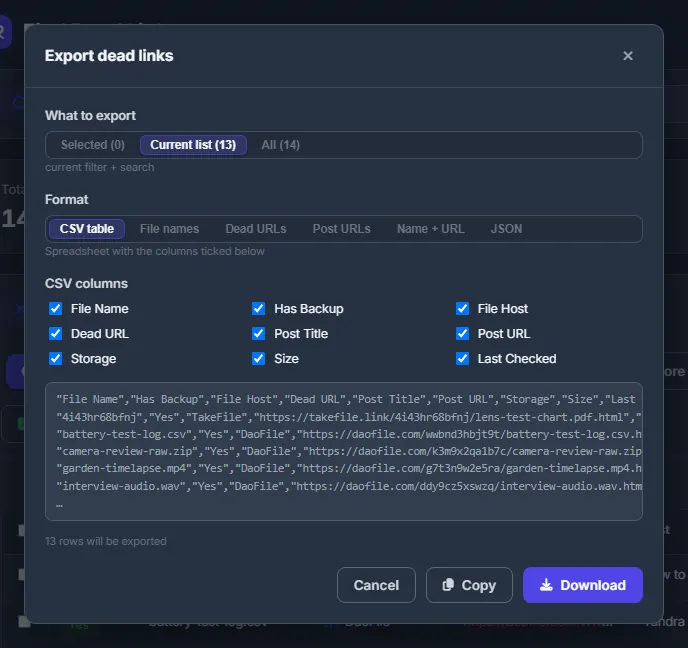
Click “Export”. In “Export dead links” choose:
- What to export — Selected (rows ticked on any page), Current list (the current filter and search) or All;
- Format — CSV table (pick the “CSV columns”), File names, Dead URLs, Post URLs (unique), Name + URL (tab-separated) or JSON.
A preview shows the first lines. “Copy” puts the result on the clipboard, “Download” saves it as a file.
Settings
| Setting | What it does |
|---|---|
| Upload Folder ID | The numeric id of the folder in your host account for restored files; empty means the root folder. Remembered in this browser. |
| Concurrent Threads | Files restored at the same time, 1–10 (default 3). |
| Export format and columns | Remembered in this browser for next time. |
Costs
The panel does not charge for finding, checking or restoring. The storage and the host account are your own.
Troubleshooting
| What you see | What to do |
|---|---|
| Zero dead links although the site has them | Scan the site in the Scanner first — this page reads the scan results. |
| “Restore is already running” | Wait for the current restore or stop it. |
| “Folder id must be a number” | Enter only the numeric id of the folder, or leave the field empty. |
| “WordPress update failed (…) — link NOT replaced” | The plugin on the site did not answer, or the site’s connection details are missing. Check the WPManager plugin on the site and try again. |
| “No files with API-supported hosters” | None of the dead links is tied to an account that supports search. Add the account with its API key (or login) on File Hosters and scan the site again. |
FAQ
Is the dead link replaced if the file could not be restored?
No. Only files that were uploaded get their links replaced; failures are listed on the “Errors” tab.
Can I move dead links to another host instead?
Yes — use Transfer & replace with “Only dead links”. The panel fetches the files through a premium access and uploads them to the target account.
I have no backups. Is this page still useful?
Yes. “Check on Hoster” finds files that are still in your account under a new link, and “Export” gives you the list of dead links to work through.