
Folders, moving, renaming and deleting
Keep the storage tidy: create folders, move and copy files, rename one file or hundreds at once by rules, download what you need and delete the rest.
On this page
Where to find it: Links & files → Files.
Create a folder
Press “New folder”, type the name and press “Create” (or Enter). The folder appears inside the open one.
Move or copy
-
Select the items
Tick the files and folders. Shift+click selects a range, so 50 files in a row take two clicks.
-
Press “Move” or “Copy”
In the dialog, walk to the target folder by clicking folders and the path at the top. “New folder here” creates a folder on the way.
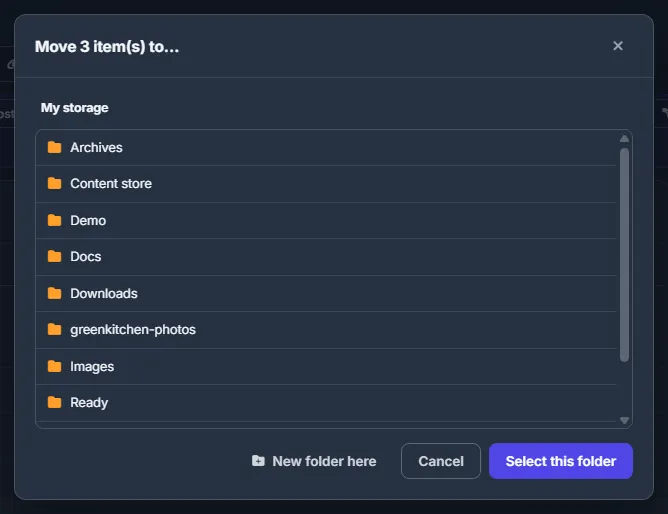
Fig. 1 Pick the target folder; the path at the top takes you back up. -
Confirm
Press “Select this folder”.
Two faster ways do the same:
- Drag and drop — drag the selection onto a folder or a part of the path; hold Ctrl while dropping to copy.
- Cut / Copy and Paste — press Ctrl+X or Ctrl+C (or “Cut” / “Copy” in the right-click menu), open another folder and press “Paste” or Ctrl+V. The “Paste” button shows how many items are waiting.
Rename
Select one item and press “Rename” (or F2). The name without the extension is already selected, so you can just type. Press “Rename” to save.
Rename many files by rules
-
Open the bulk rename
Select several items and press “Rename” (or F2, or right-click → “Bulk rename”).
-
Set the rules
Fill in the fields described below. The preview at the bottom shows every old → new name as you type.
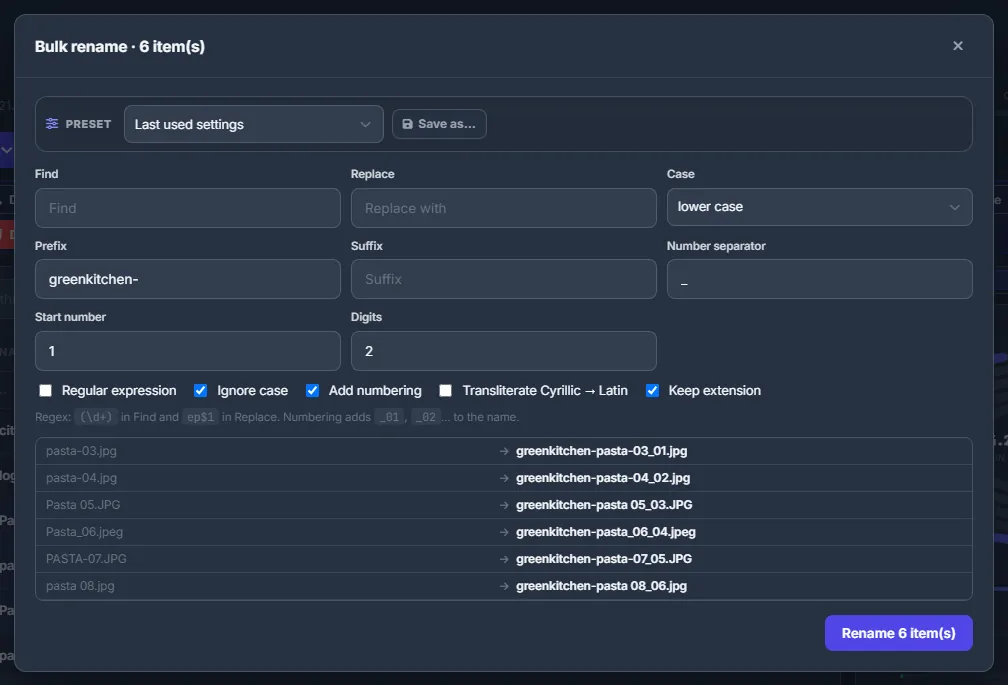
Fig. 2 A prefix, lower case and numbering — the preview shows every new name before anything changes. -
Check the preview and rename
Red rows would clash with another name or are not allowed — change the rules until they turn normal. Grey rows stay as they are. Press “Rename N item(s)”.
| Field | What it does |
|---|---|
| Find / Replace | Replaces text in the names. With “Regular expression” ticked, “Find” is a pattern: (\d+) in “Find” and ep$1 in “Replace” turn clip 12 into clip ep12. “Ignore case” is on by default. |
| Case | Keep, lower case, UPPER CASE, Title Case or Sentence case. |
| Prefix / Suffix | Text added before / after the name. |
| Add numbering | Adds _01, _02… “Number separator”, “Start number” and “Digits” set how. |
| Transliterate Cyrillic → Latin | Russian letters become Latin ones. |
| Keep extension | The extension is left alone. On by default. |
Download to your computer
Select and press “Download”. One file downloads as it is. Several items or a folder download as one zip built on the fly — files-<date>.zip or <folder>.zip.
Delete
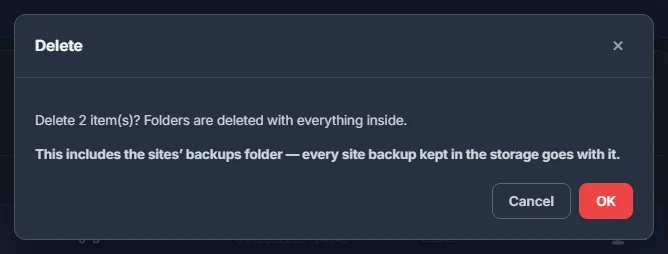
Select and press “Delete” (or the Delete key), then confirm. Folders are deleted with everything inside. If the selection includes the site backups folder, the dialog says so in bold.
Presets in dialogs
The bulk rename, archive, image conversion and video screenshot dialogs have a preset bar at the top:
- “Save as…” stores the current settings under a name;
- “Update” writes the current settings into the chosen preset;
- the preset menu makes a preset the default (the dialog then opens with it), renames or deletes it.
Presets are kept in your account, so they follow you to any browser. Passwords and “delete the originals” options are never saved into presets.
Costs
Free. A copy needs free space in your quota.
Troubleshooting
| What you see | What to do |
|---|---|
| “A file or folder with that name already exists” when renaming | Pick another name, or rename or move the existing item first. |
| “cannot move a folder into itself” | The target folder is inside the folder you are moving. Pick a folder outside it. |
| Some rows in the bulk rename preview are red | Those names would clash or are not allowed. Change the rules until the rows turn normal. |
FAQ
Can I undo a delete?
No, there is no recycle bin. Download or copy what matters before deleting.
Does renaming a file break its links on file hosts?
No. Files already uploaded to file hosts or image hosts live there under their own links; renaming the copy in your storage does not touch them.