
Getting around: menu, language and theme
How to find your way around the panel: the sidebar and the top bar, switching between English and Russian, the dark and the light theme, and what the plan, storage and balance indicators tell you.
On this page
Where to find it: the top bar · the sidebar · Account → Settings → Appearance.
The sidebar
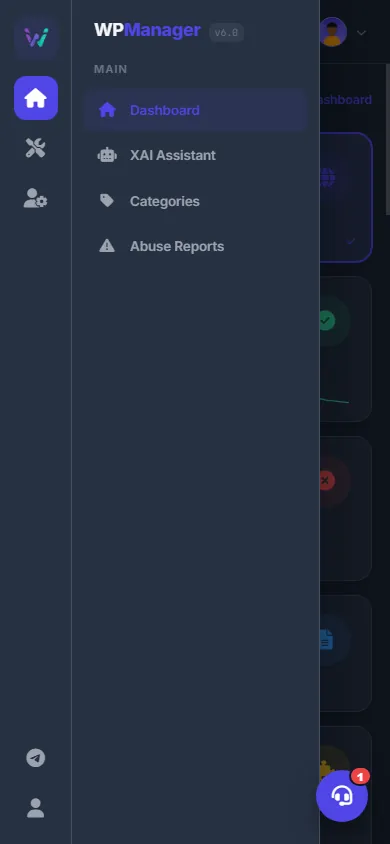
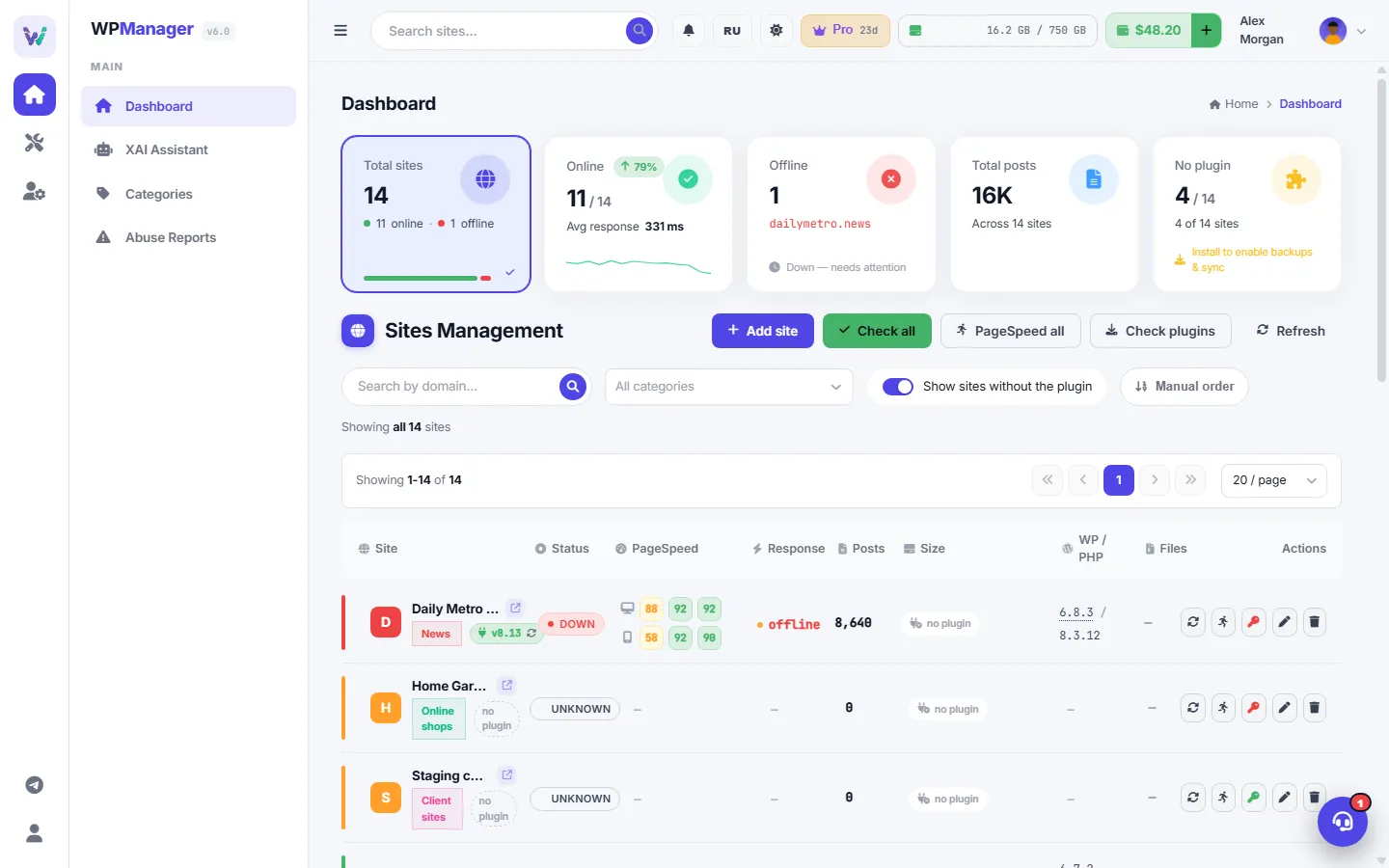
The narrow rail on the left has the groups Overview (house icon), Content (pen nib), Links & files (folder) and Account (user with a gear), and Help (question mark) at the bottom. Click an icon to show that group's menu next to the rail. Below the groups are the “Content store” and “Support” shortcuts. The group of the page you are on is selected automatically.
| Group | What is in it |
|---|---|
| Overview | “Dashboard”, “XAI Assistant”, “Tasks” |
| Content | “Publish”, “Posting templates”, “Conveyor”, “Categories”, “Video studio”, “Photo studio”, “Content store” |
| Links & files | “Scanner”, “Find Dead Links”, “Transfer & replace”, “Abuse Reports”, “Files”, “Downloads”, “File Hosters”, “FTP / SFTP”, “Backups” |
| Account | “Profile”, “Settings”, “Telegram alerts”, “Plans & Pricing”, “Finance”, “Referrals”, “Store”, “Hosting”, “Access orders” |
| Help | “Support”, “Getting started”, “About” |
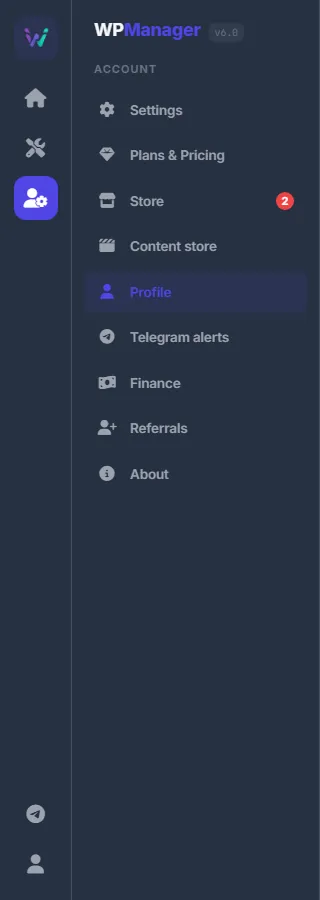
Every page also has breadcrumbs under the top bar (“Home › page name”). Click “Home” to get back to the Dashboard.
Collapse the menu
The ☰ button at the left of the top bar (“Collapse menu”) hides the menu panel and leaves only the icon rail. Click a group icon or ☰ again to bring it back. On a phone ☰ opens the menu as a panel that slides in over the page; tap outside it to close.
The top bar
Search your sites
Type part of a site's name or address into “Search sites…” and press Enter: the Dashboard opens with the list filtered.
Read the indicators

| Indicator | What it shows |
|---|---|
| Bell | Opens “Abuse Reports”. |
| RU / EN | Switches the interface language (see below). |
| Moon / sun | Switches between the dark and light themes (see below). |
| Crown badge | Your plan and the days left, e.g. “Pro 23d”. From 7 days before the end it reads “Nd left” in a warning colour, after the end — “expired”. A plan without an end date shows only its name. Click it to open “Plans & Pricing”. |
| Disk | Storage used and your quota (∞ when unlimited). The bar turns amber above 70% and red above 90%. |
| Wallet | Your USD balance. The “+” button opens the top-up. The balance is highlighted when it drops under $1. |
| Your name and avatar | The account menu: “My Profile” and “Logout”. |
Switch the language
Click the language button in the top bar — it reads RU or EN, and its tooltip is “Language / Язык”. The page reloads in the other language; the button then shows the language you can switch to. On the sign-in and sign-up pages use the EN | RU switch in the top right corner.
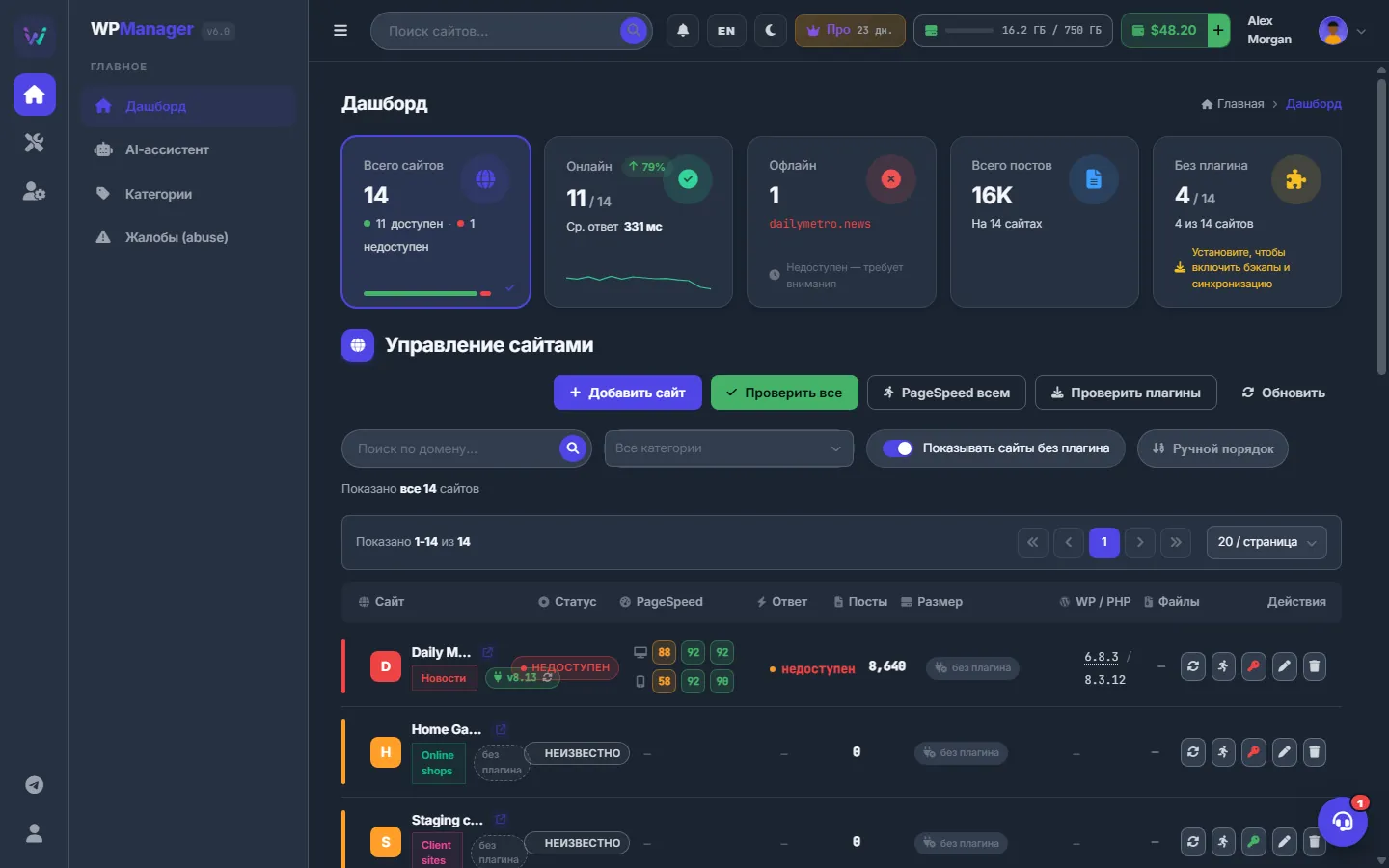
The whole interface is translated into Russian. A few messages that come from the server, mostly errors, may still appear in English.
Switch the theme
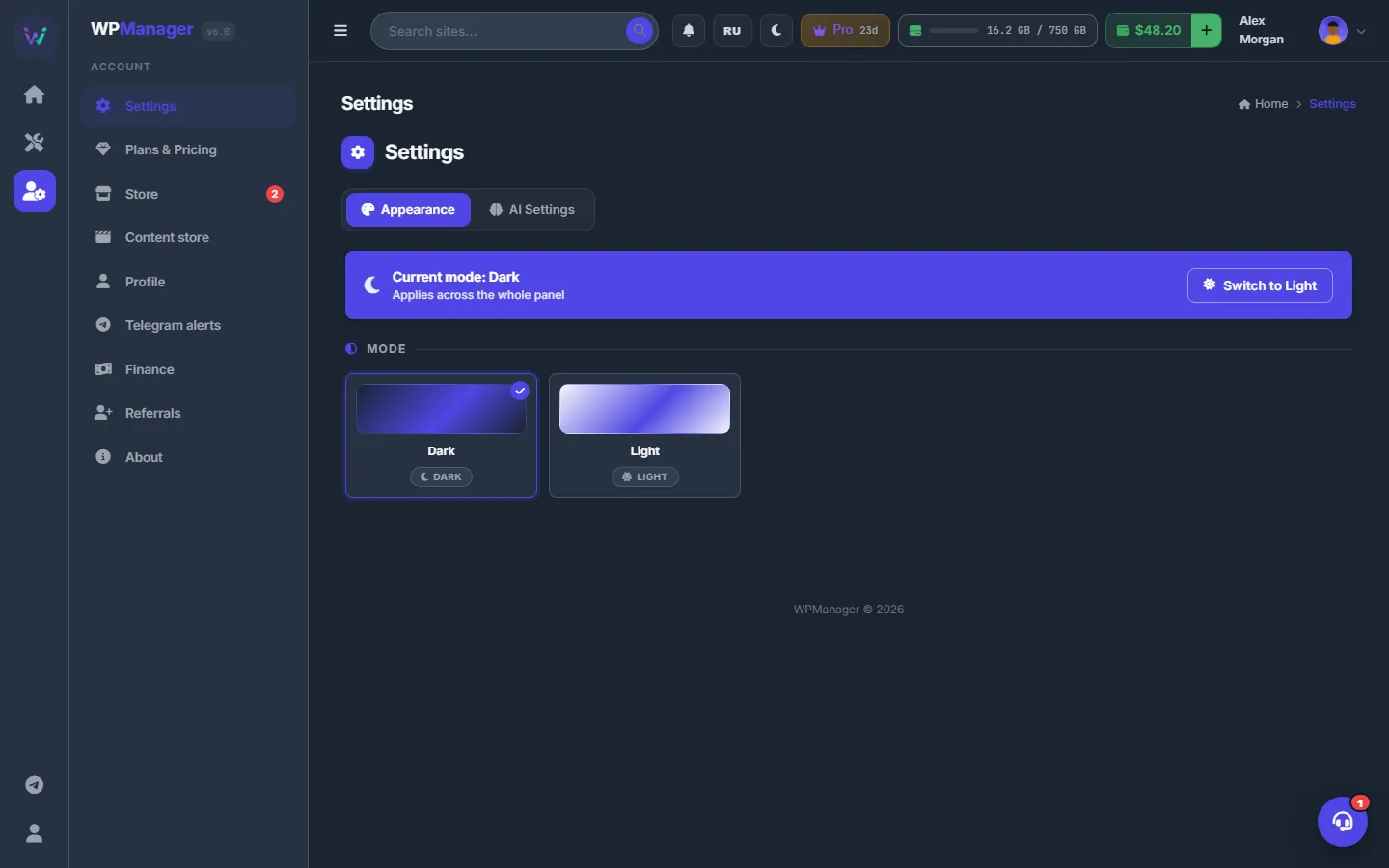
Click the moon or sun button in the top bar (“Switch theme”) to go between dark and light. Or open Account → Settings → Appearance and click the “Dark” or “Light” card, or the “Switch to Light” / “Switch to Dark” button. The page reloads so that the colours apply everywhere, charts included.
The Settings page
Account → Settings has two tabs:
- Appearance — the theme.
- AI Settings — read-only for clients: the text and vision models WPManager uses, and a note that AI requests are billed from your balance per use and each answer shows its price. Models and prompts are managed by WPManager. See Settings: appearance and AI.
Where your choices are kept
| Setting | Values | Where it is kept |
|---|---|---|
| Language | English, Russian | In a browser cookie for a year and in your account: after you sign in on a new device, the panel opens in your language. |
| Theme | Dark, Light | In the browser only: another browser or device starts in the dark theme until you switch it there too. |
Troubleshooting
| What you see | What to do |
|---|---|
| The theme is dark again on another computer | The theme is stored per browser. Switch it once in that browser. |
| The menu panel is gone, only icons are left | The menu is collapsed. Click ☰ in the top bar or a group icon. |
| A message is in English on the Russian interface | Some server messages have no translation yet. The guide quotes them in English with a translation. |