
Video screenshots (screenlists)
Make a screenlist — a sheet of frames with an info header — or separate frames for any number of videos in one go, with a live preview, your watermark and saved presets.
On this page
Where to find it: Links & files → Files → select videos → “Video” → “Screenshots”.
Before you start
- Videos in your storage.
- ffmpeg on the server. Without it the dialog says “ffmpeg is not installed on the server”.
Make a screenlist
-
Open the dialog
Select videos, or folders with videos, and press “Video” → “Screenshots”. Other ways in: the camera button in a video row, right-click → “Video screenshots”, or “Screenshots” in the video preview. Folders are searched for videos — up to 500 per run.
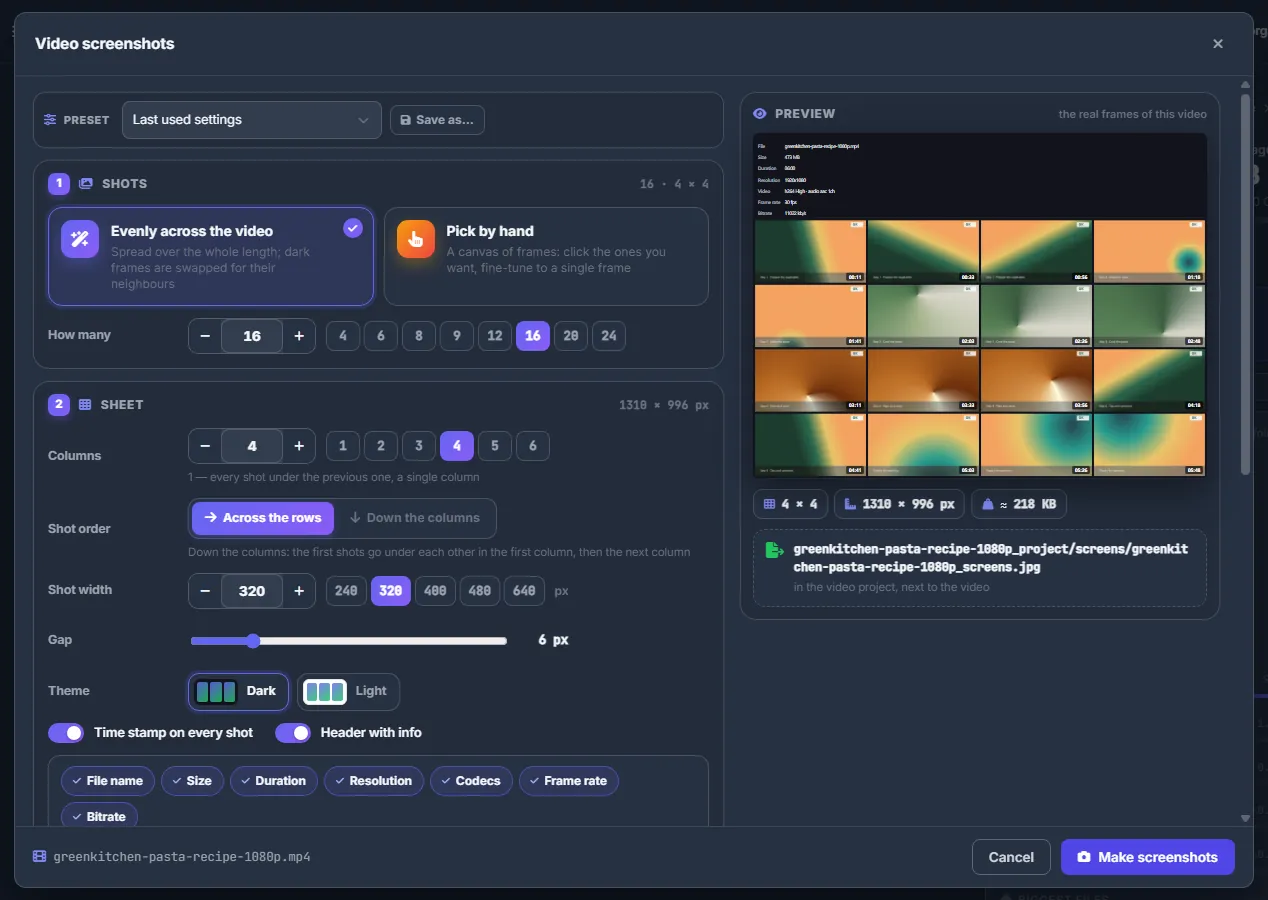
Fig. 1 The settings on the left, the sheet on the right — drawn from the real frames when one video is selected. -
1 · Shots
“Evenly across the video” spreads the shots over the whole length; dark frames are swapped for their neighbours by the server. Set “How many” — 1 to 100, with quick buttons from 4 to 24. With one video selected you can choose “Pick by hand” instead (see below).
-
2 · Sheet
Set the “Columns” (1–12), the “Shot order” (across the rows or down the columns), the “Shot width” (120–1920 px), the “Gap” (0–40 px) and the “Theme” (dark or light). Switch on “Time stamp on every shot” and “Header with info” as you like. For the header choose which lines to show — file name, size, duration, resolution, codecs, frame rate, bitrate — and, if you want, a title of your own instead of the file name.
-
3 · Watermark
“Watermark type”: “None”, “Text” (for example your site address) or “Logo” — a picture from your storage; a PNG with transparency looks best. Then the “Position”, the “Size” (5–60 %), the “Opacity” (10–100 %) and “Place it on”: “Every shot” or “The whole sheet once”.
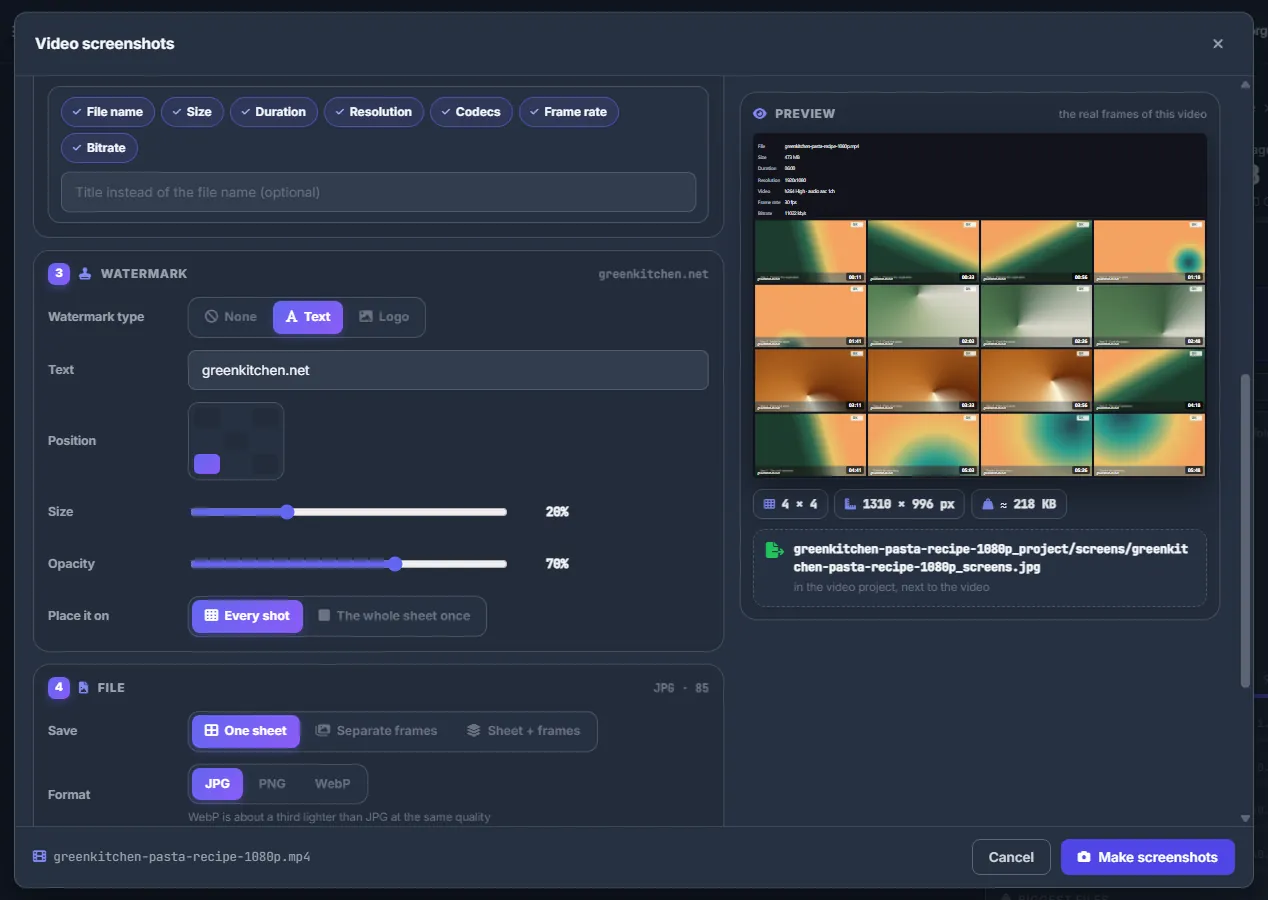
Fig. 2 The site address in the bottom-left corner of every shot, at 70 % opacity. -
4 · File
Under “Save” choose “One sheet”, “Separate frames” or “Sheet + frames”. Pick the “Format” — JPG, PNG or WebP (WebP is about a third lighter than JPG) — and the “Quality” (40–100). “Sheet at most … KB” caps the file size: over the limit the quality goes down first, then the shots get smaller. Set the “Name suffix” (
_screensby default) and “Where”: “Video project” (<video>_project/screens), “Next to the video” or “Folder…”. For folders, tick “Include subfolders” if you need them. -
Check the preview and start
“Preview” on the right is the sheet as the server will draw it — with the real frames and header when one video is selected. Click it to enlarge. Under it you see the size in pixels and the name of the output file. Press “Make screenshots”: the work runs as a task on the server (see Storage tasks).
Pick the shots by hand
With exactly one video selected, choose “Pick by hand” in card 1:
-
Open the canvas
A canvas of frames opens. Set “A frame every” and “Frames I need”.
-
Click the frames you want
Picked frames get numbers. “Evenly” marks frames spread across the video as a starting point.
-
Fine-tune and finish
Click a picked frame to see it large and move it by a fraction of a second or by a single frame. Press “Done”.
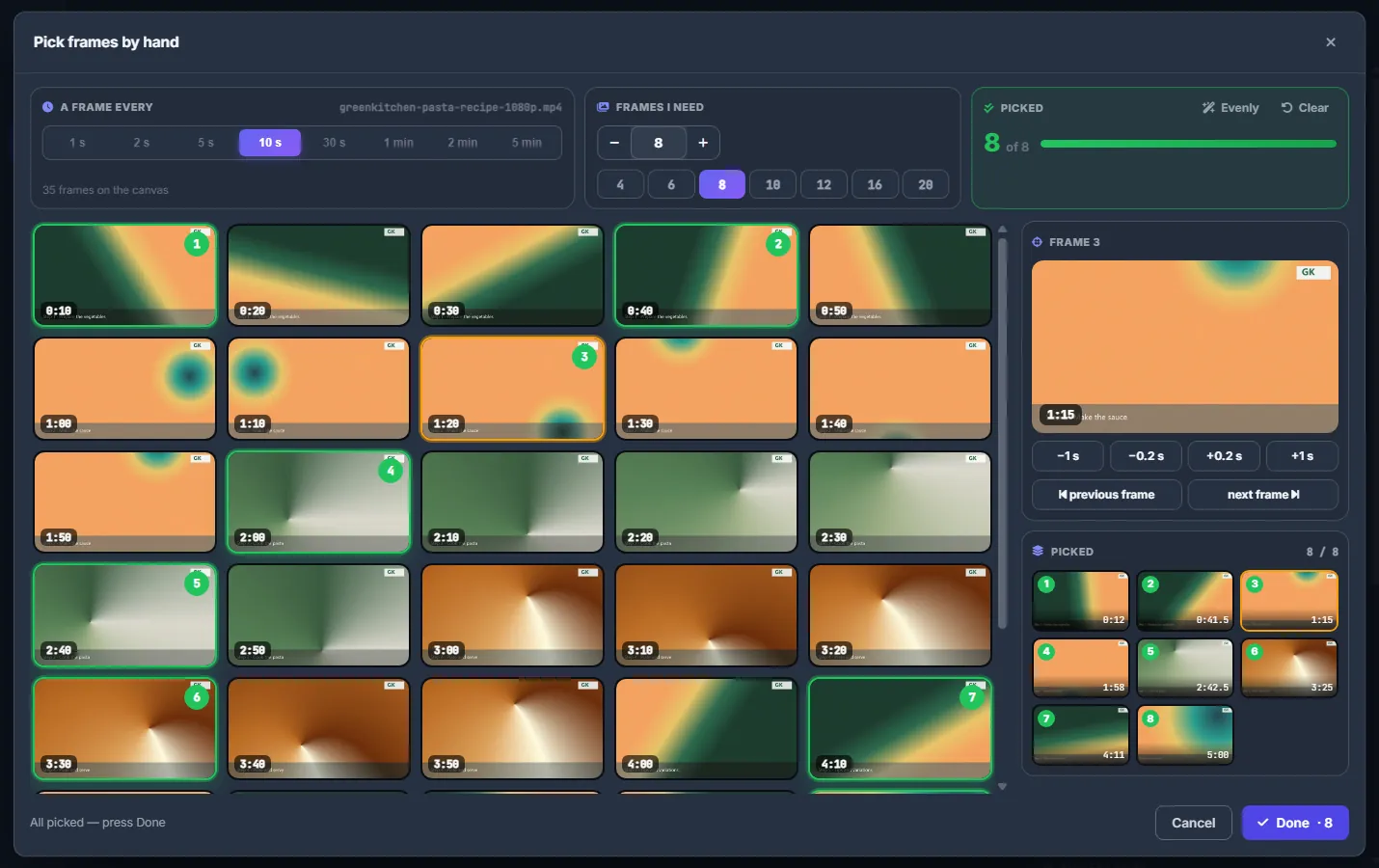
Fig. 3 Eight frames picked on the canvas; frame 3 is open for fine-tuning.
The picked frames appear as a strip in card 1; “Change” reopens the canvas. If the video already has frames in its project, the canvas opens with them picked.
Presets
The preset bar at the top keeps your favourite layouts — for example “4×4 with logo” — in your account. The Conveyor’s screenlist step offers the same presets (see Conveyor: all steps and their settings).
Share a screenlist
Upload the sheet to an image host with “To image host” to get forum code — see Image hosts: pixhost, pimpandhost, PicState. In post templates, {screens_bbcode} inserts the screenlist and {shots_bbcode} the frames of a <name>_frames folder (see Forum posts and themaPoster export).
Costs
Free; the pictures count against your storage quota.
Troubleshooting
| What you see | What to do |
|---|---|
| “Frames picked by hand are for one video” | Manual picking works with exactly one video selected. For many videos use “Evenly across the video”. |
| “Choose the watermark picture” | With the watermark type “Logo”, press “Choose…” and pick a picture from the storage. |
| “ffmpeg is not installed on the server” | Screenshots need ffmpeg on the server — write to the support chat. |
FAQ
Can I get the frames as separate files too?
Yes. Under “Save” choose “Separate frames” or “Sheet + frames”. For hand-picked frames in full quality, the photo studio gives you even finer control.