
Globe: visitors on the map
The Globe puts every located session on a 3D globe or a flat map, replays the period on a timeline and shows new visitors as they arrive.
On this page
Where to find it: Overview → Dashboard → click the site → Analytics → “Globe”.
Before you start
- The WPManager plugin is installed and connected on the site (site page → “Settings” → “Connection”); version 7.4 or newer for coordinates. See Installing and connecting the WPManager plugin.
- Locations come from Cloudflare. The site must run behind Cloudflare, be connected on the site’s Cloudflare tab, and Cloudflare’s “Add visitor location headers” managed transform must be on — the Globe can switch it on for you, see below.
- The 3D view needs a browser with WebGL. The 2D map works everywhere.
Explore the globe
-
Open the Globe
In Analytics click “Globe” and choose the period. The chips in the corner show “N sessions · M located” — all sessions of the period and those with a known place — and the number of countries.
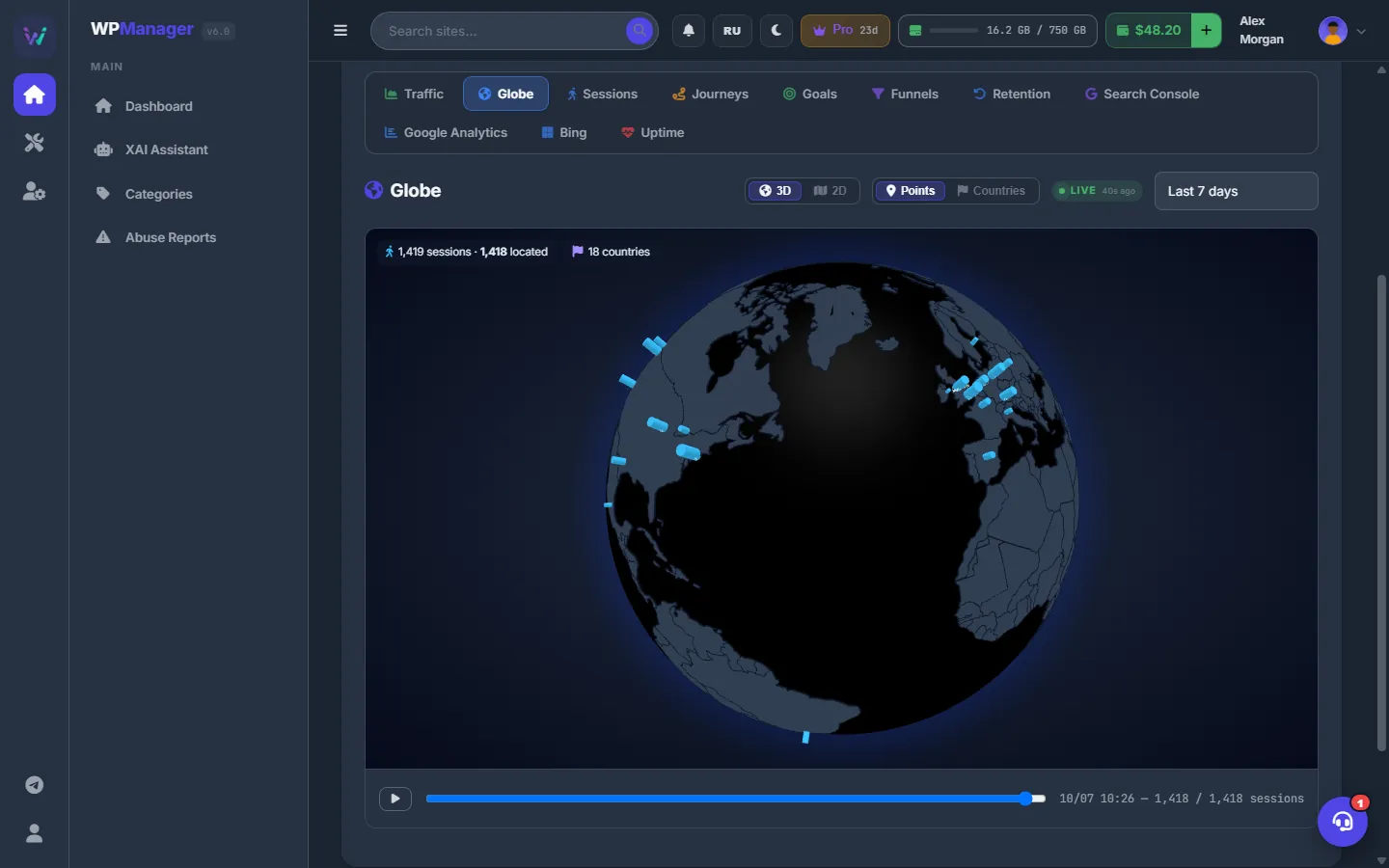
Fig. 1 Every located visit on a 3D globe, with the replay timeline below. -
Switch the view and the layer
“3D” / “2D” switches between the globe and a flat map. “Points” shows a marker for each place — the bigger, the more sessions; “Countries” colours countries by their number of sessions. Hover a marker or a country to see its numbers. Drag the globe to turn it.
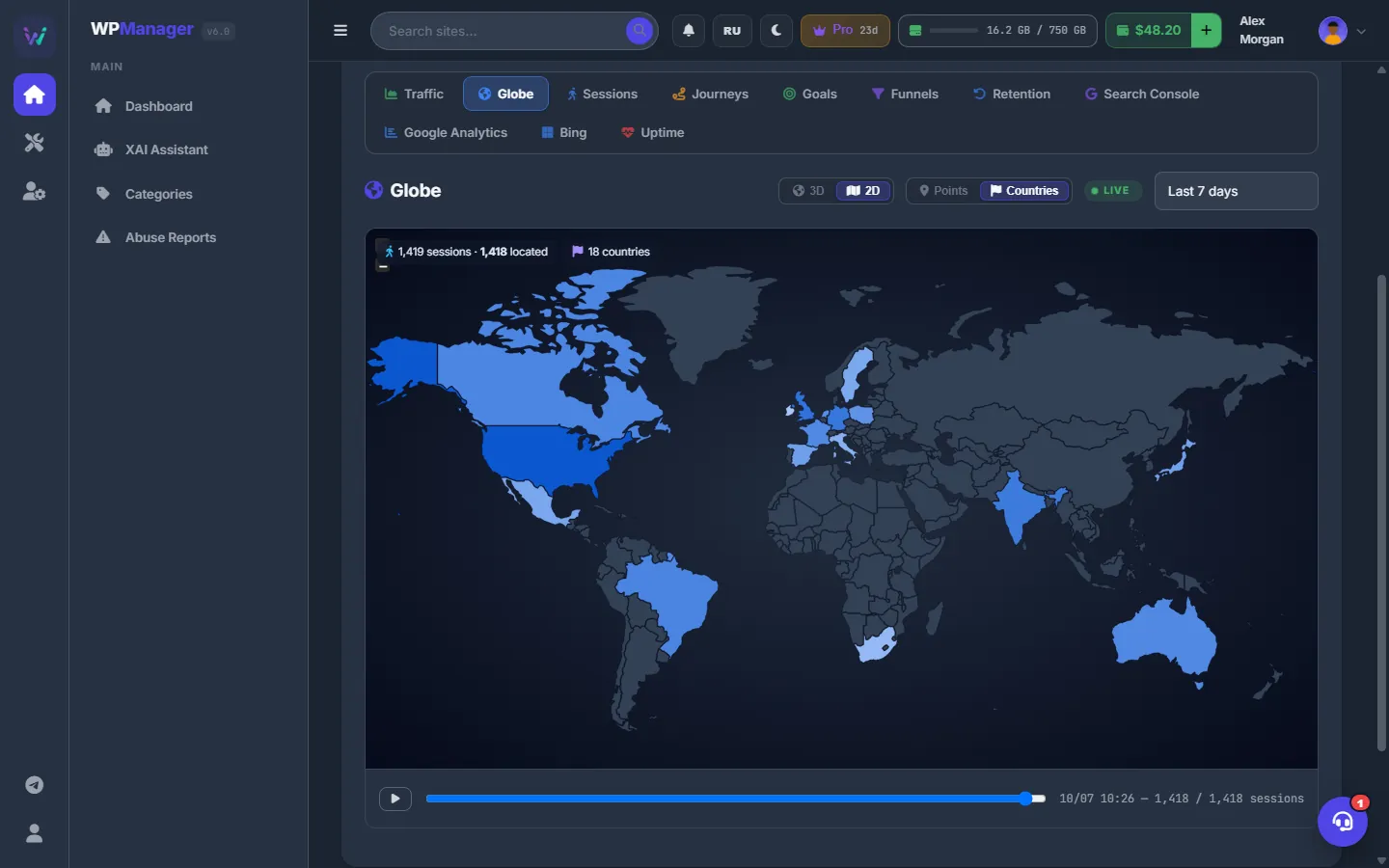
Fig. 2 The flat map with countries coloured by sessions. -
Look at one place
Click a marker. A side panel lists the sessions from that city with their time, source and landing page.
-
Replay the period
Press the play button under the map or drag the slider: sessions appear in the order they happened, and the label shows the time and “x / y sessions”. Live visitors who arrive while you watch appear with a ring around their marker.
Turn on visitor location
If Cloudflare is connected but the location headers are off, the Globe shows “No coordinates yet” and the button “Enable visitor location headers”. Press it: within minutes new sessions start to arrive with coordinates.
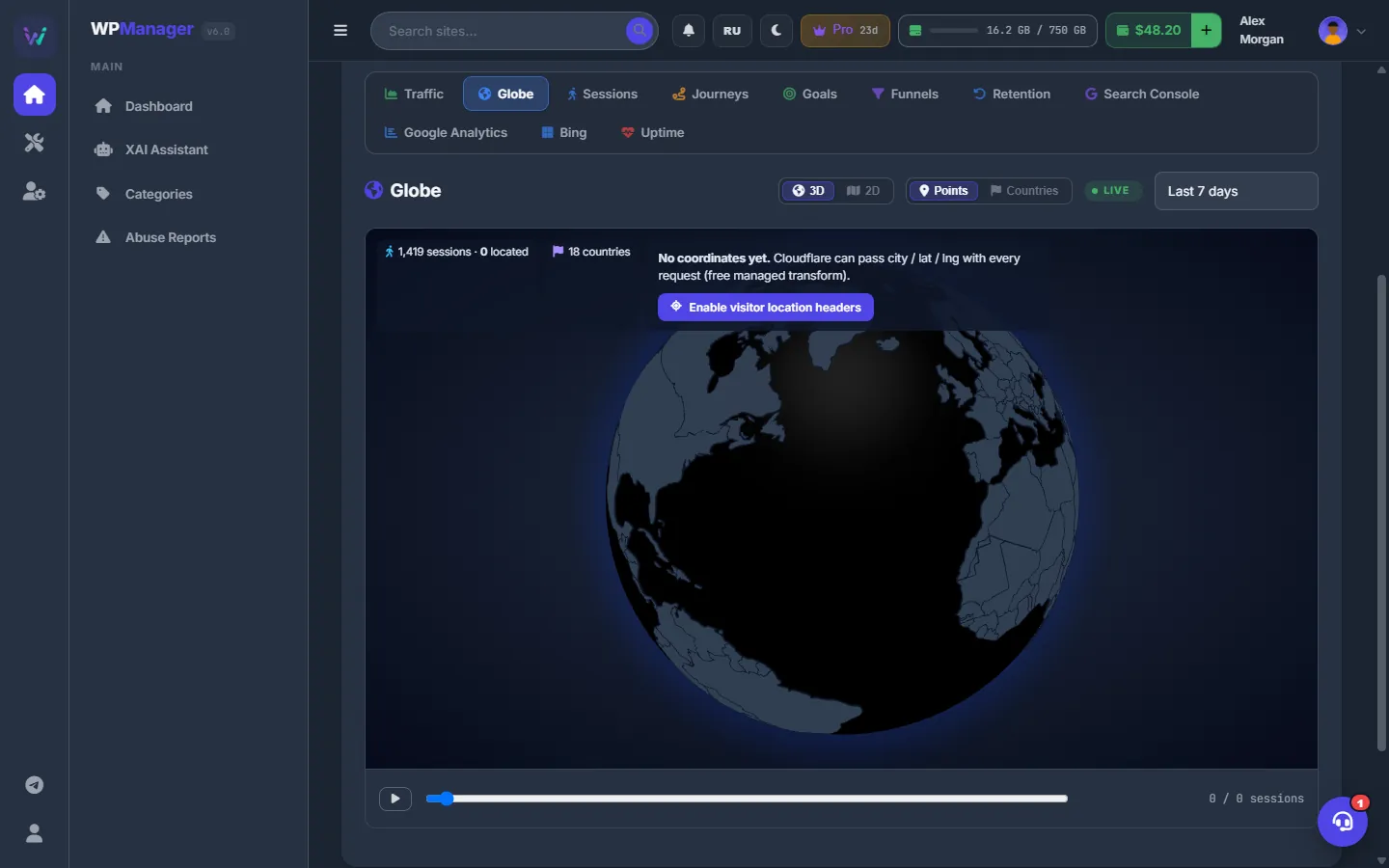
If Cloudflare is not connected yet, connect it first on the site’s Cloudflare tab — see Connecting Cloudflare. For this button the Cloudflare API token needs the Zone → Managed Headers: Edit permission.
Settings
| Setting | What it does |
|---|---|
| View | “3D” (globe) or “2D” (flat map). |
| Layer | “Points” (places) or “Countries” (filled countries). |
| Period | The same period list as the other Analytics views. |
Costs
Free. Cloudflare’s managed transform is free on Cloudflare’s side too.
Troubleshooting
| What you see | What to do |
|---|---|
| “Cloudflare refused (the token needs Zone → Managed Headers: Edit)” | Create a Cloudflare API token with that permission and reconnect Cloudflare on the site’s Cloudflare tab. |
| “Globe needs WebGL.” | Switch to “2D”, or turn on hardware acceleration in your browser settings. |
| “No coordinates yet” right after enabling | Wait for new visits: only sessions recorded after the headers were switched on carry a location. |