
My purchases: downloads, links and the Conveyor
Everything you bought in the Content store, with four ways to use it: download it in the browser, take a link for a download manager, copy it into your Files, or send it straight into a conveyor plan that uploads, describes and posts it.
On this page
Where to find it: Content → Content store → “My purchases”.
Before you start
- At least one bought video — see Buying videos: one click, the cart and promo codes.
- For “Copy to my Files”: free room in your storage quota for the whole file. The top bar shows how much is used.
- For “Send to the conveyor”: a conveyor plan that starts from files (Content → Conveyor) — see Conveyor: build a plan.
Your purchases
Open the “My purchases” tab. At the top are three numbers: “Videos” (what you own), “Spent” and “Downloads”. Below, newest first, each purchase shows:
- the poster with the length — click it to open the video window;
- the title, quality, resolution, size and file name;
- the line “Bought <date> · $price · downloads: N”, plus “Order #N” when the video came from a custom order.
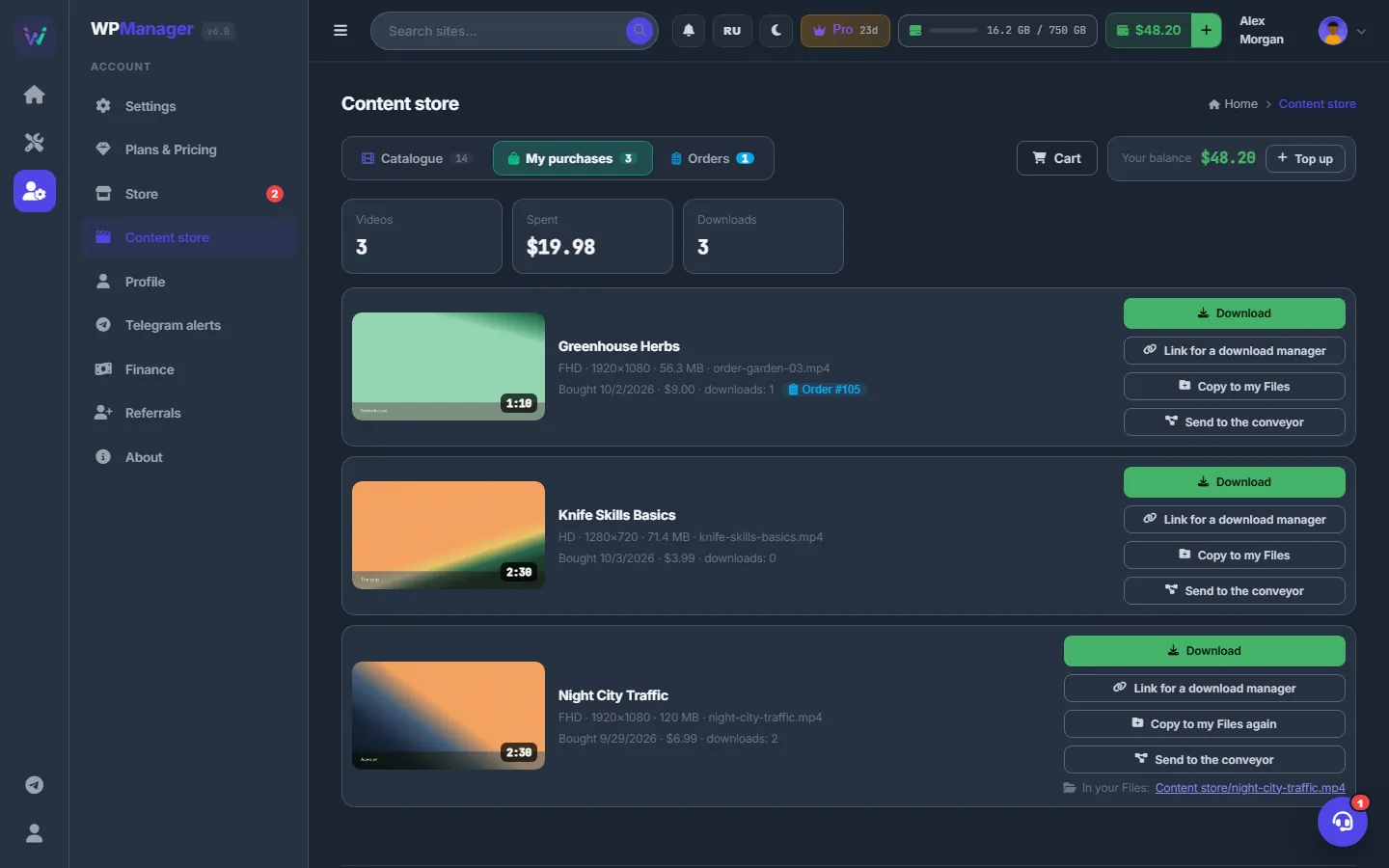
Four ways to use a bought video
Every purchase has the same four buttons.

Download in the browser
Click “Download”. Your browser saves the original file. An interrupted download can be resumed.
Take a link for a download manager
Click “Link for a download manager”. The link is copied to the clipboard — “Link copied — valid for 24 hours”. If the browser does not allow copying, a window shows the link for you to copy by hand.
Paste the link into any download manager or use it on a server. It works without signing in, supports multi-part and resumed downloads, and is valid for 24 hours from up to three different internet addresses. Take a fresh one whenever you need it.
Copy into your Files
-
Click “Copy to my Files”
The copy runs in the background as a task, “Content store → Files · <title>”, and the button reads “Copying — see Tasks”. You can close the page.
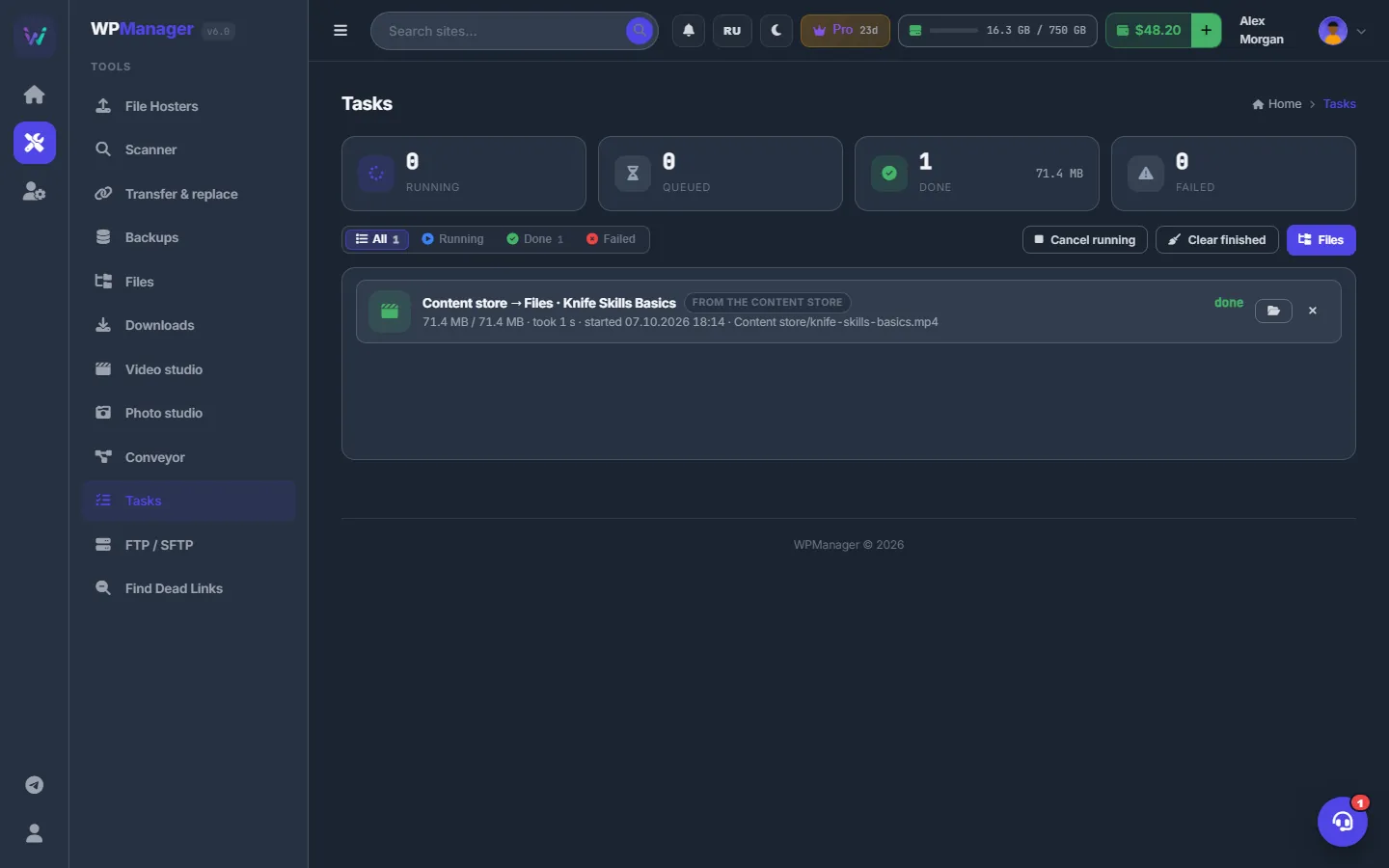
Fig. 3 The copy is a task on the Tasks page, with its progress and the destination. -
Find the file
The file goes into the “Content store” folder of your Files (“Магазин контента” when the panel is in Russian at the moment of the copy). If a file with that name is already there, “ (2)” is added to the name. When the copy is done, the purchase shows “In your Files: <path>” with a link to the folder, and the button becomes “Copy to my Files again”.
-
Work with the copy
The copy is an ordinary file of yours: open it in the Video studio, take frames in the Photo studio, upload it to file hosts or start any conveyor plan on it from Files.
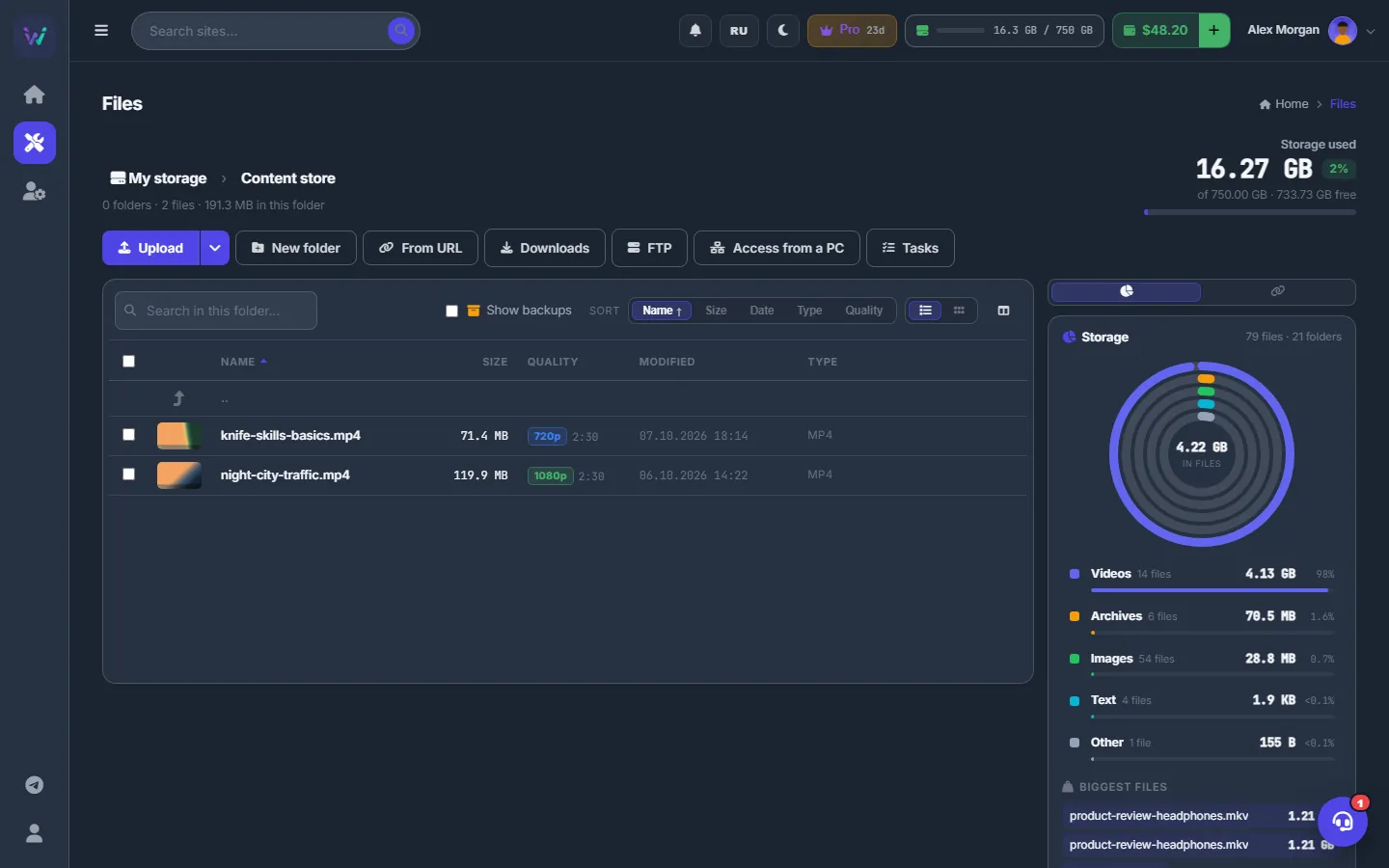
Fig. 4 Bought videos land in the Content store folder of your Files.
Send to the conveyor
-
Click “Send to the conveyor”
A window explains what happens and offers a “Plan” list. Only plans that start from files are listed.
-
Choose a plan and click “Start”
If a whole copy of the video is already in your Files, the plan starts on it immediately — “The plan “<name>” started”. Otherwise the video is copied first and the plan starts by itself when the copy is done — “Copying into your Files, then the plan “<name>” starts” — even if you close the page.
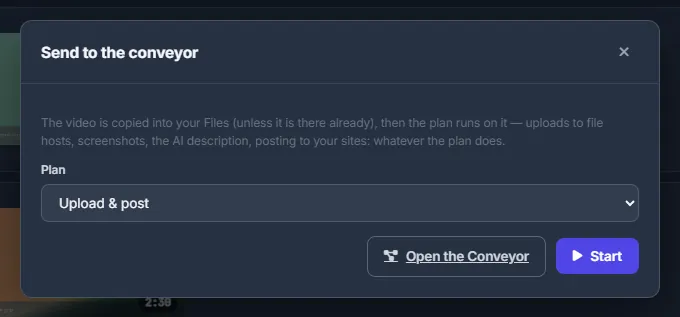
Fig. 5 Pick a plan that starts from files and click Start. -
Follow the run
The plan does whatever it is built for: uploads to file hosts, screenshots, an AI description, posting to your sites. Follow it under Conveyor → “Runs” — see Conveyor: start plans and follow runs.
Purchase statuses
| Status | What it means |
|---|---|
| Normal | The four action buttons are shown. |
| Refunded | The team returned the money to your balance. The line is greyed out and the file is no longer available. |
| File unavailable — write to support | The file cannot be served right now, and the team needs to fix it. Write in the support chat. |
What counts as a download
The “Downloads” counter grows when a download starts from the first byte — through the panel, through a download-manager link or with a copy into Files. The extra connections a download manager opens for the same file are not counted as new downloads.
Costs
Downloads, links and copies of bought videos cost nothing extra. A copy takes room in your storage quota. Conveyor steps are charged by their own rules — for example, AI texts by tokens. See What you pay for.
Troubleshooting
| What you see | What to do |
|---|---|
| “Not enough room in your Files for this video — free some space or ask for a bigger quota” | Delete files you no longer need, move to a plan with more storage, or ask support for a bigger quota. Downloading to your computer still works. |
| “This link is wrong or expired — take a new one on the Content store page.” | Links live 24 hours. Click “Link for a download manager” again. |
| “This link has been opened from too many addresses today…” | Download from “My purchases” while signed in, or wait a day. |
| “You have no conveyor plans that work on files yet.” | Click “Make a plan in the Conveyor” and create a plan that starts from files, or one from a template. |
| “This plan starts from links — choose one that works on files” | Pick another plan, or change the start of this plan to files in the Conveyor. |
| “The file is not available right now — write to support” or “The storage server did not give the file…” | The store’s storage is temporarily unreachable. Try again later; if it persists, write in the support chat. |
FAQ
How many times can I download a video?
The panel does not limit downloads from “My purchases”; it only counts them. Links for download managers are limited to 24 hours and three addresses.
Do I keep a video if I delete my copy in Files?
Yes. The purchase stays in “My purchases”, and you can copy it again at any time.