
Uptime monitoring and alerts
WPManager checks every site around the clock — every minute by default. It keeps 90 days of history, records every outage, watches the SSL certificate and the domain registration, and sends a Telegram alert only when an outage is real, not a passing blip.
On this page
Where to find it: the site page → Analytics → Uptime.
Before you start
- The site is added. Monitoring starts by itself; the plugin is not required, but with it the check is more precise (see How a check works).
- For alerts: Telegram connected on Account → Telegram alerts — see Telegram alerts.
The Uptime view
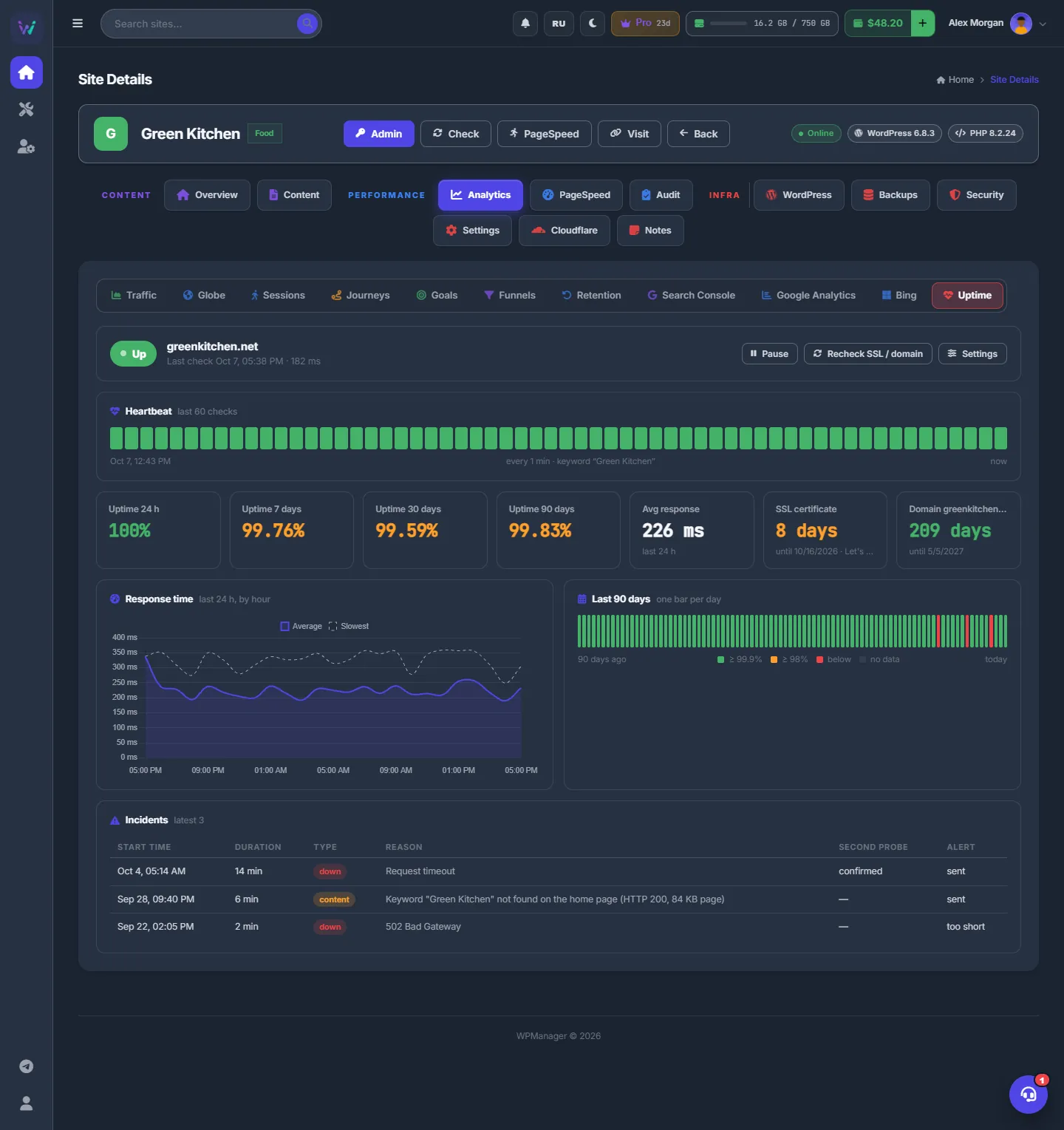
On the site page click “Analytics”, then the “Uptime” button in the row of sub-tabs. While the view is open it refreshes itself every minute.
-
Read the header
The pill says “Up”, “Down” or “Paused”. Next to it are the domain and one of three lines: Last check <time> · <ms>; Down for <duration> · last seen up <time>; or Maintenance until <time> — no checks, no alerts. On the right are the buttons “Pause” (or “Resume”), “Recheck SSL / domain” and “Settings”.
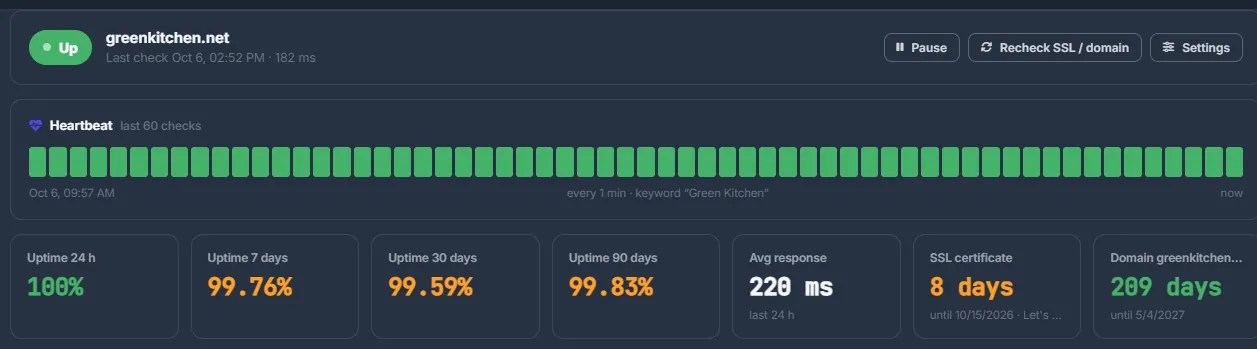
Fig. 2 Status and actions, the last 60 checks and the key numbers. -
Read the heartbeat
“Heartbeat” shows the last 60 checks as bars: green is healthy, amber is a warning (it still counts as up), red is a failed check. Hover over a bar to see the time, the result, the response time and the HTTP code. The line under the bars shows the check interval and the keyword, if one is set.
-
Read the tiles
“Uptime 24 h”, “Uptime 7 days”, “Uptime 30 days” and “Uptime 90 days”, then “Avg response” for the last 24 hours, “SSL certificate” (days left, the expiry date and the issuer) and “Domain” (days until the registration expires). The colours:
Tile Amber Red Uptime below 99.9 % below 98 % Avg response above 800 ms above 2000 ms SSL certificate 14 days left or less 3 days left or less Domain 30 days left or less 7 days left or less -
Read the charts
“Response time” covers the last 24 hours by hour, with the average and the slowest response. “Last 90 days” has one bar per day, coloured by that day’s uptime; hover over a bar for the number of failed checks and the average response.
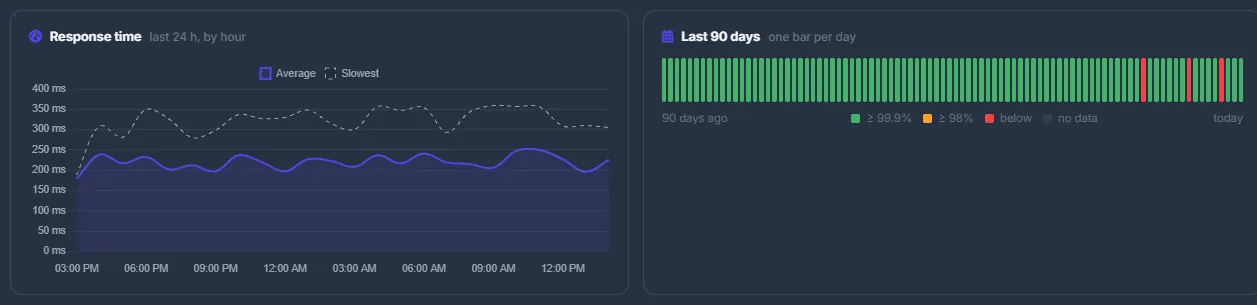
Fig. 3 Response time by hour and uptime by day. -
Review the incidents
“Incidents” lists the latest 50 outages:
- “Start time” and “Duration” — or ongoing;
- “Type”: down — no answer or an error status; content — the keyword disappeared from the home page;
- “Reason”, for example Request timeout or 502 Bad Gateway;
- “Second probe”: confirmed when a second checking server also saw the site down;
- “Alert”: sent, or too short when the outage ended before the alert delay.

Fig. 4 Every outage with its cause and whether you were alerted.
Configure the monitor
Click “Settings”. In “Monitor settings” set the keyword, how often to check and how long to wait before an alert, and choose whether the site appears on your public status page. Click “Save”; you see “Monitor settings saved”.
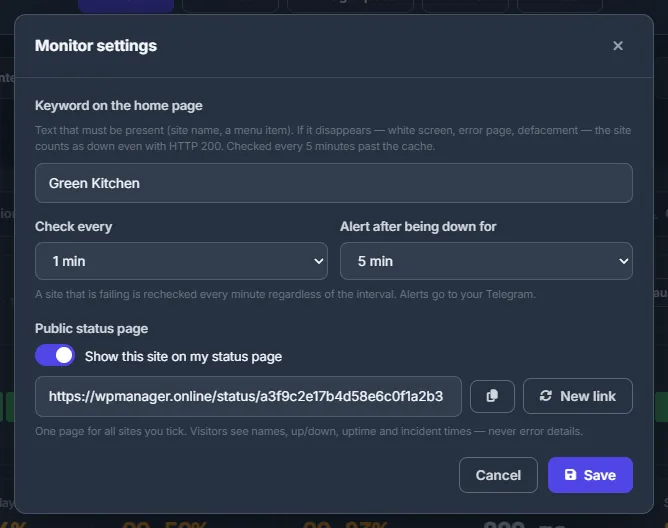
| Setting | What it does |
|---|---|
| Keyword on the home page | Text that must be on the home page, up to 200 characters. If it disappears, the site counts as down even when it answers HTTP 200. Empty turns the keyword check off. |
| Check every | 1, 2, 5, 10, 15, 30 or 60 minutes. Default: 1 minute. |
| Alert after being down for | “immediately”, 2, 5, 10, 15, 30 or 60 minutes. Default: 5 minutes. |
| Show this site on my status page | Puts the site on your public status page; the link is right below. See Public status page. |
Pause for maintenance
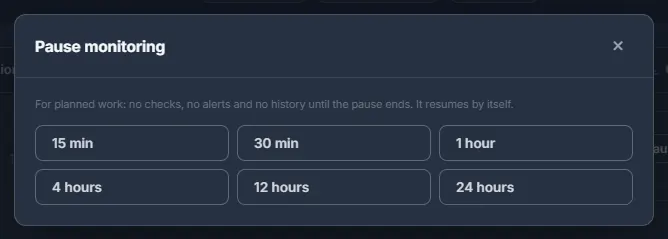
Click “Pause” and choose 15 min, 30 min, 1 hour, 4 hours, 12 hours or 24 hours. During the pause there are no checks, no alerts and no history, and the public status page shows the site as Maintenance. Monitoring resumes by itself when the time is up; click “Resume” to end the pause early.
Re-read the certificate and the domain
After you renew a certificate or a domain, click “Recheck SSL / domain”. The panel reads both right away and shows the result — Certificate read · domain read — or the error.
How a check works
- With the plugin key, the panel calls the plugin’s health address, which runs through PHP: a page cache or a CDN cannot hide a broken WordPress. If the plugin is missing or refuses the key, a plain request to the site is used instead. Sites without the plugin are always checked with a plain request.
- Each request may take up to 10 seconds. No answer, a connection error or an error status counts as a failure.
- The keyword check loads the real home page, past the cache, every 5 minutes — every minute while it is failing. If the text is missing (a white screen, an error page, a defaced page), the site counts as down even with HTTP 200, and the incident type is content. A Cloudflare browser challenge is treated as inconclusive, not as a failure.
- A failing site is checked every minute whatever interval you chose, so the outage length and the alert delay stay accurate.
- When a second checking server is available, a failure seen only from the panel is double-checked from there. When that server sees the site up, the check is stored as a warning and counts as up; the heartbeat line then says second probe on.
- History is kept for 120 days; the screen shows up to 90.
Alerts
- Alerts go to your Telegram.
- A down alert is sent once the outage has lasted the “Alert after being down for” delay — 5 minutes by default. A blip that heals sooner sends nothing at all, and its incident shows “Alert” = too short.
- A recovery message (was down for N min) is sent only if the down alert was sent.
- SSL certificate: warnings 14 days and 3 days before expiry, and when it has expired. Domain registration: 30 days and 7 days before, and on expiry. Each warning is sent once; a renewal resets them. The certificate is read twice a day, the domain once a day, from the registry over RDAP.
Costs
Uptime monitoring, SSL and domain watching and Telegram alerts are included in every plan at no extra charge. Sites paused because the account has more sites than its plan allows are not monitored.
Tips
- For shops, alert “immediately” or after 2 minutes; for hobby sites, 10–15 minutes saves you from night-time noise.
- Pause the monitor before planned work: the 90-day uptime stays honest and nobody is woken up.
Troubleshooting
| What you see | What to do |
|---|---|
| The site opens in my browser, but the panel shows it down | Read the “Reason” in the incidents. Request timeout or Connection failed often means a firewall or Cloudflare blocks the panel — allow the panel IP (see Cloudflare and security plugins). Type content means the keyword was not found — check it in “Settings”. |
| No Telegram alerts arrive | Connect Telegram on Account → Telegram alerts and send a test from there. Outages shorter than the alert delay are not announced (“Alert” = too short), and a paused monitor sends nothing. |
| The SSL tile shows “could not read” or “not checked yet” | The site may not serve HTTPS on port 443, or it has not been read yet. Click “Recheck SSL / domain”. |
| The Domain tile says the registry gave no date | Some registries do not publish an expiry date over RDAP. The tile stays empty; watch the date at your registrar. |
| “Invalid site address - correct the URL in the site settings” | Fix the URL on Settings → General — see Site settings: general, connection and AI prompts. |
FAQ
Do I need the plugin for uptime monitoring?
No. Any website can be monitored. With the plugin the check bypasses page caches and is more accurate.
Can I get alerts by email or SMS?
No — uptime alerts go to Telegram only.
Why is my 24-hour uptime below 100 % when I never got an alert?
Short failures are recorded in the history but not announced when they end before the alert delay.
Which time zone are the times in?
In the panel, your browser’s time zone. The public status page uses UTC.