
WayShare and FlorenFile: hosts without an API
WayShare and FlorenFile have no API. The panel signs in on their website with your login and password, the way you would in a browser. When a site asks for a captcha on its sign-in form, you give the panel your browser’s session cookie instead of the password.
On this page
Where to find it: Links & files → File Hosters → tab “File Hosters”.
Before you start
- An account on
wayshare.ccorflorenfile.com.
Connect the account
-
Add the host
Click “Add file hoster” and pick the WayShare or FlorenFile tile. The chips read “through the site, no API” and “login and password”, and a hint explains that the panel signs in on the site with your account. Instead of a key you see two fields, “Login” and “Password” (the eye icon shows the password). There is no API URL.
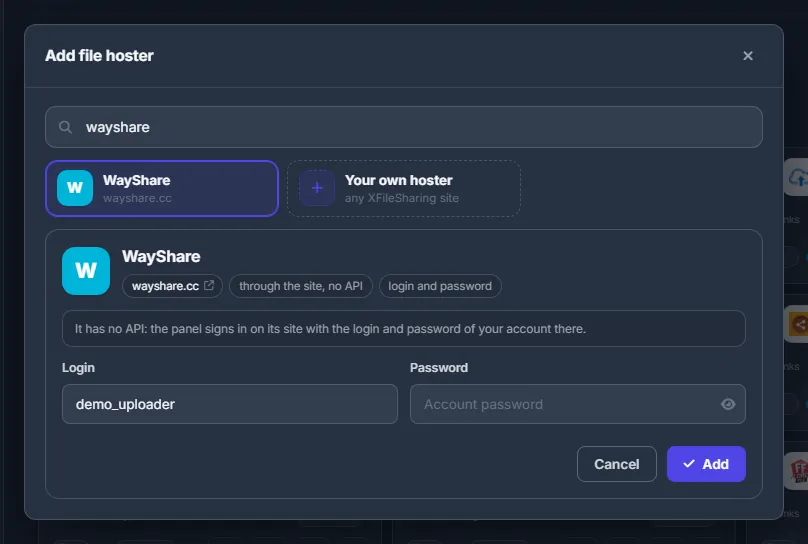
Fig. 1 WayShare picked: a login and a password instead of an API key. -
Enter the login and password
Type the login and the password of your account on the host and click “Add”. When both are saved, the card gets a green person badge. Without them the balance place reads “no login”.
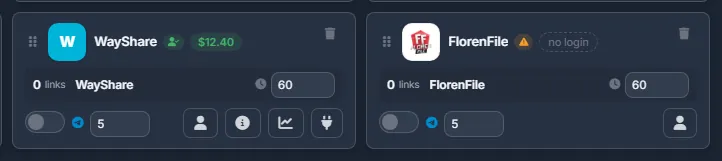
Fig. 2 Left: WayShare with a saved login shows its balance. Right: FlorenFile without a login reads “no login”. -
Check that sign-in works
Click “Test connection” (the plug icon) or “Account info” (the i icon). If the panel signed in, you see the account’s login, balance, storage, referrals and premium.
If the site asks for a captcha
A server cannot pass a captcha, so a site that shows hCaptcha, reCAPTCHA, Turnstile or a picture code on its sign-in form — FlorenFile, for example — cannot be signed in with a password. The error then says that the site asks for a captcha. Give the panel your browser session instead:
-
Sign in in your browser
Open the host’s website in your own browser and sign in as usual, solving the captcha.
-
Copy the xfss cookie
Open the browser’s DevTools → Application → Cookies → the host’s site, and copy the value of the cookie named
xfss. -
Paste it as the password
On the card click the person button “Login settings”. In “Password” paste
xfss=<the copied value>— a wholeCookieline that containsxfssworks too. Click “Save”.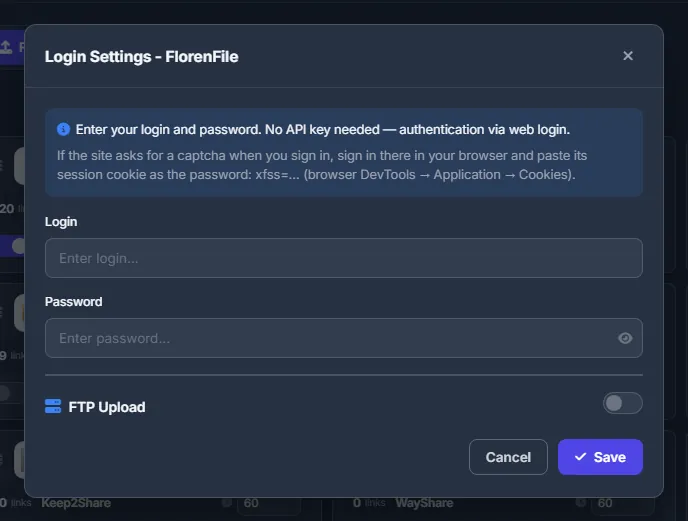
Fig. 3 “Login Settings” of a FlorenFile account. The hint at the top describes the cookie method.
The panel never tries to solve a captcha. When one is on the form it does not even send your login, so your account on the host gets no failed sign-ins.
When the cookie stops working
A session cookie ends when the site signs you out or when it expires. The panel then reports that the site did not accept the session cookie. Sign in in your browser again and paste the new xfss value the same way.
What works with these hosts
- The balance on the card, “Account info” (Login, Balance, Storage with a usage bar, Referrals, Premium, Premium Expires) and the last 7 days of downloads and views — see Balances, statistics and Telegram alerts.
- Balance history and Telegram alerts.
- Find Dead Links: “Search on …” and “Check on Hoster” look for files with the same name in your account.
- The Scanner recognises their links and checks them with a plain web request.
Settings
| Field | What to enter |
|---|---|
| Login | The login of your account on the host’s website. |
| Password | The account’s password — or, for a site with a captcha, the session cookie xfss=… from your browser. In “Login settings”, leave it empty to keep the saved value. |
Troubleshooting
| What you see | What to do |
|---|---|
| “Password not configured” | Open “Login settings” on the card and enter the password (or the xfss cookie). |
| “Failed to connect to WayShare. Check login/password.” | Check the login and password by signing in on the site yourself. If the site shows a captcha, use the cookie method. |
| The error says the site asks for a captcha | Sign in in your browser and paste xfss=… into “Password”. |
| The error says the site did not accept the session cookie | The cookie expired or the site signed you out. Sign in again and paste the new value. |
FAQ
Why can’t I just use an API key for WayShare?
These hosts do not offer an API, so the panel works through their website, the same way you do in a browser.
Can these accounts receive files by FTP?
“Login settings” has the same “FTP Upload” section as the other accounts — see Change the key or add FTP upload.