
Public status page
One public link that shows your clients or visitors whether the sites you choose are up, their uptime from 24 hours to 90 days and the recent incidents — without any technical details.
On this page
Where to find it: the site page → Analytics → Uptime → “Settings” → “Public status page”.
Before you start
- At least one site under uptime monitoring — every added site is monitored automatically.
Publish a status page
-
Open the monitor settings
On any site open Analytics → Uptime and click “Settings”.
-
Create the link
Under “Public status page” click “Create link”. An address like
https://<panel>/status/<code>appears in the field, with the message “Status page link is ready”. It is one page for your whole account: you create the link once, on any site.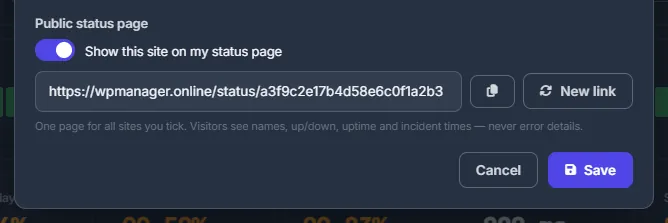
Fig. 1 Turn the site on for your status page and copy the link. -
Choose the sites
Turn on “Show this site on my status page” and click “Save”. Repeat this on every site you want to show; sites without the switch stay hidden.
-
Share the link
Copy the link with the copy button (“Link copied”) and send it to your clients, or put it in your site’s footer.
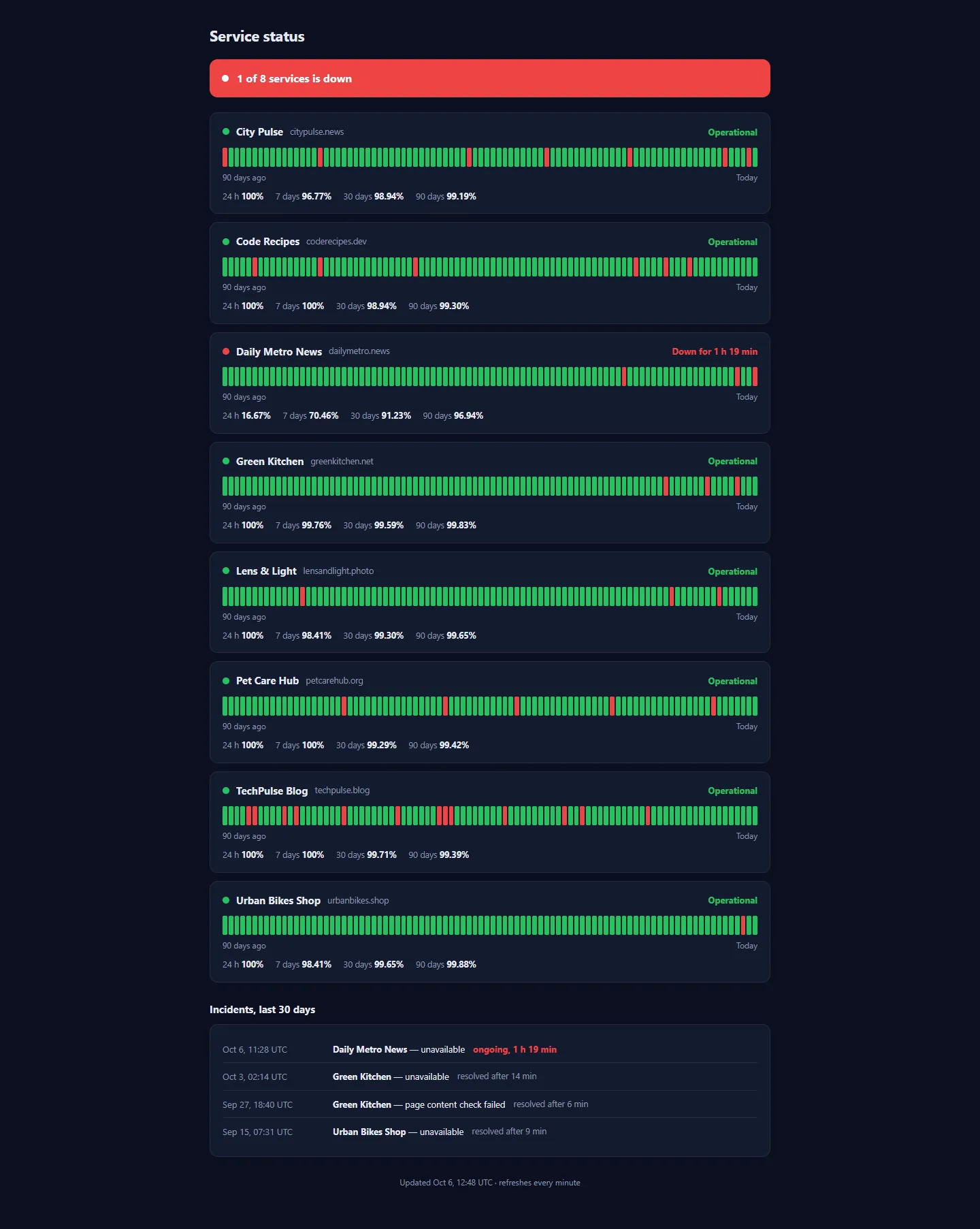
Fig. 2 What your clients see: the current state, 90 days of uptime and the recent incidents.
What visitors see
- The title “Service status” and a banner: “All systems operational”, “N of M services are down”, or “No services are published on this page yet”.
- A card per site: the name, the host, the state — “Operational”, “Down for …” or “Maintenance” while the monitor is paused — 90 daily bars and the uptime for 24 hours, 7, 30 and 90 days.
- “Incidents, last 30 days”: only the outages you were alerted about and the ongoing ones, so short blips stay private. Each shows the start time, “unavailable” or “page content check failed”, and “resolved after …” or “ongoing”.
Times are in UTC. The page refreshes its data every minute by itself. It never shows error messages, reasons or other internals, and it is in English.
Revoke the link
“New link” in the monitor settings creates a new address after you confirm. The old address stops working immediately for everyone who has it, so send the new link to the people who should keep access.
Settings
| Setting | What it does |
|---|---|
| Show this site on my status page | Per site; off by default. |
| Create link / New link | Creates or replaces the single status page address of your account. |
Costs
Free on every plan.
Tips
- Pause the monitor before maintenance: the status page then shows “Maintenance” instead of “Down”. See Pause for maintenance.
Troubleshooting
| What you see | What to do |
|---|---|
| “No services are published on this page yet” | Turn on “Show this site on my status page” on at least one site and click “Save”. |
| The link returns “Not found” | The link was replaced with “New link”. Copy the current link from the monitor settings. |
| A change does not show up | The page keeps its data for one minute. Reload it a minute later. |
| A published site is missing | Deleted sites, and sites paused because the account has more sites than its plan allows, are not shown. |
FAQ
Can I have a separate status page for each client?
No. There is one status page per account; you choose which sites appear on it.
Do search engines index the page?
No. The page asks search engines not to index it (noindex, nofollow), and its address is a long random code. Anyone who has the link can open it, so share it only with the people who should see it.