
Google Search Console in the panel
Connect the site’s Search Console property once and see clicks, impressions, CTR, positions, top queries and pages, devices, countries, sitemaps, position changes and the Google position of every post — next to the rest of the site’s data.
On this page
Where to find it: Overview → Dashboard → click the site → Analytics → “Search Console”.
Before you start
- Your plan includes “Google integration” (to connect) and “Advanced analytics” (to load the data).
- The site is verified in your own Google Search Console account. Any property type works: URL prefix or Domain.
Connect Search Console
-
Start the connection
Open Analytics → “Search Console”. On the “Connect Google Search Console” screen press “Connect with Google”. Sign in with the Google account that owns the property and allow access. The panel asks for read-only access to Search Console and Google Analytics.
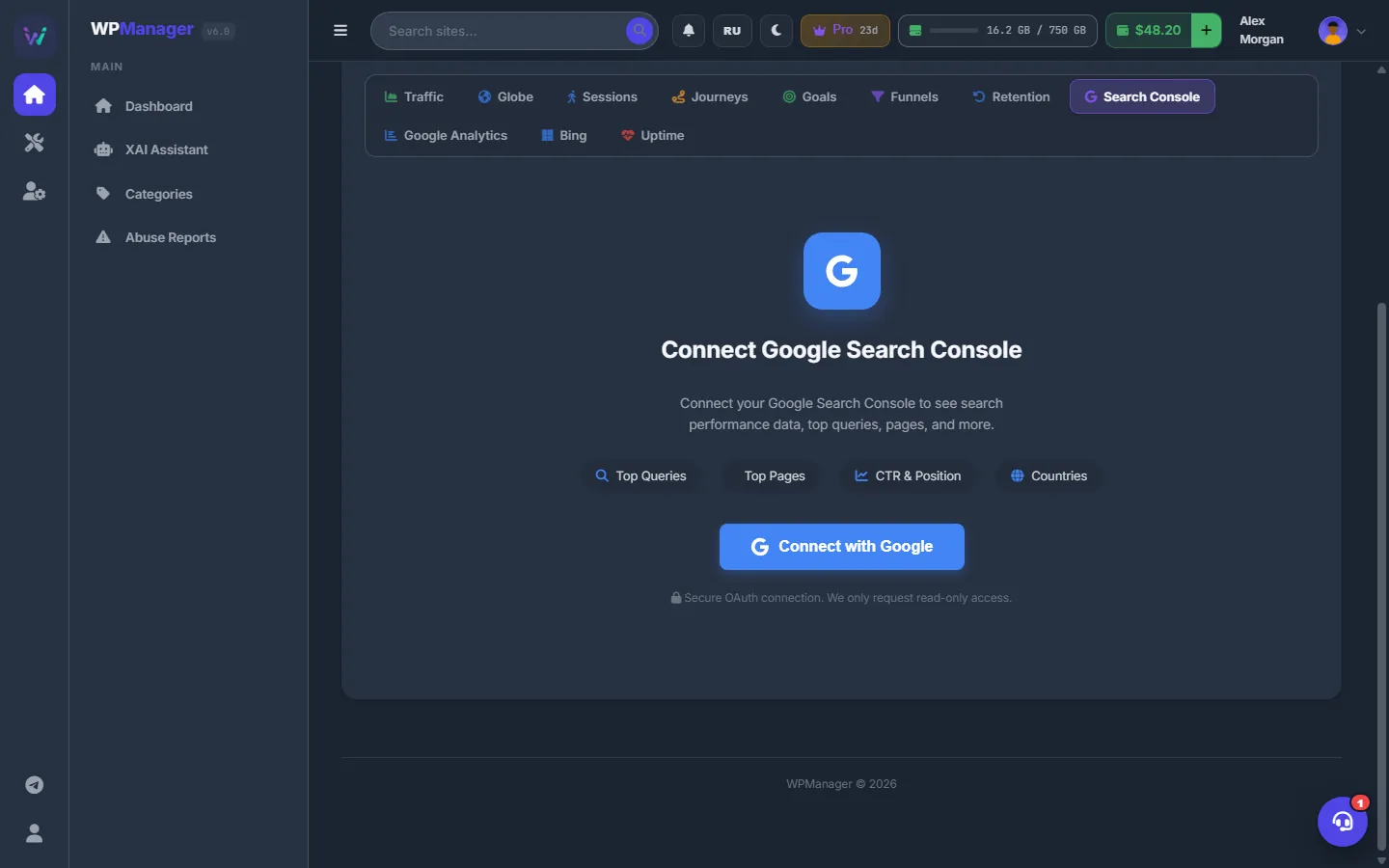
Fig. 1 One click starts a read-only Google connection. -
Choose the property
Back in the panel you see “Connected to Google!” and the list “Select the Search Console property for this site:”. Each property shows your permission level and a match badge: Exact Match, Domain Property, WWW Variant, Main Domain, Same Host or Subdomain. The most likely one is marked Best Match. Click the right property; “Search Console connected!” confirms it.
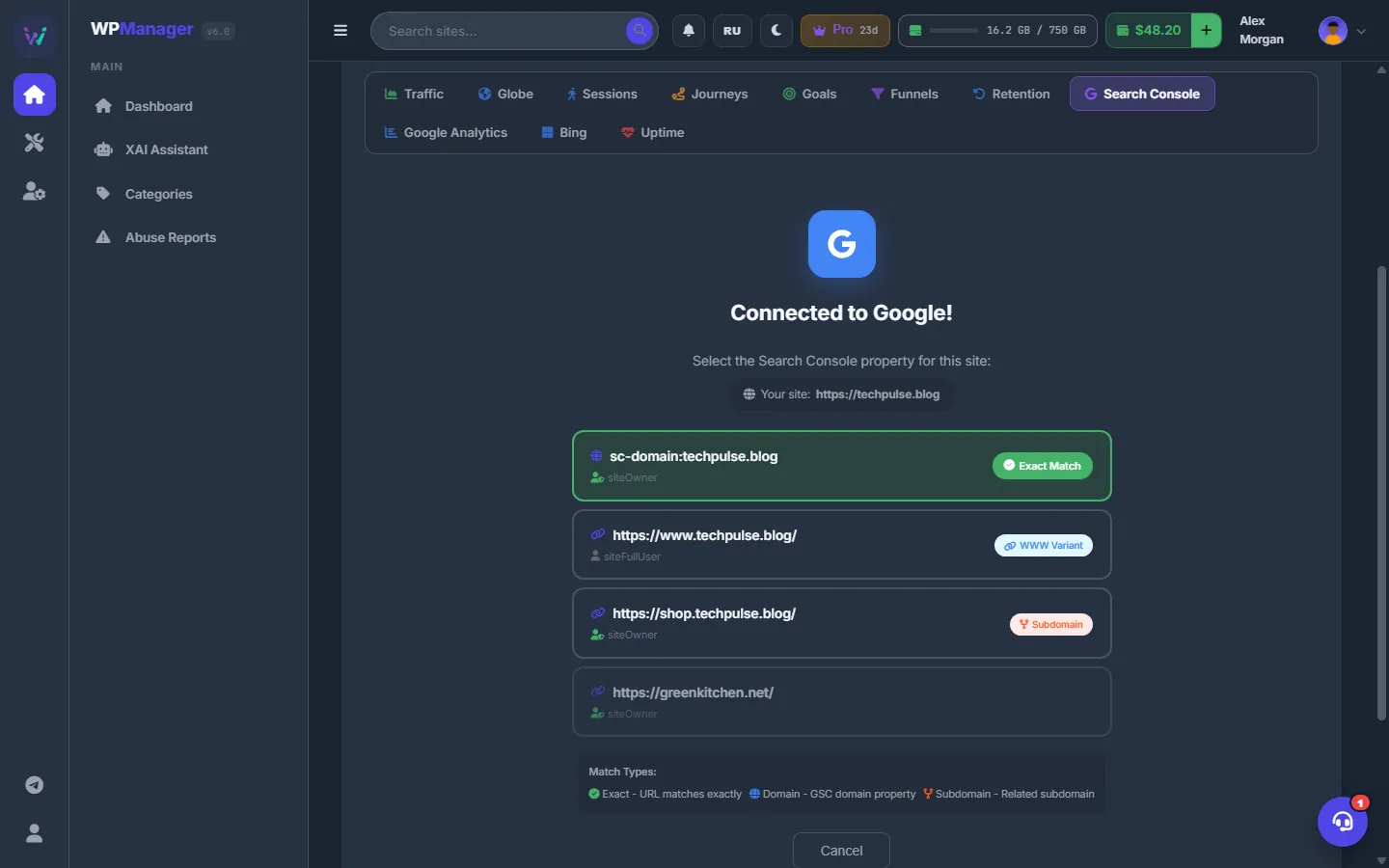
Fig. 2 Choose the property: the panel highlights the best match.
Read the dashboard
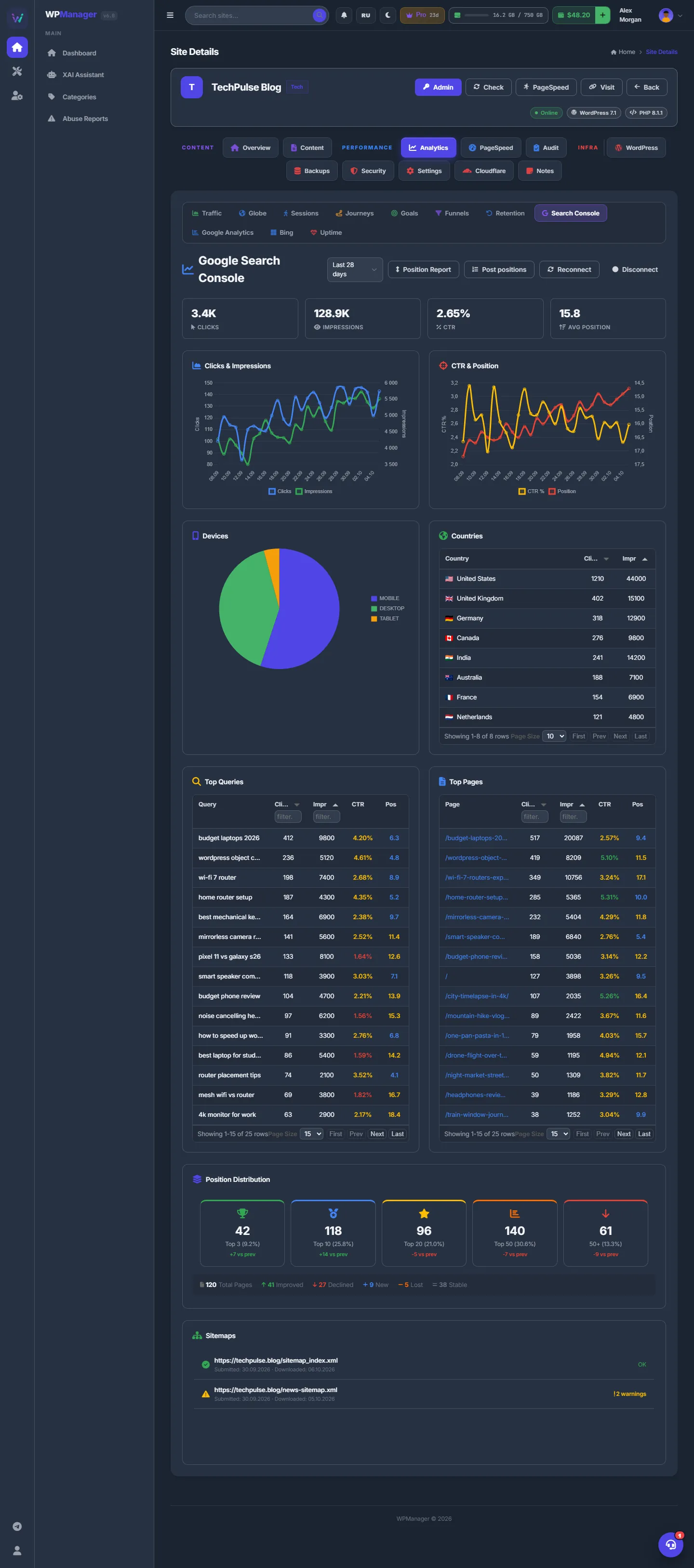
The “Google Search Console” view has a period list — “Last 7 days”, “Last 14 days”, “Last 28 days” (default) and “Last 3 months” — and shows:
- Clicks, Impressions, CTR and Avg Position for the period;
- the “Clicks & Impressions” and “CTR & Position” charts by day;
- “Devices” and “Countries”;
- the “Top Queries” and “Top Pages” tables with clicks, impressions, CTR and position — sortable and filterable;
- “Position Distribution”: how many pages are in the top 3, 10, 20, 50 and below 50, compared with the previous period, plus Total Pages, Improved, Declined, New, Lost and Stable;
- “Sitemaps”: each submitted sitemap with its errors, warnings and pending state.
Compare periods
Press “Position Report”. The “Position Changes Report” window compares the selected period with the previous one of the same length: the tiles Improved, Declined, New, Lost and Stable, and a table with Page, Status, Pos Now, Pos Prev, Change, Clicks, Impr and CTR.
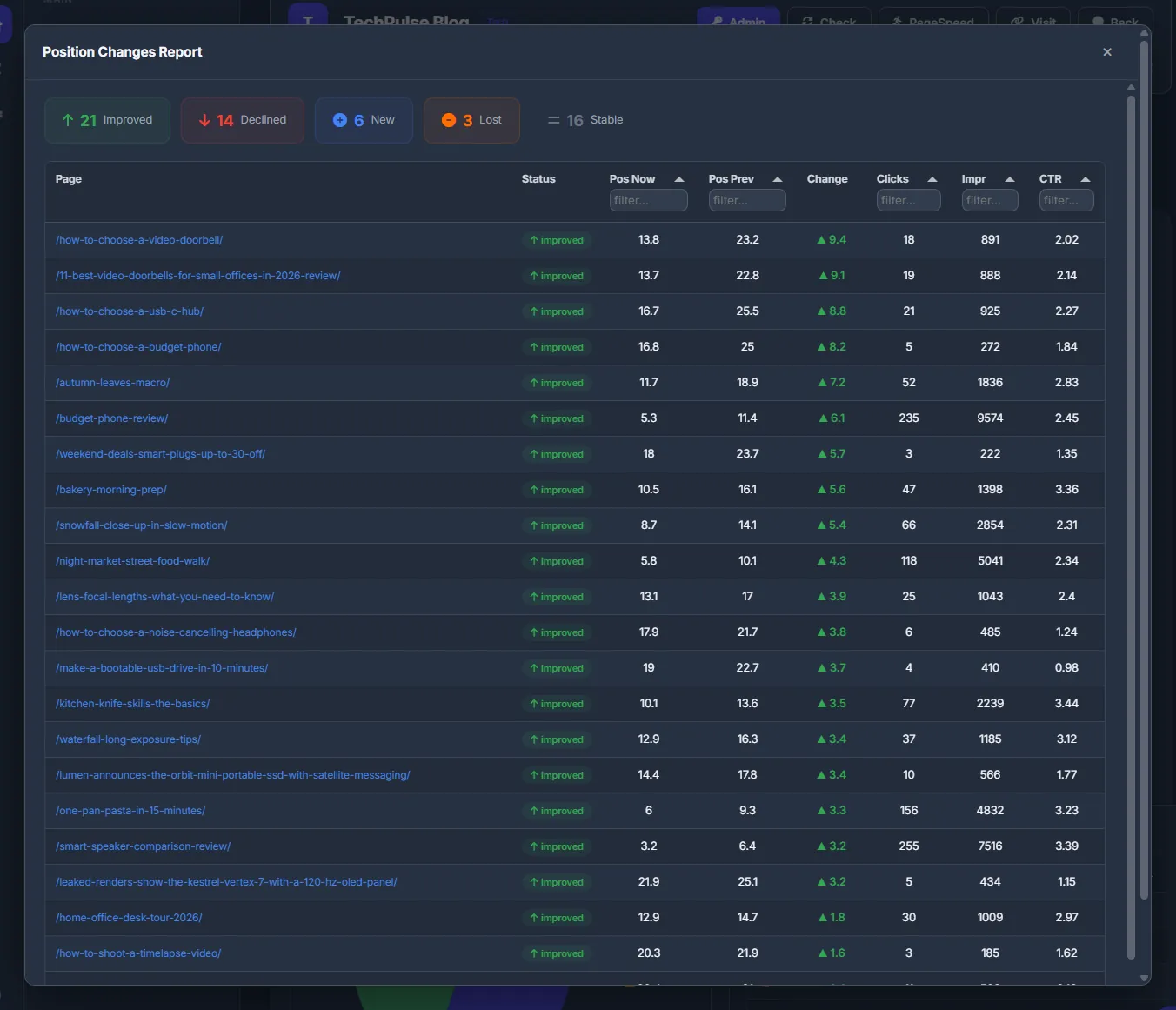
For a deeper comparison with AI advice per page, open the full position report — see Position report and AI SEO advice.
See every post’s position
-
Load the report
Press “Post positions”. The panel loads all posts of the site and matches them with the Search Console pages; a progress bar with “Cancel” shows how far it is.
-
Filter and sort
The report says how many posts have data and their average position. The tiles All posts, Top 3, 4–10, 11–20, 21–50, 50+ and No data show counts and shares — click one to filter. Use “Search title or URL…” to find a post. The table — Post, Position, Clicks, Impressions, CTR, Date — is sorted by clicks.
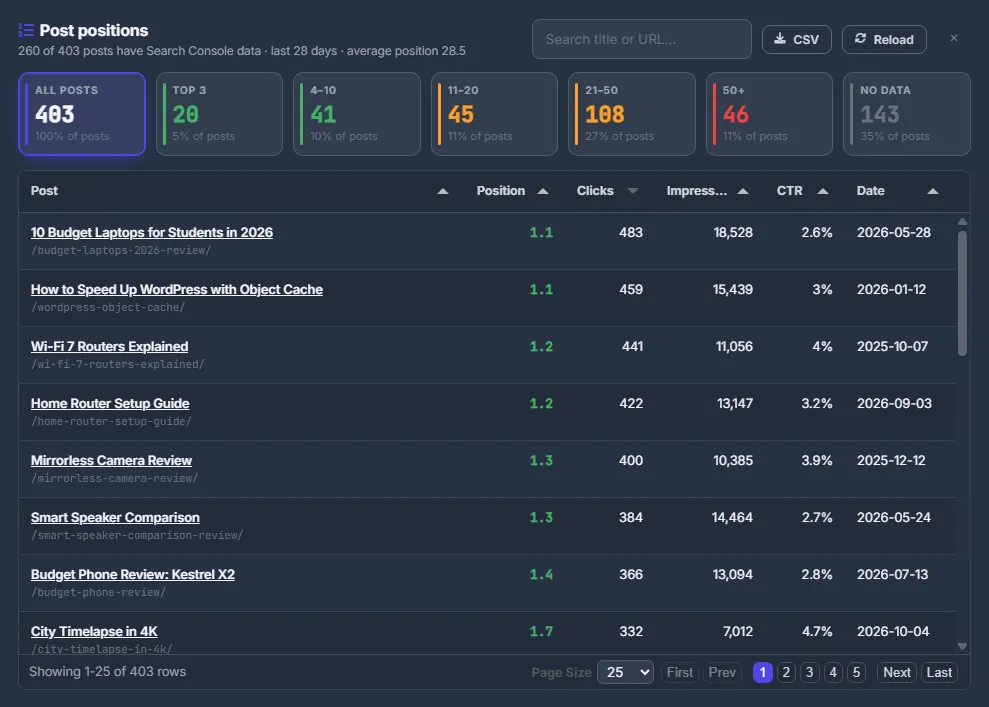
Fig. 5 The Google position of every post, with filters and CSV export. -
Export or reload
“CSV” downloads the table; “Reload” reads posts and positions again.
Reconnect and disconnect
“Reconnect” runs the Google sign-in again — to switch accounts or after access was revoked. “Disconnect” removes the connection from this site; your data in Search Console at Google is not touched.
Where else Search Console data is used
- The keyword assistant of the Content tab uses the site’s Google queries and positions for its scores — see AI tools for posts and Keyword data and scores.
- The AI writer gets up to 15 of the site’s top queries as real search phrases.
- The position report page adds AI advice per page — see Position report and AI SEO advice.
Settings
| Setting | What it does |
|---|---|
| Period | Last 7 days, Last 14 days, Last 28 days (default), Last 3 months. |
Costs
No balance is used. Connecting needs the “Google integration” feature of your plan, and the reports need “Advanced analytics”.
Troubleshooting
| What you see | What to do |
|---|---|
| “No verified sites found.” after signing in | The Google account you used has no verified properties. Verify the site in Google Search Console, or reconnect with the account that owns it. |
| “Search Console Disconnected” | Google access expired or was revoked. Press “Reconnect Search Console” and sign in again. |
| “Site Property Changed” | The chosen property is no longer available to your account. Press “Select Search Console Property” and pick another one. |
| “Search Console Not Available” | Make sure the site is verified in Google Search Console, then reconnect. |
| Many posts show “No data” in “Post positions” | Those posts had no impressions in the period, or their address differs from the one Google reports. Differences in http/https, www and the trailing slash are ignored; other differences are not. |
FAQ
Can the panel change anything in my Search Console?
No, the access is read-only.
Can several sites use one Google account?
Yes. Connect each site and choose its own property.