
Editing and creating posts
The panel has its own post editor with the same fields as WordPress: title, slug, content, excerpt, tags, categories, featured image, status, date, author, format, options and SEO focus keywords. When you save, the changes go straight to the site.
On this page
Where to find it: Overview → Dashboard → click the site → Content → the pencil (“Quick edit”) in a post row, or “New post”.
Before you start
- The WPManager plugin is connected on the site (site page → “Settings” → “Connection”). See Installing and connecting the WPManager plugin.
- To have focus keywords written into All in One SEO, Yoast SEO or SEOPress, the site needs WPManager plugin 8.0 or newer. Rank Math works with older versions too.
Edit a post
-
Open the editor
In the Content tab press the pencil (“Quick edit”) in a post row, or press “New post” to start an empty post. The editor replaces the list; its header has “Back to List”, “Save” and “Cancel”.
For an existing post a bar above the fields shows “View Post”, the post address (click it to copy) and “Edit in WordPress”.
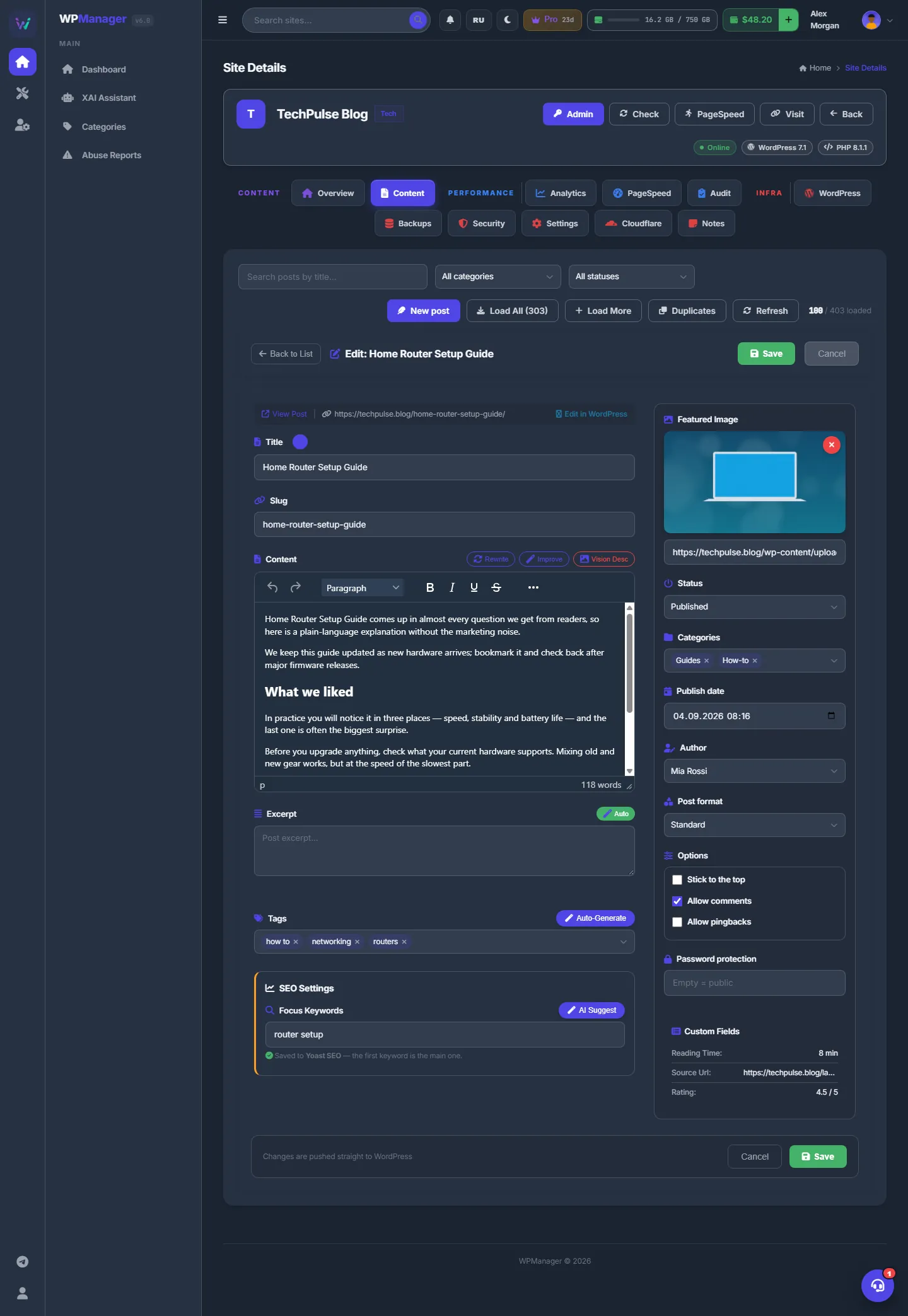
Fig. 1 The post editor: the text fields on the left, the post settings on the right, the AI buttons next to the fields they fill. -
Edit the title, slug and content
- Title — the post title. The magic-wand button next to the label rewrites it with AI.
- Slug — the address part of the post (
post-slug). Changing it changes the post’s URL. - Content — a visual editor with undo and redo, block formats, bold, italic, underline and strikethrough, alignment, lists, link, image, media and a source-code view (
code). Above it are the AI buttons “Rewrite”, “Improve” and “Vision Desc”.
-
Fill the excerpt, tags and focus keywords
- Excerpt — the short summary. “Auto” writes it from the content.
- Tags — type a tag and press Enter, or press “Auto-Generate” for AI suggestions.
- SEO Settings → Focus Keywords — keywords separated by commas. “AI Suggest” opens the keyword assistant. The hint under the field tells you where the keywords are saved — see below.
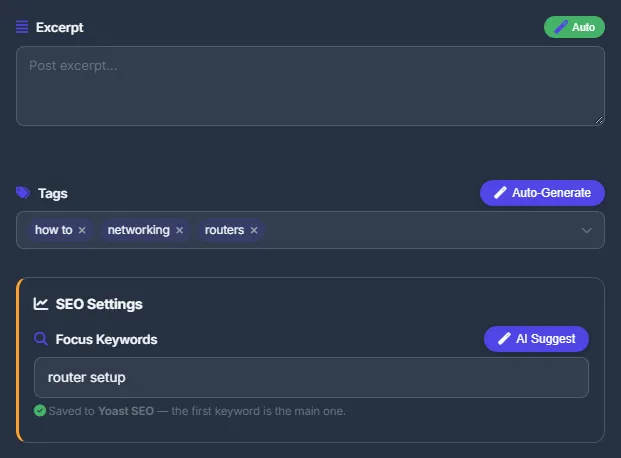
Fig. 2 Tags and focus keywords; the hint under the field names the SEO plugin that stores them. -
Set the post options on the right
The right column holds everything else: the featured image, status, categories, publish date, author, format, options, password and custom fields. Each one is described in the table below.
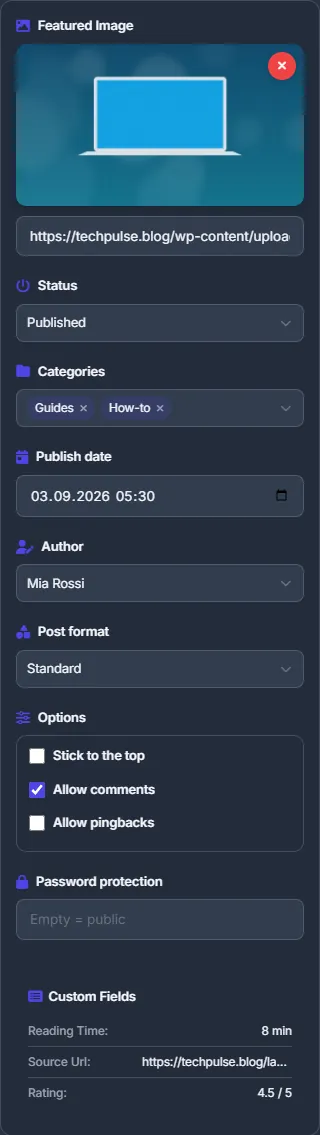
Fig. 3 Post settings: featured image, status, categories, date, author, format, options, password and custom fields. -
Save
Press “Save” in the header or at the bottom. For a new post the bottom button follows the status: “Save draft” for a draft, “Publish post” for Published, “Save” otherwise. The hint next to it reminds you that changes are pushed straight to WordPress (for a new post: that the post is created on the site when you save). After “Post saved successfully!” the editor closes and the list reloads.
Post settings
| Field | What it does |
|---|---|
| Featured Image | Click the placeholder (“Click to select”) and enter the image address in the small window that opens, or paste the address into the “Image URL...” box. The site downloads the picture into its media library. |
| Status | “Published”, “Draft”, “Pending Review” or “Private”. |
| Categories | One or more categories of the site. |
| Publish date | Date and time of the post (dd.MM.yyyy HH:mm). |
| Author | Any user of the site. Empty means “Site default”. |
| Post format | Standard, Aside, Gallery, Link, Image, Quote, Status, Video, Audio or Chat — whichever your theme supports. |
| Options | “Stick to the top”, “Allow comments”, “Allow pingbacks”. |
| Password protection | Empty — the post is public. Any text — visitors must enter this password to read the post. |
| Custom Fields | Shown when the post has custom fields. They are read-only here; click a value to copy it. |
Create a new post
“New post” opens an empty editor with the status set to “Draft”, so the bottom button says “Save draft”. If the post should go live immediately, switch “Status” to “Published” — the button turns into “Publish post”.
Where the focus keywords are stored
The WPManager plugin reports which SEO plugin is active on the site, and the hint under “Focus Keywords” tells you what happens on save:
- “Saved to <plugin> — the first keyword is the main one.” — the keywords go into All in One SEO, Rank Math, Yoast SEO or SEOPress.
- “No SEO plugin is active on this site: the keywords are kept in Rank Math fields.”
- A warning that the active SEO plugin has no focus keywords — on that site the field is not saved.
- “Update the WPManager plugin on this site (8.0)…” — an older plugin cannot write into All in One SEO, Yoast SEO or SEOPress. Update it from the Dashboard (see Updating WordPress, plugins and themes).
The SEO title and the meta description are left to the SEO plugin itself.
Good to know
- The editor works on the post’s raw HTML: shortcodes, iframes and embeds are kept as they are.
- The panel does not keep its own copy of the post. It reads the post from WordPress when you open the editor and writes it back when you save.
- What you empty is emptied on the site too: remove the featured image (×) or clear all tags or categories, save, and the post has none.
Costs
Editing and saving are free. Only the AI buttons inside the editor are charged — see AI tools for posts.
Troubleshooting
| What you see | What to do |
|---|---|
| Saving fails with an error | Read the message. “Give the post a title or some content” means both are empty. Network or HTTP errors mean the site or its /wp-json/ is not reachable. The editor stays open with your changes, so you can try again. |
| The focus keywords are not saved | Look at the hint under the field: the active SEO plugin may have no focus keywords, or the WPManager plugin on the site is older than 8.0 — update it from the Dashboard. |
FAQ
Does the panel keep its own copy of my posts?
No. The editor reads the post from WordPress when you open it and writes it back when you save.
Can I choose an image from the media library?
The featured image is set by its address. Use the address of an image that is already in the library — the site reuses it instead of downloading it again.
Can I edit custom fields here?
No, the editor only shows them; click a value to copy it. Change custom fields in WordPress.